


Text to Video: Turn a Product Photo or Copy into Vertical Product Videos
Learn how to turn one product photo or a short copy into scroll-stopping 9:16 product demos using text-to-video and image-to-video models with GoCrazyAI.
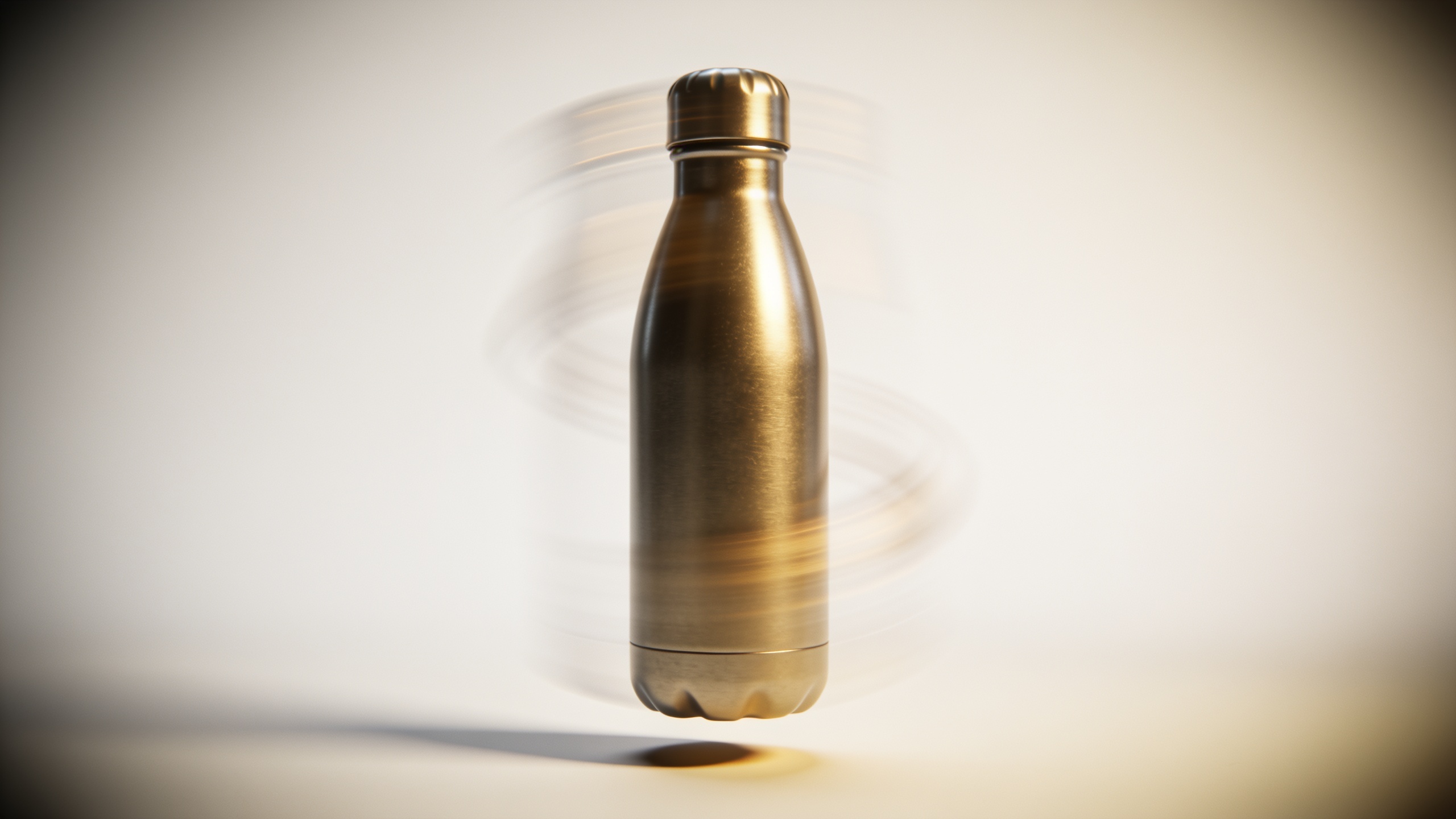
You need vertical product videos fast, but you only have a single photo or a short product description. This guide shows how to convert that single asset or a piece of copy into polished 9:16 product demos for TikTok, Reels, and landing pages. You'll learn when to use text-to-video vs image-to-video, which models work best for cinematic motion, and a 5-minute workflow using GoCrazyAI's AI Video Generator so you can batch variations and export platform-ready formats.
Quick Answer
How do you turn text or a single product photo into a vertical product video? Use a text-to-video model to generate motion, or an image-to-video model to animate your photo, then export a 9:16 clip with captions. On platforms like GoCrazyAI, pick Kling for realism or Veo/Sora for stylistic outputs, feed your copy or image, choose 9:16, and generate multiple variants for testing.
Why do vertical product videos and short-form demos work?
Short answer: vertical short-form video works because viewers prefer quick, snackable clips that highlight a product in motion and context. Survey and platform data show short-form vertical content outperforms long formats for engagement — 61% of respondents say they prefer short-form vertical content over longer formats, and creators increasingly target 9:16 outputs for social distribution (TikTok, Reels, Shorts)[https://www.tvtechnology.com/news/popularity-of-online-short-form-content-moving-beyond-social-media].
Detail: For product pages and social, short vertical clips deliver the product in an immediate, scannable format that matches how people hold phones. On landing pages, a looping 6–12 second product demo can increase time on page and conversion by showing the product in context without forcing users to click play on a long video. Platform analyses (Pictory, Vivideo) show creators scale short clips with AI workflows across marketing and creator use cases, supporting the strategy of building repeatable product demo loops from the same asset.
Practical tip: Aim for 6–15 seconds for TikTok/Reels hooks, and make the first 1–2 seconds show the product clearly. Use captions and one strong visual transformation (motion, spin, reveal) to break the scroll.
Choosing the right AI model & input: when to use text-to-video vs image-to-video?
Short answer: use text-to-video when you have strong copy and want a rapid concept-to-clip flow; use image-to-video when you need to keep a single product photo on-model and animate realistic motion or camera moves. Text-to-video is faster for multiple concept variants; image-to-video preserves brand imagery.
Model selection: Kling 2.5 Turbo Pro is widely cited for higher visual realism and smoother camera motion, which helps when you need a cinematic product reveal or believable 3D-like motion (use Kling for realism-heavy product demos)[https://www.tomsguide.com/features/5-best-ai-video-generators-tested-and-compared]. Veo 3.1 is useful for polished, stylized outputs and can be faster for abstract or lifestyle treatments. Sora 2 often produces clean, broadcast-style framing and is handy for text-driven explainers.
Input guidance:
- Text-to-video: supply a concise visual brief (10–40 words), the desired mood, and shot framing ("9:16 close-up, natural light, gentle rack focus"). This works when you want to generate scenes or quick lifestyle contexts from copy.
- Image-to-video: supply a high-resolution product photo (preferably 2K+), a short motion brief ("360° spin, slow dolly in, subtle shadow shift"), and optional relighting instructions. This keeps your product consistent across variants.
Usage split: industry platform data shows text-to-video makes up the majority of AI video orders (~65.7%), while image-to-video is growing (~32.6%), reflecting that creators often begin from copy but increasingly animate single images.
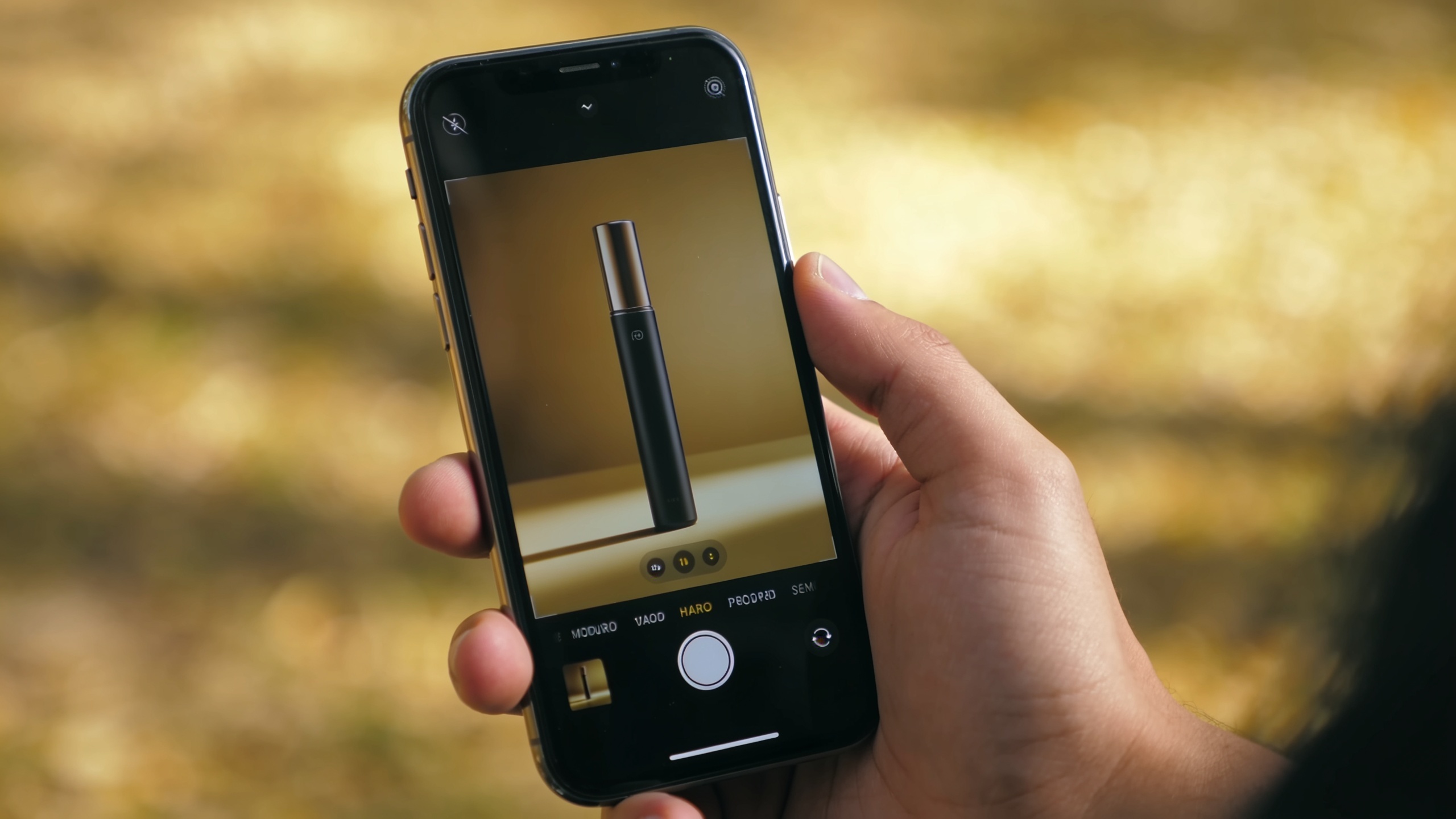
Workflow — From product photo to 9:16 demo in 5 minutes with GoCrazyAI?
Short answer: on GoCrazyAI, you can turn a photo or a piece of copy into a 9:16 product demo in about five minutes by choosing the right model, setting 9:16 output, adding motion and captions, and exporting. The platform routes your job to Kling, Veo, or Sora from one credit pool so you can test multiple engines quickly.
Step-by-step walkthrough (practical): 1) Prepare assets: one high-res product photo (or a 25–40 word product description). Optional: a short benefit-led headline. 2) Open the GoCrazyAI AI Video Generator and choose either "Text to Video" or "Image to Video". Pick Kling 2.5 Turbo Pro for realism, Veo 3.1 for stylized looks, or Sora 2 for clean explainers. Learn more on the AI video generator page: AI video generator. 3) Set aspect ratio to 9:16, duration to 8–12s for hooks, and enter a motion brief like: "slow 360 spin with soft shadow shift, warm studio light, gentle vignette, add product name caption at 0–2s." If you start from copy, paste the short product pitch and add visual cues. 4) Add automatic captions and a short CTA overlay. Choose music from the AI music library or upload your track. (If you need branded images first, generate or touch up visuals with the AI image generator using the "AI image generator" tool for consistent lighting: /ai-image-generator.) 5) Generate variants by toggling Kling/Veo/Sora and changing one variable (caption copy, camera speed, or background). Export 9:16 ready for upload.
Credits and value: GoCrazyAI runs on a single credit pool so you can test models without juggling subscriptions; check GoCrazyAI Pricing for plan options and credits to scale generation: GoCrazyAI Pricing.
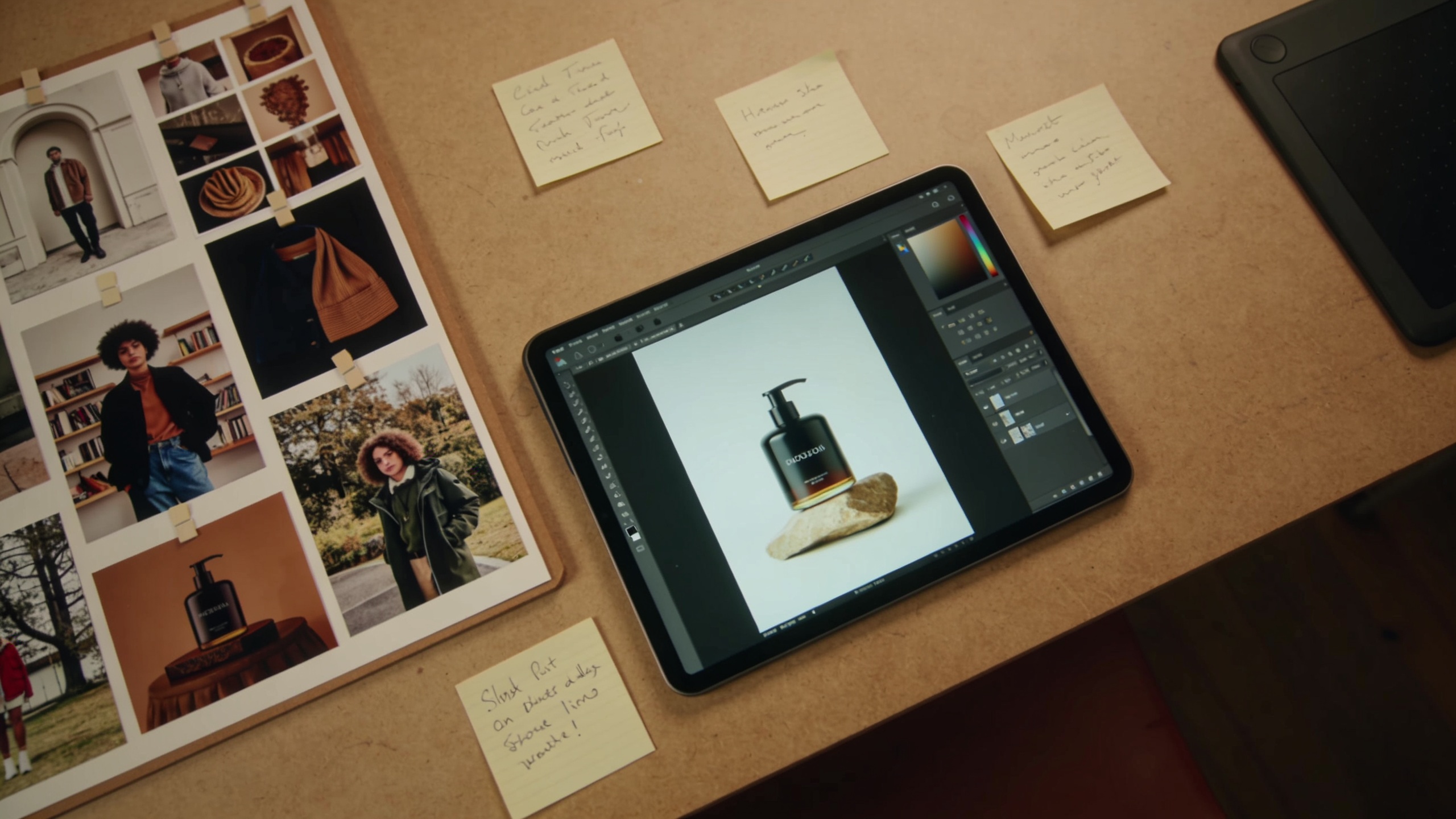
Optimizing copy, motion and captions for scroll-stopping hooks — common mistakes?
Short answer: craft concise hooks, synchronize motion to captions, and A/B test caption timing. Avoid common mistakes like over-long intros, unreadable text, and mismatched camera motion that distracts from the product.
Common mistakes and fixes:
- Mistake: Opening with a slow fade or off-product shot. Fix: Start with the product visible in frame within the first 0–1 second.
- Mistake: Dense captions or tiny fonts. Fix: Use short, punchy captions (3–6 words per line) and a large, high-contrast font with a subtle drop shadow.
- Mistake: Motion that hides key features (too fast spins, heavy parallax). Fix: Use deliberate, readable motion — slow 360° or gentle dolly — and preview at mobile scale.
- Mistake: One untested variant. Fix: Produce 3–6 variants that change one variable (caption text, music, motion speed) and compare CTR, view-through, and conversion lift.
Metrics to track: For social, watch click-through rate (CTR), engagement rate (likes/comments/shares), view-through rate (VTR) for the first 3 seconds, and conversion lift on landing pages. For landing loops, monitor time on page and add-to-cart rate. A/B test variants and keep the best-performing motion+caption combo as the primary asset.

Repurposing one asset into multiple formats: landing page loops, TikTok/Reels hooks, and YouTube Shorts (example batch generation workflow)
Short answer: generate a single master clip and export resized, trimmed, and captioned variants for each platform. Use batch generation to produce 9:16 hooks, 1:1 social posts, and short looping MP4s for landing pages.
Example batch workflow: 1) Single source: pick your best-generated 9:16 clip (8–12s) or generate from your product photo with a motion brief. 2) Create platform variants: export the same timeline as 9:16 for TikTok/Reels, 1:1 for Instagram grid, and a muted 6s loop for landing pages. Keep the core 1–2 second product reveal identical across versions. 3) Caption variants: make one version with on-screen captions and a second with bold CTA text for ad thumbnails. Test which drives better CTR. 4) Automation: use GoCrazyAI to batch-change aspect ratios and generate caption timing variants in one session. Example copy prompts you can reuse:
"Product photo: stainless water bottle on white background. Motion: slow 360° spin, soft shadow, warm studio lighting. Caption: 'Keeps drinks cold 24h' at 0–2s. CTA: 'Shop now' at 6–8s. Format: 9:16, 12s."
"Short copy: 'Ultra-grip phone case — drop-tested, slim fit.' Visual: close-up slide from left, subtle parallax. Captions: 3-line highlight, 8s. Formats: 9:16 and 1:1."
Practical note: batch generation saves time and keeps messaging consistent across placements. For background music, use the AI music generator to create short stems that match pacing: /ai-music. For final polish, drop the generated clips into the AI Video Editor to add voiceover or overlays: /ai-video-edit.
Frequently Asked Questions
Can I make a 9:16 product video from a single photo?
Yes. Use an image-to-video model to animate a high-resolution product photo with camera moves, relighting, and captions. Image-to-video preserves the original product while adding motion; keep the photo high-quality and provide a clear motion brief for best results.
Is text-to-video faster than filming?
Generally, yes. Text-to-video can produce multiple concept variants from copy within minutes, which is faster than scheduling a shoot. For photo-accurate brand imagery, combine text-to-video concepts with an image-to-video master.
Which model should I pick for realistic motion?
Kling 2.5 Turbo Pro is typically the best pick when you need realistic motion and camera direction; Veo 3.1 and Sora 2 are good for stylized or clean explainers. If uncertain, generate quick A/Bs across models to compare results.
How do I test which variant performs best on social?
Run A/B tests with 3–6 variants that change one element at a time (caption, motion speed, music). Measure CTR, view-through rate for the first 3 seconds, and engagement. Use landing page metrics like time-on-page and add-to-cart to test conversion impact.
Conclusion
Final thoughts: Turning a single product photo or short piece of copy into platform-ready vertical demos is practical and fast when you pick the right model and optimize captions and motion. Use short, testable variants and export consistent 9:16 hooks plus landing loops to scale. Ready to ship your first clip? Open the AI Video Generator, drop in your prompt or image, and create your next product demo.
Sources
- Pictory Releases 2026 State of the AI Video-Creation Industry Report (analyzing 1.5M videos)businesswire.com ↗
- The State of AI Video Creation 2026 | Vivideo (platform data on text-to-video vs image-to-video)vivideo.ai ↗
- Popularity of Online Short-Form Content Moving Beyond Social Media (TVTechnology — survey on engagement and vertical video)tvtechnology.com ↗
- I've spent 200 hours testing the best AI video generators — here's my top picks (Tom's Guide — model quality, mentions Kling)tomsguide.com ↗
- OpusClip / Agent Opus blog: AI Video Statistics 2026 (state of AI video creation, short-form focus)opus.pro ↗