


Image to video TikTok: turn one product photo into vertical demo clips fast
How to turn a single product photo into TikTok-ready demo clips using Kling + Veo workflows and GoCrazyAI's AI Video Generator. Fast, cost-aware steps.
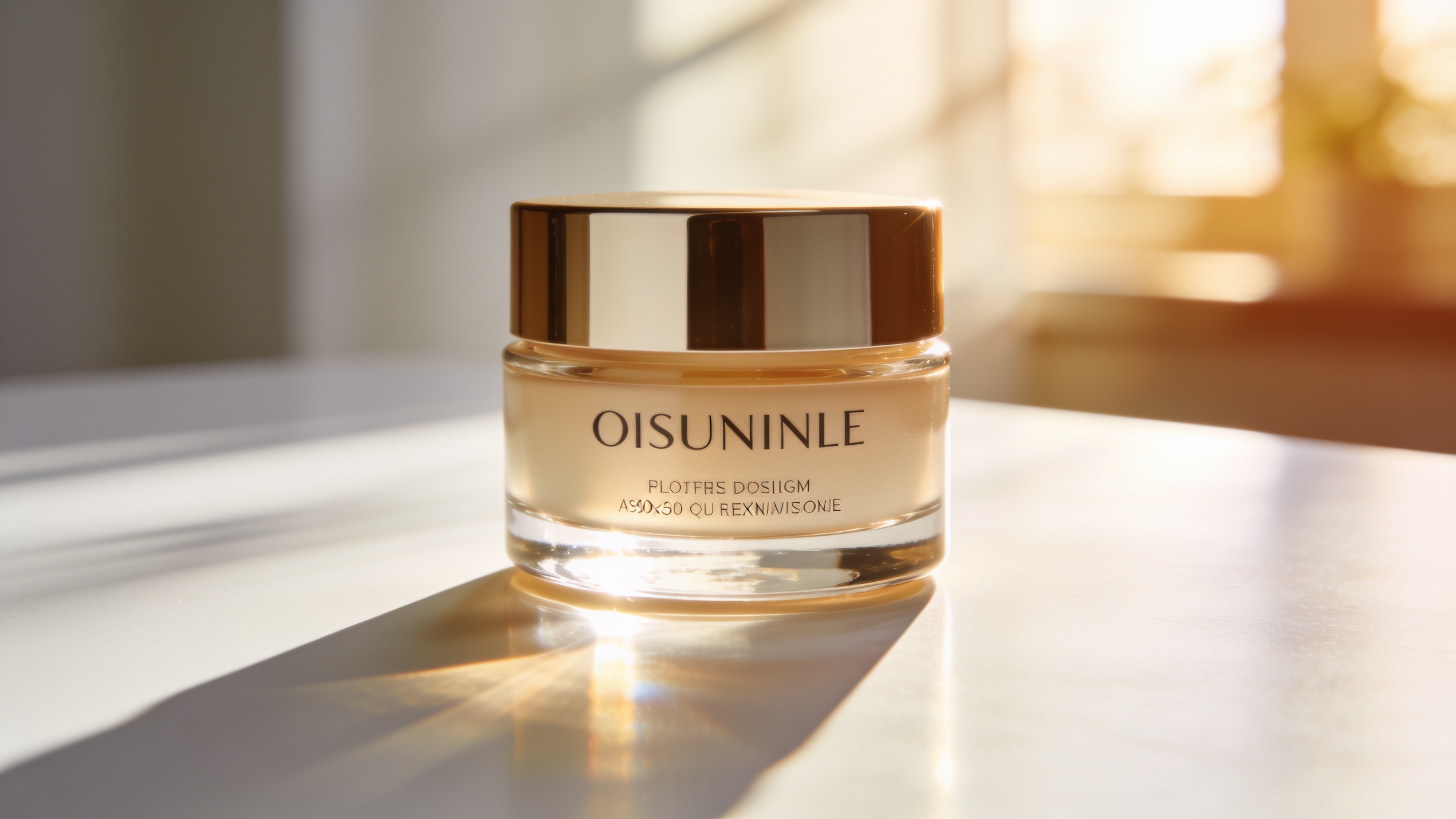
You need vertical product demo clips from a single photo — and you need them fast and cheap. Over the last two weeks several image→video models and docs changed, meaning some backends now produce native vertical outputs, audio-ready clips, and ingredient-driven generation that affect speed and cost. This guide explains what shifted, why it matters for TikTok/Reels ads, and gives a practical Kling + Veo-informed workflow you can run inside GoCrazyAI’s AI Video Generator to ship 9:16 product demos without rebuilding custom API pipelines.
Quick Answer
How do you turn a product photo into an image to video TikTok clip? Use an image-to-video workflow: pick a fast model for motion (Kling 2.5 Turbo Pro) or a higher-fidelity multi-shot model (Veo 3.1), provide a short scene prompt plus the product image, request 9:16 framing and native audio if needed, and output a 9:16 MP4. You can run this end-to-end in GoCrazyAI's AI Video Generator for speed and lower integration cost.
What changed in the last 14 days: Veo, model leaderboards, and Kling pipeline updates you need to know (dates & impacts)?
Short answer: several authoritative updates in the last 14 days changed how creators should pick models for image→video TikTok clips. Google updated the Veo 3.1 model page and docs (model id veo-3.1-generate-001, release date listed as November 17, 2025) within the last 48 hours with new notes on ingredient-driven "Ingredients-to-Video", native vertical outputs (1080p and 4K), and expanded creative controls[1]. Arena.ai refreshed its image-to-video leaderboard five days ago, showing continued churn at the top among Seedance, Kling, Veo, and newer entrants — a reminder that performance and cost rankings can change weekly[2]. Finally, Kling 2.5 Turbo Pro has been highlighted across recent integration posts as the fast, economical choice for short product motion; Kling published a motion-control integration guide last week and signaled retirement plans for legacy endpoints on September 15, 2026[3].
Why it matters now: these updates affect default capabilities you rely on when creating vertical product demos. Veo 3.1 now lists native 9:16 / 1080p outputs and ingredient controls, which simplify generating multi-shot, audio-ready clips without stitching multiple APIs. Kling 2.5 Turbo Pro remains attractive when you want low-cost, rapid iterations for short loops and hook tests. The leaderboard churn means you should re-check model docs and vendor availability before locking into an API-based pipeline — a choice that changes the economics and speed of A/B testing on TikTok.
Why these model shifts matter for product clips and vertical ads (quality, native audio, and cost tradeoffs)?
Short answer: the recent model changes shift the tradeoffs between speed, native audio, output quality, and per-clip cost — all critical for TikTok-style ad testing. In practice, Kling 2.5 Turbo Pro usually gives cheaper, faster renders for short product motion (good for dozens of creative tests), while Veo 3.1 supports ingredient-driven scenes and native vertical exports that reduce post-production time for higher-quality spots.
Details and tradeoffs:
- Speed vs. fidelity: Kling 2.5 Turbo Pro is optimized for quick iteration and lower compute per clip; that makes it ideal when you need many hook variants. Veo 3.1 typically costs more per render but can produce consistent multi-shot outputs and higher-res frames (1080p/4K) that reduce polishing time.
- Native audio: Veo 3.1's recent doc updates emphasize native audio support and ingredient mixing, which can remove a separate audio-generation step. Kling variants are adding native audio in newer releases, but Kling 2.5 is primarily optimized for motion-first renders.
- Cost and predictable credits: raw API runs with newer high-fidelity models can spike cost as you scale tests. Using a productized editor or generator that wraps multiple models (so you pay one credit per render rather than complex API engineering) often lowers operational overhead.
- Distribution fit: native vertical outputs save time for TikTok/Reels because you avoid re-framing and can export subtitles and captions-ready stills directly from the render.
Given these shifts, creators should pick Kling 2.5 for cheap, rapid hook testing and Veo 3.1 when they need native audio and higher-resolution, multi-shot creatives.
Hands-on example: From product photo to 9:16 demo — a step-by-step Kling + Veo-informed prompt strategy (useable in GoCrazyAI)?
Short answer: prepare the product photo (clean background, high resolution), choose Kling 2.5 Turbo Pro for fast motion or Veo 3.1 for audio-plus-multi-shot, and use a short ingredient-style prompt that names shots, motion, and desired mood. Run the job as 9:16 at 1080p and iterate 3–5 variants focused on hook length and framing.
Step-by-step strategy (practical prompts you can paste):
1) Prep image: crop to the product at roughly 60–70% of frame height so there’s room for motion and caption-safe space.
2) Minimal Kling prompt (fast motion loop):
"Product: stainless travel mug on white tabletop. Camera: slow 10-degree left pan in 3s, micro-shake for realism. Motion: liquid pour animation, subtle reflections, warm morning light. Style: clean commercial, 9:16, 3s loop, no text. Output: 1080x1920 MP4."
3) Ingredient-style Veo prompt (higher fidelity, native audio):
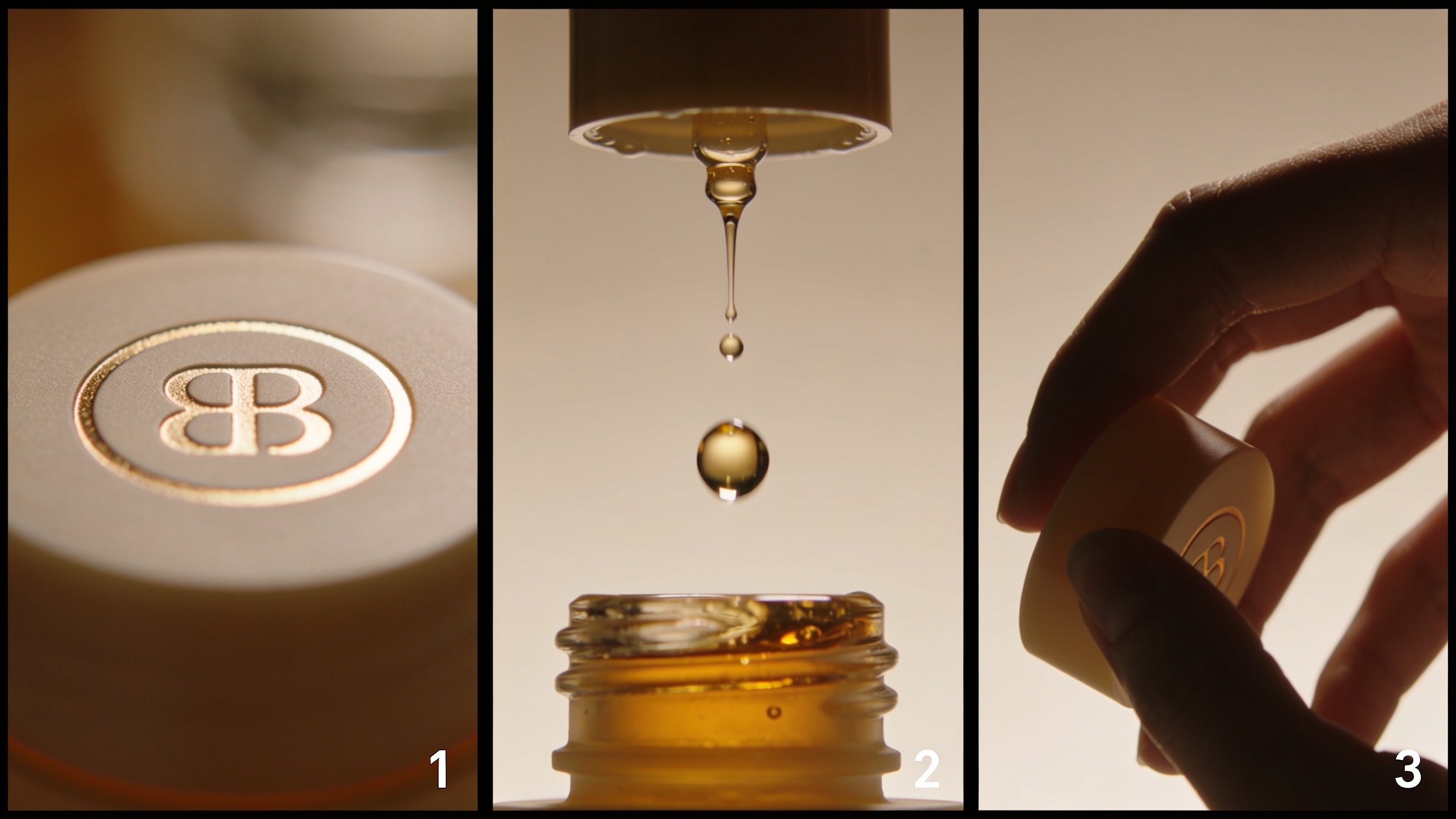
"Ingredients: product image (attached), hero pan, pour sound effect, warm natural light, 3-shot sequence: (1) close tilt on logo 0-1s, (2) reveal with pour 1-2s, (3) product in hand 2-3s. Tone: energetic, aspirational. Output: 9:16 1080p MP4 with native audio mix."
3) Iteration tips: vary motion speed (3s vs 5s), camera angle (tilt vs pan), and audio (ambient vs punchy SFX). Evaluate CTR proxies like first-second motion and product visibility.
If you need to edit the input photo first, use GoCrazyAI’s AI Image Generator to relight or remove background before sending the still to the video generator (/ai-image-studio?tool=image-generator).
You can try every step above directly in GoCrazyAI AI Video Generator — no setup needed.
Hands-on: Turning one still into multiple TikTok hooks — batch variations, aspect-ratio swaps, and caption-ready frames (GoCrazyAI workflow)?
Short answer: batch variations let you generate many hook candidates from one photo by changing motion verbs, shot pacing, and audio cues in the prompt; then export variants as 9:16 for TikTok, 1:1 for Instagram, and 16:9 for YouTube in one pass inside a generator that supports multi-aspect outputs.
Practical batch workflow you can run in a productized editor like GoCrazyAI:
- Create a base prompt and product image reference.
- Define 4 motion variants: "micro-pan", "reveal-tilt", "zoom-in-macro", "hover-rotate".
- For each variant, change one variable: motion length (2–5s), audio (none / ambient / punch SFX), and caption-safe area (top/bottom margin).
- Request exports in three aspect ratios in a single job if your tool allows it, or queue the same prompt with only framing changed.
Example batch prompts (short lines you can duplicate):
"Variant A — micro-pan, 3s loop, no audio, 9:16."
"Variant B — reveal-tilt, 4s, ambient cafe SFX, 9:16."
"Variant C — zoom-in-macro, 2.5s, punch SFX on reveal, 1:1 crop for IG feed."
Caption-ready frames: ask the renderer to leave 120px safe space at top and bottom for captions, and export a still from frame 0.8s for thumbnail use. Exporting multiple aspect ratios and stills in the same job reduces manual re-framing.
Inside GoCrazyAI's AI Video Generator you can queue these variants, get consistent Kling-like motion or Veo-style multi-shot outputs, and then polish audio and overlays in the AI Video Editor (/ai-video-edit).
Safety, watermarking, and mistakes to avoid after Sora / model changes — what creators should check before posting (mistakes to avoid)?
Short answer: after recent Sora and model updates, creators should verify license terms, watermarking policies, and whether the model returned a synthetic likeness or used restricted sources. Also confirm audio rights and that exported files match platform specs before posting.
Common pitfalls and how to avoid them:
- Mistake: assuming model outputs are free of vendor watermarks. Some platforms add watermarks for free tiers. Avoidance: check export preview and the service’s pricing/credits page before scaling; upgrade or render a paid job to remove watermarks (/credits).
- Mistake: posting audio without confirmed usage rights. Avoidance: use native audio provided by the generator only if the service states the audio is royalty-free, or supply your own audio from a licensed source (GoCrazyAI’s AI Music Generator can be used for background tracks /ai-music).
- Mistake: ignoring caption-safe areas for vertical crops. Avoidance: request explicit top/bottom safe margins in the prompt and export a thumbnail still for captioning.
- Mistake: relying on a deprecated API endpoint. Avoidance: track vendor deprecation dates — Kling signaled legacy endpoint retirement on September 15, 2026 — and migrate to supported endpoints or productized platforms that keep backends updated[3].
- Mistake: failing to document model and prompt metadata. Avoidance: save the model id (e.g., "veo-3.1-generate-001" from Google’s docs), prompt text, and export settings with each render to reproduce winners reliably[1].
Measuring ROI: cost-per-clip, iteration speed, and churn rate — compare raw model API costs vs. using GoCrazyAI AI Video Generator?
Short answer: raw API access to models like Veo 3.1 and Kling can offer fine-grained control but often increases engineering time and per-render cost. Using a productized generator typically lowers integration overhead, speeds iteration, and stabilizes per-clip pricing for A/B testing.
How to compare the metrics you care about:
- Cost-per-clip: raw APIs bill by compute/time and can vary by model and region; productized platforms usually translate those costs into per-render credits and predictable tiers. Check GoCrazyAI pricing and credits to map renders to your campaign budget (/credits).
- Iteration speed: building a custom pipeline takes days to weeks and maintenance when leaderboards or endpoints change. A generator that wraps multiple models reduces time-to-first-clip and handles backend changes for you, which matters when leaderboards churn weekly[2].
- Churn rate and vendor risk: when new models or versions appear rapidly, a direct API integration requires active updates. Using a front-end that routes to current model backends means you get new model improvements without re-engineering.
Practical numbers to track in your spreadsheet: renders per day, credits per render, average time-to-render, and percent of renders that reach a publishable CTR threshold. These let you estimate payback periods and decide whether to keep rendering in-house or use an off-the-shelf generator.
Why GoCrazyAI AI Video Generator (Kling 2.5 Turbo Pro, Veo 3.1, Sora-style outputs) is the practical choice for vertical product demos?
Short answer: GoCrazyAI's AI Video Generator lets you route one prompt and a single photo to multiple model backends (Kling 2.5 Turbo Pro, Veo 3.1, and Sora-style outputs) from one credit pool, so you can compare fast, low-cost motion tests against higher-fidelity, audio-ready renders without engineering separate API integrations.
What that looks like in practice:
- One platform, multiple backends: instead of wiring Kling and Veo separately, you select model style inside the generator and the platform handles parameters, framing, and export settings. That reduces integration time and makes it easy to compare cost and view times across models.
- Native vertical outputs: generate 9:16 exports at 1080p directly, which is useful given Veo 3.1's recent native vertical support. This saves re-framing and keeps captions and safe areas consistent.
- Turn a still into motion: attach your product photo, choose a Kling-style rapid motion preset for quick hook tests, or pick Veo 3.1 for ingredient-driven multi-shot outputs. When you need to polish audio or subtitles, route the render to the AI Video Editor (/ai-video-edit) or add custom music from the AI Song Generator (/ai-music).
- Predictable costs and credits: the generator maps model usage into simple render credits so you can forecast spend for campaigns without deep API cost modeling. If you want to compare cost to raw API runs, use the platform’s credits page to estimate renders per campaign (/credits).
Open the GoCrazyAI AI Video Generator to drop in your product photo, pick Kling 2.5 Turbo Pro for a fast hook test, or choose Veo 3.1 for an audio-ready demo — then export 9:16 MP4s for TikTok and Reels.
Frequently Asked Questions
Can I get native 9:16 (vertical) outputs from Veo 3.1?
Yes. Veo 3.1's documentation lists native vertical support and production-resolution outputs (1080p and 4K) as part of its recent updates. Use the model id veo-3.1-generate-001 when referencing its docs[1].
Is Kling 2.5 Turbo Pro still the best choice for cheap product motion clips?
For fast, low-cost short clips and hook tests Kling 2.5 Turbo Pro is commonly recommended; recent community guides call it 'fast, economical' for product motion and early creative tests[4]. For audio-heavy or multi-shot ads you may prefer Veo 3.1.
How do I avoid watermarks and licensing surprises when using image-to-video tools?
Check the platform's export preview and pricing tier — many services remove watermarks only on paid renders. Confirm audio licensing and save model/prompt metadata for reproducibility. If using GoCrazyAI, review the credits page for render tiers (/credits).
Conclusion
Final thoughts: recent Veo and Kling updates change the practical tradeoffs for image to video TikTok clips — Kling 2.5 for cheap, fast motion tests; Veo 3.1 for ingredient-driven, audio-ready, higher-res outputs. For creators who want to iterate quickly without building and maintaining raw API pipelines, a multi-backend generator like the GoCrazyAI AI Video Generator is a pragmatic way to produce publish-ready 9:16 product demos fast.
Sources
- Veo 3.1 | Gemini Enterprise Agent Platform (model page, updated 2 days ago)docs.cloud.google.com ↗
- Veo 3.1 Ingredients to Video (Google blog)blog.google ↗
- Image-to-Video Leaderboard - Best AI Video Models (Arena.ai) — updated 5 days agoarena.ai ↗
- Kling Motion Control API: Integration Guide, Pricing & Code (Modellix) — published last weekmodellix.ai ↗
- Kling AI Launches 2.5 Turbo Video Model (company release / investor filing — historical launch details)ir.kuaishou.com ↗
- Kling 2.5 Turbo Pro model listing (third-party platform page — shows availability and parameters)veed.io ↗
- Kling 2.5 vs 2.6 vs 3.0: What is best for video ads? (Zeely.ai, 2 weeks ago)zeely.ai ↗