


Still image to b-roll: Turn one product photo into cinematic Shorts and landing-page loops
Learn a step-by-step workflow to turn a single product photo into cinematic YouTube Shorts hooks and looping b-roll using GoCrazyAI’s AI Video Generator. Settings, prompts.

You have one great product photo and need short, cinematic b-roll for a Shorts opener, Reels hook, or a landing‑page demo — fast. This guide shows a reproducible workflow that converts a single still image into 3–12 second cinematic clips suitable for social and web. You'll get concrete steps: how to prepare the photo, which motion presets and audio to use, exact prompt examples, and export settings that match TikTok, Reels, and YouTube Shorts.
Quick Answer
How do you turn a still image to b-roll? Use an image-to-video workflow: supply a high-resolution product photo, generate a depth/parallax pass, pick a short camera preset (push, slow dolly, or orbit), add ambient stems and a mix, and export a 9:16 or 16:9 loop. Tools like GoCrazyAI’s AI Video Generator automate depth, camera motion, and model choice so you can ship a clip in minutes.
Why animating a single photo unlocks better Shorts, Reels, and landing‑page demos?
Animating a single photo usually increases perceived production value and holds attention longer than a static image. By adding parallax, subtle camera pushes, and synced ambient audio, a product still becomes a short visual story that performs better as a hook or a looping asset on a landing page.
Most social algorithms reward motion and novelty; HubSpot reports short-form is the top format used by marketers and that 46% use generative AI for short-form video. For a solo creator or marketer, converting a product shot into cinematic b-roll lets you create multiple assets from one photo: a vertical 9:16 hook, a square IG loop, and a 16:9 hero for desktop. That multiplies reach without needing a reshoot.
Practical benefit: instead of spending hours keyframing parallax in a timeline, modern image-to-video models can produce depth passes and camera moves in minutes. This means faster iteration on captions, formats, and A/B tests for landing pages and social ads.
The marketing case: short‑form video performance and the ROI of generated b‑roll?
Short-form video typically delivers the highest engagement for marketers, and generated b-roll speeds up production so you can test more creative variants. Marketers who adopt generative tools can produce more hooks and compare performance across captions, thumbnails, and calls to action.
HubSpot's video marketing research shows short-form remains the dominant format among marketers and that many teams already use generative AI to scale output. The ROI case is straightforward: a single photo animated into three short clips (6s hook, 8s product loop, 15s feature cut) often costs only a fraction of a live shoot, and iteration time drops from hours to minutes. For landing pages, brief looping clips (3–8s) supply motion that keeps eyes on the product and, in many tests, helps lower bounce rate compared with a static hero.
Measure ROI by tracking click-through rate on a start-screen CTA, engagement (avg watch time) on Shorts/Reels, and landing page bounce rate before/after you deploy looping b-roll. Expect the largest wins on platforms that favor short attention spans and visual novelty.
Pick the right visual style and model: cinematic presets, motion types, and audio choices?
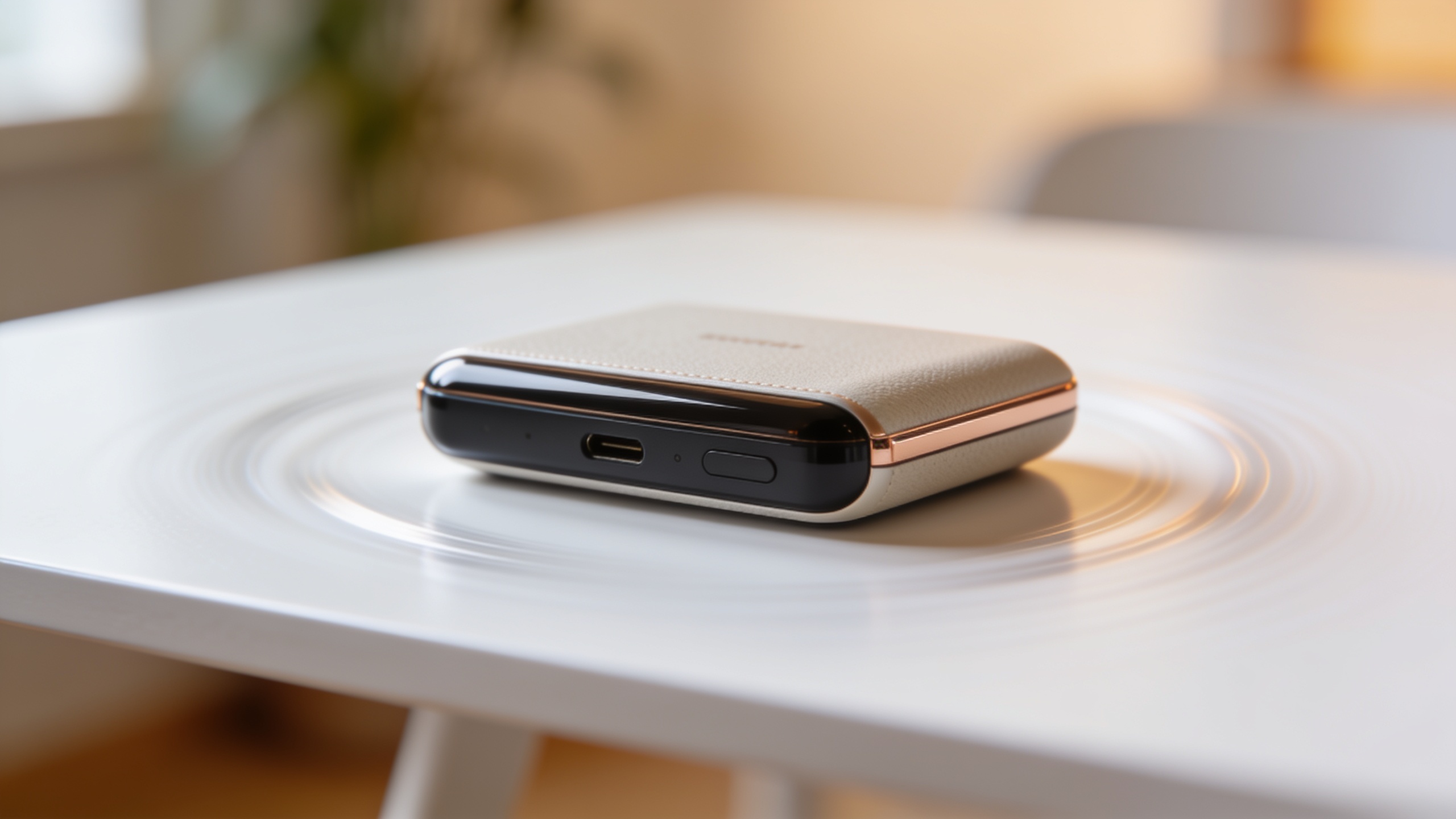
Choose a visual style and model that match the product and platform: for clean product demos, aim for subtle, filmic camera moves; for social hooks, use quicker pushes or slow-orbit reveals. In practice, cinematic presets (slow push, parallax reveal, orbit) work best for product photos because they emphasize form and texture without distracting.
Model selection often affects motion realism and native audio sync. Recent model tiers (Kling 2.5 Turbo Pro, Veo 3.1, and Sora 2) provide different strengths: Kling variants tend to produce sharp detail on small objects, Veo models excel at natural camera motion and lighting continuity, and Sora often yields smoother audio-aware cuts. GoCrazyAI exposes these choices so you can route credits to the model that fits your shot.
Audio choices: pick ambient stems (room tone, subtle foley) plus a short musical bed with a clear drop at the 6–8s mark for hooks. For looping b-roll, prefer texture music without distinct intro phrases so the loop feels seamless. You can create custom stems with an AI music tool or pull short royalty-free loops; shorter clips (3–8s) should be mixed low under product sounds or narration.
Hands‑on: From product photo to 6–12s YouTube Shorts hook (step‑by‑step with GoCrazyAI AI Video Generator)
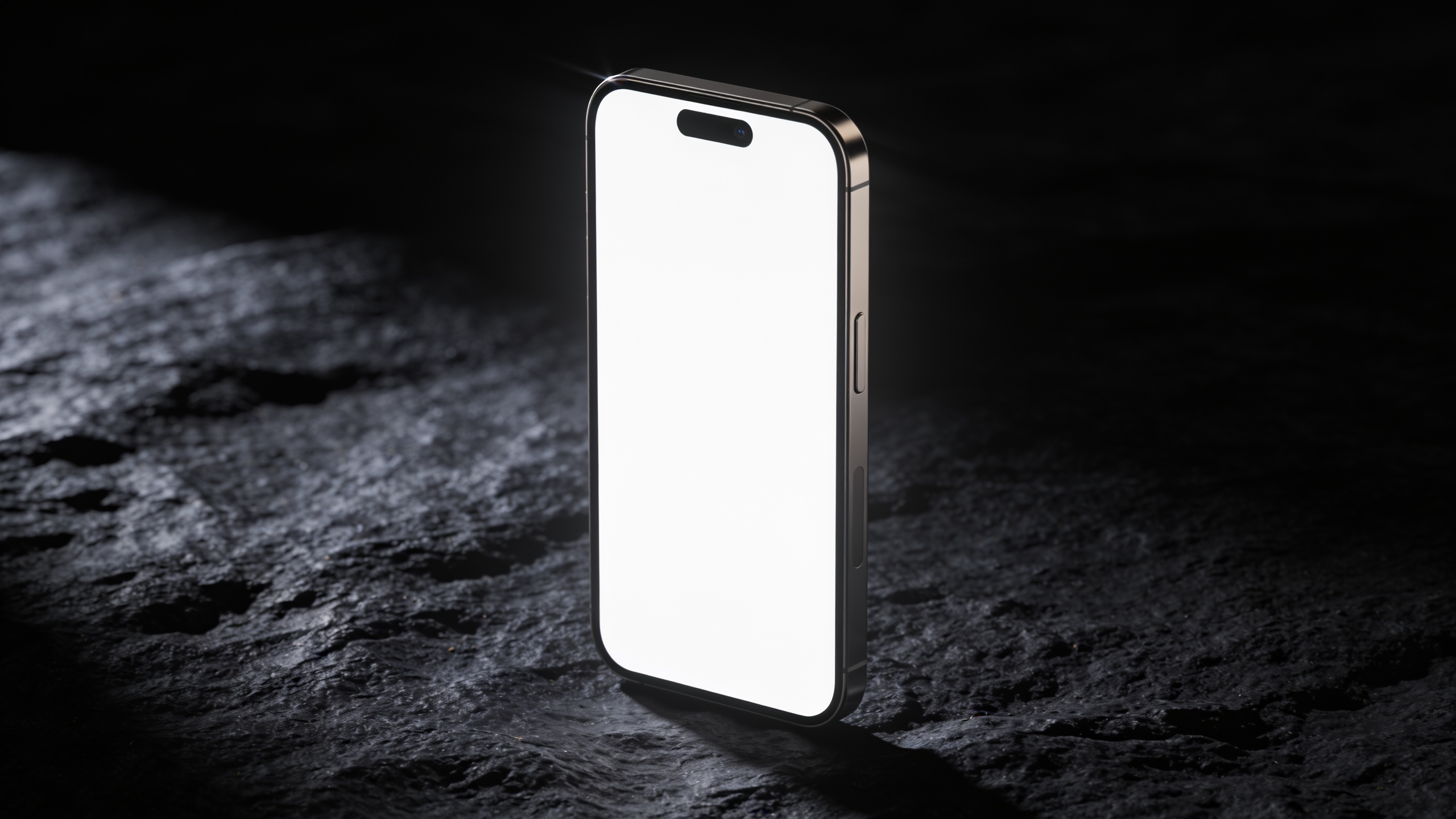
You can turn a product photo into a 6–12s Shorts opener in under 10 minutes if you follow a repeatable sequence: prepare the image, pick a depth and camera preset, add audio, and export the vertical frame. GoCrazyAI’s AI Video Generator automates depth passes and routes to Kling, Veo, or Sora models so you don't have to keyframe.
Step-by-step (summary): 1) Start with a high-res photo (2000+ px on the long edge), clean background or masked product. 2) In the AI Video Generator, select image-to-video and upload the photo. 3) Choose a camera preset: "slow push" for close-ups, "orbit reveal" for 3D feel, or "quick dolly" for attention-grabbing hooks. 4) Set duration to 6–12 seconds and framing to 9:16. 5) Pick a model (start with Kling 2.5 Turbo Pro for detail; switch to Veo 3.1 if you want smoother camera movement). 6) Add ambient audio plus a short music stem (adjust volume so music sits under 20–30% of perceived loudness). 7) Preview, tweak motion amount and parallax strength, then export.
Prompt examples you can copy: "Animate this product photo with a slow 6s push-in, subtle parallax, soft golden-hour relighting, and ambient foley. Keep motion under 8% of frame; 9:16 crop for Shorts. Use Kling 2.5 Turbo Pro." "Create a 10s orbit reveal around the product with a shallow depth pass, gentle vignette, and soft synth bed at -18dB. Output 9:16 for YouTube Shorts. Model: Veo 3.1."
When to use each model: start with Kling for texture-heavy products (jewelry, fabric), choose Veo for smoother camera physics on medium objects, and use Sora when you need better sync between motion and an audio cue. If you need brand-consistent color or lighting tweaks before animation, run the photo through GoCrazyAI's AI Image Generator or Image Relight first and re-upload to the video tool. See the AI Image Generator for visual edits and relighting workflows.
You can try every step above directly in GoCrazyAI AI Video Generator — no setup needed.
Hands‑on: Create animated B‑roll loops for landing pages and tutorial B‑roll (examples + quick edits)?
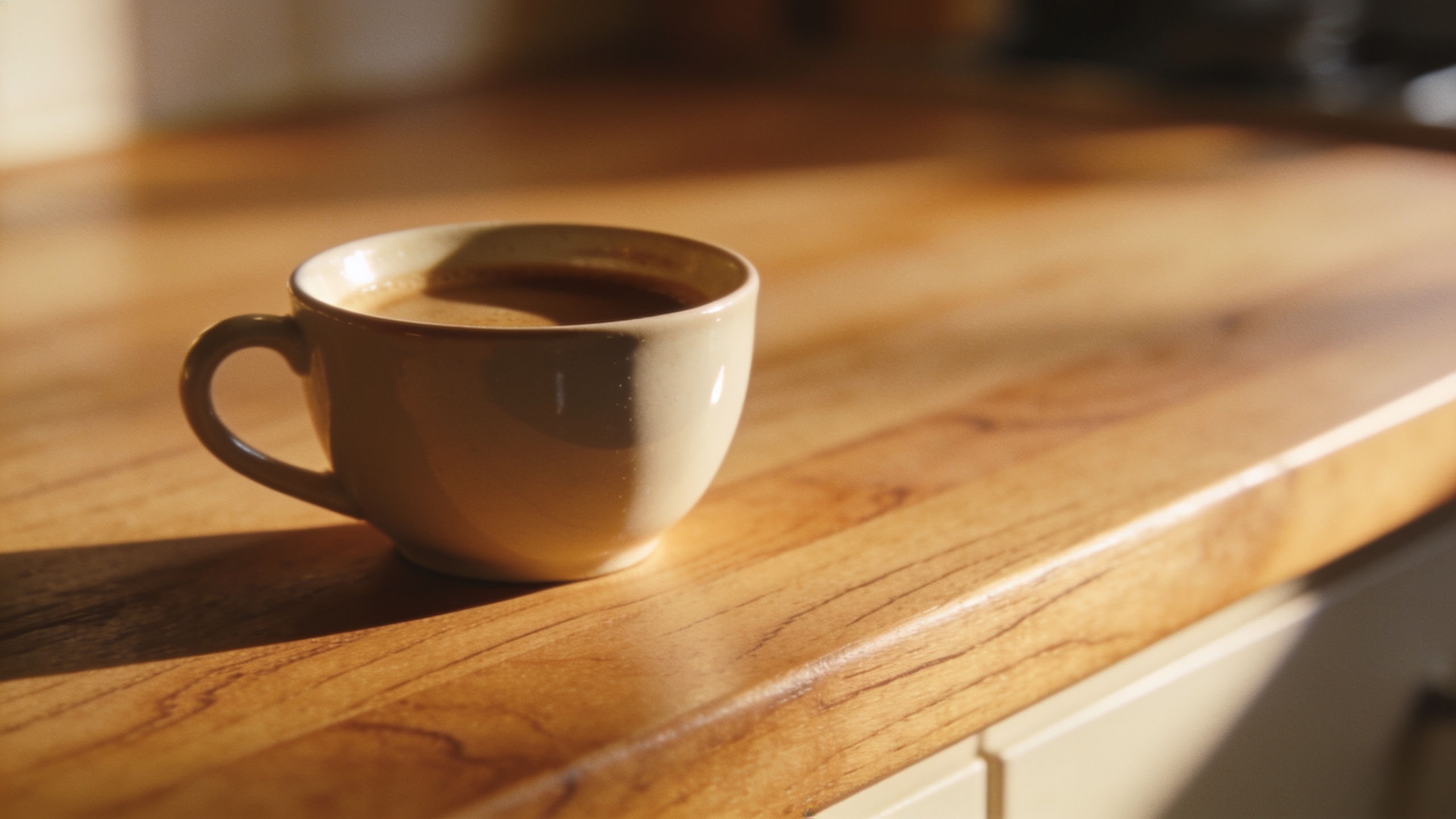
Short, seamlessly looping b-roll is usually 3–8 seconds and focuses on a single motion: a slow pan, a subtle rotate, or a tight parallax. For tutorial B-roll, keep the action repeatable (a finger tapping, a product spin). Loop-aware framing and motion reduce jump cuts when the clip repeats.
Concrete example workflow (copyable): 1) Prepare the image and crop for the target framing (16:9 hero or 1:1 social). 2) Run an image-to-video pass with a "loopable slow orbit" preset, set duration to 4s, and enable loop smoothing. 3) Dial parallax to 6–12% depending on depth; enable edge-stabilize to avoid visible seams. 4) Add a low-volume ambient pad or a texture loop (no strong downbeats).
Example prompts to paste: "Produce a 4s seamless loop of this product photo with a gentle orbit and 8% parallax. No hard beats; soft ambient pad only. Output 16:9 for landing page hero." "Create a 3s 1:1 loop focusing on the product label with a slow left-to-right push and stabilized edges for clean looping. Keep motion subtle."
Quick edits: export a high-frame-rate (60fps) intermediate if you want slow-motion feel, or export directly at 30fps for smaller file size. For landing pages target an H.264 baseline MP4 at constant bitrate tuned for web (2–6 Mbps depending on resolution) and include autoplay with muted sound plus a visible CTA overlay. You can polish audio or add voiceover in GoCrazyAI Media Mixer if narration is needed.
Best practices, export settings, and measurement: how to ship videos that convert (and common mistakes to avoid)?
For conversion-focused clips, use clear focal points, loop-aware motion, and platform-appropriate framing. Export vertical hooks at 9:16, product loops at 16:9 for desktop hero areas, and square or 1:1 for social feed reuse. Typical export settings: H.264 MP4, 1080p at 30fps for social, 60fps optional for slow-motion; bitrate 6–10 Mbps for 1080p if you want high quality.
Measurement: track view-through rate for Shorts/Reels, average watch time, click-through on start-screen CTAs, and landing page bounce rate before/after swap. Small iterative wins often come from changing the first 1–2 seconds of motion and testing different music stems.
Common mistakes and how to avoid them:
- Mistake: Overdoing camera motion. Avoid extreme parallax or fast pans that reveal compositing seams or distract from the product. Keep motion subtle (6–12% parallax) for product shots.
- Mistake: Using music with strong beats for loops. Strong beats make a loop obvious. Use texture pads or stembed loops with no distinct downbeat for 3–8s loops.
- Mistake: Uploading low-res images. Start with the highest resolution available and upscaler if needed; low-res sources produce blur and artifacts once the model adds motion.
- Mistake: Forgetting safe framing for vertical crops. Compose with a vertical 9:16 guide in the editor to avoid cutting product details in the export.
- Mistake: Not A/B testing hooks. Ship at least two motion variants (slow push vs quick reveal) to see which retains viewers longer.
If you need to polish audio, add voice, or subtitles after export, use GoCrazyAI Media Mixer to complete the final assemble and export.
Frequently Asked Questions
What kind of photo works best to convert a still image to b-roll?
High-resolution images (2000+ px long edge) with clear subject separation from background work best. Clean backgrounds or simple masks help the depth pass and reduce compositing artifacts.
How long should a product b-roll loop be for a landing page?
Aim for 3–8 seconds. Short loops avoid file size issues and make the motion feel continuous without repeating a noticeable musical phrase.
Can image-to-video tools change the camera angle dramatically?
Most tools can create convincing parallax and small pushes or orbits, but they usually can't produce large, realistic camera angle changes without artifacts. Keep moves modest for best results.
Do I need to credit the model or tool when I publish the video?
Credit requirements depend on the platform and any assets used. For original product photos animated by a tool, a credit is generally not required, but check the terms of any music or model licensing you're using.
Conclusion
Animating a single product photo into cinematic b-roll is a fast, measurable way to produce Shorts hooks and landing-page loops without expensive reshoots. Use subtle parallax, loop-aware framing, and stembed audio to keep viewers engaged and test variants quickly. When you're ready to try the workflow, open the AI Video Generator and drop in a photo to generate a clip in minutes.
Sources
- The HubSpot Blog’s 2024 Video Marketing Reportblog.hubspot.com ↗
- 45 Video Marketing Statistics for 2025 (HubSpot)blog.hubspot.com ↗
- Sora (text-to-video model) — Wikipedia (Sora history and Sora 2 references)en.wikipedia.org ↗
- Veo (text-to-video model) — Wikipedia (Veo 3 mentions)en.wikipedia.org ↗
- Kling AI — Wikipedia (Kling versions and leaderboards)en.wikipedia.org ↗
- Tom's Guide: Sora 2 vs Veo 3.1 test and review (industry model comparison)tomsguide.com ↗
- Techdazed: Best image to video Tools of 2025 (practical comparisons)techdazed.com ↗
- FocalML: The rise of AI‑powered photo‑to‑video tools in 2025 (use cases + trends)focalml.com ↗