


Veo 4.1 tutorial: ship TikTok hooks from one photo today
A practical Veo 4.1 tutorial for creators: why to use Veo 3.1 now, a step‑by‑step image→video workflow, model A/Bing, and GoCrazyAI export tips.
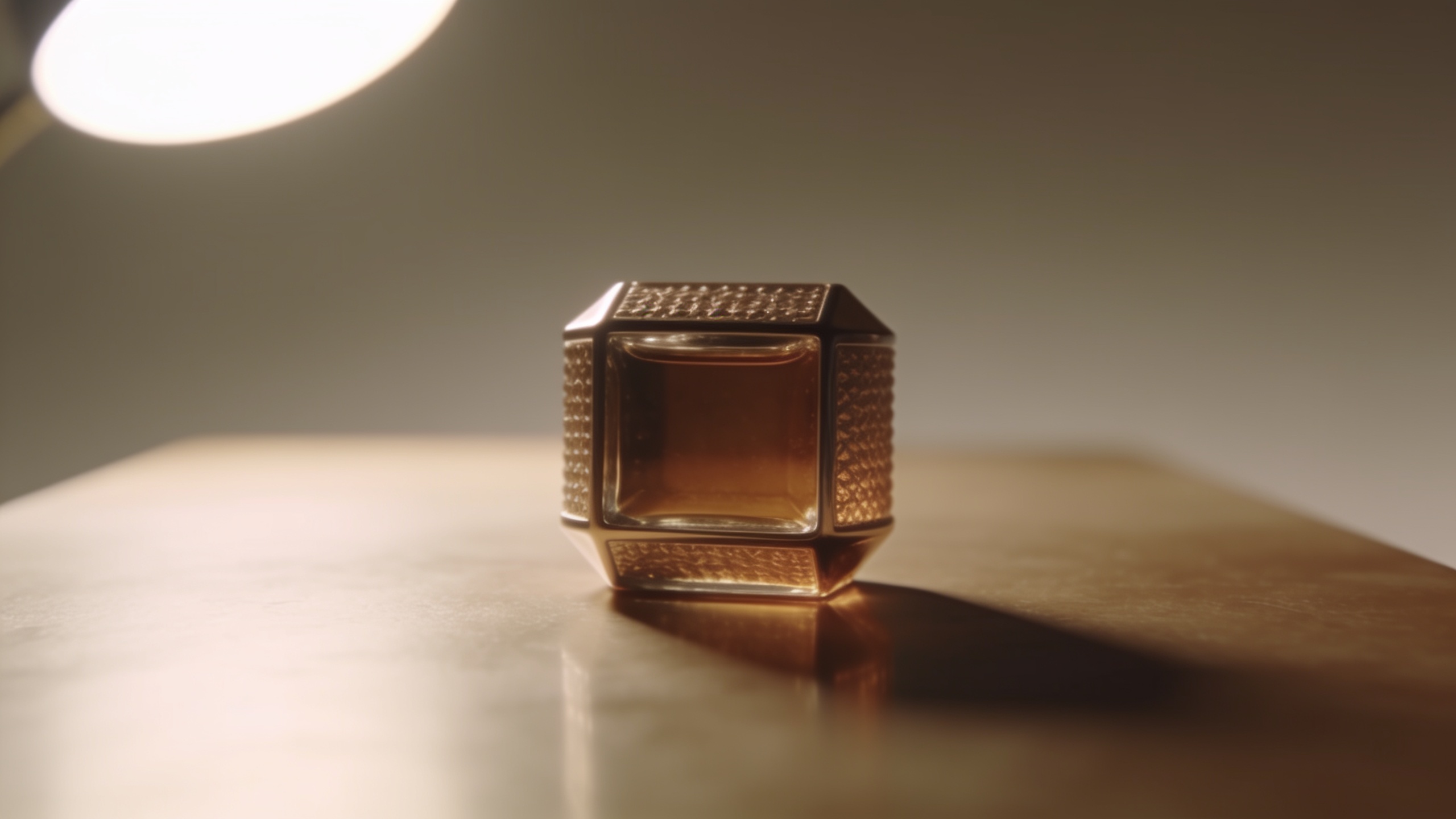
You want to turn one product photo into a 6–12s vertical TikTok or Reels hook right now — not gamble on an uncertain Veo 4.1 release. This article explains what actually changed in the Veo ecosystem this week, why Veo 3.1 is the production-ready image-to-video model today, and how to convert a single still into platform-ready vertical clips with repeatable export settings and prompt examples.
You’ll get: clear tradeoffs between Veo 3.1 and rumored 4.x, a step-by-step image prep guide, ready-to-copy prompts for 6–12s hooks, an A/B workflow using Kling and Sora routes, and an explicit GoCrazyAI walkthrough showing how to route models and export multi-aspect clips today.
Quick Answer
Veo 4.1 tutorial: Don’t wait for Veo 4.1 — use Veo 3.1 today to make image-guided short-form clips. Veo 3.1 is productionized in Google’s Gemini API docs and widely supported; route it alongside Kling 2.5 Turbo Pro or Sora 2 for faster iteration and platform-ready 9:16 exports. Follow the workflow below to convert one photo into a 6–12s TikTok hook.
What’s changed in the Veo ecosystem this week: confirmed releases, rumours, and why creators should care
Veo 3.1 remains the production image-to-video option while Veo 4.x reports are still speculative; creators should plan around what’s available now. Google’s Gemini API documentation shows Veo 3.1 supports image-guided video generation and includes sample code for saving outputs, confirming active production support[1]. Community activity (OpenWebUI integrations, third-party guides) centers on 3.1 rather than a confirmed 4.1 build.
What changed this week is mostly clarity, not a release: public coverage and forum posts circulated new rumors about a Veo 4.x line, but there is no authoritative changelog or public release notes for Veo 4.1 as of late August–September 2026. GoCrazyAI’s analysis updated Aug 25, 2026 cautions creators: "There is no confirmed public Veo 4 release as of late August 2026"[2]. That means short-form producers should focus on workflows that run on Veo 3.1 today, and design A/B routes for Kling and Sora models in case 4.x is released later.
Practical takeaway: treat Veo 4.1 as speculative for scheduling and budgeting. Ship with Veo 3.1 now; re-route to 4.x if and when Google publishes an official API release.
When to pick Veo 3.1 vs. waiting for Veo 4.x — practical tradeoffs for TikTok hooks?
Pick Veo 3.1 for immediate production needs and to meet platform deadlines; wait only if your pipeline requires a specific 4.x feature that Google documents. In most cases Veo 3.1 already supports image-guided video generation, has examples in Gemini API docs, and integrates across tooling and community projects[1]. That makes it the safer choice for shipping ads and creator clips this week.
Tradeoffs, briefly:
- Speed to publish: Veo 3.1. Use it when you need a clip out the same day. GoCrazyAI’s short-form workflows recommend routing Veo 3.1 with Kling and Sora-family models for fast clips[3].
- Feature risk: Veo 4.x might add camera-aware transforms or different motion priors, but those are currently rumors. If your creative depends on hypothetical 4.x transforms, delay the project until Google publishes release notes.
- Quality vs control: Kling 2.5 Turbo Pro and Sora 2 often give different motion styles and compositing behavior. For punchy TikTok hooks, producers frequently combine Veo 3.1 (faithful image motion) with Kling for stylized punch-ins or Sora for frame-accurate motion; quote from GoCrazyAI: “For production-grade short-form ads today, creators commonly use Veo 3.1, Sora 2, or Kling variants depending on needs.”[2]
Recommendation: use Veo 3.1 now for image-to-video, and schedule a re-evaluation if Google posts an official Veo 4.1 release. This minimizes missed deadlines while keeping the option to switch models later.
Prep your assets: how to convert one product photo into a Veo-friendly reference image (step-by-step)
Convert a product photo into a Veo-friendly reference by producing a clean, well-lit, and high-contrast image with a transparent or simple background and 2–3 supporting variants. This works best when the subject is clearly separable from the background and the photo is 2048px or higher on the long edge.
Step-by-step details and rationale:
1) Choose a single hero shot: pick a clear product-facing photo (front/3‑quarter) with minimal clutter. Avoid busy backgrounds that confuse motion priors.
2) Crop for vertical: make a 9:16 crop around the subject so the composition matches TikTok framing. Keep safe margins — don’t place text or logos within 10% of the top/bottom edges.
3) Clean the background: use an image editor or GoCrazyAI Image Generator to produce a clean background or subtle studio gradient. A neutral, low-detail background helps Veo focus motion on the subject.
4) Create two variants: one with tight crop and one with more headroom for vertical motion. Save both as PNG/JPEG at high quality and keep a small mask or alpha if possible.
5) Upscale if needed: if your original is low-res, use an upscaler to reach 2K+; this reduces compression artifacts during image-to-video.
Why this matters: Veo 3.1 and similar models work best when the image clearly defines the subject and framing. Preparing variants lets you test motion intensity without re-shooting the product.
Hands-on: a short-form Veo image→video workflow to produce a 6–12s TikTok hook (prompt examples + export settings)?
A copyable short-form workflow converts one prepared photo into a 6–12s hook with explicit prompt text and export settings. Start with a concise motion intent, add camera/lighting notes, specify duration and framing, and request loopable start/end when needed.
Here’s a tested prompt template and two ready prompts you can paste into an image-to-video field.
Prompt template (replace bracketed items):
"Animate the product from the reference image: subtle 3D parallax and a smooth 0.6s in-ease, 0.6s out-ease. Add a 10% vertical push and quick 0.3s punch zoom at 1.8s. Lighting: soft studio key from top-left, slight rim. Motion style: cinematic ad, crisp detail, realistic surface reflections. Duration: 8s. Output: 9:16, 1080x1920, loop-friendly start/end. Keep background minimal and avoid added text."
Example 1 — product demo hook:
"Animate the reference image: rotate 6 degrees right over 6s, subtle parallax foreground and background, soft shadow drop, 0.4s punch zoom at 3.0s. Lighting: warm golden rim. Style: premium product demo, high detail. Duration: 6s. Export 9:16 1080x1920, 30fps, loopable."
Example 2 — lifestyle punch:
"Animate the reference image: slow upward reveal with slight camera arc and a 0.6s bounce at the end. Add tiny floating particles and a soft vignette. Motion style: upbeat social ad, high contrast, bright colors. Duration: 12s. Export 9:16 1080x1920, 30fps, include alpha if possible."
Export settings (recommended):
- Format: MP4, H.264 or H.265 for smaller files.
- Resolution: 1080x1920 (9:16) for TikTok/Reels. Deliver also 1:1 1080x1080 for cross-posting.
- Frame rate: 30 fps for social; 60 fps if you plan slow-mo crops.
- Bitrate: 8–12 Mbps for H.264 to keep crisp detail.
- Looping: enable 1–2 frame crossfade or request loopable motion in the prompt.
Use short annotated variants: produce 3 renders (Veo 3.1, Kling 2.5 Turbo Pro, Sora 2) with the same prompt to A/B test motion tone and compositing.
A/B at scale: iterate model variants (Veo 3.1, Kling 2.5 Turbo Pro, Sora 2) inside GoCrazyAI to find the highest-engagement variant?
A/Bing models means keeping the creative constant while swapping the model routing and small motion params; this isolates style differences and reveals what your audience prefers. In practice, render the same prompt and reference image through Veo 3.1, Kling 2.5 Turbo Pro, and Sora 2, then compare engagement on real placements.
How to run a simple A/B loop:
1) Baseline: render a 6s clip in Veo 3.1 with neutral motion settings. 2) Variant A: Kling 2.5 Turbo Pro with stronger punch-ins and stylized color grading. 3) Variant B: Sora 2 with frame-accurate camera moves and softer motion. 4) Keep copy, first-frame thumbnail, and audio identical across variants. 5) Publish as consecutive experiments (split audiences or time-bound runs) and compare CTR, view-through, and watch time.
Why these three models? Veo 3.1 is production image-to-video with faithful subject motion; Kling tends to emphasize stylized, cinematic punch; Sora offers tight camera control and compositing. GoCrazyAI’s short-form routing recommendations fold these models into one workflow so you can render variants quickly and without juggling subscriptions[3].
Metrics to track: first 1–3s retention, click-through (if used as an ad), watch time, and saves/shares. In most cases, the highest-performing variant differs by audience: product-focused viewers often respond better to faithful Veo renders, while lifestyle audiences prefer Kling’s punchy styling.
You can try every step above directly in GoCrazyAI AI Video Generator — no setup needed.
Optimization checklist: captions, vertical framing, pacing, and sound design for TikTok/Reels (metrics to test)?
Optimize three areas for short-form success: visual framing, pacing, and audio. Test each change with A/B experiments and measure lift in 3–10s retention and CTA clicks. Small tweaks to caption placement and sound frequently move the needle.
Checklist with metrics to test:
- Vertical framing: ensure the subject sits within the central 60% of the 9:16 frame. Metric: first 3s retention.
- Title/caption placement: avoid covering the hero product; test top vs bottom caption placement. Metric: watch time and swipe-away rate.
- Pacing: test 6s vs 12s durations and micro-edits (punch zoom at 1.8s). Metric: average view duration.
- Audio: use a concise branded hook (0–2s) and sync a musical hit to the punch zoom. Metric: sound-on view rate and engagement.
- Loopability: test looped vs linear edits; some creatives perform better when the loop restarts seamlessly. Metric: completes per viewer.
- Thumbnail / cover: publish identical first-frame for honest A/B tests or test a static thumbnail vs auto-preview. Metric: CTR to profile or product link.
Sound design tips: pick a 6–12s instrumental that crescendos at the punch; instruments with mid/high energy (synth leads, percussive hits) work well. GoCrazyAI’s AI Song Generator can create platform-appropriate loops if you need custom stems (/ai-music). For narration or branding voiceovers, use the AI Voices tool (/ai-voice) and add in the Media Mixer (/ai-video-edit).
Run controlled tests and hold creative constant except for the variable you’re testing. That way you can confidently attribute lift to a single change.
Ship faster with GoCrazyAI AI Video Generator — a walkthrough from upload to multi-aspect export (showing Veo routing and conversion to landing-page demo loops)
Use GoCrazyAI AI Video Generator to route renders between Veo 3.1, Kling 2.5 Turbo Pro, and Sora 2 from one interface and export 9:16, 1:1, and 16:9 outputs in one job. The platform generates short-form clips from a still image or prompt and can output multiple aspect ratios without re-entering the prompt.
Quick walkthrough:
1) Upload your prepared reference image and choose the "image-to-video" flow in the AI Video Generator (/create-ai-video). 2) Paste one of the prompts from the workflow above and set Duration (6–12s) and Framing (9:16 primary). Choose additional outputs: 1:1 and 16:9. 3) Select routing: pick Veo 3.1 for the baseline, add Kling 2.5 Turbo Pro and Sora 2 as additional routes in the same job to produce parallel variants. 4) Optional: attach an audio track from AI Song Generator (/ai-music) or add a voiceover from AI Voices (/ai-voice). Use the Media Mixer (/ai-video-edit) to align music, trim fades, and add captions. 5) Render and download: GoCrazyAI saves renditions and provides direct MP4 downloads plus loopable GIF/MP4 variants for landing-page demo loops or hero banners.
Why this is faster: you render multiple model variants and multiple aspect ratios in one queue, avoiding manual re-runs and accelerating iteration. If you need to manage credits or costs, check pricing and credits on the GoCrazyAI Pricing page (/credits) before large-scale A/B runs.
This workflow maps the news (Veo 3.1 is productionized; Veo 4.1 is unconfirmed) to an actionable path: use Veo 3.1 for immediate renders and leverage Kling or Sora routes in GoCrazyAI to test styles quickly[[1]][3].
Frequently Asked Questions
Is Veo 4.1 available for creators right now?
No. As of late August–September 2026 there is no confirmed public Veo 4.1 release; community coverage treats 'Veo 4' as speculative. Production workflows should use Veo 3.1 for image-to-video until Google publishes formal release notes[1][2].
Can I get a loopable TikTok hook from one photo?
Yes. Prep a high-quality reference image, use concise motion prompts (see examples above), request loop-friendly start/end, and export 9:16 1080x1920. Rendering Veo 3.1 with a 6–12s duration usually produces loopable hooks.
How do I test which model variant performs best?
Render the same prompt and reference through Veo 3.1, Kling 2.5 Turbo Pro, and Sora 2. Publish constrained A/B runs or split-audience tests with identical captions and audio. Track first 3s retention, watch time, and CTR to determine the winner.
Conclusion
Final thoughts: don’t pause production for an unconfirmed Veo 4.1. Veo 3.1 is documented and integrated in Gemini API today, so creators can produce high-quality 6–12s hooks now and A/B Kling/Sora variants for style. Use the GoCrazyAI AI Video Generator to route models, render multi-aspect outputs, and ship clips faster—open the AI Video Generator to try a render from your photo in minutes.
Sources
- Sora 4 TikTok workflow: replace short shoots with Sora-family routes via GoCrazyAIgocrazyai.com ↗
- Veo 4 text to video — Reality check and short-form workflows | GoCrazyAIgocrazyai.com ↗
- Generate videos with Veo 3.1 in Gemini API | Google AI for Developersai.google.dev ↗
- Image-to-Video AI Workflow Guide 2026: From Still to Scene | Veo 4 (guide on image prep)veo4.dev ↗
- Veo Image to Video: Cara Mengubah Gambar Menjadi Video | TurboAI (recent tutorial)turboai.id ↗
- [Community tool] Veo 3.1 video generation inside OpenWebUI — image-to-video, editing, and native inline players (Reddit)reddit.com ↗