


Veo 4 text to video: What creators should know and how to ship vertical TikToks today
A creator-focused reality check on Veo 4 text to video. Practical image-to-video and text-to-video workflows to ship 9:16 TikToks now with GoCrazyAI's AI Video Generator.
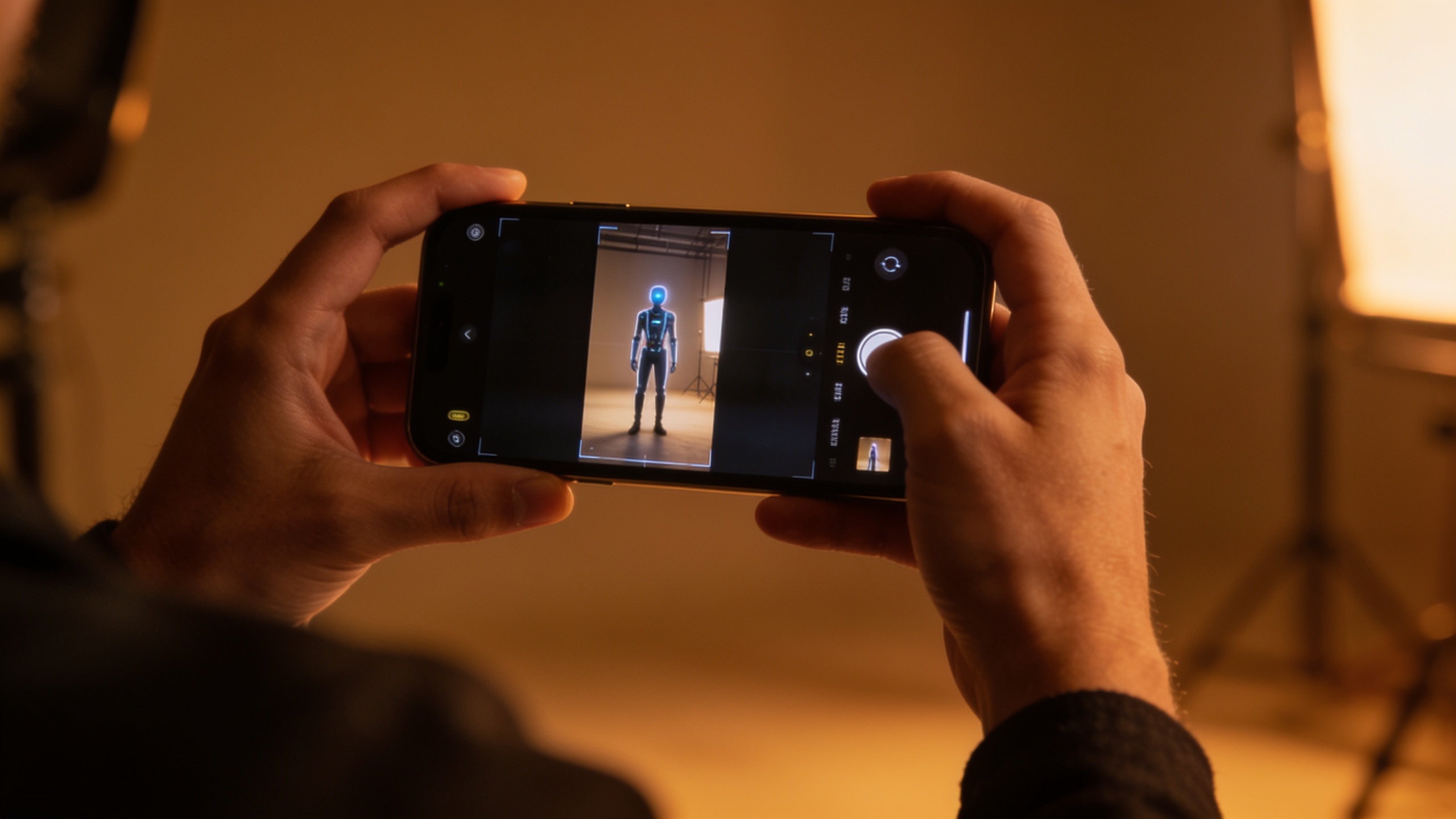
You want to use “Veo 4” for short-form TikToks, but it’s unclear what exists and what’s rumor. This article separates announced features from speculation and gives repeatable, production-ready workflows that actually work with available models — including how to make a 9:16 hook from a single product photo and how to go from a short script to a 15s vertical using GoCrazyAI.
Read this to: (1) understand the current Veo model landscape and timelines, (2) pick the right model for your task today, and (3) follow step-by-step image-to-video and text-to-video workflows you can run now on the GoCrazyAI AI Video Generator. All timelines are date-stamped to show recency.
Quick Answer
What does "Veo 4 text to video" mean? There is no confirmed public Veo 4 release as of late August 2026; most coverage mixes speculation and wishlists with some prototype notes. For shipping TikTok/Reels now, use production-grade models available today (Veo 3.1, Sora 2, Kling) and tools like the GoCrazyAI AI Video Generator to create 9:16 clips from images or short scripts quickly.
What does the recent Veo 4 buzz actually mean — what's announced, what's speculative (and the timeline)?
Short answer (40–80 words): As of this week there is no single-vendor, confirmed Veo 4 public release; most coverage mixes prototype notes, community speculation, and wishlists rather than a formal launch. Several industry trackers list Veo 3.1 as the latest official Veo model, and multiple changelogs and listings updated in the last 14 days discuss Veo 4 as a topic of interest rather than a shipped product (date-stamped below).
Details and timeline: Multiple sources updated within the last two weeks show ongoing discussion about Veo 4 but no official vendor release page for a fully public Veo 4 as of August 23, 2026. The TokenMix reality-check summarizes this situation and recommends treating Veo 4 coverage as speculative until a vendor publishes release notes or a model page [TokenMix]. Seele TV provides a verification-focused guide emphasizing the difference between announced features and reported expectations [Seele TV]. A few community listings and developer boards (DevHunt, iveo4.org) have prototype notes within days, which keep interest high but do not equal a formal release [DevHunt].
Why the timeline matters: because creators and teams must pick tools they can rely on for cost, export format, and production SLA. Model ecosystems are moving fast — changelogs show Kling and Sora updates last week — so verify the vendor page before building a pipeline around a not-yet-released model [ReGraph].
Why creators should choose the right model for the job: Veo 3.1, Sora 2, Kling, and where Veo 4 would fit?
Short answer (40–80 words): Choose models by the job: Veo 3.1 and Sora 2 are used today for production hooks and ads where predictable output and native audio matter; Kling variants are being iterated rapidly for creative effects and speed. A hypothetical Veo 4 is often described as adding 4K upscaling, spatial audio, and multi-reference consistency, but those are expectations rather than confirmed features.
How to match model to task: If you need consistent, low-latency 9:16 social clips and budget predictability, use models with stable per-second pricing and known export options (Veo 3.1, Sora 2). If you need experimental stylization or fast creative iterations, Kling variants are useful — their changelog shows recent text/image-to-video variants added last week, illustrating active development and frequent updates [ReGraph].
Where Veo 4 would fit if released: reported claims include native 4K upscaling, spatial audio generation, and vertical optimizations. If those ship, Veo 4 would be attractive for creators wanting higher fidelity native renders and richer audio, but until a vendor publishes an official spec you should treat these as potential future upgrades rather than a reason to delay production now [TMCNet; TokenMix].
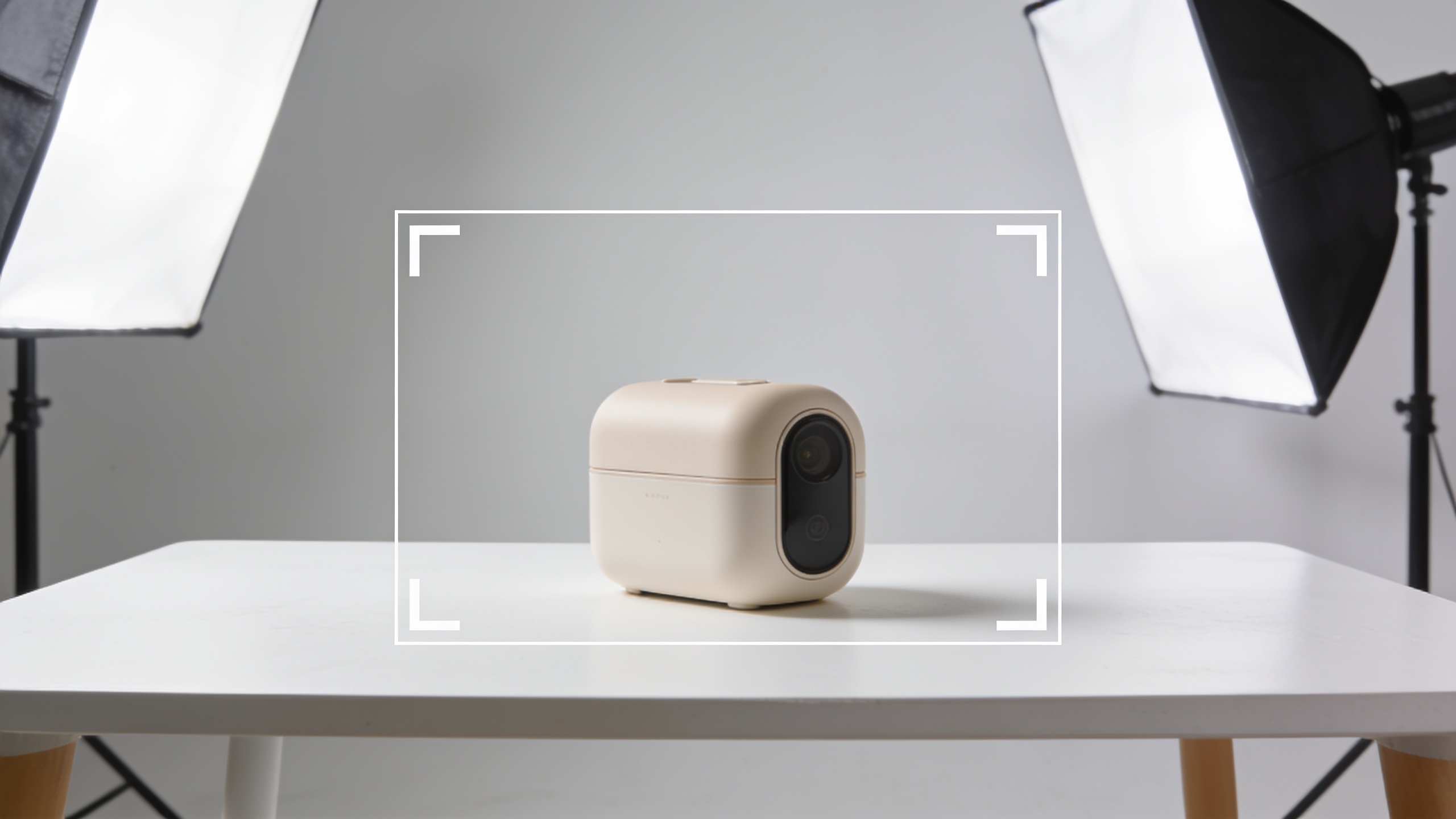
How do you turn a single product photo into a 9:16 TikTok hook using GoCrazyAI AI Video Generator (image-to-video workflow)?
Short answer (40–80 words): Use a single product photo as the reference image, pick a vertical 9:16 preset, choose an animation style and camera move, add a short caption or motion overlay, and export as a 15s TikTok-ready clip. GoCrazyAI automates model selection (Kling, Veo 3.1, Sora 2) and gives framing presets so you don't tweak aspect or codecs manually.
Detailed step-by-step: Start with a high-resolution product photo (clean background, subject centered). In the GoCrazyAI AI Video Generator choose the Image-to-Video option and upload the photo. Select the "9:16 — TikTok/Reels" output preset and pick an animation style (subtle parallax, reveal, or product spin). Adjust the camera motion slider: small amounts of depth work best for product close-ups; aggressive camera moves can make the subject read poorly in small phone screens.
Writing a short motion prompt (examples you can copy):
"Close-up of matte black wireless earbuds on a white table; slow upward reveal, soft cinematic lighting, subtle depth parallax, 4:3 crop adapted to 9:16; 15s, punchy first-frame title 'Meet PocketBass'"
"Product spin: 360-degree smooth rotate over 12s, glossy studio rim light, shallow depth of field, punchy drop beat on six-second loop"
Tips for hooks: front-load the strongest visual in the first 1–2 seconds. Add a bold, short caption as an overlay — readable at thumb size. Export with baked audio or bring your own soundtrack from the GoCrazyAI AI Song Generator if you need a custom loop [AI Song Generator].
Image-to-video steps (summary):
- Upload a high-res product photo.
- Choose 9:16 preset and animation style.
- Add a short motion prompt and voice/music if needed.
- Preview at 100% mobile size and export.
You can try every step above directly in GoCrazyAI AI Video Generator — no setup needed.
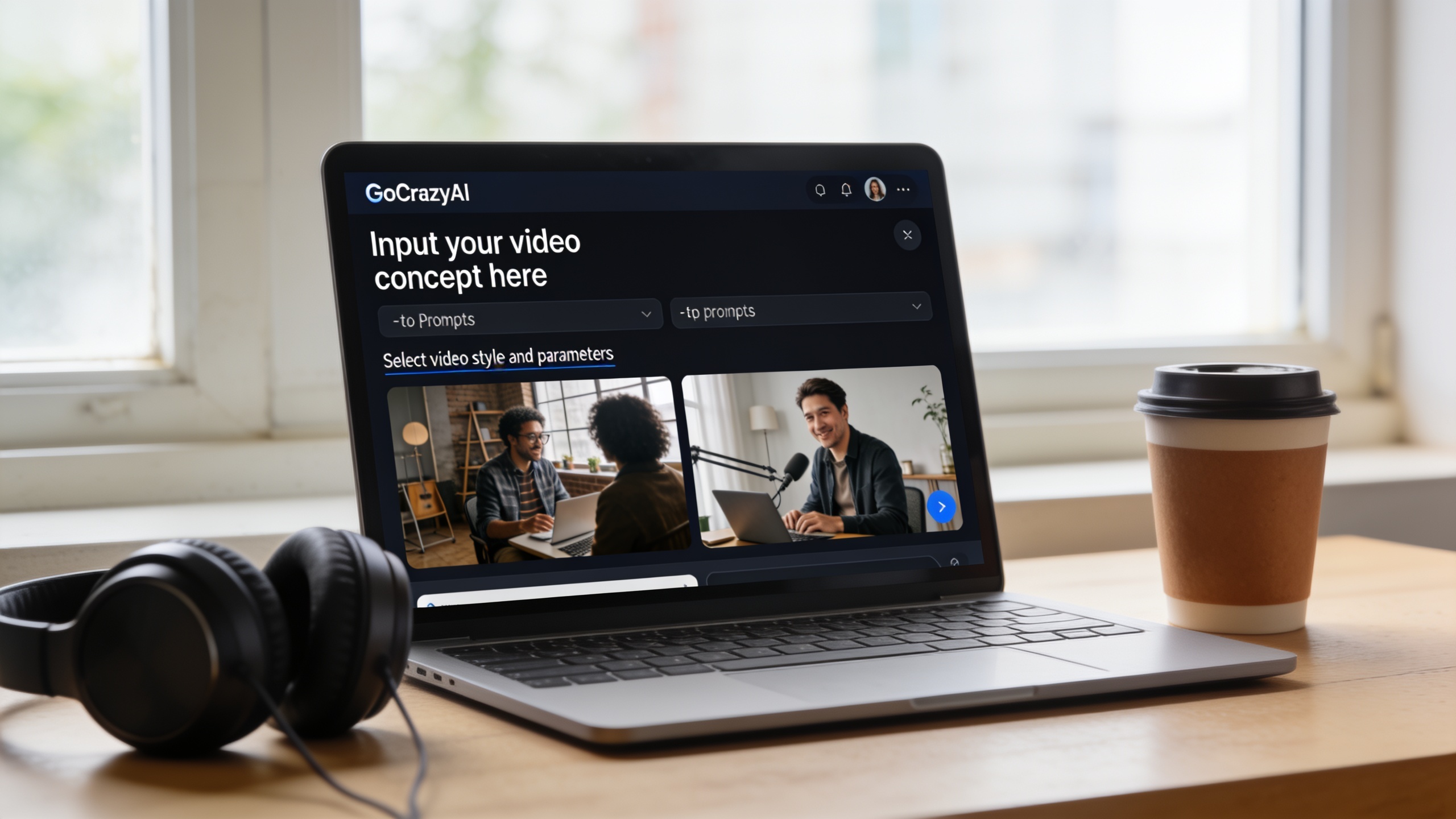
How do you go from a short script to a 15s vertical — text-to-video workflow with GoCrazyAI (prompt templates, pacing, and voices)?
Short answer (40–80 words): Convert a short hook script into timed scene prompts, assign voice(s) and music, then render a 15s vertical using GoCrazyAI's text-to-video flow. Use compact prompts per shot (3–6 seconds each), pick an AI voice for narration, and export with a TikTok-ready audio mix.
Prompt templates and pacing: Break 15 seconds into 3–5 beats. For example, a 3-beat structure: 0–4s hook, 4–10s product demo, 10–15s CTA. Use short descriptive prompts per beat: keep object and camera verbs up front, then lighting and mood. Example templates you can paste into a text-to-video field:
"[0–4s] Close-up on the product packaging; abrupt zoom-in; bold white title: 'Stop wasting time.'; cinematic tungsten rim light; 120bpm beat"
"[4–10s] Quick demo: hand picks up product, demonstrates one quick feature; 70% tight crop, smooth lateral pan; natural room reverb; soft voiceover: 'Works in seconds'"
"[10–15s] End frame: product centered, CTA on lower third; punchy drop, final frame hold 1.5s"
Using voices and audio: Choose an AI voice for narration from GoCrazyAI's AI Voices library; adjust prosody and speed to match pacing. For short-form, a single clear voice with a punchy beat works best. You can also use the AI Song Generator to create a music loop and import it directly, or pick a built-in music bed in the AI Video Generator.
Example voice prompt for narration (copy):
"Neutral female voice, confident, 110 wpm: 'Cut your setup time in half.'"
Export and review: Render a low-res quick draft first to check lip-sync and pacing. Iterate using small prompt edits (word swaps, camera verbs, or tighter timing) until the hook lands. For voice polishing, export stems and mix in the Media Mixer (/ai-video-edit) if you need fine control over levels.
Mixing models and assets: combining GoCrazyAI renders with Veo/Kling outputs, audio sync, and export presets for Reels/TikTok?
Short answer (40–80 words): You can combine renders from different models by standardizing frame rate, duration, and aspect ratio, then syncing audio stems. Export consistent 9:16 master clips from each tool, import into a single edit timeline, and apply final audio mixing, subtitles, and overlays before export.
Practical notes: Different model outputs may default to different codecs, frame rates, or color profiles. Always export a short reference clip (5–10s) at your target settings—9:16, 30fps or 60fps—as a compatibility check. If you render a component in an external platform or a rumored Veo 4 prototype, re-render to match your GoCrazyAI settings or transcode to the same frame rate.
Audio sync tips: Export narration and music as separate stems where possible. Use a slate (short click or visual flash) at the start of each render to align clips in the editor. GoCrazyAI's Media Mixer (/ai-video-edit) can import voice stems and music, letting you balance levels, add subtitles, and export unified files for TikTok or Reels.
Cost and export presets: Newer models and tiers are changing per-second pricing rapidly; favor tools with predictable export formats and preset options for vertical social. GoCrazyAI provides multiformat presets and predictable credit pricing so you can estimate cost per 15s clip; for billing details check GoCrazyAI Pricing (/credits). Recent platform changelogs show Kling and other variants are updated frequently, which is why choosing a predictable platform helps maintain a steady pipeline [ReGraph].
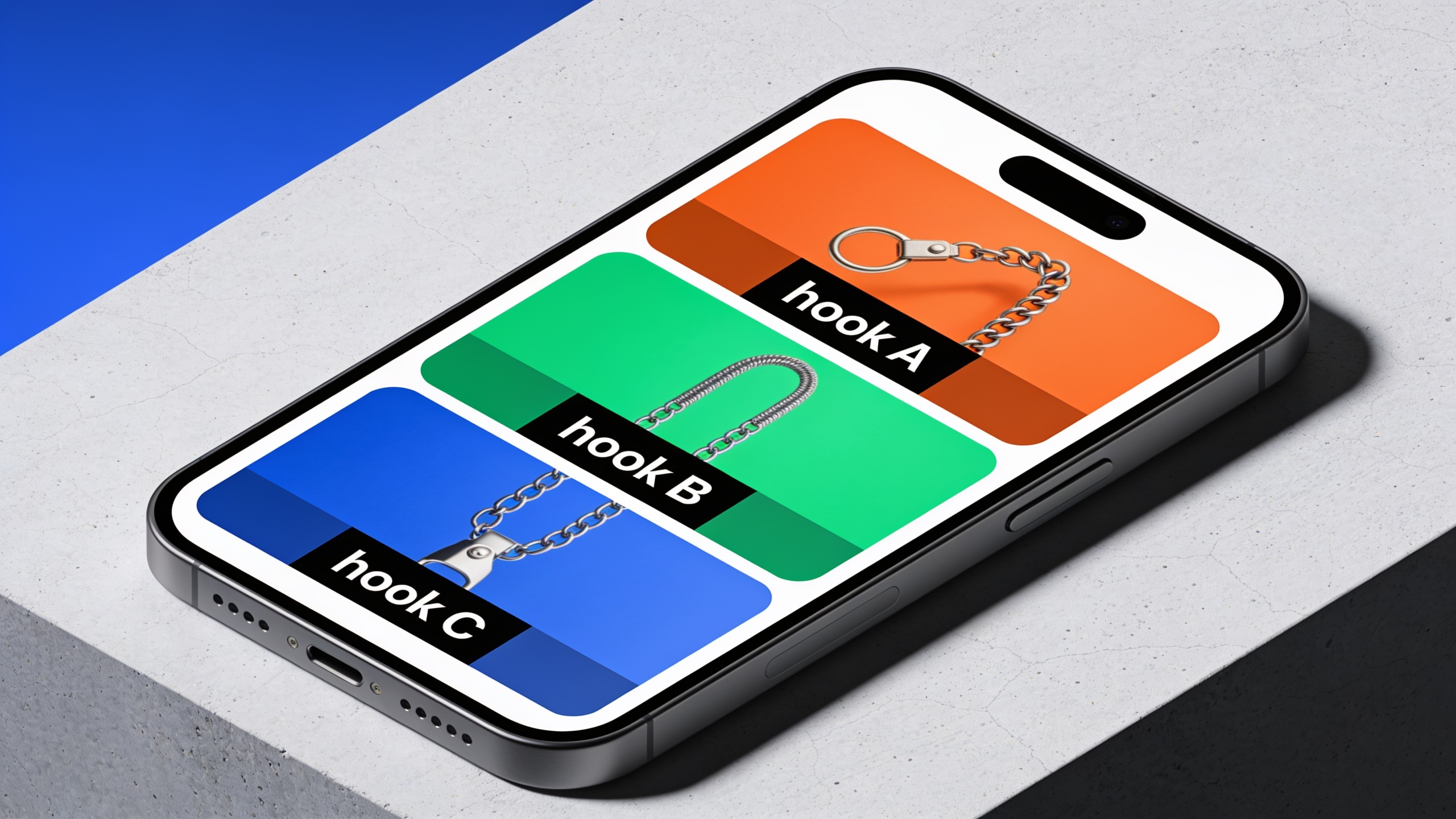
Scale and test: A/B testing loops, repurposing one video into multiple formats, and the publishing checklist creators should run before hitting upload?
Short answer (40–80 words): To scale: generate 3–6 variants per idea (different hooks, colors, or voice tones), A/B test the best-performing pairs, and repurpose the winner into multiple aspect ratios and caption variants. Run a short checklist for quality control before publishing.
A/B testing and repurposing workflow: Create small variant batches — e.g., same visual but different first-frame text, or same script with two voice tones. Use short ID numbers in filenames to track variants in analytics. When a winner emerges, re-render at 9:16, 1:1, and 16:9 using the same master assets to preserve composition and pacing. GoCrazyAI's multiformat export simplifies this step.
Publishing checklist (quick):
- Check first-frame legibility at thumb size.
- Confirm 9:16 export settings (frame rate, codec, bit rate).
- Verify audio loudness and that narration is clear at mobile volumes.
- Burn or attach subtitles for accessibility.
- Ensure no restricted or impersonation-like likenesses are used.
Post-publish testing: Run one paid boost per winner with two caption variations and measure average watch-through and click rates across 48–72 hours. Iterate visuals or voice based on direct performance metrics.
Where to get voice and music assets: Use GoCrazyAI AI Voices (/ai-voice) for narration and the AI Song Generator for music beds to keep rights and stems consistent across variants.
Frequently Asked Questions
Is Veo 4 available for creators right now?
No — as of late August 2026 there is no confirmed public Veo 4 release. Multiple trackers list Veo 3.1 as the latest official Veo model and treat Veo 4 coverage as speculative unless a vendor publishes a release page [TokenMix; Seele TV].
Which model should I use for a fast TikTok ad?
For production-grade short-form ads today, creators commonly use Veo 3.1, Sora 2, or Kling variants depending on needs: predictable output and audio favor Veo 3.1 and Sora 2; creative stylization and speed favor Kling [Versely; ReGraph].
Can I mix renders from Veo/Kling with GoCrazyAI outputs?
Yes. Standardize frame rate and aspect ratio, export stems for audio, and align clips in a single timeline. Use GoCrazyAI's Media Mixer (/ai-video-edit) to combine and finalize audio, subtitles, and export presets.
How much does it cost to render short videos?
Pricing varies by model and per-second rates; newer models and newer tiers are changing pricing frequently. For predictable cost estimates and plan details, check GoCrazyAI Pricing (/credits).
Will Veo 4 add native vertical optimization and spatial audio?
Recent coverage lists those as expected features but not confirmed specs. Treat such claims as potential future capabilities until a vendor publishes formal release notes or a model page [TMCNet; TokenMix].
Conclusion
Final thoughts: Treat Veo 4 news as interesting but speculative — as of this week Veo 3.1, Sora 2, and Kling variants are the production options creators use. If you need to ship vertical social clips quickly, use a predictable pipeline that supports image-to-video, text-to-video, multiformat exports, and baked audio. Open the AI Video Generator to drop in an image or short script and ship a 9:16 clip in your next break.
Sources
- Veo 4: Verification-First Model Guide — Seele TV (editorial verification)seele.tv ↗
- Changelog — ReGraph Platform Updates & Release Notes (Kling and model additions)regraph.tech ↗
- Veo 4 - Text-to-video prototyping for creators & devs — DevHunt listing (notes Veo 4 timing)devhunt.org ↗
- Veo 4 in 2026: It's Not Released, So What Are You Buying? — TokenMix blog (reality-check on Veo 4 vs Veo 3.1)tokenmix.ai ↗
- How Google Veo 4 Is Changing AI Video for Creators — TMCNet analysis of claimed capabilitiestmcnet.com ↗
- What's New in AI Video Models: 2026 Mid-Year Roundup (Sora 2, VEO 3.1, Kling 3) — Versely (model comparisons)versely.studio ↗
- 動画生成AI比較2026|Sora終了後の乗り換え先と商用利用〖7月最新〗 — Mihata (notes Veo 3.1 is current official model)mihata.jp ↗