


Single photo lipsync: Turn one picture into a viral short-form video
Learn how to make a viral lipsync or pet-dance clip from a single photo using one-click CrazyFX effects. Workflows, prompts, voice tips, and legal traps.
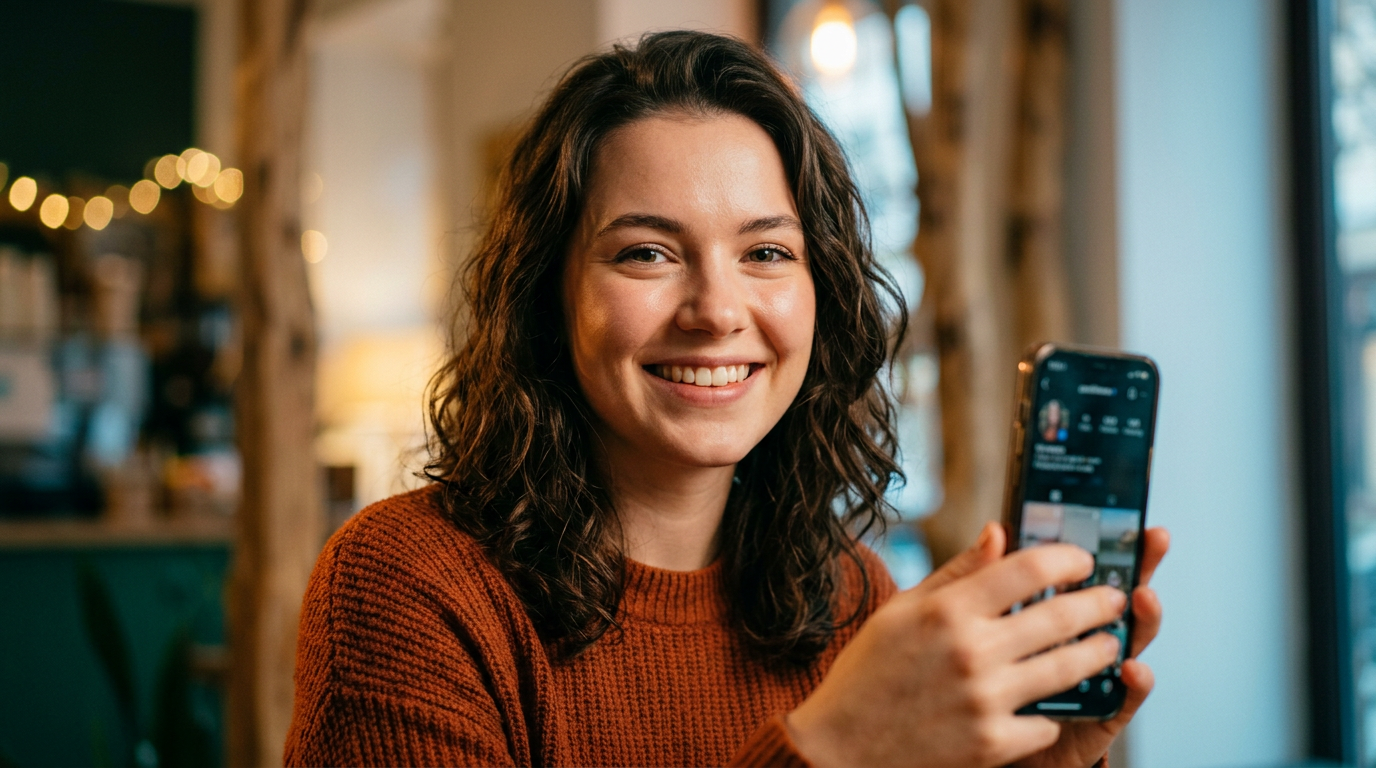
You want a viral short that uses only one photo and a line of audio — no multi-shot shoot, no complex editing. This guide shows how to turn a single selfie or pet photo into a 15–30s lipsync, dance, or news-anchor clip quickly and legally. I’ll explain how single-photo lipsync works, which photos give the best results, two copy‑and‑paste workflows using GoCrazyAI CrazyFX, the best prompts and audio choices, and how to measure and reuse the clips across platforms. Expect practical examples you can run in minutes and clear pitfalls to avoid so you don’t waste credits or break platform rules.
Quick Answer
How do you create a single photo lipsync? Use an effects tool that maps mouth and head motion from a single high-quality portrait and bakes audio into a vertical MP4. Upload a frontal, well-lit photo, choose a lipsync or dance preset, add an uploaded audio file or TTS, and render a 15–30s 9:16 clip ready for TikTok/Reels.
Why single-photo AI video (lipsync & dance) is a must for short-form creators
Single-photo AI video matters because it converts a single asset into many shareable clips quickly. Most platforms reward quick, frequent posting; short-form video formats (15–30s) often get the highest engagement and completion rates. HubSpot’s 2024 report found 46% of marketers use generative AI most for short-form video, which makes single-photo workflows valuable for creators and small teams.
One-photo workflows remove the bottleneck of new shoots. Instead of scheduling a session or hiring talent, you can produce a dance trend, a song lipsync, or a quick product ad from a selfie or product image. For marketers this means turning one hero shot into multiple ad variants; for creators it means testing trends fast. The tradeoff is that single-image avatars usually keep the original camera angle and can’t drastically change body proportions or background without separate tools — but for vertical short clips that limitation is often acceptable because the audience focuses on motion and audio.
Practical use cases: a 15–21s dance clip for a trending TikTok sound, a product demo voiced by an AI news-anchor preset, or a pet dance video for an Instagram Reel. These formats usually hit the sweet spot for completion and rewatch rates on short-form platforms (ScheduleWave reports optimal short lengths around 15–21s).
How AI lipsync from a photo works — tech, limits, and best image inputs?
AI lipsync from a single photo uses a model pipeline that detects facial landmarks, synthesizes intermediate frames, and retimes mouth and head motion to match audio. In practice, the system estimates 3D pose and blends learned motion priors so a neutral portrait can show talking, smiling, or head turns synchronized to speech or song. Commercial examples include Replicate’s p-video-avatar and ByteDance’s Omni Human, which demonstrate single-image talking-head generation with surprisingly coherent lip motion.
Limits: these models usually cannot change camera viewpoint radically or create complex body motion beyond preset dances. They also perform worse on low-resolution, profile, or heavily occluded faces. For best results provide:
- A frontal face (eyes & nose visible)
- Neutral to slight expression (not extreme smiles)
- Good, even lighting and minimal motion blur
- High resolution (3000+ px is ideal but 800–1200 px often works)
Audio workflows: most pipelines support two main flows — upload audio (recorded voice or licensed song) or generate audio via TTS in multiple languages and voices. Both work, but using licensed audio or original TTS voices avoids copyright claims on platform uploads. Finally, expect artifacts on extreme phonemes or rapid head turns; for better lip accuracy, keep clips short (15–30s) and avoid heavy camera-angle changes in the source image.
Workflow 1 — Example: Create a viral lipsync clip from one selfie (step-by-step with CrazyFX)?
Short answer: pick a clean selfie, choose a CrazyFX lipsync or dance preset, upload or generate the audio, and render a 9:16 clip. This gives you a platform-ready vertical MP4 in minutes.
Detailed step-by-step (copy these exact choices): 1) Photo prep: choose a frontal selfie at good resolution (600–2000 px wide). If the image is dark, run relighting or a slight exposure fix first. 2) On CrazyFX (/crazyfx) pick the "Lipsync" preset and select 9:16 vertical output. 3) Audio: either upload a short recorded line (15–21s) or generate a TTS line via an AI voice. For song lipsyncs, use a licensed clip under 15s or create an original instrumental with an AI music tool. 4) Timing: set beat or tempo if using a dance preset; for pure lipsync, align the spoken line in the audio editor. 5) Render and preview. If lips look off, try a slightly different expression photo or increase resolution using an image upscaler.
Example prompts/audio snippets you can use (safe, non-copyright): "Hey everyone — drop a comment if you want the recipe!" (spoken line) "Make it upbeat with a soft pop backing track, 100–110 BPM." (music direction)
Note: CrazyFX uses tuned presets so you don’t need deep prompt-engineering; presets map motion patterns and mouth shapes automatically. If you want to refine visuals first, use the AI Image Generator to create a cleaner headshot or the Image Upscaler to boost resolution (/ai-image-generator) (/image-upscaler).
Workflow 2 — Make a pet dance or avatar video from a single photo (step-by-step with GoCrazyAI CrazyFX)
Short answer: pick a clear pet portrait, choose the pet-dance preset in CrazyFX, pair with a playful instrumental or voice, and render a vertical clip. Pet dances work best when the subject is centered, the fur/face is unobstructed, and the photo has even lighting.
Detailed steps to copy: 1) Select the pet photo: frontal or three-quarter face, no heavy occlusion from toys or shadows. If the head is tilted, straighten the image first. 2) Open GoCrazyAI CrazyFX (/crazyfx) and choose the "Pet Dance" or avatar dance preset. Presets are tuned to translate head and ear movements into rhythmic dance motion. 3) Audio: pick a short, upbeat instrumental (use GoCrazyAI AI Music Generator to create a license‑free loop) or upload a friendly voice line. 4) Adjust motion intensity: presets usually offer low/medium/high. Medium is safest for pets to avoid uncanny motion. 5) Render a 15–21s 9:16 clip and preview.
Tip: If the pet photo is low-res, use the Image Upscaler to improve crispness before generating. For custom narration or character voices, pair CrazyFX output with voices from GoCrazyAI AI Voices (/ai-voice) to maintain consistent branding. CrazyFX’s tuned presets mean you won’t need complex prompts — the effect applies motion patterns automatically and queues with the rest of your GoCrazyAI projects.
Pairing AI voices with animated photos: tips for naturalness and copyright-safe audio?
Short answer: use a voice with clear phoneme rendering, match speaking rate to the lipsync model, and prefer original or licensed audio to avoid copyright issues. Rate, pitch, and pauses affect lip synchronization and perceived naturalness.
Practical tips:
- Choose voices with strong consonant clarity for better lip alignment. Test 2–3 candidate voices and render short previews.
- Match speaking rate: 140–170 words per minute is a comfortable range for short clips. For song lipsyncs, use a vocal-instrumental split or isolate the vocal clip.
- Use brief phrases (5–20s) per clip. Longer monologues increase drift and artifacts.
- Copyright & policy: avoid uploading full commercial songs or copyrighted audio unless you hold the license. Prefer original AI-generated music or short, cleared clips. GoCrazyAI’s AI Music Generator (/ai-music) can create license-free backing tracks, and GoCrazyAI AI Voices (/ai-voice) offers many TTS voices for original narration.
- Sync checks: after rendering, play the clip at 1x and 0.75x speed to spot alignment errors. Small mouth-timing artifacts often appear at fast consonant clusters; slight time stretching of the audio (±50–150ms) can help.
For creators chasing pattern-based trends, simpler is better: short lines, clean voice, and an obvious lip movement that matches the audio rhythm.
What are common pitfalls when measuring success and repurposing CrazyFX outputs?
Short answer: common mistakes include ignoring platform length best practices, reusing copyrighted audio, and expecting identical engagement across platforms. Measure completion and watch rates, then repurpose with small edits rather than re-uploading the same clip everywhere.
Specific pitfalls and how to avoid them:
- Pitfall: Using copyrighted songs without a license. Avoid by using original AI‑generated music (/ai-music) or cleared clips.
- Pitfall: Poor source photo quality causing artifacts. Fix with relighting and upscaling before render (/relight-image, /image-upscaler).
- Pitfall: Wrong aspect or length for platform — a 60s clip may underperform on TikTok if your audience prefers 15–21s. Create 15–21s variants for highest completion rates.
- Pitfall: One-size captioning — captions should be tailored to each platform’s behavior and CTA placement. Use short hooks for Reels and stronger CTAs for Shorts.
Measuring success: track view-through rate (VTR), completion rate, and shares. If a CrazyFX clip has high VTR but low shares, try changing the caption or first 1–2 seconds to increase curiosity. For repurposing, trim the original to 9–15s cutdowns, add different subtitles or CTAs, and vary the thumbnail/frame to A/B test performance.
Frequently Asked Questions
Can I make a song lipsync from a single selfie?
Yes — many tools let you map a selfie to a singing motion, but using copyrighted music can cause takedowns. Use short, licensed clips or create original instrumentals with an AI music tool to stay safe.
What photo works best for single-photo lipsync?
A frontal or near-frontal headshot, neutral expression, even lighting, and at least medium resolution (800+ px). Avoid heavy occlusions, extreme angles, or motion blur.
Do I need to record my own voice or can I use TTS?
Both are supported. TTS gives language and voice consistency and avoids talent scheduling; recorded voice often feels more authentic. If using TTS, test multiple voices for clear phoneme rendering.
How long should a single-photo lipsync clip be for TikTok or Reels?
Aim for 15–21 seconds for a balance of completion and engagement. Platform norms vary, but that range commonly performs well for short-form trends.
Conclusion
Single-photo lipsync workflows let you turn a selfie or pet photo into multiple vertical clips fast — ideal for creators and small teams who need volume and speed. Start with a clean, frontal image, use tuned presets for motion, choose licensed or original audio, and iterate with short A/B tests. If you want a one-click path from a single photo to a finished vertical clip, try GoCrazyAI CrazyFX and render a trend-ready video in minutes: CrazyFX.
Mentioned in
Sources
- The HubSpot Blog’s 2024 Video Marketing Report (Video & generative AI stat)blog.hubspot.com ↗
- Replicate: p-video-avatar — generate talking-head videos from a single portraitreplicate.com ↗
- Omni Human 1.5 — single-image lipsync (ByteDance / product writeups)picassoia.com ↗
- VO3 AI — AI Lipsync product page (single-photo to talking video)vo3ai.com ↗
- ScheduleWave / Short-form video statistics and optimal lengths (2026 roundup)schedulewave.com ↗
- Short-Form Video Statistics 2026: Key Growth Facts (TechRT)techrt.com ↗