

Image to Video Tutorial: Turn One Product Photo into Multiple Short Videos
Step-by-step image to video tutorial for creators: animate a product photo into TikTok/Reels-ready clips using GoCrazyAI's AI Video Generator with prompts, settings, and.
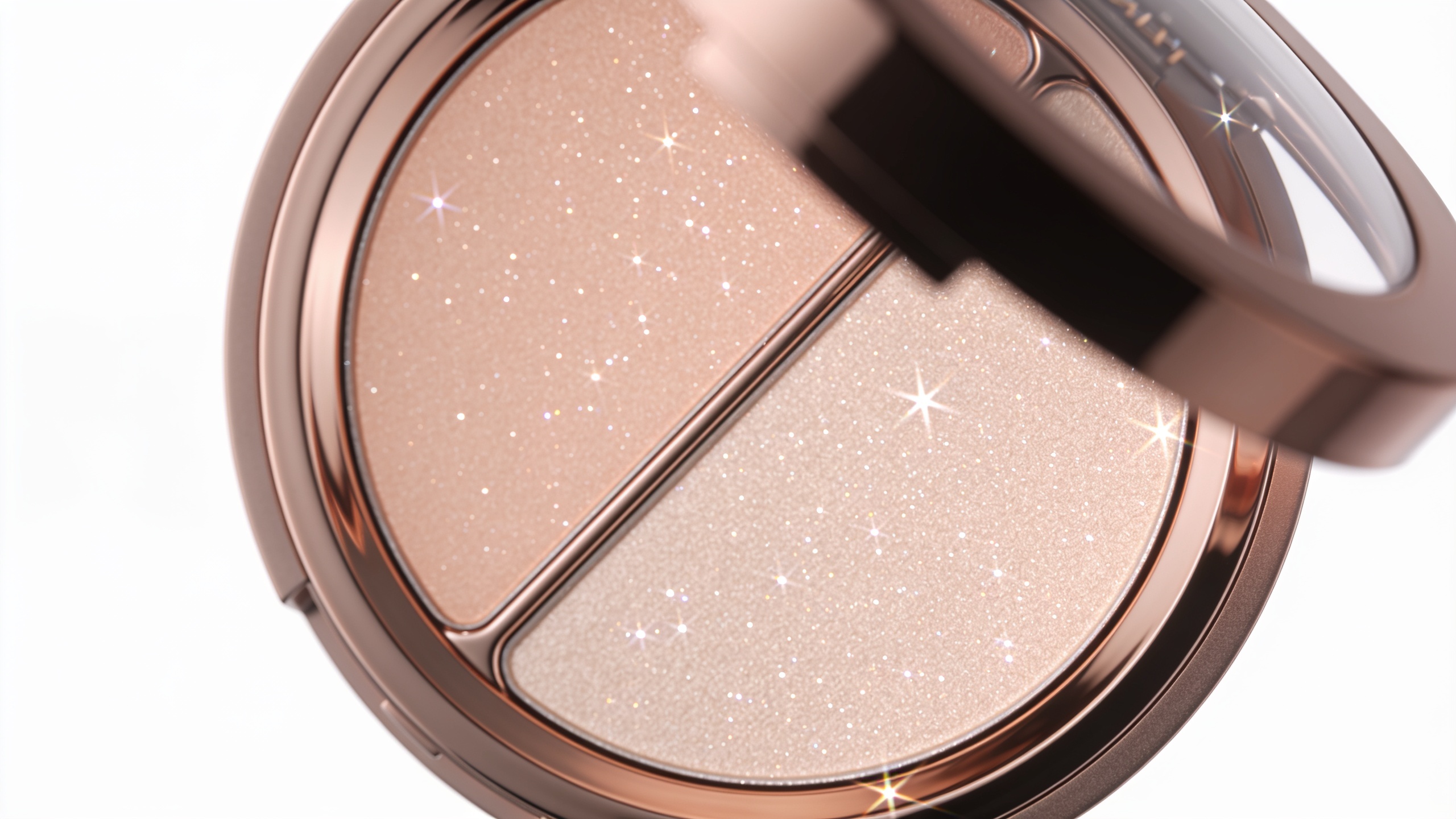
You need multiple short product videos but only have one product photo. This article shows repeatable, time-saving workflows to turn a single still image into high-performing short clips for TikTok, Reels, and Shorts. You'll get model guidance, exact prompt templates, export settings, and platform tips so you can produce 3–20 second hooks and looping demos without a full video shoot. I also show how to run these workflows inside GoCrazyAI’s AI Video Generator so you can ship batches of clips from one credit pool.
Quick Answer
How do you convert an image to a short product video? Use an image-to-video model (Kling, Veo, or Sora) with a focused motion prompt, choose the vertical 9:16 output, add ambient audio and a short voice/CTA, and export a 3–12 second clip optimized for looping. On GoCrazyAI, upload the photo, pick a model, paste a hook prompt, and render the clip.
Why image-to-video is the fastest way to scale product demos and social hooks?
Image-to-video converts one high-quality photo into multiple short-form assets quickly by changing only motion, trim, framing, and audio. This is faster than multi-angle shoots because you avoid logistics — you keep consistent branding while producing variants for A/B tests, ad campaigns, and platform formats. Short-form vertical content tends to grab attention: industry reporting shows short vertical clips drive higher engagement, and a Media.net survey reported by TVTechnology found “Seventy-five percent of consumers said they would stay longer on a site that includes videos tailored to their interests.” For practical workflows, most creators optimize for 3–20 second clips: short enough to loop on TikTok and Reels, long enough to show a single key benefit.
Choosing the right visual style and model: when to use Kling 2.5 Turbo Pro, Veo 3.1, or Sora 2?
Use Kling 2.5 Turbo Pro when you want energetic, stylized motion with faster renders and lower per-clip cost; it often produces punchy transitions and artistic camera shakes that read well in ads. Choose Veo 3.1 when you need faithful photo-to-video conversion and native sound/ambient audio options — Veo introduced native photo→video plus ambient sound controls in 2025, making it good for realistic product surfaces and subtle motion. Pick Sora 2 when you want cinematic camera moves and smoother, natural lighting animation for lifestyle shots; it tends to prioritize photorealism and fine-grain camera motion. In practice, run quick A/Bs: Kling for high-energy hooks, Veo for faithful product close-ups, Sora for aspirational lifestyle demos. Expect tradeoffs: Kling = speed + stylization, Veo = photo fidelity + sound, Sora = cinematic quality but higher cost and render time.
Hands-on example: Convert a single product photo into a TikTok-ready Hook using GoCrazyAI AI Video Generator (step-by-step)?
Yes — you can convert one product photo into a TikTok hook in a few steps on GoCrazyAI: upload the image, pick a model, supply a concise motion + copy prompt, select 9:16 framing, add a punchy audio track or ambient sound, then render a 3–8 second clip. Below is a concrete copy-paste example and a short step list you can use immediately.
Step-by-step prompt example (copy/paste):
"Make the supplied product photo pop with a brisk 3-second zoom-out and 3D tilt to the right, add a sparkling highlight on the metal surface at frame 12, subtle ambient room tone, fast 120ms ease, cinematic color grade, vertical 9:16. Add a punchy low-mid bass hit at frame 1 and a quick whoosh on frame 24. Output: 3s loopable MP4"
Practical notes: choose Kling 2.5 Turbo Pro for energetic hooks; choose Veo 3.1 if you need exact texture preservation. Keep the motion short and directional: small parallax, a reveal, and a highlight are enough to read on mobile. On GoCrazyAI, select the "9:16" output and a social preset to ensure safe crop and recommended bitrate.
Internal resource: use the AI Video Generator when you want to route to Kling, Veo, or Sora without juggling subscriptions: /create-ai-video.
You can try every step above directly in GoCrazyAI AI Video Generator — no setup needed.
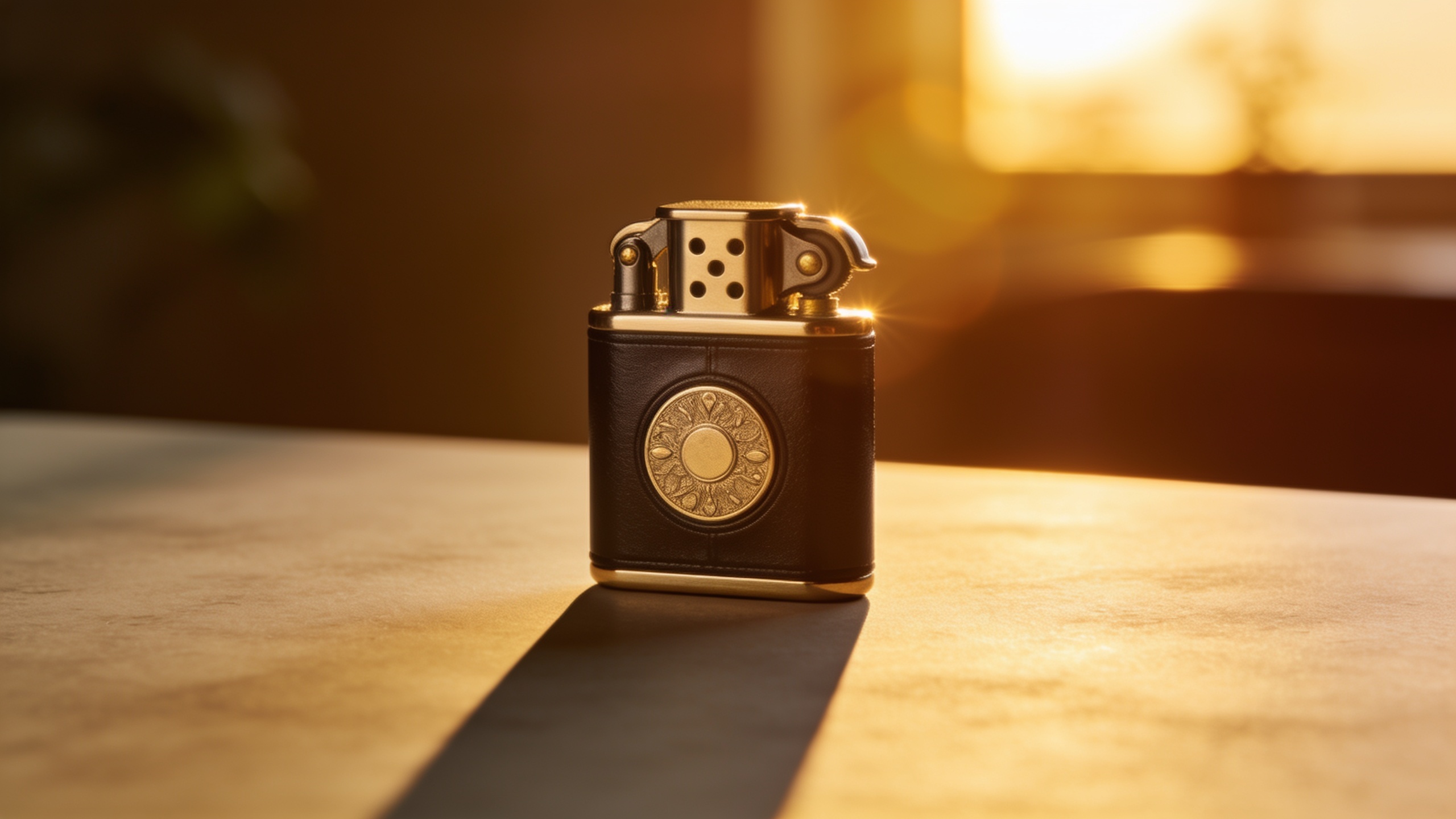
Hands-on example: Create an animated product demo loop for a landing page (workflow, prompt templates, export settings)?
You can create a clean demo loop from a single product photo by focusing on subtle, repeatable motion, a clear benefit frame, and a lossless export. For landing pages, design an 8–12 second loop that highlights one feature, then freeze on a clean product frame at the end so it loops seamlessly.
Prompt template (copy/paste):
"Animate the product photo into an 8s seamless loop: slow 2% vertical bobbing, 7-degree gentle left pan, soft specular sparkle on the logo every 1.5s, ambient room reverb, naturalistic shadows, photorealistic color. Color grade: neutral studio. Framing: 1:1 centered. Output: 8s MP4 H.264 high bitrate, no watermark."
Export settings for landing pages: 1:1 aspect ratio if it sits inside product modules, 1080x1080 or 1440x1440 for quality; H.264 or H.265 at 6–12 Mbps for web delivery. If you need sharper visuals, upscale the source image first with an image upscaler and then animate to avoid soft renders — consider /image-upscaler for a cleaner base. On GoCrazyAI, set the framing to 1:1 and pick a higher-quality preset when you render the demo loop to preserve surface detail.
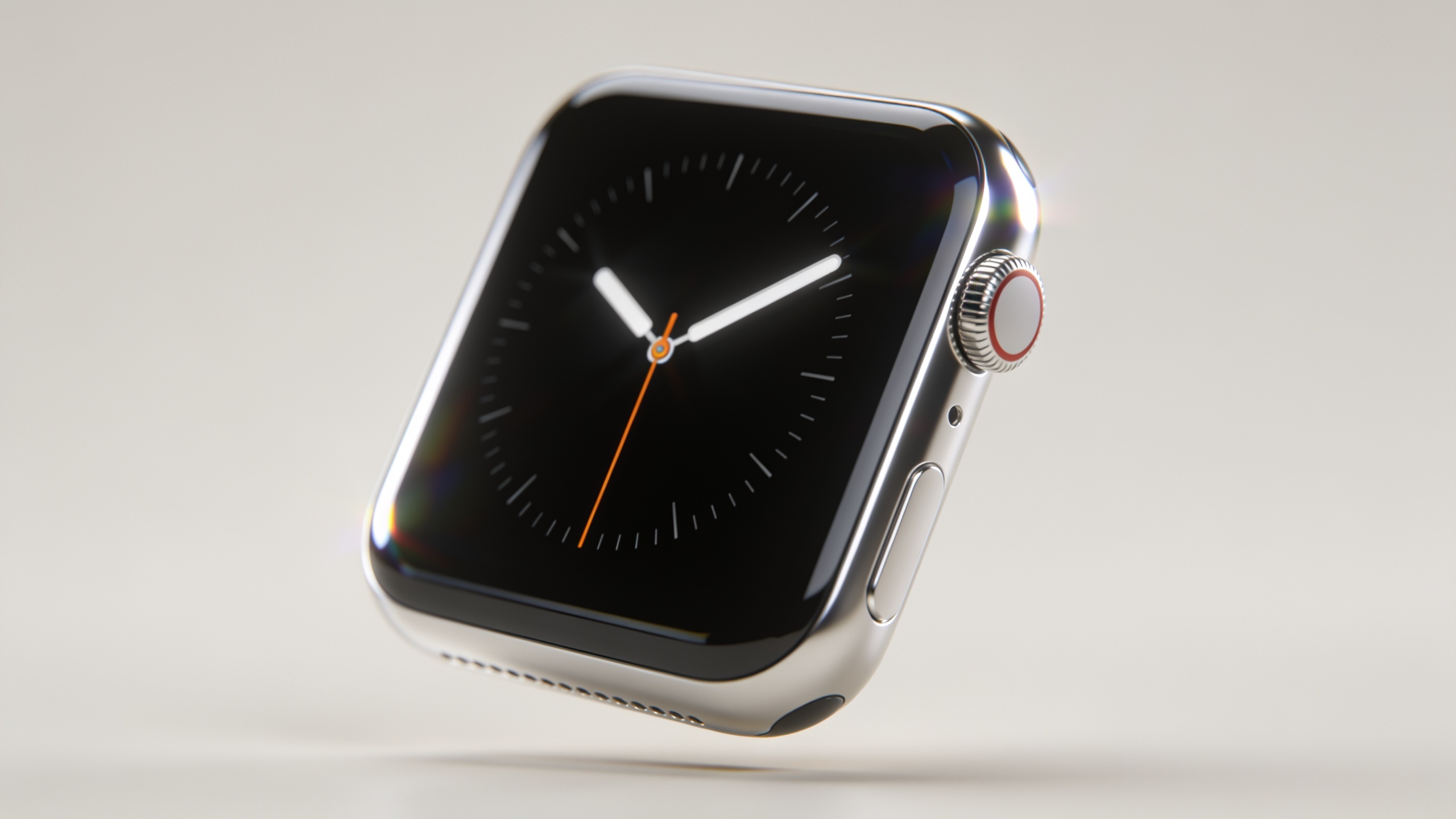
Editing, audio, and platform tips: how do you make 9:16 Reels and 1:1 feed posts that convert?
For 9:16 Reels and TikTok, prioritize the top 20% of the frame for your hook and keep captions and CTAs within the safe zone. Use 3–12 second clips for hooks and 8–20s for explainer loops. Add music with a clear beat to align visual hits (specs: 48 kHz, 128–320 kbps) and layer a short voice overlay with a direct CTA at 2–3 seconds. For 1:1 feed posts, slow the motion slightly and crop to the main product center.
Practical audio tips: pick tracks that match tempo to motion (e.g., 90–120 BPM for product reveals). Use short sound effects (whoosh, click, sparkle) to punctuate motion frames. For voiceovers, use GoCrazyAI's AI Voices to generate a 3–5 word CTA read clearly and place it at the end of the clip. If you need to polish cuts and subtitles, route the generated clip through the Media Mixer (AI Video Editor) to add captions and trim precisely: /ai-video-edit.
Speed, cost, and quality tradeoffs — what mistakes should you avoid when iterating at scale?
The core tradeoff is model choice versus render time and cost: higher-fidelity models usually cost more and take longer. A common mistake is rendering full-quality long clips for every variant. Instead, do low-cost drafts for motion and framing, then render final quality only for winners. Also avoid overcomplicated motion; small, readable moves perform better on phone screens.
Specific mistakes and how to avoid them:
- Mistake: Rendering many model/lighting variants at high quality. Fix: batch low-res previews first, then final render winners.
- Mistake: Using long clips for hooks. Fix: keep hooks 3–12s so they loop and retain attention.
- Mistake: Ignoring safe crop zones for vertical. Fix: preview in 9:16 and keep key visuals inside top/bottom safe margins.
- Mistake: Forgetting audio sync. Fix: map sound hits to frame numbers in your prompt or add SFX in the editor.
When testing at scale, use consistent naming, tag each clip with the model used (Kling/Veo/Sora), and track cost per render on your plan — see GoCrazyAI Pricing for credits and plan options: /credits.
Checklist & template pack: what prompts, captions, and CTA placements should you use to push viewers to your product page?
A short checklist speeds production: pick model, choose aspect, craft motion prompt, add audio instructions, render preview, finalize. For captions and CTAs, keep copy tight: 3–6 words visible on mobile, and place the CTA between 2–4 seconds in hooks or at the loop end for demos. Below are copy-and-paste prompt and caption templates you can reuse.
Prompt templates (copy/paste):
Hook (3s, vertical): "3s vertical hook: sharp 10% zoom-in from 0.8x to 1.0x, 3D tilt left 4 degrees, specular highlight at frame 10, punchy bass hit on frame 1, loopable, cinematic color, output 9:16 MP4."
Demo loop (10s, square): "10s loop: slow 2% bob, left-right parallax, subtle logo sparkle every 2s, ambient room tone, photorealistic lighting, color grade: neutral studio, output 1:1 MP4 high bitrate."
Caption and CTA samples:
- Short caption: "See why it fits — 3s demo". CTA onscreen (2s): "Shop now →".
- Ad caption: "Compact, powerful, on-the-go. Tap to buy." Place the CTA at the final frame and repeat in the pinned comment for TikTok.
Use consistent timestamps in filenames to track variants (e.g., productA_kling_hook_v1_3s.mp4). Bundle prompts and captions into a template sheet so you can auto-fill and batch-render multiple images.
Frequently Asked Questions
Can I turn any product photo into a video?
Most high-resolution, well-lit product photos work best. Photos with clear subject separation and minimal motion blur animate more naturally. If the image is low-res, upscale it first to preserve detail before animating.
How long should an image-to-video clip be for TikTok or Reels?
Aim for 3–12 seconds for hooks and 8–20 seconds for looping demos. Shorter clips loop more and typically get higher completion rates on TikTok and Reels.
Which model produces the most realistic motion from a single photo?
Veo 3.1 usually offers the most faithful photo-to-video conversion and includes native ambient audio options. Sora 2 favors cinematic camera motion, while Kling focuses on stylized, faster renders.
Do I need special audio files when I render from a photo?
No — many models accept audio instructions in the prompt and you can add music/SFX in post. For best results, add a punchy SFX on visual hits and a short voice CTA in the last 1–2 seconds.
How do I keep costs down when producing many variants?
Render low-resolution previews for framing and motion testing, pick final winners, then do high-quality renders only for those. Use cheaper models for drafts and higher-fidelity models selectively.
Conclusion
Final thoughts: A single product photo can become dozens of short-form videos if you standardize motion prompts, aspect presets, and audio slots. Start with quick 3–12 second hooks, batch preview renders, then finalize winners in high quality. If you want to try a hands-on workflow that routes Kling, Veo, and Sora from one credit pool, open the AI Video Generator and drop in your photo and prompt.
Mentioned in
Sources
- Google AI's new trick: Turn any image into a brief video (Axios, July 10, 2025)axios.com ↗
- Popularity of Online Short-Form Content Moving Beyond Social Media (TVTechnology)tvtechnology.com ↗
- Short Form Video Statistics You Should Know in 2026 (Conbersa)conbersa.ai ↗
- Sora 2 vs Veo 3.1 vs Kling Full AI Video Test (Blog Picasso IA)blog.picassoia.com ↗
- Google Photos gets creative on Android with photo-to-video clips and Remixes (AndroidCentral)androidcentral.com ↗
- Sora (text-to-video model) — background and capabilities (Wikipedia)en.wikipedia.org ↗
- Image to Video AI: Easy AI Image Animator Online (ImgToVideo.ai example product page)imgtovideo.ai ↗