


tiktok visuals generator: Creator’s guide to thumbnails & short‑form images
A creator-first guide to using AI image generators for high‑CTR TikTok thumbnails and short‑form visuals, with prompts, workflows, and GoCrazyAI tips.
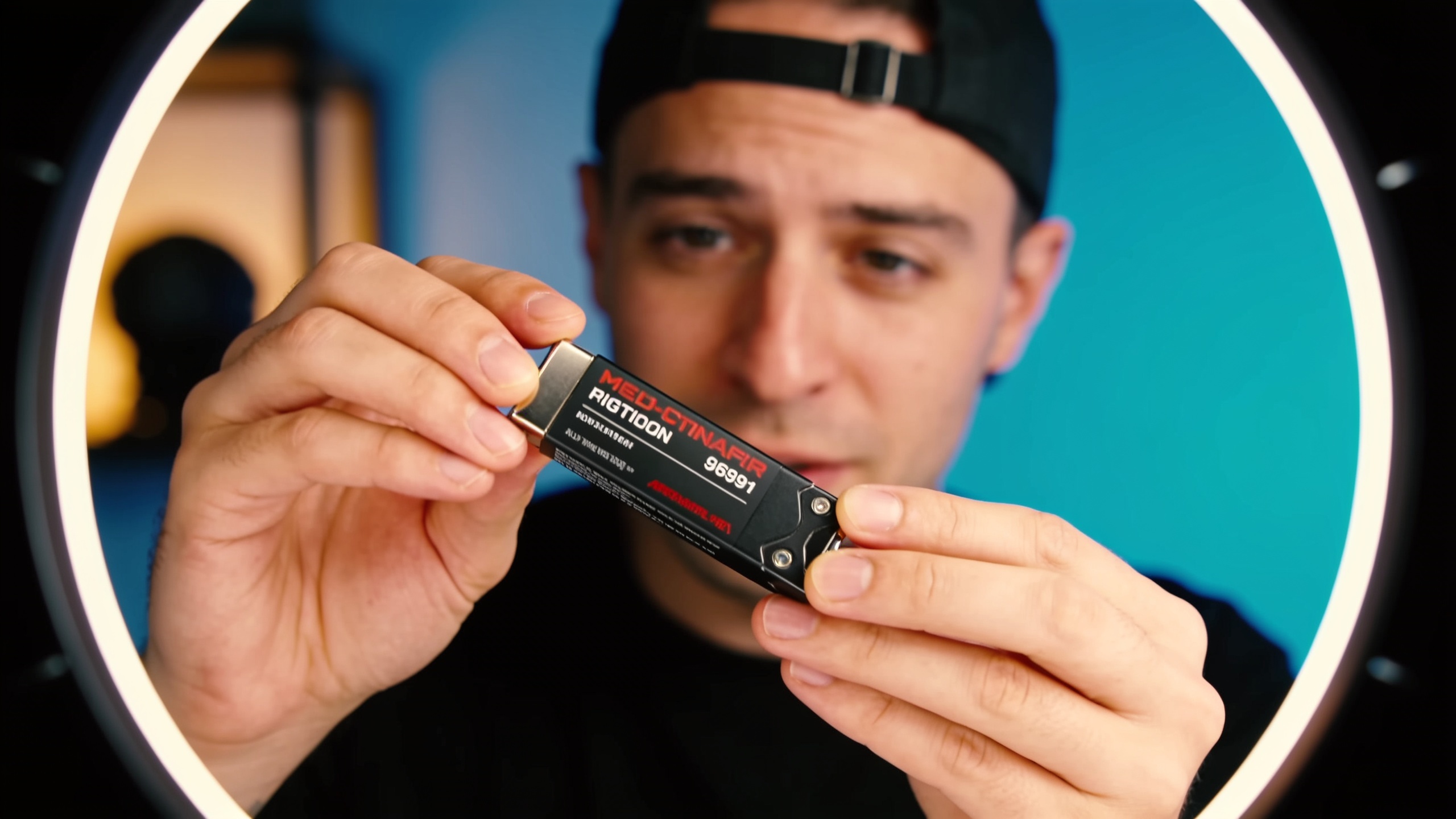
You need scroll-stopping thumbnails and preview images that work on a tiny phone screen and drive clicks for TikTok, Reels, and Shorts. This guide gives practical, copyable prompts, model advice, and fast workflows so you can produce dozens of on‑brand thumbnails per hour. I’ll show which image models to pick (Nano Banana, Seedream 4, Kaneko Gen Pro), how to set mobile-safe composition, and exactly how to batch and iterate using GoCrazyAI’s AI Image Generator so you leave watermarks behind.
Quick Answer
A tiktok visuals generator is an AI image tool that creates mobile-optimized thumbnail images from prompts and references. Use a high-contrast focal subject, bold text, and a platform-safe layout; pick the image model that matches your goal (photorealism vs stylized art); and batch-generate variations to test. GoCrazyAI’s AI Image Generator supports Nano Banana, Seedream 4, and Kaneko Gen Pro for quick, watermark‑free exports.
Why do thumbnails and preview images still matter for TikTok and short‑form discovery?
Strong visual previews still matter because they set the first micro‑impression a viewer gets while scrolling. Research shows that visual features — complexity, framing, and pacing — significantly affect engagement on short‑form platforms. In practice, a clear thumbnail can raise the chance a user pauses or clicks through, especially when paired with a strong hook or caption. Platforms often show a static preview on some surfaces (ads, embeds, discovery lists), so thumbnails remain a meaningful lever for CTR.
Why this matters for creators: short‑form platforms favor content that generates quick interactions. While video quality and pacing are crucial, thumbnails act as the bait that earns the first view. For paid placements or cross‑platform reposts where auto-play might be paused, a well-designed thumbnail can recover lost impressions. Metricool’s 2024 benchmark also found video formats still outperform static images for raw interaction, but that same analysis highlights the role of thumbnails and covers when images are presented alongside videos in discovery contexts.
What makes an effective short‑form thumbnail: composition, text, color, and mobile‑safe layout?
An effective short‑form thumbnail has one dominant focal element, bold readable text, and high color contrast so it reads at thumb size. Mobile viewers see thumbnails at ~100–200px wide in feeds, so design choices must prioritize clarity and fast legibility. Use a single subject or face, tight framing, and minimal background clutter.
Composition tips:
- Focal element: Place one subject in a third or centered for immediate recognition. Avoid multiple competing subjects.
- Text: Use a short headline (2–4 words) in large, high‑contrast type. Keep text off the very edges to avoid platform overlays.
- Color: High saturation or contrast with shadow outlines improves legibility. Color blocking behind text helps on noisy backgrounds.
- Safe zones: Account for TikTok UI overlays (profile, captions) by keeping faces and key text inside the center 60–70% of the frame. CapCut and platform creator guides recommend testing thumbnails at actual device sizes to confirm readability.
Export and test: Save a 1:1 and 9:16 crop for different surfaces, and preview at 100–150px width to ensure the headline reads. These small checks often separate a thumb that converts from one that’s ignored.
How do I choose the right image model for my creative goal: when to use Nano Banana, Seedream 4, or Kaneko Gen Pro?
Choose the image model based on whether you need photorealism, editable realism, or stylized creativity. Nano Banana and Seedream 4 are repeatedly called strong performers for realism and editability; Kaneko Gen Pro leans toward stylized outputs suitable for eye‑catching art.
Which to pick:
- Nano Banana: Best when you need crisp photorealism and accurate subject rendering — useful for product shots and real‑looking portraits. Reviews highlight Nano Banana’s strong photoreal output.
- Seedream 4: Often praised for realistic, editable images and strong downstream editing ability. Recent coverage notes Seedream 4’s high-quality renders in creative tests.
- Kaneko Gen Pro: Use this when you want stylized, high-contrast art or dramatic color grading that stands out in feeds.
Practical rule: start with Seedream 4 for general thumbnails, switch to Nano Banana when you need tighter realism (product, face detail), and pick Kaneko when the visual style itself is the hook. Run a 3‑variant test (one image per model) to see which performs for your audience before scaling.
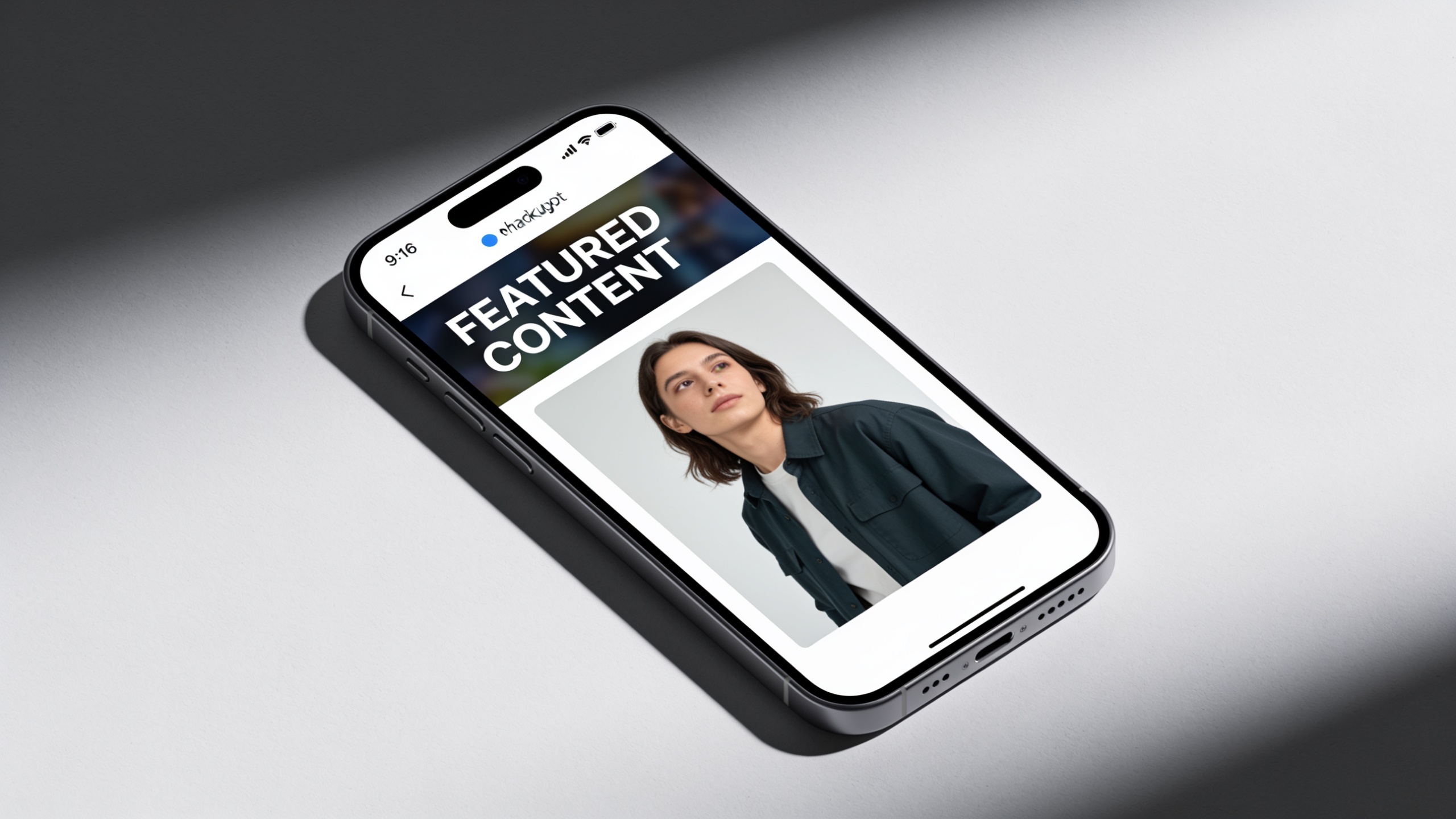
Workflow: From idea to thumbnail — how do I craft prompts and reference frames for GoCrazyAI AI Image Generator?
You should start with a one‑sentence creative brief, a reference frame or photo, and a short prompt that defines the focal subject, mood, and platform crop. GoCrazyAI’s AI Image Generator accepts textual prompts and uploaded references, and it exports platform aspect ratios so you can go from idea to export quickly.
A practical prompt structure to use inside GoCrazyAI:
- Intent: "TikTok thumbnail, high contrast, mobile-safe"
- Subject: "smiling creator holding product, medium close-up"
- Style: "bright cinematic lighting, shallow depth of field"
- Text placeholder: "HEADLINE: 2–3 words, bold sans"
- Output: "9:16 crop and 1:1 variation, 1080x1920"
Example prompt to paste into the tool: "TikTok thumbnail, high-contrast, mobile-safe; young creator holding green water bottle, medium close-up, bright rim light, shallow depth of field, bold white headline area in lower third, cinematic color grade; output 1080x1920 and 1080x1080."
GoCrazyAI specifics: use the model selector to pick Nano Banana, Seedream 4, or Kaneko Gen Pro depending on your goal, upload an optional reference photo to preserve pose or lighting, and request variations. The generator can save each variant to your library so you can iterate without re-entering prompts. Use the AI Image Generator for exports and then bring frames into the AI Video Generator when you want a moving hook for the same campaign (see the AI video generator for turning frames into short clips). Link: AI Image Generator
Can you show an example hands‑on workflow to batch‑create 20 TikTok thumbnail variations?
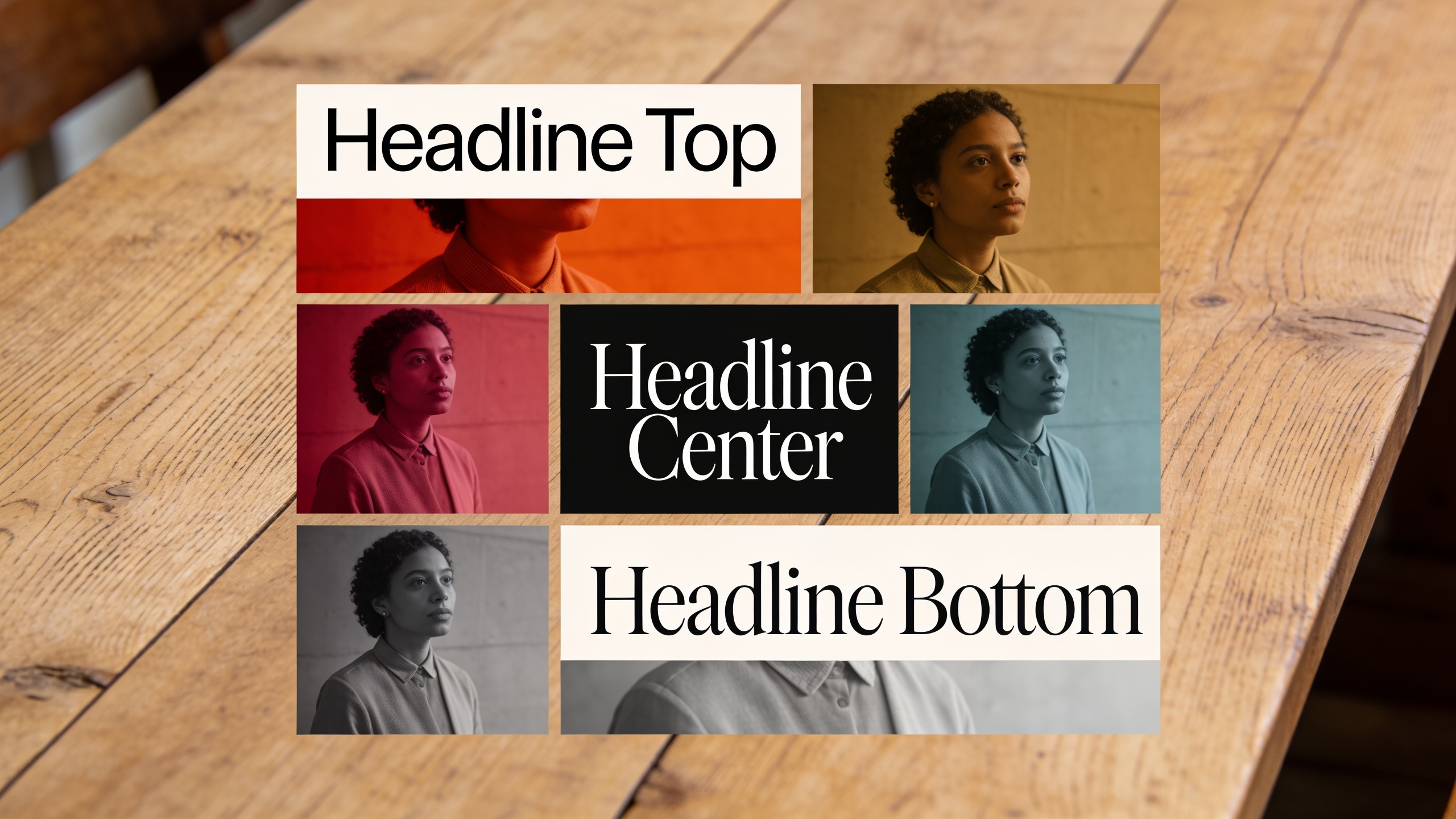
Yes — you can batch-create 20 variations by combining a template prompt, model choices, and automated variations in GoCrazyAI. Start with a single strong prompt, export several model variants, then request color and text variations to reach 20.
Step-by-step example workflow you can copy: 1) Create a base prompt (use the prompt from the previous section). 2) Generate 3 model variants: Seedream 4, Nano Banana, Kaneko Gen Pro. 3) For each variant, request 3 color grades (warm, cool, high-contrast) and 2 headline placements (bottom-left, centered). That yields 3 x 3 x 2 = 18 images. 4) Add 2 extra edits: one with a tighter crop and one with a negative-space version for text overlays.
Concrete prompt examples to reuse: "TikTok thumbnail, mobile-safe; smiling creator holding product, medium close-up; bright rim light; background blurred; add bold white headline area lower third; 1080x1920."
"Variation: warm golden hour grade; add dark vignette around edges; keep subject centered."
Batch export tips: export both 9:16 and 1:1 crops and name files with variant tags (model_grade_headline). Those filenames make A/B setup trivial. Save every variant to your GoCrazyAI library so you can pull the best ones into ad campaigns or future edits. If you later need motion, these frames can flow into the AI video generator as starting frames for short clips (/create-ai-video).
How do I edit and iterate on‑brand images in GoCrazyAI (replace subjects, adjust lighting, add headline text — no watermark)?
In GoCrazyAI you can upload an image, prompt for edits (replace subject, relight, restyle), and export watermark‑free images ready for publishing. Use an edit prompt like "replace product with X, keep pose, apply studio lighting" and request the output aspect ratios you need.
Editing workflow inside GoCrazyAI:
- Upload your base image or choose a generated variant from your library.
- Add an edit prompt: specify subject swap, lighting style (studio/golden-hour/neon), or text area.
- Choose the model (Seedream 4 often gives good edit fidelity) and request 3 variations.
- Use the Image Upscaler to enlarge the final thumb to 4K if you plan to crop later without quality loss.
Practical examples:
- Replace subject: "Swap bottle for black headphones, maintain right-hand hold, keep rim light."
- Adjust lighting: "Apply golden-hour warm light, soften shadows, +10% saturation."
- Add headline text area: "Create dark transparent bar lower third with negative space for 2‑3 word white headline."
Because GoCrazyAI saves variations to your library, you can iterate rapidly without recreating prompts. Exports are watermark‑free and offered at the exact aspect ratios social platforms need, which simplifies upload and testing.
What common mistakes should I avoid when optimizing thumbnails for TikTok and short‑form platforms?
Common mistakes include overcrowding the frame, tiny unreadable text, ignoring safe zones, assuming one size fits all, and skipping model tests. Avoid these by following clear rules and testing.
Mistake 1 — Overcrowded composition: Too many elements compete for attention. Fix: isolate one focal subject and simplify the background.
Mistake 2 — Small or decorative text: Thin type or long headlines don’t read on small screens. Fix: Use bold sans type, 2–4 words max, and test at actual device width.
Mistake 3 — Ignoring platform overlays: Profile icons or captions can hide faces and text. Fix: Keep key content inside center safe zones and consult platform guides (CapCut/TikTok creator resources recommend checking overlay positions).
Mistake 4 — Skipping model/light tests: Using only one model or grade can lock you into a style that doesn’t convert. Fix: Generate 3 model variants (Nano Banana, Seedream 4, Kaneko) and A/B test.
Mistake 5 — Not batching or naming files: Manual single exports slow down testing. Fix: Batch-generate, export tagged filenames, and upload variations to your ad platform for quick split tests.
Avoiding these pitfalls usually improves CTR and reduces wasted ad spend when you scale thumbnails into paid placements.
Frequently Asked Questions
What is the best aspect ratio for TikTok thumbnails?
Use 9:16 (1080x1920) as your primary export so it fills the vertical feed, and also export 1:1 (1080x1080) for embeds and ad placements. Keep key elements centered to avoid being cropped by overlays.
Which model creates the most realistic product thumbnails?
Nano Banana typically produces the most photorealistic product renders, while Seedream 4 offers strong editability. Run both on a sample and compare detail and color fidelity before bulk generation.
How many thumbnail variations should I test initially?
Start with 6–12 variants across model, color grade, and headline placement. If you have budget, scale to 20+ variants using batch generation to find a clear winner quickly.
Can I remove watermarks from images created with GoCrazyAI?
GoCrazyAI exports are watermark‑free on supported plans, so you can publish thumbs and ad creatives without extra editing or masking.
Should I use photos or fully AI‑generated images for thumbnails?
Both work. Use a real photo when authenticity matters (product demos, real people). Use AI‑generated or restyled images when you need a consistent brand look or dramatic stylization that stands out in feeds.
Conclusion
Final thoughts: thumbnails still influence whether viewers pause or skip small-screen discovery. Design for a single clear focal element, bold short text, and mobile-safe composition, then iterate quickly with batch generation. If you want to prototype and export platform-ready thumbs with Nano Banana, Seedream 4, and Kaneko Gen Pro — spin up your first frame in the AI Image Generator.
Sources
- Exploring user engagement behavior with short-form video advertising on short-form video platforms: a visual-audio perspective (ScienceDirect)sciencedirect.com ↗
- Metricool Releases 2024 TikTok Benchmark Study: Videos Versus Images and Carousels Analysisprnewswire.com ↗
- How to Design TikTok Thumbnails 2026 - Complete Creator Guide (OverlayCheck)overlaycheck.com ↗
- CapCut resource: TikTok thumbnail - A Complete Guide to Making Eye-catching Coverscapcut.com ↗
- Step aside Nano Banana, Seedream 4.0 is the best AI image generator I've ever seen (TechRadar)techradar.com ↗
- Nano Banana Pro and model updates coverage (Tom's Guide / AndroidCentral coverage of Nano Banana Pro and Nano Banana 2)tomsguide.com ↗
- Free AI Thumbnail Prompt Generator for YouTube (ThumbPrompt)thumbprompt.com ↗
- AI Thumbnail Generator examples and workflow (Media.io)media.io ↗
- Nano Banana prompts and thumbnail-specific guidance (Morphed)morphed.app ↗