


Image to video from mood board: turn product photos into vertical product clips
Step-by-step guide to convert a product mood board or single photo into TikTok/Reels-ready vertical clips using an image-to-video workflow and GoCrazyAI.
You need short-form vertical product clips but you only have a mood board or a handful of photos. This guide shows how to convert a product mood board or single product image into platform-ready 9:16 clips using an image-to-video workflow you can repeat every day. Read a practical, step-by-step process: how to prepare assets, which prompts and model choices speed up iteration, exact export settings for TikTok/Reels/Shorts, and how to scale with templates and batch generation.
I’ll include copyable prompt examples, recommended pacing and aspect ratio settings, and a short section showing how to run the same workflow on GoCrazyAI’s AI Video Generator so you can ship clips fast without juggling multiple tools.
Quick Answer
How do you turn a mood board into a vertical product clip? Clean and export 1–6 high-quality stills, write short cinematography prompts (camera pan, close-up, duration), render at 9:16 using an image-to-video model, then add music, captions, and a CTA. Use batch generation to create hooks, product-detail, and CTA variants quickly.
Why mood-board-driven product videos win on short-form platforms (and the data that proves it)?
Mood-board-driven product videos usually outperform static posts because they deliver consistent visual language, faster ideation, and clearer messaging—three things short-form audiences reward. A recent industry survey found 61% of viewers say short-form vertical video is more engaging than articles, podcasts, or long-form video, which supports prioritizing quick, visual-first content.
Using a mood board lets you lock color, texture, and brand camera moves before you make clips. That reduces creative friction: instead of planning new shoots every time, you repurpose assets and iterate on motion and sound. For product marketing, this means faster ad testing (different hooks, different demonstrations) and clearer creative guidelines for paid channels. For creators, a mood board keeps your feed coherent, improving recognition and watch-through rates. In practice, teams that treat mood boards as recipe cards for short clips test more variants in less time—an advantage when platforms reward fresh, frequent uploads.
How do you build a product mood board and export the right stills for AI video generation?
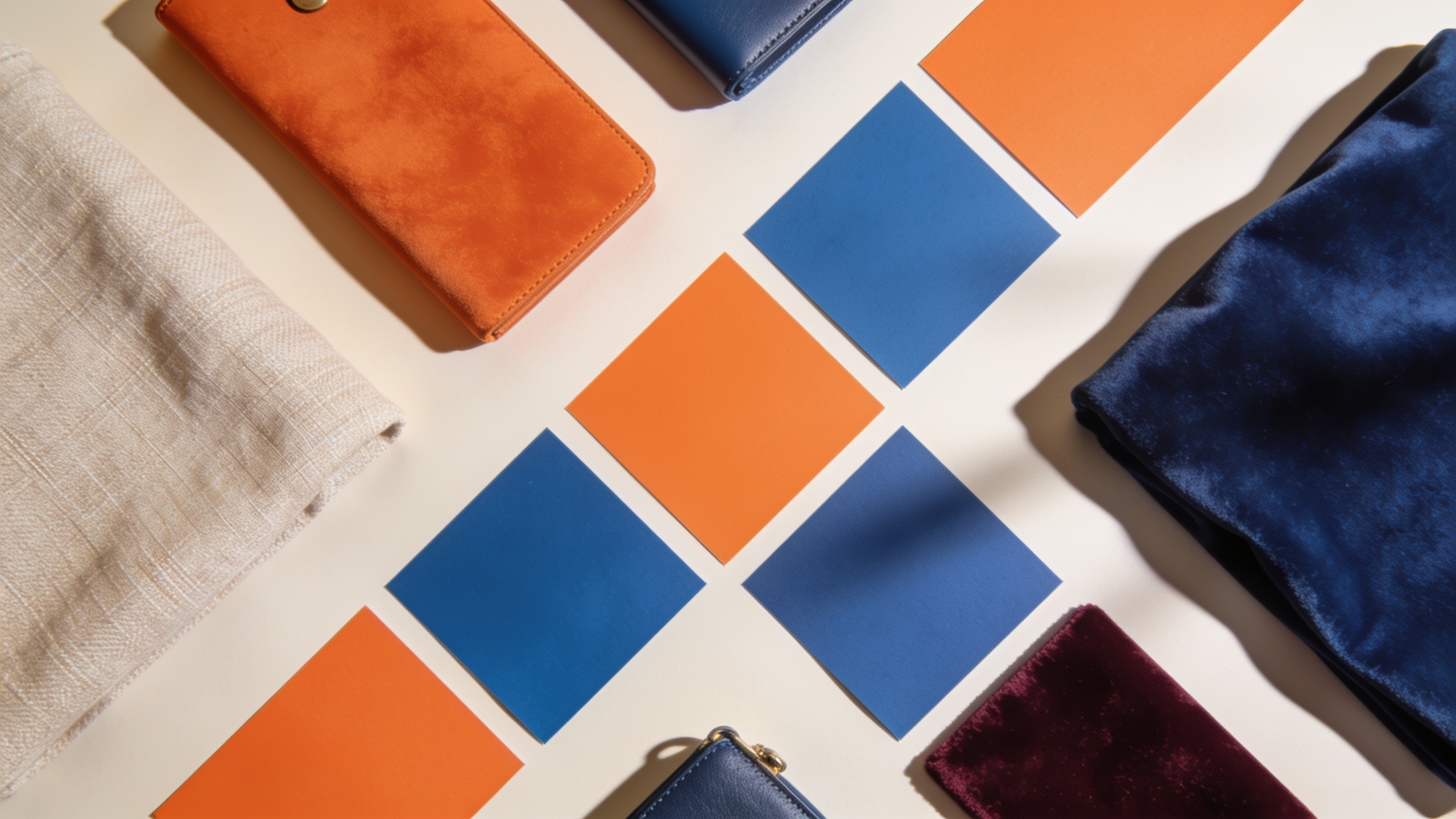
Start with a 5–12 image mood board focused on the product, textures, lifestyle shots, and color palette. Choose 1–3 hero stills that clearly show the product silhouette and details; those are the images you will animate. Export hero stills at the highest resolution available (ideally 2K+ or the original photo) and create a background-removed version for tighter motion control.
Practical checklist:
- Remove background or provide an alpha layer for the main product so models can simulate camera movement around a clean edge.
- Export a copy with natural context (a hand holding the product, a table scene) and one isolated product shot for macro detail.
- Save a simple text note with lighting direction, material keywords (e.g., "matte ceramic, warm highlights"), and intended camera moves.
Why these steps matter: modern image-to-video models respond to clear anchors—lighting, texture, and isolated subjects—so a background-removed still plus a contextual still gives you both dramatic close-ups and believable movement. If you need quick fixes, run the shot through an editor like the AI image generator to relight or upscale before animating; this reduces render artifacts and improves results. Consider using the AI image generator for relighting or cleanup before export: it speeds preparation and keeps visual style consistent. (Link: AI image generator in the Resources.)
Hands-on example: convert a mood board to a vertical 9:16 promo clip — step-by-step AI video workflow?
Answer: Convert a mood board into a 9:16 promo clip by picking a hero still, choosing a model that supports image-to-video, writing a short cinematography prompt (duration, camera move, lighting), rendering at 9:16, and polishing audio/subtitles. The process typically takes 5–20 minutes per variant once assets are ready.
Step-by-step workflow (copyable): 1) Assets: hero.png (2048x2048, product isolated), moodboard.pdf (colors and textures), context.jpg (lifestyle). 2) Prompt (example): "Duration: 9s; Format: vertical 9:16. Start wide, slow dolly in to a 3s close-up on product texture; soft golden-hour key light from upper-left; subtle rotation of product 8-12 degrees; 24fps cinematic motion blur; keep brand colors warm. Include 1s freeze on logo at end."
3) Model choice: pick a fast image-to-video option first (Kling 2.5 Turbo Pro for speed, Veo 3.1 for detailed motion, Sora 2 for expressive camera moves). Start with Kling for quick drafts, then re-render best draft on Veo or Sora for fidelity.
4) Render: set canvas to 1080x1920 (9:16), duration 9 seconds, and seed for consistent results across variants.
5) Post: add 1 audio track (looped 8–10s), overlay captions for the hook, and export.
Expected outputs and iteration tips: your first render will give framing and micro-motion. If the product edge has artifacts, rerun with a background-removed PNG or add "keep edges sharp" to the prompt. If motion feels flat, increase "dolly" or "parallax" keywords and reduce rotation degrees.
How do you make multiple short variants (hook, detail, CTA) from one product photo using batch image-to-video generation?
Answer: Use batch generation by creating 3–5 prompt templates that change only the camera move, focal length, or copy overlay. Submit the same hero still with those templates and render all at 9:16. This gives you hook-first, product-detail, and CTA variants quickly and keeps visual continuity across ads.
Concrete batch templates (copy and paste):
- Hook (3–5s): "Duration:4s; 24fps; Tight 1.5s jump-cut close-up on product logo, quick dolly-out to reveal product in environment; punchy high-contrast lighting; add motion accent on button press."
- Detail (8–10s): "Duration:9s; Slow dolly-in to macro texture for 4s, gentle orbit 6–8 degrees, reveal function demo at 6s; soft studio lighting."
- CTA (6s): "Duration:6s; Smooth pullback to show product and CTA overlay; snap-to-logo freeze at last frame; warm rim light; add 1s text reveal animation for 'Shop now'."
How to run batches: put each prompt in a CSV with the hero image path and desired filename, then run the batch job. If your platform offers a seed parameter, keep seed consistent across the batch for comparable motion. Expect to iterate: keep one variable per template (move, focal length, or duration) to identify which change most affects performance in A/B tests.
How should you optimize product clips for platforms and conversions (captions, music, hooks, landing-page loops, and common pitfalls)?
Answer: Optimize for each platform by matching aspect ratio (9:16), keeping the first 1–2 seconds as the hook, using captions, and choosing music that matches pacing; also prepare a short landing-page loop for the product page to increase conversion. Watch out for common pitfalls like busy overlays, unreadable captions, or mismatched audio that harm watch-through and click rates.
Optimization checklist:
- First 1–2s: visual hook (macro detail, movement, or a bold text overlay).
- Captions: use short, high-contrast subtitles that follow the rhythm—place them inside safe areas to avoid platform UI.
- Music: choose loopable tracks with a clear downbeat on the first second; test 2 BPM variants.
- Landing-page loops: export a 3–6s seamless loop (no abrupt cuts) and set it to autoplay muted on product pages for visual interest.
Common pitfalls and how to avoid them:
- Too much motion: reduce rotation and parallax for product clarity.
- Overly long captions: trim to 2 lines max on mobile.
- Wrong export frame: always export 1080x1920 for Reels/TikTok.
For polishing, route your rendered clips into an AI video editor to add subtitles, voiceover, and final trims. Using a dedicated editor speeds caption accuracy and enables final sound mixing for ad platforms. (See AI video editor in Resources.)
How do you scale a product video pipeline with templates, A/B testing, and GoCrazyAI AI Video Generator?
Answer: Scale by creating reusable prompt templates, standardizing asset naming, batching renders, and automating variant exports. GoCrazyAI’s AI Video Generator supports image-to-video, multiple output aspect ratios (9:16, 1:1, 16:9), and routes to Kling, Veo, or Sora from one credit pool—making it easier to test dozens of variants without juggling accounts.
Concrete scaling playbook:
- Template library: save three prompt templates (hook, detail, CTA) with placeholders for image path, seed, and music file.
- Naming conventions: product_SKU_variant_hook_01.mp4 to automate analytics mapping.
- Batch runs: submit CSV batches for hero stills with template IDs to generate multiple variants at once.
- A/B testing: render two versions changing one variable (e.g., music or opening move) and upload to the ad platform using identical audiences.
How to do this on GoCrazyAI: open the AI Video Generator, upload your hero still, choose Kling 2.5 Turbo Pro for quick drafts, and set output to 1080x1920. Use a saved prompt template and the batch CSV uploader for bulk renders. The generator outputs platform-ready clips you can route into an editor or directly to your ad manager.
Tip: pair batch generation with a small creative QA checklist—check edge artifacts, caption legibility, and audio sync—before sending files to paid campaigns. Using consistent prompts and seeds improves comparability across A/B tests and reduces false positives in results.
Frequently Asked Questions
Can I animate a single product photo into multiple ad lengths?
Yes. Use the same hero still and change only the duration and prompt (close-up vs. pullback). Generate 3–5s hooks, 8–10s demos, and 15–30s explainers from the same image with batch jobs.
What resolution and aspect ratio should I render for TikTok and Reels?
Render vertical at 1080x1920 (9:16) for TikTok and Reels. Save a 1:1 (1080x1080) version for Instagram grid ads if needed. Export masters at the highest bitrate available to avoid compression artifacts on upload.
How do I reduce artifacts around product edges after animation?
Provide a background-removed PNG or alpha channel, include prompts like "keep edges sharp" or "preserve outline", and run a cleanup pass in an image editor or upscaler before re-rendering.
Which prompts produce the most natural camera movement?
Use cinematography language: "slow dolly in", "gentle orbit 6 degrees", "parallax with foreground blur", plus lighting anchors like "soft golden-hour key light". Specify duration and fps to keep motion consistent.
Conclusion
Final thoughts: converting a mood board or single product photo into vertical product clips is repeatable and fast when you standardize asset prep, use clear cinematography prompts, and batch renders for variants. Start with a clean hero still, save three prompt templates (hook, detail, CTA), and test two audio choices per variant. Open the AI Video Generator, drop in a reference image or prompt, and ship a clip in one session.
Mentioned in
Sources
- Popularity of Online Short-Form Content Moving Beyond Social Media (TVTechnology)tvtechnology.com ↗
- Create a Vertical Ad Video from a Product Photo with Runway (how-to guide)renkmobil.com ↗
- Product Image to Video Generator (ClipVela)clipvela.com ↗
- AI product video · Frameo.AIframeo.ai ↗
- I've spent 200 hours testing the best AI video generators — here's my top picks (Tom's Guide)tomsguide.com ↗
- VizRise AI Video Generator (example product page)vizrise.com ↗