


How to generate image variations: scalable, on‑brand ad and hero images
Create consistent, on‑brand image variations and ad creative at scale using model choice, seeding, batch exports, and GoCrazyAI's AI Image Generator.
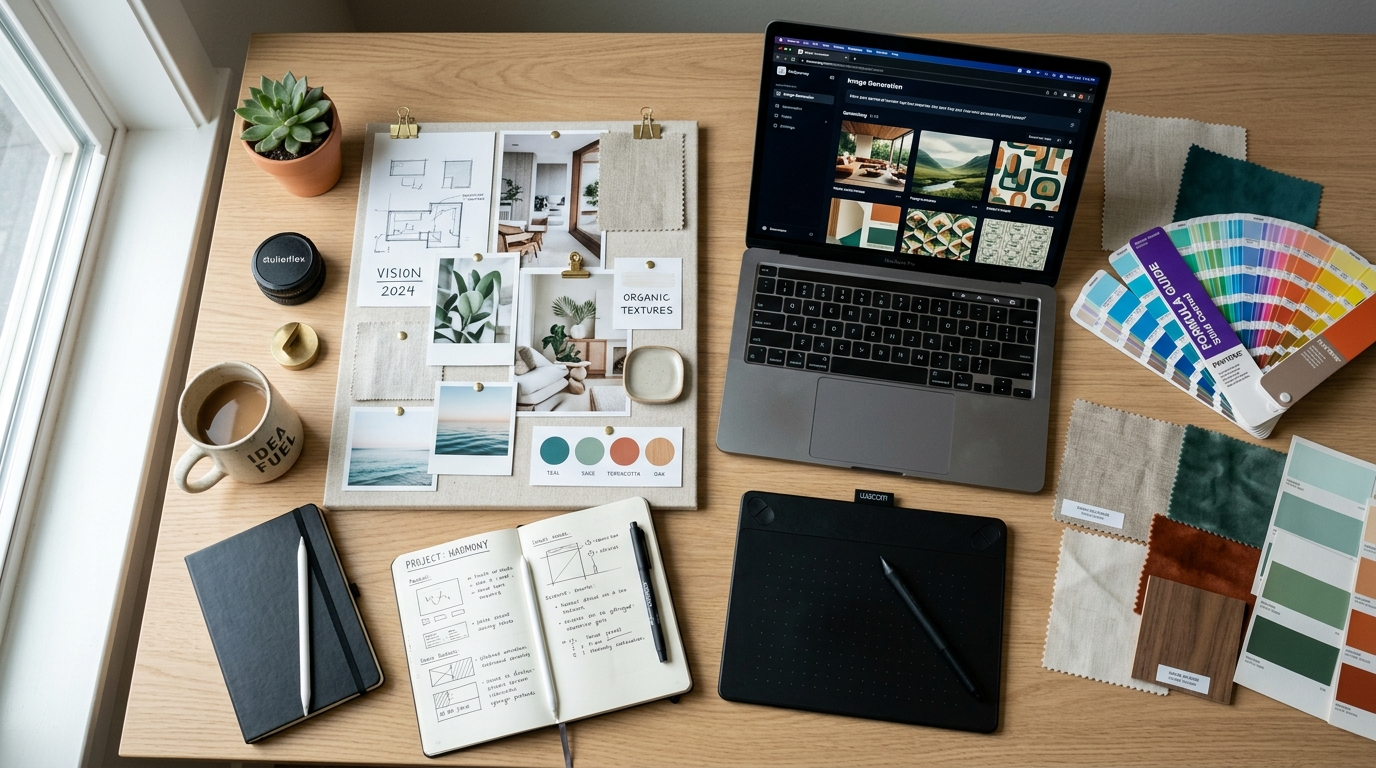
You need dozens of on‑brand images fast for thumbnails, ads, and landing pages — but manually reworking each frame wastes time and introduces inconsistency. This article shows practical workflows for generating image variations at scale that stay true to your brand: picking the right model (Nano Banana, Seedream 4, Kaneko Gen Pro), turning a moodboard into multiple hero images, batch A/B-ready ad exports, and quick in‑tool edits.
You’ll get concrete prompt templates, a step‑by‑step moodboard→image workflow, batch generation techniques for ad testing, and specific tricks (seeding, inpainting, background replacement) to keep a consistent look across hundreds of iterations. Where relevant, I show how to do these steps inside GoCrazyAI’s AI Image Generator so you can try them immediately.
Quick Answer
How do you generate image variations? Use a targeted model and controlled prompts, seed or upload brand assets, then run batch variation jobs that export multiple sizes. For ads, create template prompts and use background/product isolation plus automated multi‑size exports for A/B tests. Tools like GoCrazyAI support seeding, variations, and multi‑ratio exports to speed the pipeline.
Why brand-consistent image variations matter for creators and ad performance?
Brand-consistent image variations ensure your ads and thumbnails read as the same campaign while testing layout, copy, and color. Consistency reduces cognitive friction for viewers and helps signal relevance to an audience, which often boosts click-through and conversion rates. At the same time, controlled variation enables exploration of design space: instead of random edits, you systematically compare layout, subject placement, and color treatments.
Research on automated ad design recommends structured exploration rather than a few designer-picked variants: the Automatic Bayesian Combinatorial Design (ABCD) approach shows iterative generation + testing can more efficiently search combinations of creative elements. Practically, that means create a consistent base (brand colors, logo placement, subject framing) and generate controlled permutations for testing. Combine on‑brand constraints with batch generation so you can test more hypotheses without losing identity.
Where this breaks down is when different images look like separate brands. Use seeds, upload exact logos and typography samples, and lock certain prompt elements (color palette, mood, camera angle) so the variants remain recognizably from the same campaign.
Choosing the right model & style: Nano Banana, Seedream 4, Kaneko Gen Pro — which to use when?
Pick the model based on the output type you need: photorealistic hero images, stylized thumbnails, or concept art. Nano Banana‑family models tend to balance photorealism and crisp foreground detail — good for product shots and thumbnails. Seedream 4 often excels at soft cinematic lighting and mood, which works well for landing page heroes. Kaneko Gen Pro favors stylized or artistic looks, useful for concept art and eye‑catching social ads.
A 2025 testing roundup found many image tools still produce inconsistent, obviously-AI results at scale — roughly two‑thirds of tools tested produced mediocre outputs in some workflows. That means model selection and a robust enterprise workflow matter: pick one model for hero images and a second for stylized secondary assets rather than swapping models mid‑campaign.
Tip: test each model with a control prompt and your brand assets (logo, color swatches, sample photos). Compare how they handle skin tones, product materials, text fidelity, and edge detail. Keep the model fixed per asset type to reduce cross‑asset visual drift. For third‑party comparisons and model writeups see model reviews and roundups.
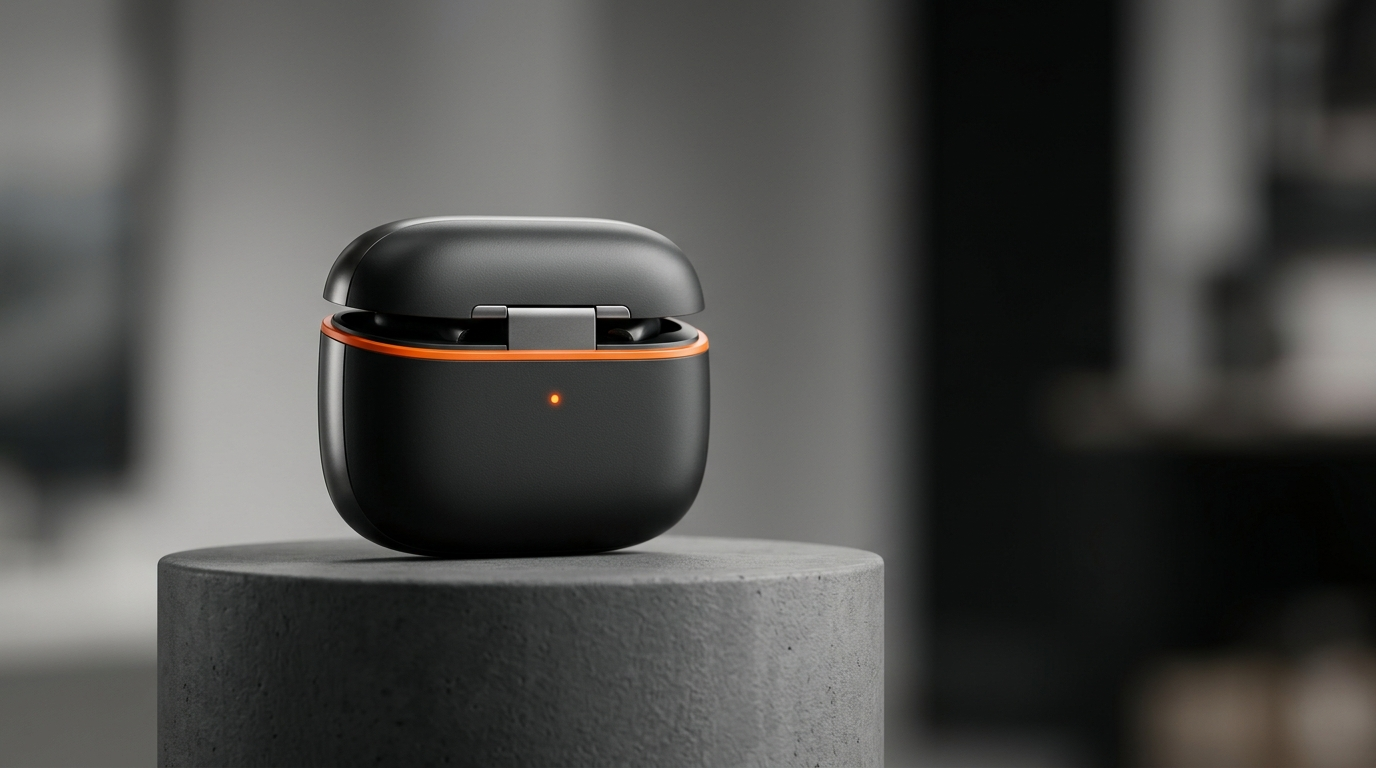
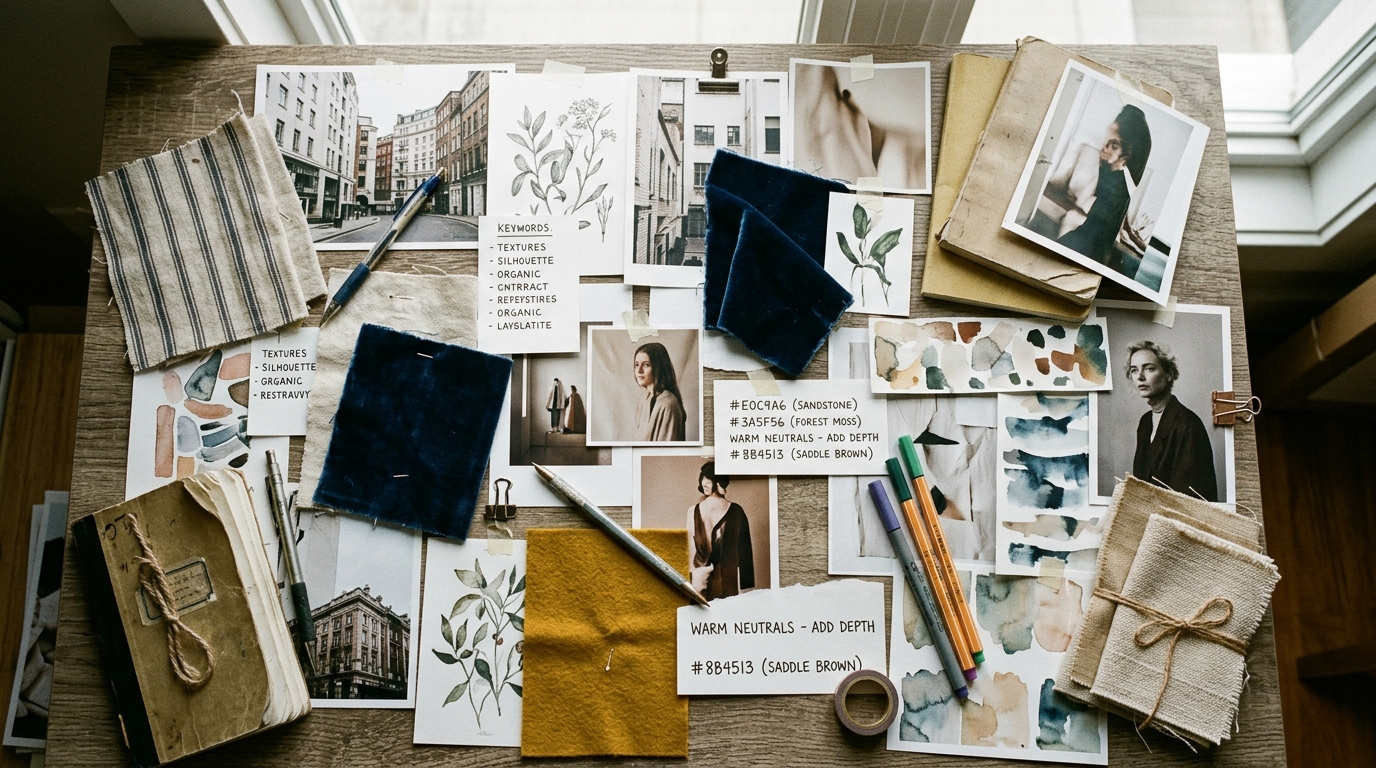
Hands-on: Example workflow — Turn a moodboard into 10 on‑brand hero images (step‑by‑step workflow)?
You can turn a moodboard into ten consistent hero images by fixing seeds, uploading brand assets, and iterating composition and lighting prompts. Start with a single high‑quality prompt and then create controlled variations to preserve brand identity while exploring layout and mood.
Workflow (summary): upload moodboard and brand assets, pick the model that matches your goal, craft a base prompt with locked brand tokens, generate a first set, then produce variations by changing composition, depth of field, or color accents. Save each variant to a library for later batch editing.
Copyable base prompts and variation prompts you can use with your brand assets:
Base prompt (hero, photoreal): "30mm cinematic hero shot of a product on a clean white pedestal, natural window light, shallow depth of field, brand color accent #FF6A00, minimal props, high detail, photorealistic, soft shadows"
Variation prompts (change one element per run):
- "Same scene, golden hour warmth, warmer white balance"
- "Same scene, closer crop, 50mm portrait framing"
- "Same scene, top-down flatlay, overhead lighting"
- "Same scene, shallow depth, subject slightly left of frame"
Practical notes: lock the seed and the brand color hex in the prompt for three of the 10 outputs to maintain consistency. For variations that require the product isolated for ad overlays, request "transparent background" or export with a clean mask so downstream compositing is easier.
If you prefer to follow a more guided step list, see the steps below for the exact sequence to run in most image tools.
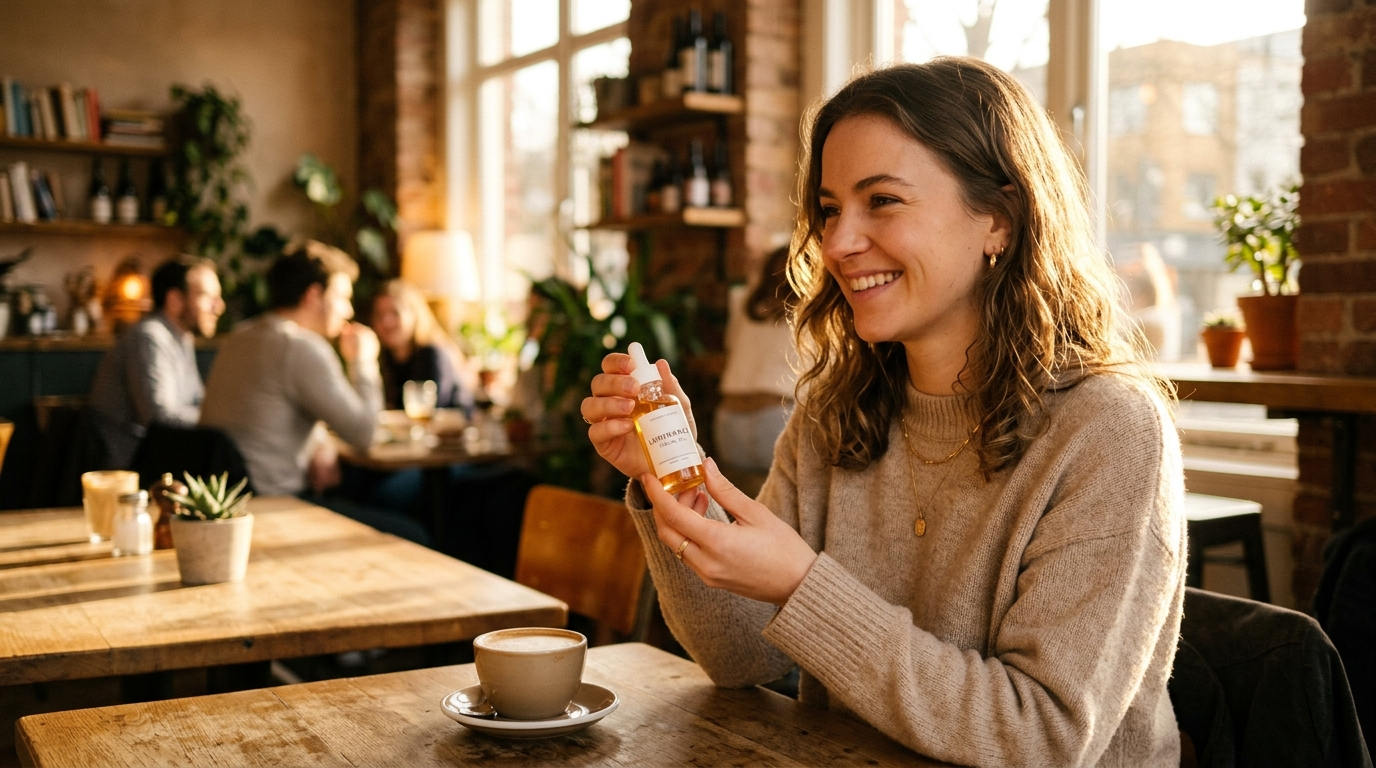
Hands-on: Generate and export ad image variations for A/B testing (batch workflow)?
Batch generate ad variations by using a template prompt plus parameter sweeps for copy placement, background, and crop/aspect ratio. The goal is to produce multiple candidates with identical subject treatment but different layouts and text areas so you can test creative elements independently.
Start with a master prompt that defines subject, mood, and brand constraints, then run batch jobs that vary: background color or scene, text area reserved (left/right/top), and crop (1:1, 4:5, 16:9). Export each variant in the exact sizes the ad platforms require so you avoid resizing artifacts.
Example batch template and param sweeps:
- Master prompt: "Studio product shot, white product on brand teal background #0077CC, soft rim light, large negative space on the right for headline"
- Sweep A (background): teal #0077CC | pale gray | lifestyle scene
- Sweep B (crop): 1:1 centered | 4:5 left aligned | 16:9 wide top-aligned
- Sweep C (subject scale): full frame | medium with whitespace
Run permutations automatically or sample intelligently (use ABCD/Automatic Bayesian Combinatorial Design ideas) to avoid combinatorial explosion while covering high-value combinations. After generation, export labeled files with metadata (model, seed, prompt variation) to make A/B assignment in your ad platform straightforward.
For ad workflows, make sure the tool can do background replacement, product isolation, and multi‑ratio export in one job; this cuts handoffs between tools and saves time.
Keep your visual identity consistent: seeding, prompts, and inpainting tricks (mistakes to avoid)?
Use seeds, uploaded brand assets, and conservative inpainting edits to keep images consistent. A seed fixes random noise so multiple runs produce the same base composition; uploading logos, color swatches, and a style sample anchors the model. Inpainting lets you change background or swap props without altering the subject’s lighting or pose.
Common mistakes (and how to avoid them):
- Mistake: changing model midstream. Avoid by assigning one model per asset type (e.g., Nano Banana for product shots). Changing models causes visual drift.
- Mistake: overly long prompts with conflicting instructions. Avoid by keeping a single "locked" clause (brand color, logo placement) and separate variable clauses for what you want to test.
- Mistake: not using masks for compositing. Avoid by exporting subject masks or transparent backgrounds so you can place subjects on consistent brand backgrounds.
- Mistake: ignoring seed tracking. Avoid by saving seeds and prompt metadata with each image so you can reproduce variations later.
- Mistake: running exhaustive permutations without prioritization. Avoid by sampling combinations that matter (headline placement, subject scale) and using iterative ABCD‑style testing to guide the next generation.
Use inpainting to preserve a subject while changing only background or color grading. That keeps identity while enabling many ad‑relevant variants with minimal rework.
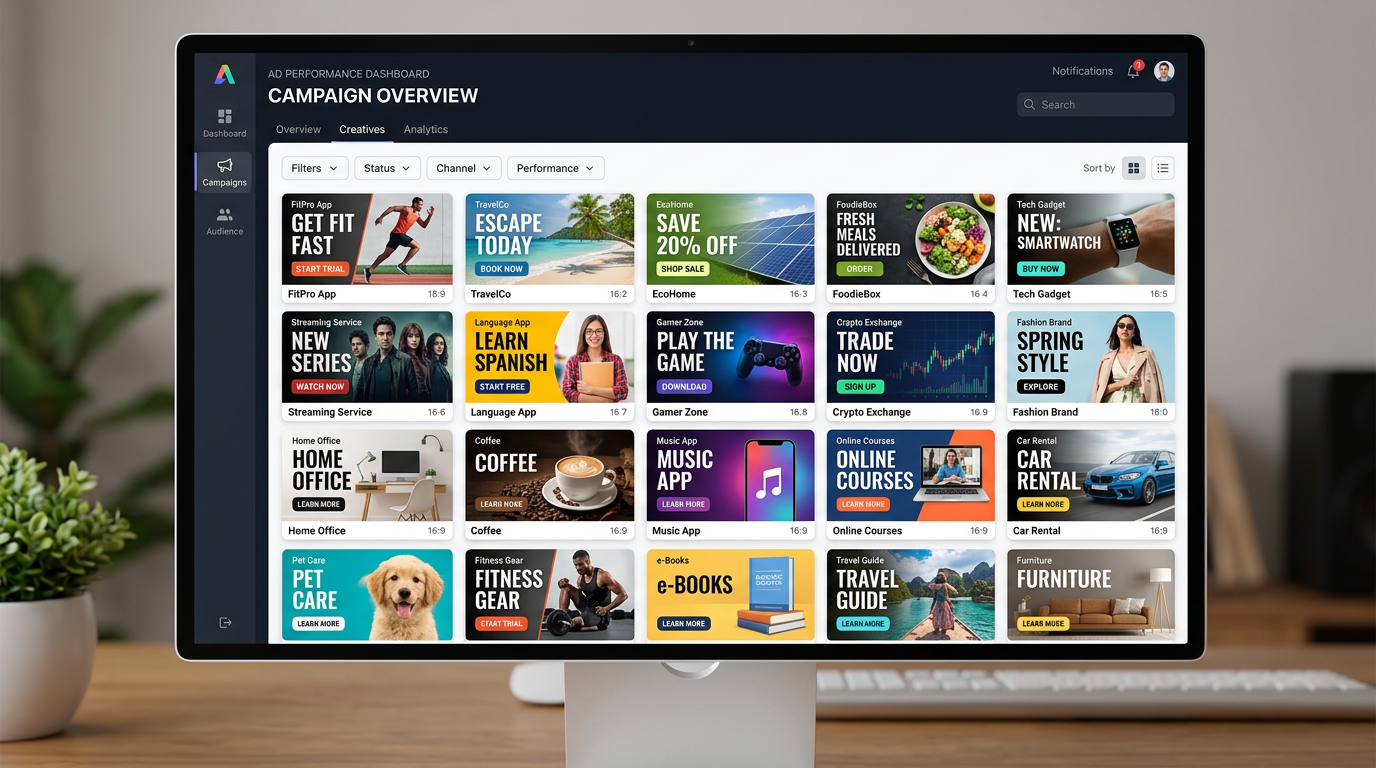
Fast post‑generation edits and iteration loop inside GoCrazyAI?
You can quickly iterate inside GoCrazyAI by saving generated images to your library, using the in‑tool editor for crop, relight, and text overlays, then exporting multiple aspect ratios in one run. This keeps the iteration loop short: generate → save → tweak → export.
GoCrazyAI’s AI Image Generator supports generating from text prompts, editing uploaded photos with prompts, and exporting at ad/social ratios — all useful for fast iteration. To try this in GoCrazyAI, open the AI Image Generator, upload your moodboard and logo, pick a model (Nano Banana, Seedream 4, or Kaneko Gen Pro), and run a generation. Save the strongest outputs to your library, click Edit to inpaint or relight, then use multi‑size export to create platform‑ready files. Learn more in the AI Image Generator documentation: AI Image Generator.
For video-first campaigns, exported frames flow directly into the AI video generator so you can turn a hero frame into a motion keyframe without leaving the platform — useful when you want consistency between still and motion assets. If you plan to add music or narration later, you can pair these with the AI music generator or AI Voices for a full creative stack; see the AI video generator to continue the pipeline and GoCrazyAI Pricing for plan details and credits if you scale up. Links: AI video generator and GoCrazyAI Pricing.
Measuring results and scaling production: from thumbnail tests to full campaign creative stacks?
Measure which variants win by tracking headline CTR, conversion, and engagement for each image variant and then scale successful elements into a creative stack. Start with thumbnail-size A/B tests, then move winning combinations into batch production for all required sizes and placements.
Ad teams often scale by converting winning variants into templates and automating batch generation from those templates. Use metadata (seed, prompt variables, model) to identify what changed between winners and losers. The ABCD approach suggests iterative generation guided by test results, which helps prioritize permutations rather than testing every combination. Also, industry roundups emphasize batch generation and product isolation as critical to reduce pipeline friction when scaling campaigns.
Operational checklist for scaling:
- Tag images with prompt and seed metadata.
- Convert winners into templates and lock brand tokens.
- Run prioritized batch jobs for all sizes and locales.
- Use automated upscaling or relighting for regional tweaks (skin tones, local props).
When you scale, keep a single source of truth (brand file with colors, logos, and font samples) and update it centrally so all generated assets stay aligned as volume grows.
Frequently Asked Questions
What is the fastest way to keep AI images on-brand?
Upload brand assets (logo, color hex, font samples), lock those tokens in your prompt, and fix a seed. Use inpainting to swap backgrounds without touching the subject. Save variations to a library so you can reuse the same constraints.
How many variations should I generate per ad concept?
Start with 6–12 controlled variations that change one element at a time (background, crop, subject scale). Use a prioritized sampling approach (ABCD-style) to explore high-value combos before expanding.
Which model should I pick for product ads vs. concept art?
Use Nano Banana-style models for photoreal product shots and thumbnails, Seedream 4 for cinematic hero images, and Kaneko Gen Pro for stylized concept art or posters.
Conclusion
Generating on‑brand image variations at scale needs a repeatable workflow: choose the right model, lock brand tokens, use seeds and inpainting, and run prioritized batch jobs for ad sizes. Track prompt metadata and iterate using A/B results to grow a campaign’s creative stack efficiently. Spin up your first frame in the AI Image Generator and refine the prompt until the look is right.
Mentioned in
Sources
- I've created thousands of AI images and these are the best AI image generators (Tom's Guide)tomsguide.com ↗
- AI Image Generator Comparison 2025 — Best Tools for Photorealism, Branding & Creative Design (Next AI Compare)nextaicompare.com ↗
- Best AI Image Generation Tools of 2025: Midjourney, DALL·E 3, Stable Diffusion & More (Brand Vision)brandvm.com ↗
- Best AI Image Generators for Ads 2025 (Eaures)eaures.online ↗
- Best AI Image Generators in 2025: We Tested 40+ Tools With $15K Budget (Axis Intelligence)axis-intelligence.com ↗
- Creating Effective Digital Ads: Automatic Bayesian Combinatorial Design (ABCD) — SSRN paperpapers.ssrn.com ↗
- CorelDRAW adds AI image tools, including Nano Banana, Stable Diffusion 3.5 and others (CreativeBloq, 2026)creativebloq.com ↗
- AI Image Generators for Ecommerce: Top Tools (Shopify)shopify.com ↗