


Image to Video: Turn a Single Screenshot into a 20s SaaS Product Demo
Learn how to turn one product photo or screenshot into a high-converting 20s SaaS demo using image-to-video AI. Practical workflows, platform tips, and a GoCrazyAI.
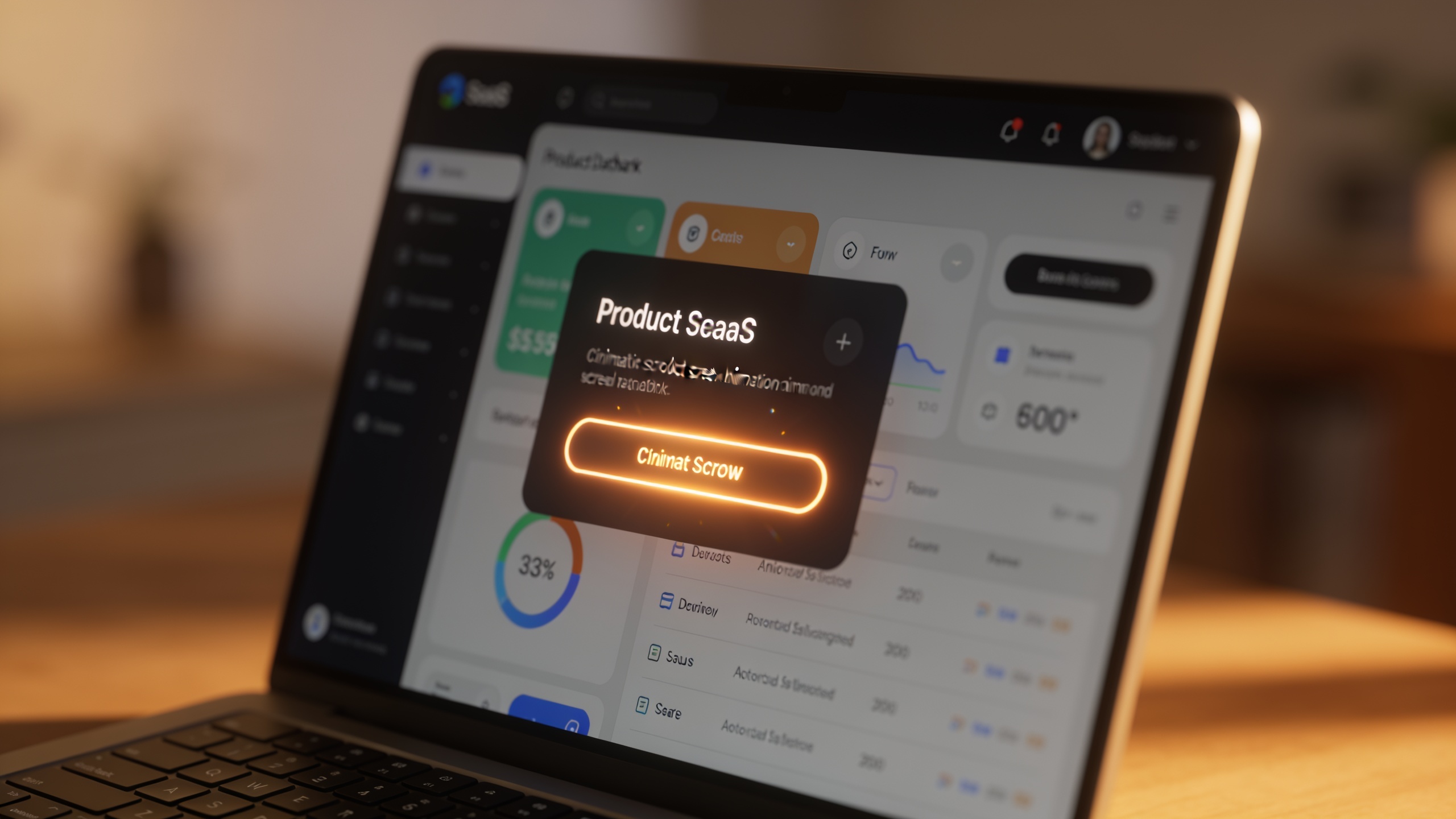
You need a short, high-converting demo but only have one product photo or a screenshot. This guide shows how to turn that single still into a cinematic, on-brand 20‑second SaaS product clip that works for landing pages, Reels, and paid ads. Read a short explanation of why 20s clips work, the technical and creative limits of image-to-video AI, two hands-on workflows (demo loop and story-mode opener), and platform optimization tactics.
Examples and step-by-step prompts are included so you can produce several variants quickly. If you want one practical option for rapid production, I walk through the exact steps to do this with GoCrazyAI AI Video Generator and link to the tools you’ll need to finish edits and audio.
Quick Answer
How do you turn an image to video for a 20s SaaS demo? Use an image-to-video AI model to animate camera moves, add UI overlays and text, and export a 9:16 and 16:9 render. Create a tight storyboard, write a one-line hook, produce a short VO or captions, and iterate 6–20 variants. Tools like GoCrazyAI AI Video Generator let you drop a screenshot in and output multiple aspect ratios quickly.
Why 20-second product clips outperform static assets (data-driven brief)?
A 20-second clip can teach one sharp lesson. Short-form video is the top ROI-driving content format for many marketers and platforms prioritize 15–60s clips for reach and discovery, making 20s demos an efficient sweet spot for awareness-to-interest funnels. Surveys and trend summaries report that most marketers now use short-form video and that consumers prefer concise clips to learn about products, supporting the use of focused 20s demos for product discovery.
Practically, shorter clips increase completion rates and engagement: platform and landing-page tests repeatedly show higher watch-through and higher CTRs for 10–30s focused demos versus longer walkthroughs. A muted 10–20s loop on a landing page often outperforms static hero images for early funnel conversion because motion draws attention without demanding long attention spans. Use this data to justify swapping a static hero for a 15–25s loop on landing pages and social ads.
How does image-to-video AI actually turn a still into cinematic motion — tech and creative limits?
Image-to-video models usually animate a still by generating plausible motion, parallax, synthetic camera moves, and layered overlays while preserving key subject features. They often create depth cues, simulated lens shifts, and UI animation from a single screenshot, then render short sequences. This works best when outputs are short (6–25s) and the prompt controls motion, focal length, and overlay timing.
Limits to keep in mind: models can deform objects if you ask for extreme angle changes, long sequences may suffer temporal coherence issues, and on-screen text can become blurry unless you add native text overlays in post. For brand compliance, supply high-res assets, lock colors in prompts, and use short durations so the model focuses on a few controlled moves. In practice, you’ll get better results by combining AI motion with overlaid vector UI and crisp captions produced in an editor.
What should you storyboard for a 20s SaaS product clip: storyboard, VO, and visual anchors from one screenshot?
A tight storyboard answers one question: what is the single thing you want the viewer to do or remember? For a 20s SaaS clip, plan a three-part arc: Hook (0–3s), Demo/benefit (3–15s), CTA (15–20s). Keep visuals anchored to parts of your screenshot: product logo, main UI panel, and a CTA button or metric. Map each anchor to a short motion: reveal logo with a 0.5s push-in, animate the UI with a 6–10s simulated scroll or highlight, then zoom out and show CTA.
Write a 15–20 word voiceover or 3–4 caption lines. Example storyboard lines:
- Hook (0–3s): “Meet faster onboarding.” (logo push-in)
- Demo (3–15s): “Auto-fill templates cut setup time by 70%.” (highlight form fields, animated ticks)
- CTA (15–20s): “Try free — 14‑day trial.” (CTA slide-in)
Keep narration tight and prepare captions and native text overlays—AI motion plus crisp text drives clarity in small mobile frames.
Hands-on workflow — Convert a product photo into a 20s product-demo loop with GoCrazyAI AI Video Generator?
Use GoCrazyAI AI Video Generator to animate a single product photo into a short demo loop that exports 9:16, 1:1, and 16:9. Start by uploading your high-res product photo, select an animation preset or a model (Kling, Veo, or Sora), set duration to 20s, and add a short prompt describing camera moves, mood, and overlays. The generator will render a motion pass you can polish in GoCrazyAI Media Mixer.
Step-by-step (practical tips):
- Upload the photo and pick a model. Kling for cinematic camera moves, Veo for cleaner UI motion, Sora for conversational-style story cues.
- Prompt example: "subtle 3-axis parallax push-in to product card, soft studio lighting, gentle rack focus, animated CTA pulse at 15s, keep brand colors #0A74FF and #FFFFFF".
- Request 9:16 and 16:9 renders in one job so you can test both placements.
- Export and import into the AI video editor to add crisp native text, subtitles, and a VO track from AI Voices if needed.
This workflow supports rapid variant testing: change hook text, crop, or CTA style and re-render multiple variants in minutes. Use the AI Image Generator (/ai-image-generator) only if you need alternate product visualizations or background plates.
You can try every step above directly in GoCrazyAI AI Video Generator — no setup needed.
Hands-on workflow — Build an animated explainer from a single screenshot (story-mode opener) example?
A story-mode opener turns a single screenshot into a short narrative clip that sets context before the demo. Start with a 3-line micro-script: Setup (what’s the pain), Pivot (how your product helps), Proof/CTA (one metric or benefit + CTA). Animate the screenshot into a sequence of 3 beats using layered overlays and synthetic camera moves so each beat has a clear visual anchor.
Practical prompt examples you can copy: "Beat 1: wide crop of dashboard, slow left-to-right pan, caption: ‘Tired of slow reporting?’" "Beat 2: zoom into report widget, animate numbers counting up, caption: ‘Auto reports in 90s’" "Beat 3: zoom out to CTA card with button pulse, caption: ‘Start free →’"
Use short VO lines (3–4 words per beat) or captions for muted autoplay. Keep motions conservative—use 0.5–1.5s micro-zooms per beat and let the editor add sharp vector text overlays so brand text stays crisp. Example production order: 1) generate motion pass, 2) export frames, 3) add text and counting animation in the AI video editor, 4) add a 10–20s instrumental loop from the AI music generator for pacing.
What mistakes should you avoid when creating image-to-video product clips — Common mistakes and pitfalls?
Common mistakes are predictable and avoidable: over-animating the asset, relying on model-generated text, under-testing aspect ratios, and skipping variant production. First, don't ask the model to change the camera angle radically; this often causes object deformation. Keep motion subtle. Second, never rely on AI to render small UI text—always add captions or native text in post for legibility. Third, avoid using only one aspect ratio; social and landing uses differ, so export at least 9:16 and 16:9. Fourth, don't publish a single creative—generate 6–20 variants (hooks, crops, CTA overlays) to find what converts.
How to avoid these: set conservative motion prompts, overlay crisp vector text in the editor, export multiple aspect ratios from the generator, and build a small test matrix of variants before scaling paid spend. Use GoCrazyAI to iterate quickly and export variants, and use the AI video editor to lock text and CTAs so they stay readable across formats.
Embed, measure, iterate: landing-page loops, measurable KPIs, and scaling variants?
Embed short, muted loops (10–20s) in hero positions and measure watch-through, CTR, and on-page conversion rate. For landing pages, use a muted 10–20s loop with a visible CTA; these often increase time on page and CTR vs. static images according to landing-page tests. Track KPIs: view rate, click-through, sign-ups per visit, and cost-per-acquisition for paid channels. Run A/B tests with 6–20 variants created from a single screenshot—changes to hook, crop, or CTA have outsized effects on conversion.
To scale: automate variant generation (different hooks, color accents, and crops), run small experiments on social to identify top performers, then push winners to landing pages. Keep a naming convention for each variant and record test results. Rapid iteration is the main advantage of AI—create multiple short variants and let data decide which micro-message earns the best lift.
Frequently Asked Questions
How long should an image-to-video SaaS demo be?
Aim for 15–25 seconds. This length balances message clarity and completion rate, and works well for both social placements and muted landing-page loops.
Can I keep all on-screen text legible after AI animation?
Usually text rendered by image-to-video models can blur. For legible branding and CTAs, add native vector text overlays in an editor after the AI-generated motion pass.
How many variants should I test from one screenshot?
Test 6–20 variants (different hooks, crops, and CTAs). Many teams see better conversion lift when they iterate multiple micro-variants rather than relying on a single creative.
Which aspect ratios should I export for ads and landing pages?
Export 9:16 for Reels/TikTok, 1:1 for many paid placements, and 16:9 for YouTube and landing pages. Producing all three from the same job saves time.
Conclusion
Final thoughts: a single product photo or screenshot can become a high-converting 20s demo if you plan a tight storyboard, keep motion conservative, add native text overlays, and test multiple variants. Start with a clear hook and build a simple three-beat arc you can reuse across crops and hooks. If you want to experiment quickly, open the AI Video Generator to drop in a still, pick a model, and export multiple aspect ratios.
Mentioned in
Sources
- Video Landing Page: How to Build One That Converts (Swarmify)swarmify.com ↗
- Short-Form Video Statistics 2026: Key Growth Facts (TechRT)techrt.com ↗
- Video Marketing Trends to Watch in 2026 (Viralix)viralix.video ↗
- Top 7 Video Marketing Trends for 2025 (Rendley)rendley.com ↗
- Short-Form Video Marketing Trends | June, 2026 (Mean.CEO)blog.mean.ceo ↗
- Why Short-Form Video Is Winning in B2B Tech (Voxus PR)voxuspr.com ↗
- Sora 2: How Marketers Can Use 20-second AI Videos (Geneo)geneo.app ↗