


How to speed AI video post production for short-form clips?
Turn AI clips into platform-ready TikToks and Reels: add voiceovers, burn subtitles, overlay branding, and export in one click with Media Mixer templates.
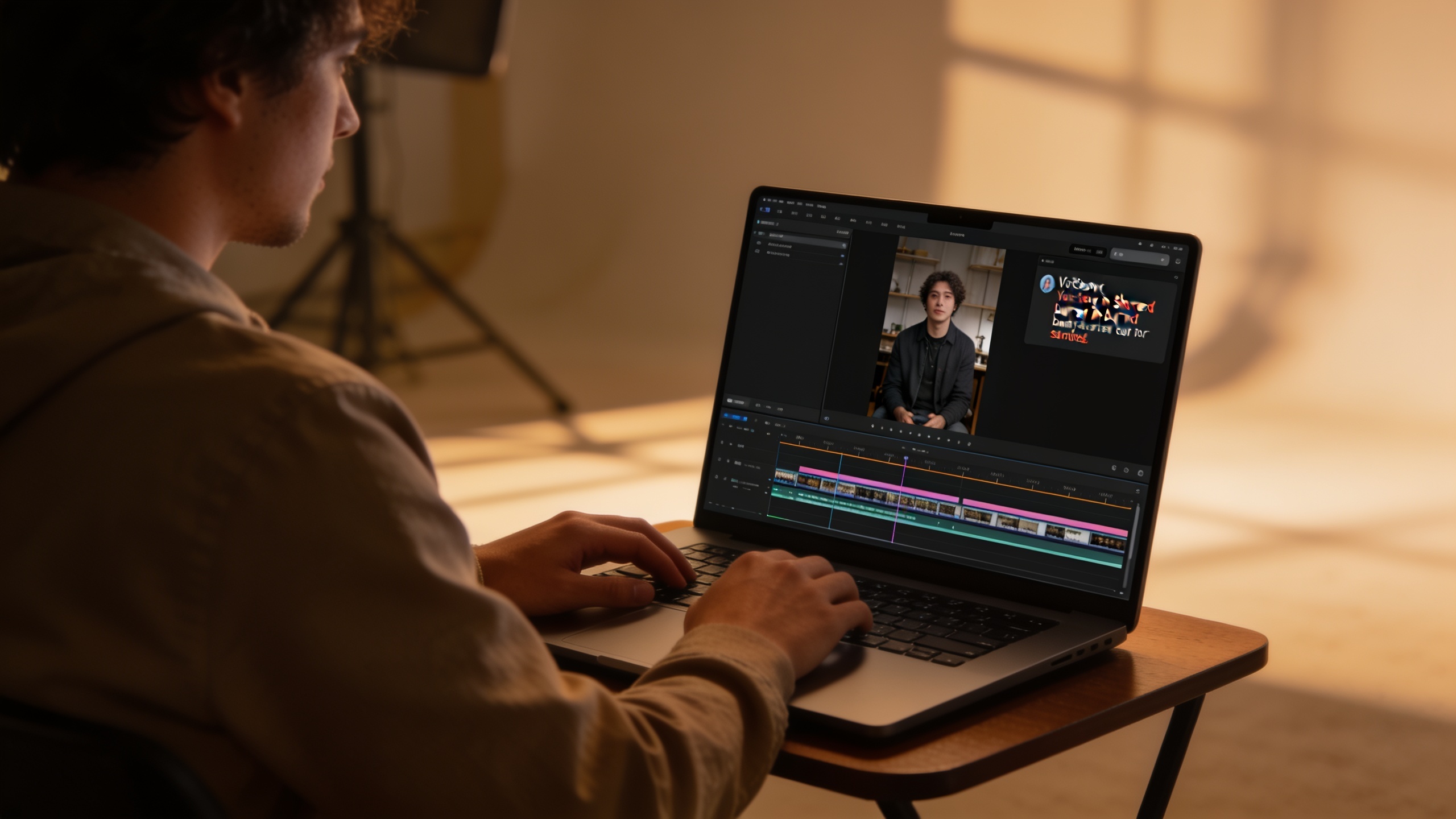
You need to turn raw AI-generated clips into publish-ready shorts with voice, captions, and branding — fast. This guide shows how to combine accurate AI voiceovers, burned-in subtitles, and one-click exports so a single clip goes from generator to TikTok/Reels/Shorts-ready in minutes. You'll get practical workflows, repeatable prompts for synchronizing narration with Veo and Sora footage, subtitle design tips that survive platform cropping, and a concise Media Mixer workflow that keeps all post-production in one place.
Quick Answer
How to speed AI video post production? Use a single editor that handles voiceover generation, accurate subtitle creation and burning, overlay templates, and one-click export. Apply a Media Mixer template to batch clips and run a quick subtitle pass, then export to the platform preset. This cuts manual sync and re-export steps dramatically.
Why voiceovers + subtitles are non-negotiable for social video?
Voiceovers paired with burned-in subtitles significantly increase watch time, comprehension, and share rates on short-form platforms. Subtitles are expected by a large portion of the audience — a 2023 Axios survey found 59% of Gen Z and 52% of millennials use subtitles — so captions meet viewer expectations and increase the chance they keep watching. Accurate captions also help non-native speakers and viewers with hearing differences, expanding reach and inclusivity. Practical consequence: a clip without captions or clear narration will often lose viewers during the first three seconds, while clear audio plus readable captions encourages completion and rewatch behavior.
Choosing the right audio style: AI voiceover vs. recorded voice — tradeoffs and quick tests?
Pick AI-generated narration when you need speed, consistent tone across many clips, or translations; pick recorded voice when you need distinct human character or emotional nuance. AI voiceovers allow instant revisions and multiple language tracks; recorded voice can be more convincing for personality-driven creators. Quick tests to decide: 1) Record a 10–15 second chunk of the intended script and render the same chunk with an AI voice; 2) Play both to neutral listeners and ask which feels more trustworthy and which is easier to understand on headphone and phone-speaker playback. If the AI voice scores equal clarity and fits brand tone, it usually wins on time and iteration speed.
When evaluating audio, test on-device: short-form viewers often watch with the phone on mute or low volume, so syllable clarity and consonant emphasis matter. If you plan to localize or produce many short variants, AI narration plus an automated caption pass will scale far faster than re-recording.
Hands-on: Add a synchronized AI voiceover to a Veo or Sora clip (repeatable Media Mixer workflow) — example prompts
Add a synchronized AI voiceover by generating narration from a short script, aligning it to visible edits, and doing a single-pass fine-tune. Example repeatable workflow: 1) Import the Veo or Sora clip; 2) Draft a 10–45 second script tied to the clip’s visual beats; 3) Generate the AI voice and place it on the timeline; 4) Nudge phoneme-level timing or stretch gaps to match cuts.
Example prompts you can copy for an AI voice generator:
"Voice: neutral US female, pacing 160 wpm. Script: 'Product reveal: compact camera. One-hand operation, 4K stabilization, under $199.' Emphasis on '4K stabilization' and 'under $199.'"
"Voice: calm male narrator, pacing 140 wpm. Script: 'Quick tip: charge your battery until the light turns green — avoid overcharge to prolong battery life.' Pause 0.3s before 'avoid.'"
These prompts are safe for social clips and work well when you generate a short file and then align it in the Media Mixer. Use small timing adjustments (±0.2–0.5s) rather than re-recording; this keeps the voice natural while matching edits.
Practical note: if your AI clip already includes synthesized audio from the generator, mute the original and add the narration track so the voice occupies a single lane for easier caption alignment.
Hands-on: Burn subtitles into a TikTok-sized export and add branded overlays in one pass (GoCrazyAI Media Mixer)
You can burn subtitles and overlays in one export by using a Media Mixer template that uses safe-area subtitle rules, consistent typography, and a brand overlay layer. Start by generating accurate captions (auto-transcribed or uploaded SRT), place them inside the platform-safe lower-third area, turn on "burn-in", and add your branded overlay layer above the footage. Then export using a TikTok/Reels preset.
How to do this on GoCrazyAI: open the Media Mixer, import your clip, and select the TikTok aspect preset. Add a voiceover or import an AI voice in the Audio panel, then open Subtitles and choose "Generate & Burn". Use the caption style controls to pick font size, weight, and safe-area padding. Add a Text Overlay or Logo layer and position it so it doesn't collide with captions. Export with one click using the TikTok preset — the file comes out as a single MP4 with burned-in captions and overlays ready to upload. See the AI Video Editor for the Media Mixer workflow and one-click export options: GoCrazyAI Media Mixer.
Design keys: use templated safe-area rules and consistent typography so captions remain readable after platform cropping and vertical compression; this approach follows common guidance for burning-in subtitles to MP4.
Best practices for subtitle timing, readability and accessibility across platforms? (Common pitfalls to avoid)
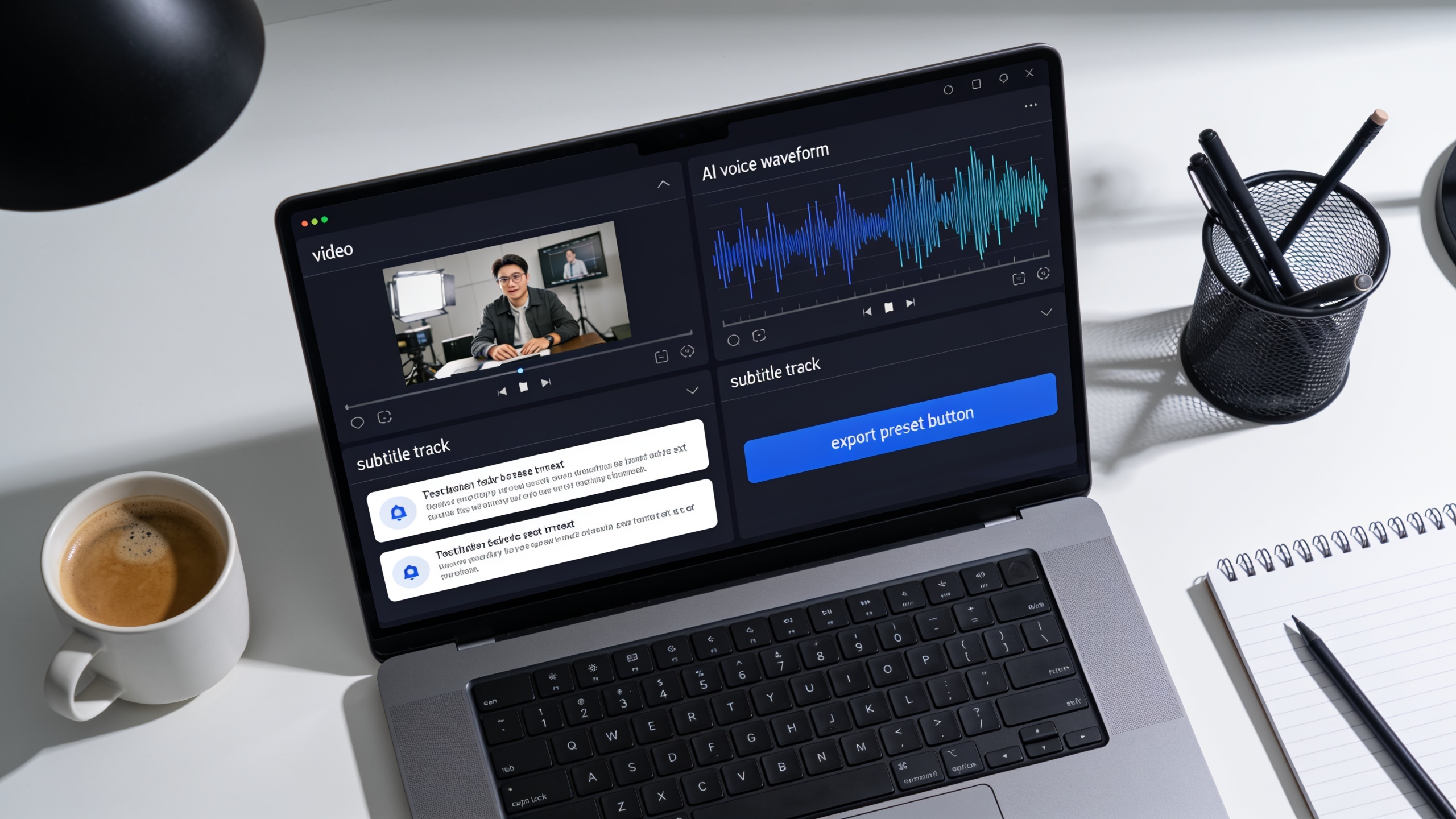
Good subtitles use clear timing, high-contrast backgrounds, and consistent placement to be readable on small screens. Aim for 1–2 lines per caption, 35–42 characters per line where possible, and 90–150 reading milliseconds per character as a rough pacing guide. Leave at least 5% vertical safe area above the bottom edge so platform UI elements (like TikTok buttons) don't cover text. Use high-contrast color (white text, 20–30% black backdrop) and a sans-serif font for legibility.
Common mistakes and how to avoid them:
- Overlong captions: splitting a long sentence into many lines makes scanning harder. Break sentences by meaning and test on a phone.
- Low contrast: thin stroke or light color captions on busy footage reduce readability. Use a subtle backdrop box or outline.
- Wrong placement: placing captions where platform buttons appear leads to cropped text. Use safe-area templates and preview in vertical presets.
- Auto-transcribe trust without review: automatic captions often miss proper nouns and technical terms; always quick-edit before burning-in.
Following these rules improves accessibility for EFL learners and viewers with hearing differences, and aligns with evidence that accurate captions increase comprehension and engagement.
Speed to publish: Automating post-production with one-click export and Media Mixer templates?
Automate repetitive delivery tasks by creating Media Mixer templates that include the aspect ratio, caption style, voiceover slot, and export preset. When a new AI clip arrives, import it, swap the footage into the template, regenerate captions if needed, and hit export. This reduces per-clip post time from tens of minutes to a few clicks in many cases because you avoid manual layout, re-encoding, and caption burning steps.
Tools that combine voice generation, captioning and export in one workflow drastically cut post-production time; several platforms now advertise one-click burned-in subtitle exports and built-in AI voice options, which mirrors the workflow recommended here. For creators working at volume, maintain a small library of Media Mixer templates per platform (TikTok, Reels, Shorts) and a short checklist: audio check, caption review, brand overlay, export preset. That checklist plus a template is the fastest route from AI-generated footage to a publish-ready file.
Frequently Asked Questions
Can I use AI voices for ads and branded content?
Yes — AI voices are commonly used for ads and branded shorts. Check licensing for any premium voice model you use and test the voice on-device to ensure it reads clearly at low volume.
How accurate are auto-generated subtitles?
Auto-transcription is usually good for clear speech but often misrenders names and technical terms. Plan a 30–90 second edit pass to correct captions before burning them into the final export.
Will burned-in captions hurt engagement on some platforms?
Burned-in captions generally improve reach because they’re always visible even when the platform mutes audio. Design captions with safe-area rules to avoid clipping and keep them unobtrusive so they don’t distract from the visual content.
How do I choose between multiple export presets for a short?
Pick the preset that matches the target platform’s aspect ratio and max bitrate. Use a template per platform so you don’t need to tweak settings each time.
Conclusion
Final thoughts: for short-form creators, the fastest path from AI footage to publish-ready video is a single post-production flow that handles voice, captions, overlays, and export in one place. Use tight scripts for narration, safe-area subtitle templates, and Media Mixer templates to automate repeats. Polish your clip in the AI Video Editor and export the finished file in one click.
Sources
- Why young people can't get enough of subtitles (Axios, Aug 20, 2023)axios.com ↗
- How to Add Voice & Sound to AI Videos (No Editing Skills Needed) (AI Video Bootcamp, 2026)aivideobootcamp.com ↗
- Auto Video Editor — Kapwingkapwing.com ↗
- AI Subtitle Generator & Online Subtitle Editor — Subvideo.aisubvideo.ai ↗
- How to Burn Subtitles Into a Video (4 Methods) — PixScript (recent)pixscript.com ↗
- Burning subtitles into MP4 — the design-controlled way — HyperFrames (2026)hyperframes.video ↗
- Streamlining Video Production with Generative AI (HKPC Academy, Jan 2025) — workshop noteshkpcacademy.org ↗
- AI video editors and workflows roundup (examples: CueEditio, Recapo, Clipove)vmaker.com ↗