


Sora 3 short-form workflow: adapt vertical product-demo workflows after recent model shakeups
How creators should change short-form, vertical product-demo workflows after Sora 3 updates. Practical prompts, image-to-video steps, and GoCrazyAI how-to.
You need reliable, fast vertical product demos that still work when text-to-video models change overnight. In the last two weeks major model updates and API transitions (notably around OpenAI Sora and related pipelines) have forced creators to rethink which models they depend on and how they label, time, and publish AI-generated clips. This article explains exactly what changed, what to update in your short-form workflow, and concrete steps to go from a product photo or a short prompt to a TikTok/Reels-ready 9:16 clip.
I'll show copyable example prompts, a repeatable still-to-motion workflow tuned for Sora-style outputs (and alternatives like Kling 2.5 Turbo Pro and Veo 3.x), plus two hands-on walkthroughs you can run now. You’ll also get publisher-safe labeling and distribution rules recommended by industry trackers and Search Engine Journal so you avoid timing risk and compliance mistakes. If you want to ship quickly, the GoCrazyAI AI Video Generator routes to Kling, Veo, and Sora from one credit pool — the “how-to” section walks through that flow step-by-step.
Quick Answer
How do you build a Sora 3 short-form workflow? Start by treating model updates as part of your release process: use short, camera-aware prompts; create an image-to-video master (9:16) with a 3–6 second loop; add on-brand captions and a silent-first thumbnail. Use alternatives like Kling 2.5 Turbo Pro or Veo 3.1 when Sora is unavailable and label AI-generated clips before publishing.
What changed in the past two weeks for text-to-video models (and why creators need to rethink short-form workflows)?
Short answer: major model updates and API shifts have created immediate timing and labeling risks for creators who publish AI-generated short-form video. As of this week, OpenAI’s Sora updates plus platform release calendars mean creators must update how they choose models, log prompts, and label content before publishing.
What happened (brief timeline). In the last 7–14 days, industry trackers and publisher guides flagged two trends: Sora-family model changes pushed publishers to revise labeling and timing rules, and model release calendars show multiple short-form engines in active transition[1][2]. These shifts create two practical risks: an API or model you relied on can be deprecated on a short timeline, and the labeling/metadata guidance for AI-generated clips has tightened.
Why it matters for short-form creators. Short-form social content is high frequency and low margin. If a model endpoint changes or a platform enforces stricter disclosure later, reworking dozens of clips becomes costly. Also, early Sora-style prompts that assumed certain camera controls can render differently on new model builds. That means your workflow must include: a prompt-and-image log, a model fallback plan, and publisher-step checks (labeling, timestamping, and keeping source assets).
What the trackers say. VidModelHub’s release calendar shows an active pipeline of short-form model updates and flags Sora-related transitions creators should watch[2]. Industry posts also note Kling 2.5 Turbo Pro and Veo 3.x variants are being positioned for faster, camera-aware short-form generation, making them practical fallbacks[3].
How do you design a repeatable Sora 3-style vertical workflow: example prompts, still-to-motion, and deliverable specs?
Short answer: build a three-part pipeline — capture & prep, generate & iterate, polish & publish — and standardize specs (9:16, 3–6s loop, readable typography). Use example prompts and a fixed image-to-video routine to keep outputs consistent across model changes.
Core pipeline steps. 1) Capture & prep: choose a high-contrast product photo, remove background if needed, and save a 2–3x crop for 9:16. 2) Generate & iterate: run an image-to-video pass with a camera-direction prompt plus two fallback model runs (Kling, Veo). 3) Polish & publish: add captions, thumbnail, and required AI-label metadata.
Example prompts (copyable). Use camera directions and material details; keep sentences short. Try these exact lines:
"Vertical 9:16 product demo, 3s loop. Camera dolly-in from 35mm to 50mm, soft rim light, crisp product detail on brushed metal, shallow depth of field, no text."
"Animate single product photo into a 4-second loop: slow clockwise rotation, subtle shadow fall, specular highlight on logo, cinematic 24fps."
"Hook shot: fast 1.5s push to product, hold 0.5s, reveal feature overlay; punchy contrast, clean white background."
Deliverable specs to standardize.
- Aspect ratio: 9:16 at 1080x1920 (master) and export 1:1/16:9 as needed.
- Duration: 3–6 seconds for loops; 6–15s for hooks.
- Frame rate: 24–30fps.
- Render passes: primary model + one fallback.
Why fallback runs matter. Model endpoints can change on short notice; running a second model (Kling 2.5 Turbo Pro or Veo 3.1) takes roughly the same time but reduces single-vendor risk and helps preserve a predictable look when Sora behaves differently. Kling 2.5 Turbo Pro is specifically noted for faster runs and improved camera control in recent integration notes[4].
Hands-on: Turn a product photo into a 9:16 product-demo loop (step-by-step with GoCrazyAI AI Video Generator)?
Short answer: upload a clean product photo, pick 9:16, use an image-to-video preset with a camera-direction prompt, preview two model outputs (Kling and Veo), then export a 3–4s loop with captions and a thumbnail. This is a fast path from photo to TikTok-ready clip using GoCrazyAI.
Step-by-step (practical). 1) Prepare: choose a high-res product photo with clear edges and neutral background. 2) Upload to the GoCrazyAI AI Video Generator and select "Image-to-Video". 3) Set output framing to 9:16 and duration to 3–4s. 4) Paste an image-to-video prompt (example below). 5) Run the primary model (Sora-style) then run a Kling 2.5 Turbo Pro fallback if rendering or timing looks off. 6) Pick the best render, add captions with GoCrazyAI Media Mixer, and export.
Copyable prompt to paste into the generator:
"Image-to-video: 9:16 product demo loop, 3s. Smooth dolly-in (35mm->50mm), subtle clockwise rotation, soft studio rim light, maintain logo detail, cinematic color grade, no text or watermark."
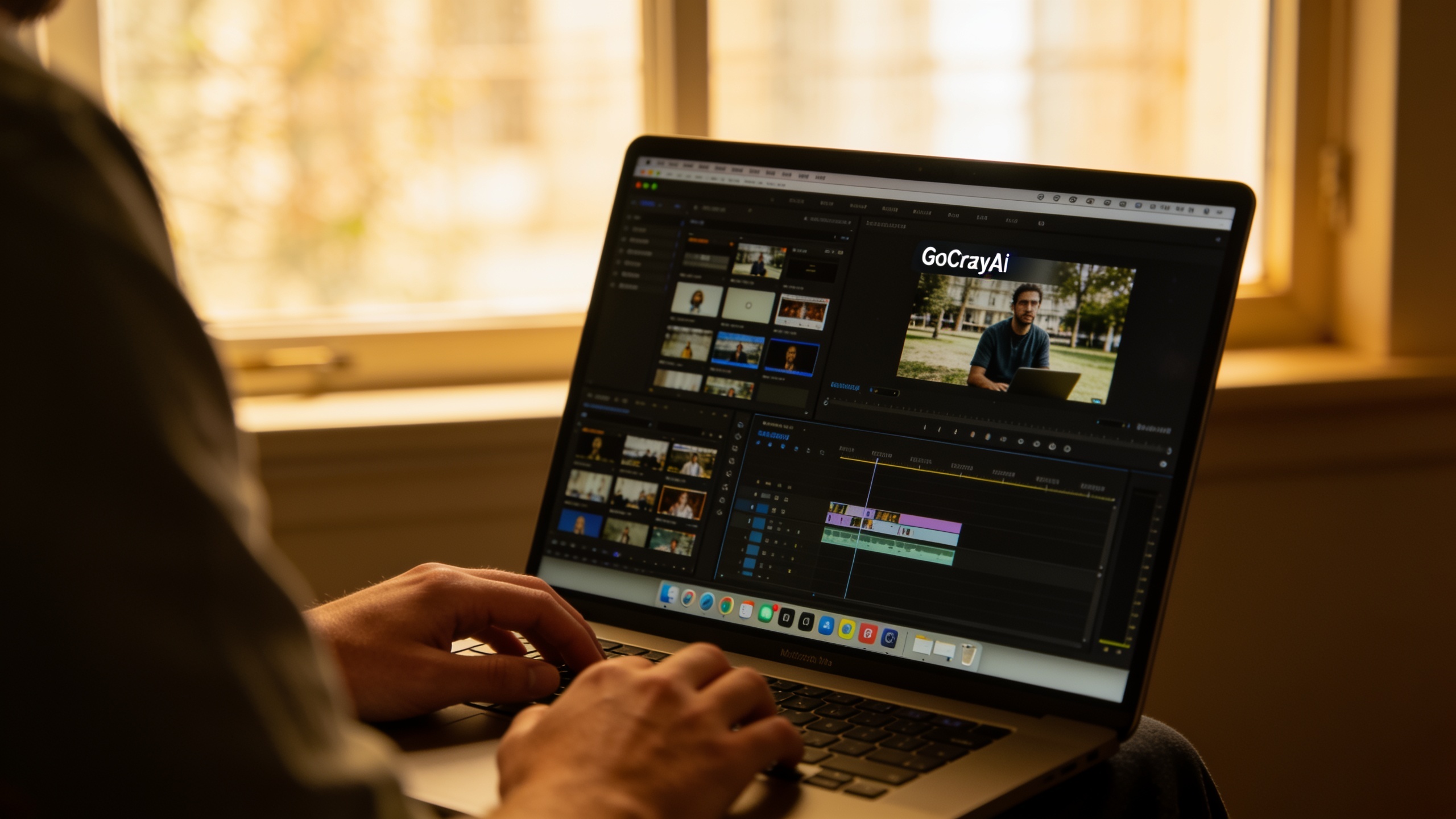
Why GoCrazyAI here. The GoCrazyAI AI Video Generator routes a single job to multiple models (Kling, Veo, Sora) from one credit pool, letting you compare outputs quickly without juggling APIs. Use the AI Image Generator to prep or relight source images if needed, then finalize audio and subtitles with the Media Mixer. This flow keeps cycle time under 10–15 minutes for most product photos.
Internal resources: if you need to generate or edit the source photo first, use the AI Image Generator for relighting and cleanup; when you need to add captions and music, open the AI Video Editor for polish.
You can try every step above directly in GoCrazyAI AI Video Generator — no setup needed.
How do you create a prompt-first TikTok / Reels hook using Sora 3 text-to-video techniques — editing, pacing, and captions for max retention?
Short answer: write a one-sentence camera-first hook prompt, generate a 6–12s vertical clip with fast pacing, then edit down to a 3–6s punchy opener with captions and a silent-first thumbnail. Use explicit camera cues and beat markers in the prompt to keep the model’s cuts predictable.
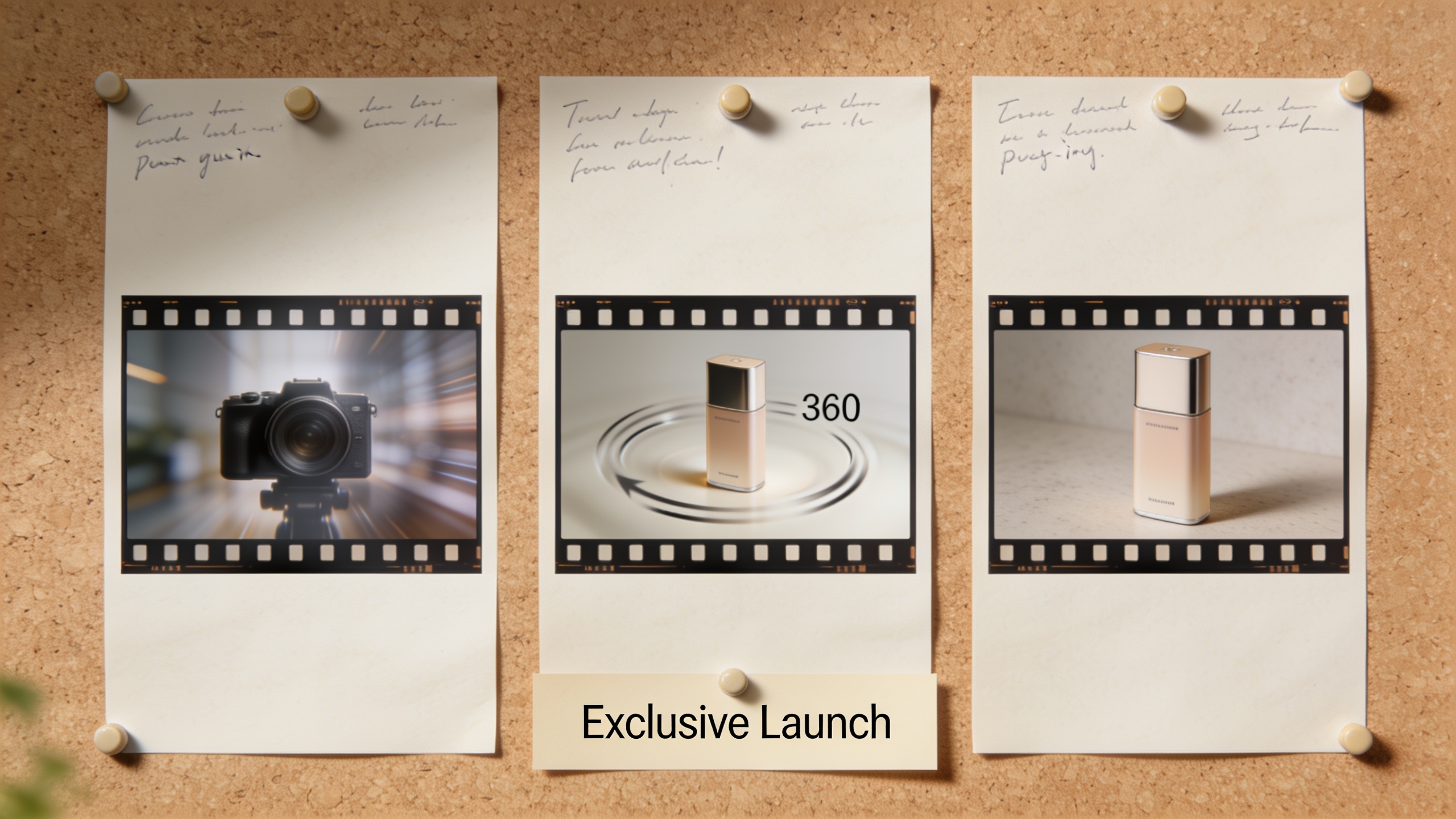
Prompt-first structure (3 lines). 1) Hook: an imperative camera action. 2) Visual detail: product material and focal point. 3) Timing beats: durations for pushes/holds. Example:
"Push in 1.2s to product label, hold 0.4s, snap to feature macro for 0.8s; glossy ceramic, warm studio light, high contrast, 9:16."
Editing and pacing rules.
- Start silent and visually strong for 0–1s to get the autoplay pause advantage.
- Use a quick 0.4–0.8s reaction or hold on the product to give viewers a readable moment.
- Add captions in large, bold text that appear within the first 1.2s; keep them short (4–8 words).
Caption and accessibility best practices. Captions should be present on-screen for the clip duration or at least the first 3 seconds. Export a VTT or burned subtitle track with the final render so platforms show text reliably.
Why camera cues help predict retention. Sora-style models and Kling 2.5 Turbo Pro respond better to explicit camera directions than to vague mood lines; a short, structured prompt makes the generated cut match your edit velocity. If a model change affects framing, your fallback run will be easier to reconcile because the prompt enforces the same beats. Use the AI Video Editor to combine multiple short renders, add music from the AI Song Generator, and finalize captions for publishing.
Measurement, safety, and distribution: publishing, watermark/transparency considerations, and optimizing for conversions?
Short answer: track model and prompt metadata, follow the latest publisher labeling guidance, and prefer subtle watermarks or metadata tags rather than visible overlays; measure conversions with short A/B tests and keep fallback renders for auditing.
Labeling and timing rules. Search Engine Journal published a concise checklist this week recommending creators add AI-source labels, timestamp prompt logs, and note which model produced each render before publishing[1]. Implement these checks as part of your release pipeline: a single-row CSV with filename, prompt text, model name, render timestamp, and export URL is usually sufficient.
Watermarking and transparency. Visible watermarks can lower CTR on social creative. Where policy allows, attach a metadata tag or a subtle caption line like "Generated with AI" in the caption/description field and keep a private watermark-free master for analytics. If platform policy requires disclosure, follow that spec verbatim.
Measurement for conversions. Run a short A/B test: baseline human-made clip vs. AI-generated clip with identical captions and CTA. Track view-through rate (VTR) for the first 3 seconds and click-through or swipe actions. Keep renders from both primary and fallback models in your archive so you can correlate model choice with performance.
Safety and impersonation risks. Avoid generating clips that mimic a real person’s voice or likeness without consent. Keep source assets and consent logs for every person or model likeness used.
Distribution checklist (quick).
- Save prompt+model logs.
- Publish with AI disclosure in the caption or metadata, per latest guidance[1].
- Run a Kling or Veo fallback if Sora results vary.
- Log performance by model to inform future runs.
Frequently Asked Questions
Do I have to stop using Sora now?
No. You can still use Sora where it fits your visual brief. The point is to add quick fallbacks (Kling, Veo) and logging so a sudden endpoint change doesn’t break your delivery schedule.
What basic prompt length/format works best for vertical product demos?
Short, camera-first prompts work best: one camera action, one material/detail line, and one timing beat (e.g., push-in 1s; hold 0.5s). Keep prompts under 25 words for consistent adherence.
How should I label AI-generated videos on social platforms?
Follow publisher guidance: disclose AI generation in the description/metadata and keep a private prompt+model log. Search Engine Journal’s checklist this week is a practical reference[1].
Will Kling 2.5 Turbo Pro or Veo 3.x match Sora’s look exactly?
Not always. Kling 2.5 Turbo Pro and Veo variants often match camera control and speed better than older models, but visual tone can differ. Use small A/B tests and keep fallback renders for comparisons.
Conclusion
Final thoughts: Treat the recent Sora-era changes as a prompt to professionalize your short-form pipeline — standardize specs, save prompt/model logs, and add at least one fallback model run to every render. That approach keeps you shipping under tight timelines while staying compliant with new publisher guidance. If you want to test this workflow fast, open the AI Video Generator, drop in a product photo or prompt, and export a TikTok-ready clip in minutes.
Sources
- AI Video After Sora: 3 Updates You Should Make Before You Publishsearchenginejournal.com ↗
- VidModelHub — Track every AI image & video model releasevidmodelhub.com ↗
- Runway/aggregated model lineup posts mentioning Kling 2.5 Turbo Pro and Sora integrations (coverage)haomings.com ↗
- Sora vs Kling vs Veo 2026: The Real Showdown (model comparison and feature notes)cliprise.app ↗
- Kling 2.5 Turbo Pro – Image‑to‑Video API / docs (vendor docs / community readme)internal.replicate.com ↗