


Single photo dance video: turn one selfie into viral short-form clips
Turn one photo into a viral-ready dance or lipsync clip fast. Step-by-step CrazyFX workflows, example prompts, distribution tips, and mistakes to avoid.
You want a high-performing short-form clip but only have a single photo. This guide shows exactly how to turn one still into attack-ready TikToks and Reels using one-click AI effects, with repeatable CrazyFX workflows for dance, lipsync, avatar news-anchor, and pet clips.
You’ll get step-by-step instructions, copy-ready prompts, export and format tips, and distribution tactics that match platform behavior (hooks, aspect ratios, quick iterations). One section explains how to run the whole thing on GoCrazyAI CrazyFX so you can ship a vertical clip from one photo in seconds.
Quick Answer
How do you make a single photo dance video? Use a photo-to-video effect (like CrazyFX) that applies motion transfer and tuned presets to one image, select a dance preset, add a vertical 9:16 export, and pair with a trending track. This produces a share-ready short in seconds that you can polish or batch-export for quick iteration.
Why photo-to-video AI is the fastest route to short-form virality (data-backed)?
Photo-to-video AI is fast because it converts an existing visual asset into many shareable variations almost instantly. Platforms still reward short-form clips: reports from Emplifi show Reels, Shorts, and TikTok drive some of the highest engagement benchmarks across platforms, and CreatorIQ notes creators drove 486.6 billion impressions for brands in 2024, showing scale matters,.
Because distribution is heavily skewed — quso.ai finds only roughly 1 in 358 TikToks reaches 100,000 views — you need fast iteration rather than perfect single uploads. Photo→video tools that output vertical clips let creators produce dozens of variations (different dances, audio, hooks) quickly, increasing chances of hitting a breakout. Practical takeaway: use one photo to generate multiple short-format clips, test different hooks and audio, and double down on the best performers.
How this helps you: one photo becomes a scalable factory for many short clips, short-circuiting long production cycles and letting you follow platform trends rapidly. For background on single-image animation capability and research, see modern motion-transfer and avatar papers showing single-photo lipsync and avatar creation is now feasible.
How to make a single-photo dance video with GoCrazyAI CrazyFX — step-by-step workflow?
Use GoCrazyAI CrazyFX to convert one photo into a vertical dance clip by following a short workflow: upload, choose a dance effect, pick audio, preview, and export 9:16. CrazyFX applies tuned, one-click presets so you don’t need prompt-engineering; it renders a finished vertical clip ready for TikTok or Reels.
Step-by-step expanded:
- Prepare your photo: choose a clear head-and-shoulders or full-body photo with neutral background and the subject centered. If the photo is low-res, run an upscale pass first with GoCrazyAI Image Upscaler.
- Upload into CrazyFX: select the Dance preset. The system maps motion to the face/body and applies motion-smoothed animation and camera-friendly framing.
- Choose audio: pick a trending dance track or generate a custom loop with the AI Song Generator to avoid copyright friction (use an upbeat 6–15s hook).
- Set timing and hook: ensure the first 3–4 seconds contain a visual or audio hook—an exaggerated head tilt, quick lip movement, or a caption. CrazyFX lets you trim and position the start frame before export.
- Export as 9:16 vertical: CrazyFX renders vertical-ready output; export multiple variations (different edits, speeds, or tracks) to test.
Practical notes: batch 5–10 variations from the same photo and test across platforms. If you need cut-down edits or subtitles, finish in the Media Mixer after export.
Internal links: If you want an alternative path for text-to-video or cinematic treatment, check the AI Video Generator for longer, custom scenes. If you need original music hooks, try the AI Song Generator to create royalty-ready loops.
CrazyFX is the GoCrazyAI CrazyFX feature page where you can run this exact workflow and export vertical clips quickly.
Create a lipsync video from one selfie: CrazyFX hands-on guide (script, audio, and export)?
You can create a believable lipsync video from a single selfie by using a tuned lipsync preset that maps mouth and jaw motion to audio. CrazyFX supports single-photo lipsync effects and delivers a finished clip when you pair a clear selfie with a clean audio file.
Hands-on guide and script tips:
- Start with a high-resolution selfie where the mouth is visible and unobstructed.
- Select the Lipsync effect in CrazyFX and upload your audio. For dialogue, use a short 6–12 second scripted line. For songs, choose a 6–15s chorus hook.
- Script example (use these short lines exactly to test):
"Hey — quick drop: new track out now."
"Wait for the beat — boom, drop!"
- Audio sourcing: use platform-native music, a royalty-free loop, or generate a custom hook with the AI Song Generator to keep rights clear. Trim to 9–15 seconds for maximum shareability.
- Preview and tighten mouth timing: CrazyFX provides a preview and allows small timing nudges so lip motion matches the audio. Add captions for accessibility and early-hook context.
- Export vertical 9:16 with captions burned in or as separate SRT for later edits. Upload variations with different captions and thumbnail frames to test which hook performs best.
Practical export formats: MP4 H.264 at 1080x1920 is standard for TikTok/Reels. If you plan to add voiceovers later, export the video-only track and add audio in the Media Mixer. For more natural voice performance, consider using an AI voice from the AI Voices library when you need a cloned or stylized narration.
Examples: Advanced CrazyFX use cases — avatar news anchor, pet dance, and branded variations
Here are copyable example workflows you can use right now to produce distinct short-form formats from one photo.
Example 1 — Avatar news anchor (brand announcement):
- Photo: head-and-shoulders portrait with neutral background.
- CrazyFX preset: Avatar / News Anchor.
- Script: "Big update: our summer drop drops Friday at noon. Early access link in bio."
- Audio: record a clean voice file or generate with AI Voices. Add on-screen caption for the hook.
- Export: 9:16, add brand lower-third and logo in Media Mixer.
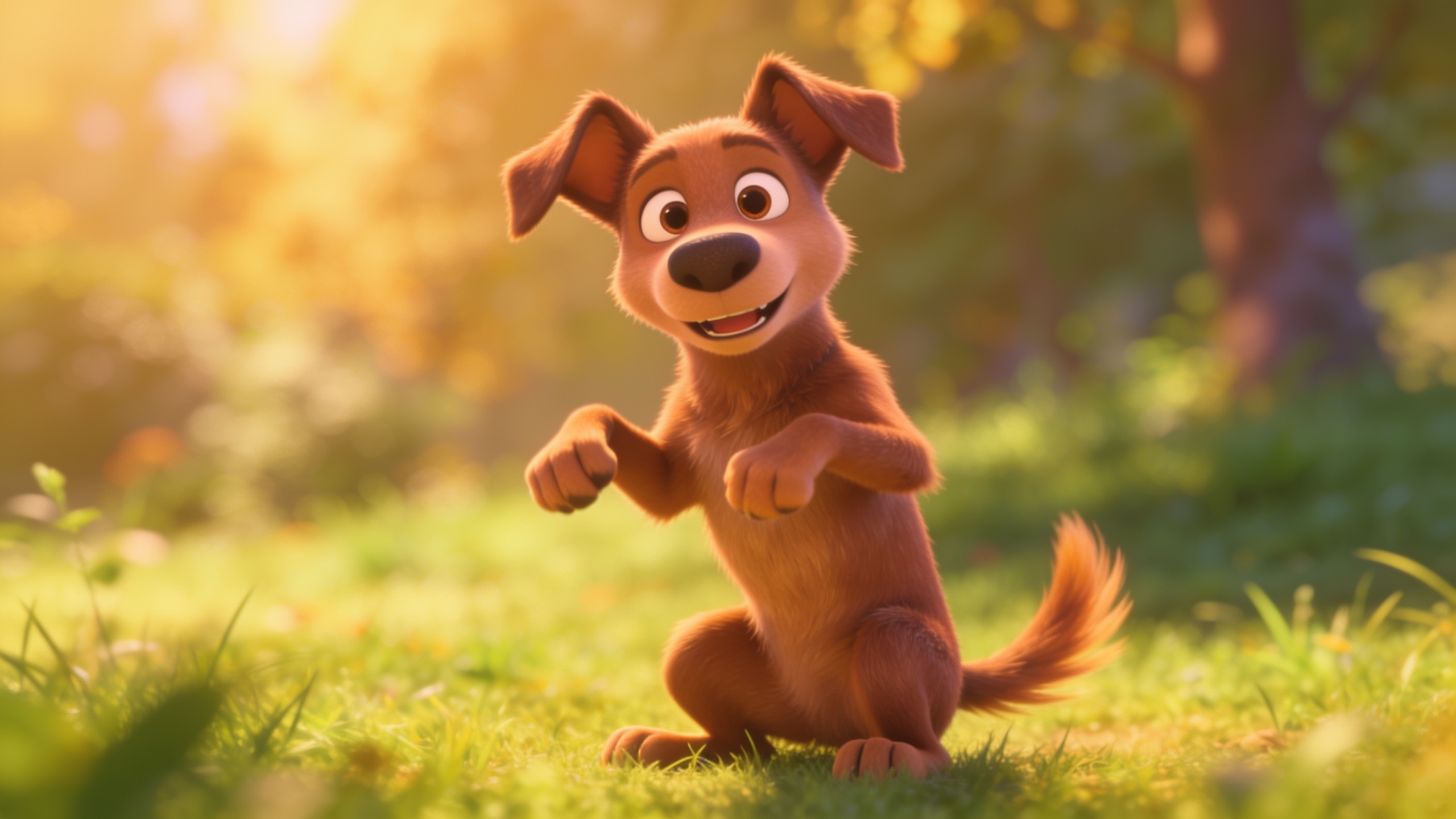
Example 2 — Pet dance clip (viral trend test):
- Photo: pet facing camera, eyes visible.
- CrazyFX preset: Pet Dance.
- Audio: pick a playful 6–10s loop. Sync a head-bop or paw-tap motion.
- Caption: "When the weekend drops" (hook within 2–3s).
- Export: vertical, 15s max.
Example 3 — Branded product dance ad (single-photo ad):
- Photo: product on white or lifestyle photo.
- CrazyFX preset: Dance or Product Motion.
- Audio: short instrumental hook from AI Song Generator. Put CTA in captions: "Shop now — link in bio." Keep runtime 9–12s.
Copy-ready prompt examples (for the AI Song Generator or when writing short scripts):
"Create a 10s upbeat pop hook, 100–120 BPM, energetic drops for TikTok dance trend."
"Generate a friendly male voice, 25–35 age, clear enunciation, 8s script: ‘New drop Friday — link in bio.’"
Use these examples to batch variations quickly. Each example is designed to hit the 3–4 second hook window and export vertical-ready clips for immediate upload.
Optimize and distribute your CrazyFX clips for maximum reach (formats, hooks, and mistakes to avoid)
Optimize format and hook first, then distribute fast and iterate. For maximum reach, use 9:16 vertical exports, keep the hook inside the first 3–4 seconds, and test multiple caption hooks and thumbnails. CrazyFX’s one-click vertical export simplifies the format step so you can focus on testing hooks.
Distribution checklist:
- Format: 1080x1920 MP4, H.264.
- Hook: show a visual or caption within 0–4s.
- Length: 6–15s for dance, up to 30s for narrative or news-anchor clips.
- Variations: at least 5 variants per photo (different audio, start-frame, captions).
- Upload cadence: test small batches daily until you find a strong signal.
Common mistakes and how to avoid them:
- Mistake: Uploading one perfect clip and waiting. Fix: batch multiple variants and test quickly.
- Mistake: Weak hook after 4 seconds. Fix: move your strongest visual or caption to the first frame.
- Mistake: Using low-res photos that blur when animated. Fix: upscale before effect or retake a higher-resolution photo.
- Mistake: Ignoring audio rights. Fix: use platform-licensed tracks or generate custom hooks with the AI Song Generator to avoid takedowns.
- Mistake: Skipping captions. Fix: always include short captions or burned-in text for silent autoplay viewers.
Placement suggestions: post to TikTok, Reels, and Shorts with platform-native captions and a pinned first comment linking to your bio. Monitor early retention metrics and double down on the successful variation.
For longer edits or subtitle polish, finish clips in the AI Video Editor / Media Mixer once you’ve chosen a winner. If you need custom music beds to match tempo, try the AI Song Generator for quick royalty-safe hooks.
Frequently Asked Questions
Can I make a dance video from any photo?
Most clear, front-facing photos work best. Full-body or chest-up shots where the subject is centered give the best motion results. Low-res or heavily occluded faces may need upscaling or a replacement image.
How long should a single-photo clip be for TikTok or Reels?
Keep dance and lipsync clips between 6–15 seconds for trend hits. News-anchor or story clips can run up to 30 seconds. Aim to put the hook inside the first 3–4 seconds.
Do I need to worry about music licensing?
Yes. Use platform-licensed tracks or generate original hooks with an AI Song Generator to avoid takedowns. Short, royalty-safe loops are a practical approach for rapid testing.
Will a single selfie look natural when animated?
Modern motion-transfer tools usually produce convincing motion for head and facial expressions, especially with tuned presets. Results vary by photo quality; small timing nudges and captions help sell the effect.
Conclusion
Final thoughts: turning one photo into multiple short-form clips is one of the fastest ways to test trends and find a breakout hit. Use tuned presets to save time, batch variations, and prioritize the first 3–4 seconds of each clip. When you want to ship a vertical-ready dance, lipsync, or pet clip from one photo, browse CrazyFX and publish your first variation today.
Sources
- Photo Dance: AI Dance Video App - App Storeapps.apple.com ↗
- Create Fun Videos with Free AI Photo Dance (Dreamina / CapCut)dreamina.capcut.com ↗
- AI Dance Generator: Create Viral Dance Videos from Photos (DancingAI)dancingai.io ↗
- The Short Form Video Performance Report — quso.ai Researchquso.ai ↗
- Creators Drove 486.6 Billion Impressions For Brands In 2024 — CreatorIQ press releasecreatoriq.com ↗
- Emplifi Social Media Benchmarks Report 2024–2025go.emplifi.io ↗
- How to Make an AI Dance Video in Minutes (Revid.ai blog, 2026)revid.ai ↗
- FaceCraft4D: Animated 3D Facial Avatar Generation from a Single Image (research paper)arxiv.org ↗