


Sora 3.1 short-form video: how creators can replace Sora-era workflows with GoCrazyAI
Sora was discontinued April 26, 2026. Learn practical steps to replace Sora 3.1 short-form video workflows using Kling, Veo, and GoCrazyAI's AI Video Generator for vertical.
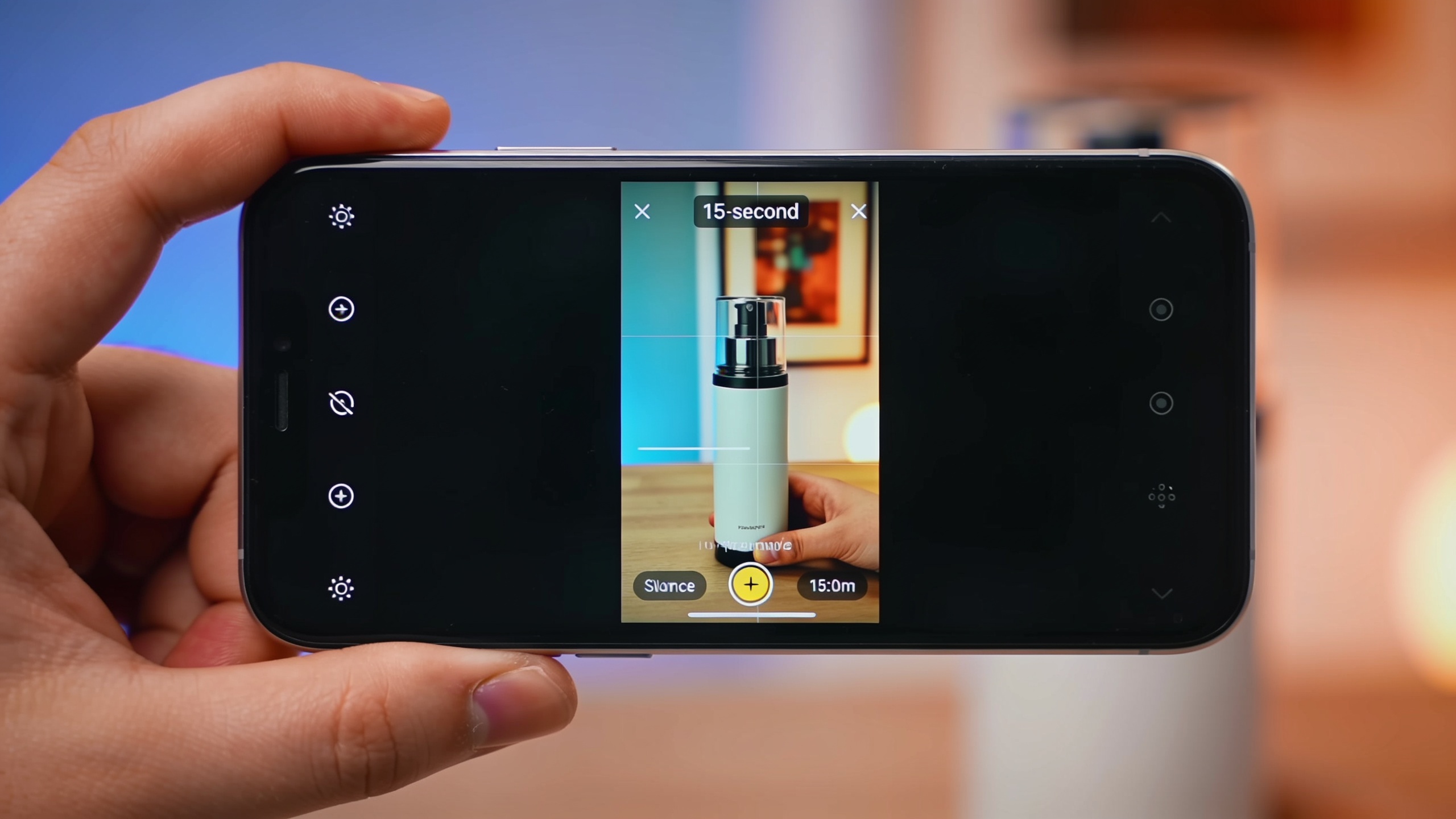
You relied on Sora-style text-to-video to spit out vertical product demos and 15–30s TikTok hooks, and now the Sora web and mobile apps were discontinued April 26, 2026 — leaving a real gap for creators who need fast short-form content. This article shows what changed, how community tooling (Veo 3.1, Kling families) stepped in, and an actionable workflow to reproduce Sora 3.1-style outputs using GoCrazyAI’s AI Video Generator. You’ll get side-by-side comparisons, two hands-on workflows (image-to-demo loop and story-mode opener prompts), prompt-and-setting tips to preserve object permanence and lip sync, plus repurposing/export best practices. Read this if you need to keep shipping vertical hooks and product demos without rebuilding your stack.
Quick Answer
How do you replace Sora 3.1 short-form video workflows? Use multi‑model platforms that route Kling and Veo models from a single UI. Practically, move image-to-video or text prompts into a tool like GoCrazyAI’s AI Video Generator, select Veo 3.1 or Kling 2.5 Turbo Pro, set 9:16 framing, and export 15–30s loops. That workflow recreates Sora-style vertical hooks and product demos fast.
Why Sora-era models changed short-form video — and what changed in the last two weeks?
Sora's consumer app made text-to-video simple, fast, and vertical-first; creators used it for TikTok hooks and 15–30s product loops, so its shutdown on April 26, 2026 left an immediate content gap. The core answer: Sora proved short-form video could be generated from plain text or one image within minutes, with framing and native audio tailored for vertical platforms. AP News reported OpenAI pulled the plug on Sora on Mar 24, 2026, and the app was discontinued April 26, 2026[1].
Since that shutdown, the landscape shifted quickly. Within 2026 multiple vendors and community projects packaged Veo 3.1, Kling variants, and Sora-capable prompts into creator tools. Several product announcements in early 2026 expanded 60s workflows and improved vertical reframing for TikTok/Shorts; Fortune’s Jan 8, 2026 press note documented platforms adding Veo 3.1 and longer clip support[2]. In the last two weeks (date-stamping matters), community posts and changelogs show a sharp uptick in integrations and presets that replicate Sora-style outputs. That means creators who need vertical hooks have several practical replacement paths today, but they must adapt prompts and settings to match the shortened camera behavior and audio style Sora used to provide.
What Sora 3.1-style capabilities creators still expect (and why vertical hooks matter)?
Creators expect five core Sora 3.1-style capabilities: short clip generation (8–60s), vertical-first framing (9:16 presets), coherent object permanence (the product stays on model), native audio or lip-sync, and fast iterations from a single prompt or image. Vertical hooks matter because platforms reward early-frame engagement: the first 1–3 seconds decide view-through and shareability on TikTok/Reels. If your generator can’t frame and animate a product clearly in the first beat, the video will underperform.
For product demos and hook-first openers, creators usually prefer: tight 9:16 framing, 12–18s loops for product showcases, punchy captions baked into the edit, and a native or easily added music bed. Veo 3.1 is commonly cited for improved textures and native audio suitable for 8–60s clips, which is why many creators now route prompts to Veo when they need higher fidelity for product materials. Community threads from August 2026 show users explicitly seeking “local Sora” replacements built around Veo + Kling families[4]. For practical results, maintain a short storyboard: opener hook (0–3s), product close-up (3–9s), use-case shot and call-to-action (9–15s).
Quick comparison: Sora 2 / Sora 3.1 features vs Kling 2.5 Turbo Pro, Veo 3.1, and GoCrazyAI?
Short answer: Sora apps combined speed, vertical defaults, and simple prompts; Kling and Veo deliver similar outputs with different strengths; GoCrazyAI bundles them into a single generator to simplify the conversion path.
Sora 2 / Sora 3.1 (public-facing capabilities): fast text-to-video, vertical presets, audio generation, and easy image-to-video. OpenAI discontinued the app in April 2026 but the model legacy remains documented on OpenAI pages[1]. Veo 3.1: higher-fidelity textures and improved native audio for 8–60s clips — creators use it for product showcases and cinematic hooks (model listings and release notes document this move[2]). Kling 2.5 Turbo Pro: fast, punchy motion and reliable object permanence for short loops; often used when iteration speed and tight framing matter.
GoCrazyAI’s difference: it gives creators access to Kling and Veo in one UI, supports image-to-video, and outputs 9:16, 1:1, 16:9 from the same prompt. Practically, that removes subscription juggling. Use cases line up: product demo loops (Veo for texture), TikTok hooks (Kling for speed), and story-mode openers (either model with tailored prompts). This is why multi-model platforms are the pragmatic replacement many creators already prefer[4].
You can try every step above directly in GoCrazyAI AI Video Generator — no setup needed.
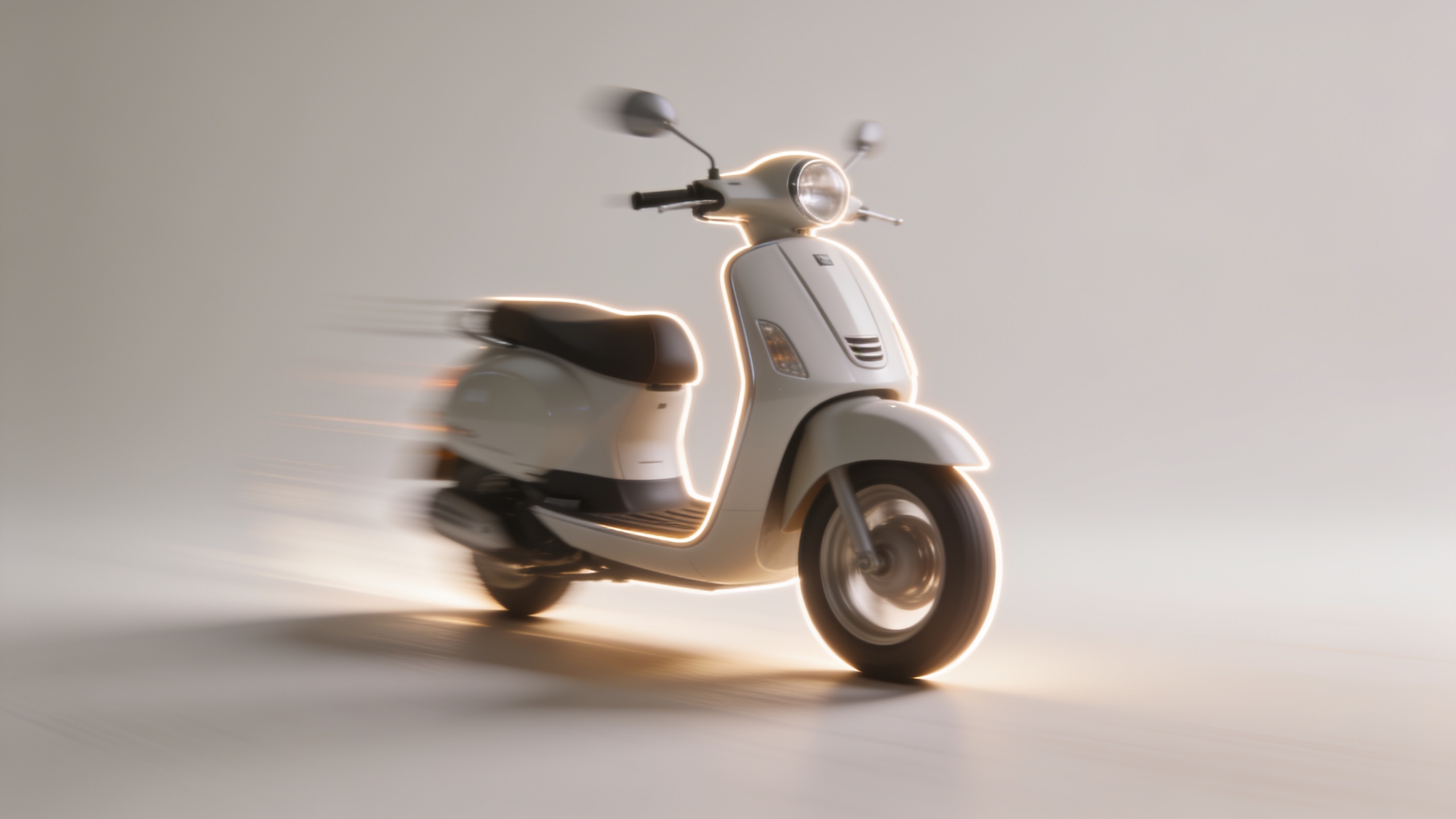
Hands-on workflow 1 — Turn one product photo into a 15s vertical product-demo loop using GoCrazyAI AI Video Generator
You can turn a single product photo into a vertical 15s demo loop in about 5–15 minutes by choosing image-to-video, picking a model (Kling 2.5 Turbo Pro for speed or Veo 3.1 for texture), and using a short storyboard prompt. Start with a 40–80 word primary answer: choose your best product photo, upload it to the AI Video Generator, select 9:16 framing and a 15s duration, and pick Kling 2.5 Turbo Pro for rapid looping or Veo 3.1 for higher texture detail. Add a short motion instruction (rotate, push-in, subtle bounce), a lighting style, and a one-line audio cue.
Practical prompt template (copy-paste): "Image: product-photo.jpg. Output: 9:16, 15s. Shot sequence: 0–3s fast push-in to product label; 3–9s slow 20° rotate reveal of product from left; 9–13s hands-free use case close-up; 13–15s branded text overlay: ‘Shop now’. Lighting: soft studio, warm rim light. Motion: smooth, small parallax, keep product centered. Audio: upbeat 120bpm loop, punchy low-end. Model: Kling 2.5 Turbo Pro."
Execution steps on GoCrazyAI: upload the photo, paste the prompt, choose model and duration, generate, and review. For product detail, set "object permanence" or motion-lock sliders to higher values. Export the 9:16 master, then use the same project to produce 1:1 and 16:9 reframes (see the reframing section). If you need music, drop in a track from the AI music generator or choose a native score in the generator's audio tab. Link: use the AI Video Generator to run this flow on GoCrazyAI.
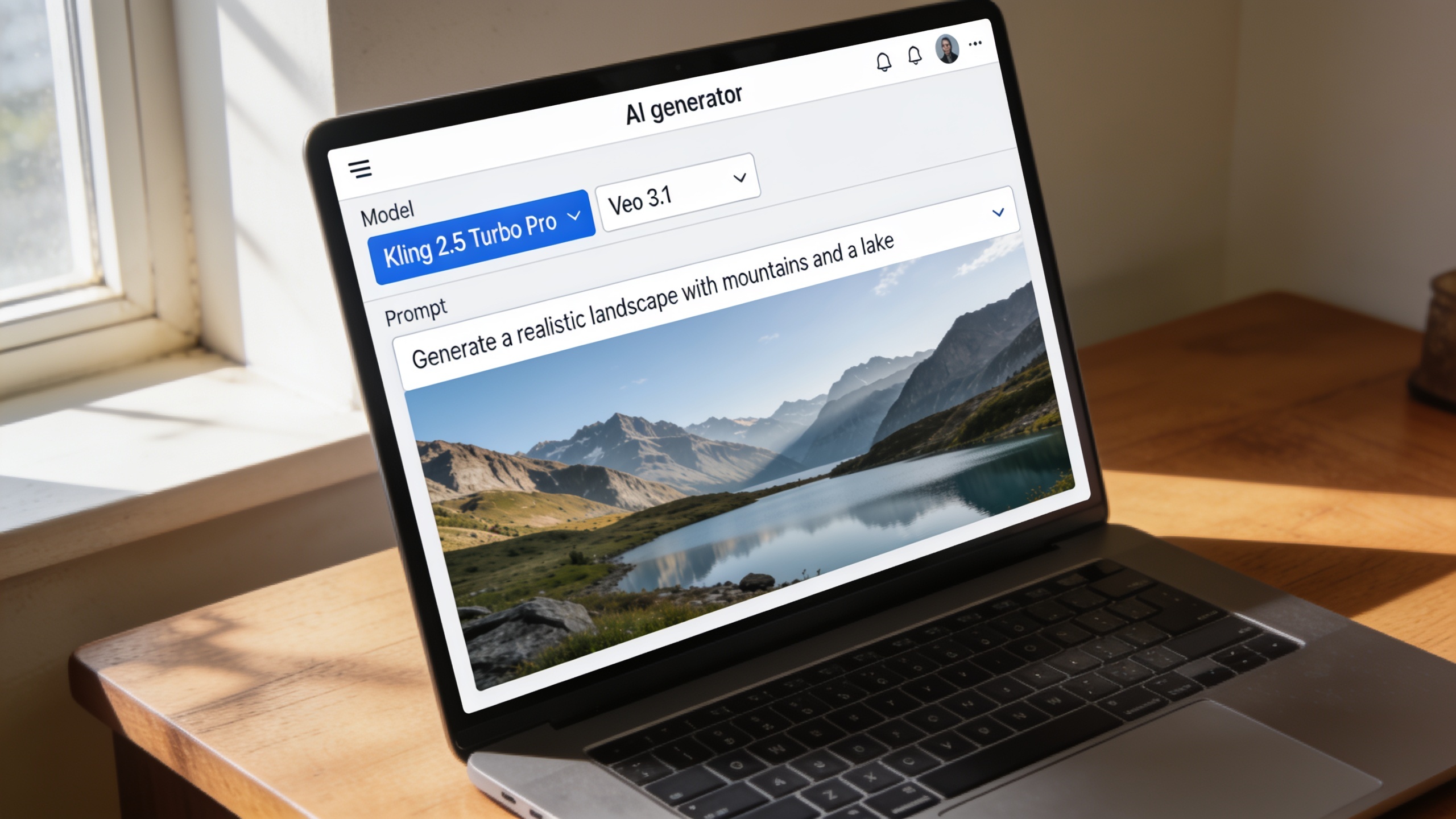
Hands-on workflow 2 — Write Sora 3.1-style text prompts for story-mode openers and convert them to cinematic video on GoCrazyAI
You can write short, Sora-style prompts that prioritize beats and tempo, then route them to Veo 3.1 or Kling inside GoCrazyAI for cinema-like results. The compact answer: write a 2–4 sentence beat sheet, specify duration and framing, add camera motion and audio mood, and pick Veo 3.1 for textured visuals or Kling for faster iterations.
Prompt patterns that work well for story-mode openers:
- Hook-first: "Start on a close-up of hands opening the product, cut to reaction, end on product shot and CTA."
- One-image expansion: "From this image, zoom out to reveal context, add soft motion and a 12s cinematic score."
Example prompts (safe to copy): "Text prompt: 15s 9:16 story opener. Beat 0–3s: extreme close-up on product logo, quick flash of text 'Wait for it'. 3–9s: reveal use-case in one slow dolly back, 9–13s: user smiling and interacting, 13–15s: brand lockup and CTA. Camera: smooth handheld, slight film grain. Audio: warm synth pad, snappy hit on frame 3. Model: Veo 3.1."
On GoCrazyAI: paste this prompt into the AI Video Generator, set the model to Veo 3.1, choose 15s 9:16, and enable "audio generate" so the model can create native foley and music cues. Tweak the motion and permanence sliders, then render. The generator also supports seeding with an optional reference image to keep the product on-model.
Practical tips to get consistent object permanence, lip sync and framing for TikTok/Reels (prompt + model settings)?
For consistent object permanence and lip sync in short-form clips, use explicit prompt instructions and the model settings that control motion locking and audio alignment. Short answer: tell the model to "lock the product in frame" or "limit camera rotation to 20 degrees", pick Kling for stable loops or Veo for textured but slightly more transformative renders, and enable the generator's lip-sync option if using dialogue.
Concrete settings and prompt snippets:
- Object permanence: "Keep product centered; restrict camera rotation to <=20°; no background replacement."
- Framing: "9:16, medium close-up, subject fills 60% of frame."
- Lip sync: "Match spoken line: 'Now open' to mouth movement; prioritize clear phoneme alignment."
- Motion style: "smooth micro-parallax; no extreme perspective shifts."
Model choices: Kling 2.5 Turbo Pro usually yields quicker, stable loops with fewer frame-to-frame artifacts; Veo 3.1 often gives richer textures but may need stronger permanence constraints. When you generate, use a 12–18 fps middle-ground if you want stylized motion; use 24–30 fps for natural movement and better lip sync. Test two short renders (3–6s) before committing to a full 15–30s clip to dial settings quickly.
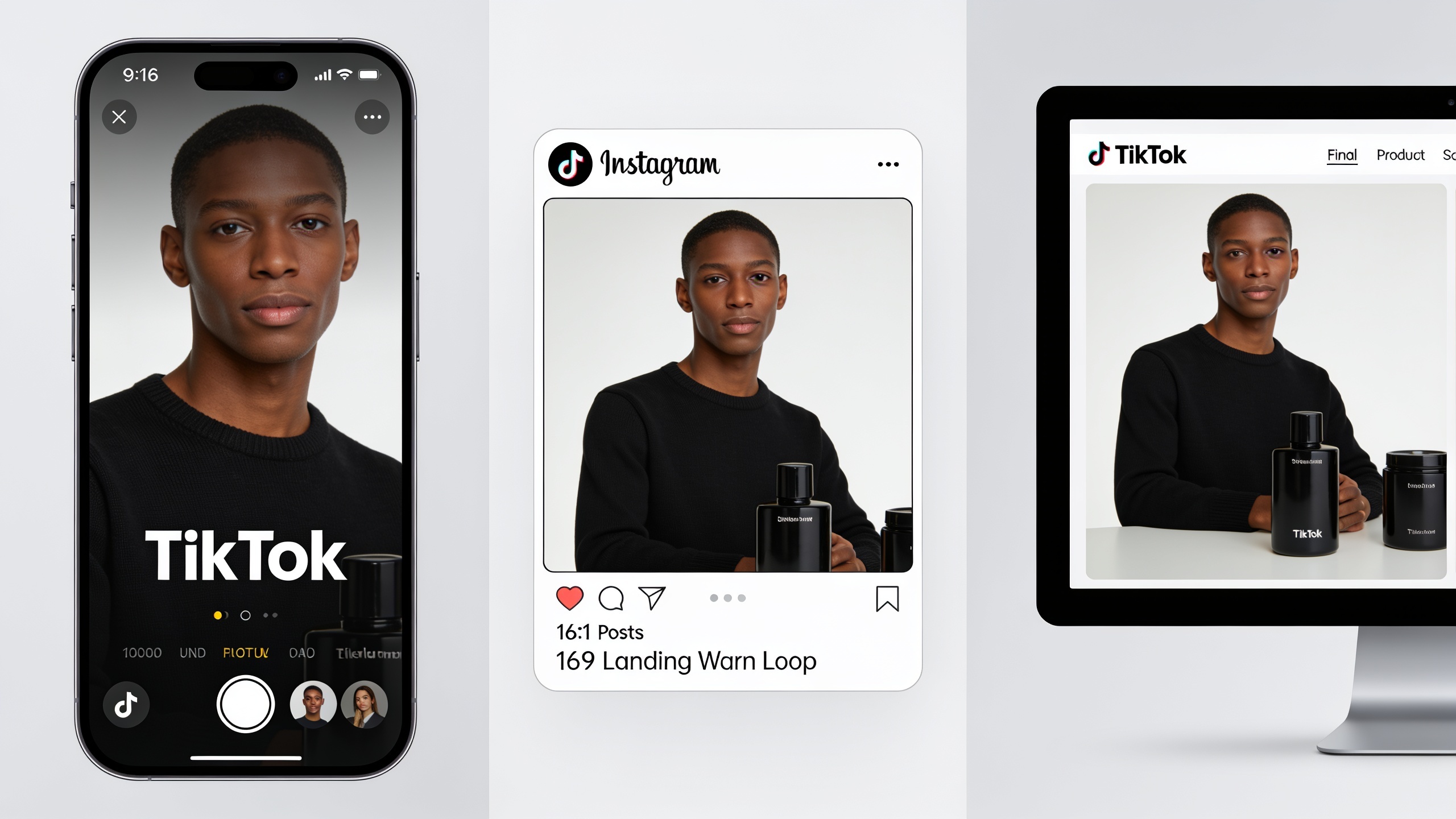
How to repurpose one generated video into multiple aspect ratios and formats for landing pages and Shorts (reframe + export best practices)?
One master render can be turned into 9:16, 1:1, and 16:9 deliverables with minimal extra work if you keep safe-framing and layered assets. Short answer: generate a 9:16 master with extra headroom for lateral movement, export at high resolution, then use the platform's reframing tool to crop or animate the frame for 1:1 and 16:9.
Best practices:
- Shoot/Generate with safe margins: keep important content inside a centered 80% "action safe" area so cropping to 1:1 and 16:9 won’t cut critical details.
- Export high-quality master: render at 1080x1920 (or higher) so reframes remain sharp. Upscale if needed.
- Use automated reframe: the GoCrazyAI generator can produce multiple outputs from the same project — set target aspect and let the AI recompose the shot; for manual control, adjust the focal point and re-render short segments.
- For landing-page loops: use 16:9 8–12s loops with slightly slower motion; for Shorts, use 9:16 15s hooks and an instant CTA overlay.
Workflow example: render the 9:16 master at 1080x1920, then in Media Mixer (post) select "create output" > 1:1 center crop, adjust if subject is off-center, and export. Use the AI Image Upscaler to sharpen still frames for hero images on landing pages if needed. This approach saves time and keeps brand consistency across platforms.
Safety, watermarking, and attribution: avoiding misuse while keeping brand polish
When you adopt multi-model generators, be mindful of restricted content and impersonation risks; keep transparent attribution and optional watermarking policies for brand safety. Short answer: enable watermarking on internal drafts to track usage, avoid generating images or videos that impersonate a real person without consent, and use plain captions to disclose synthetic media when required by platform rules.
Practical rules:
- For product demos: include a small brand lock or timestamp on drafts and public versions if your legal team requires provenance.
- Attribution: if you use third-party assets (music or voices), keep license records. GoCrazyAI provides options to add music generated by the AI music generator or select licensed tracks—use the platform’s audio credits and metadata to track usage.
- Avoid misuse: don’t create videos that falsely depict a real individual endorsing a product; that falls under restricted impersonation. If you use vocal likenesses, ensure you have rights or use AI voice clones you control via the AI Voices tool.
Enabling watermarking during testing keeps assets traceable; remove or replace the watermark for final deliverables only when legal and brand checks are complete.
Why GoCrazyAI AI Video Generator is the practical replacement for Sora 3.1 workflows (pricing, models, and conversion path)?
Short answer: GoCrazyAI combines Kling 2.5 Turbo Pro, Veo 3.1, and Sora-capable prompts in a single UI, supports image-to-video and 9:16 outputs, and routes model usage through a credit system that simplifies switching models without separate subscriptions. For creators who lost Sora on April 26, 2026, that unified access plus vertical presets is the core conversion path back to fast short-form production.
Details and value: the AI Video Generator lets you paste a prompt or upload one image, choose model and duration, and output TikTok-ready 9:16 clips. Credits-based pricing makes it easier to test multiple models (see GoCrazyAI Pricing for plans and credits). GoCrazyAI also ties into the AI Image Generator for reference images and the AI Music Generator for custom scores, so you can build a full short-form asset in-platform without hopping between vendors. This multi-model approach mirrors the community shift described in recent posts and gives creators a practical way to recreate Sora-like outputs immediately.
Try it: Open the AI Video Generator, pick Veo 3.1 or Kling, paste your Sora-style prompt, and generate. You can learn pricing at GoCrazyAI Pricing and iterate on images with the AI image generator to refine visuals.
Frequently Asked Questions
When did OpenAI shut down the Sora consumer app?
OpenAI discontinued the Sora web and mobile apps on April 26, 2026; the shutdown was reported publicly in March–April 2026[1].
Which model is best for quick product demo loops, Veo 3.1 or Kling 2.5 Turbo Pro?
Use Kling 2.5 Turbo Pro for rapid, stable loops and faster iteration; pick Veo 3.1 when you need higher texture fidelity and richer native audio for 8–60s clips. Test short renders to confirm which matches your brand look.
Can I keep the product perfectly centered when converting a photo to video?
Yes — add explicit permanence instructions in the prompt (e.g., "keep product centered; limit camera rotation to 20°") and increase the generator's motion-lock or object-permanence setting before rendering.
How do credits and pricing work for trying multiple models?
GoCrazyAI uses a credits system that covers Kling, Veo, and compatible models from the same credit pool, so you can test models without separate subscriptions; see GoCrazyAI Pricing for current plans and credit bundles.
Can I generate native music or voice inside the video generator?
Yes. The generator can synthesize native audio cues and basic voice lines; for full scoring or advanced voice cloning, use the AI Music Generator or AI Voices and then combine tracks in the Media Mixer.
Conclusion
Final thoughts: Sora’s shutdown created an urgent need for replacement workflows, but the creator ecosystem adapted quickly. By routing prompts and images to Veo 3.1 or Kling via an integrated tool, you can reproduce Sora-style vertical hooks and product demos without rebuilding your stack. Start by generating a 9:16 master, then reframe and export for other formats. Open the AI Video Generator to test a Sora-style prompt or upload a product photo and ship a clip in minutes.
Sources
- OpenAI — Sora: Creating video from text (Sora product pages and Sora 2 announcement)openai.com ↗
- AP News — OpenAI pulls the plug on Sora, the viral AI video app (Mar 24, 2026)apnews.com ↗
- Fortune / press release — Magic Hour Adds 60‑Second Workflows with Sora 2 and Veo 3.1 (Jan 8, 2026)fortune.com ↗
- Reddit — community discussion: 'It took two years, but we finally have a local Sora' (Aug 10, 2026)reddit.com ↗
- ZyentorPicks — Sora deep dive and post‑shutdown guide (June 24, 2026)zyentorpicks.com ↗
- App Store changelog — AI Video Generator app referencing Sora 2 and Veo 3.1 support (app listing)apps.apple.com ↗
- Doraverse model listing — Veo 3.1 and Sora 2 availability in multi-model platforms (model aggregator)doraverse.com ↗