


ecommerce mockup generator: Replace product photos with on-brand AI lifestyle mockups
Learn a practical workflow to turn one product photo into 12 on-brand AI lifestyle mockups, optimize exports for ads and listings, and scale with presets.
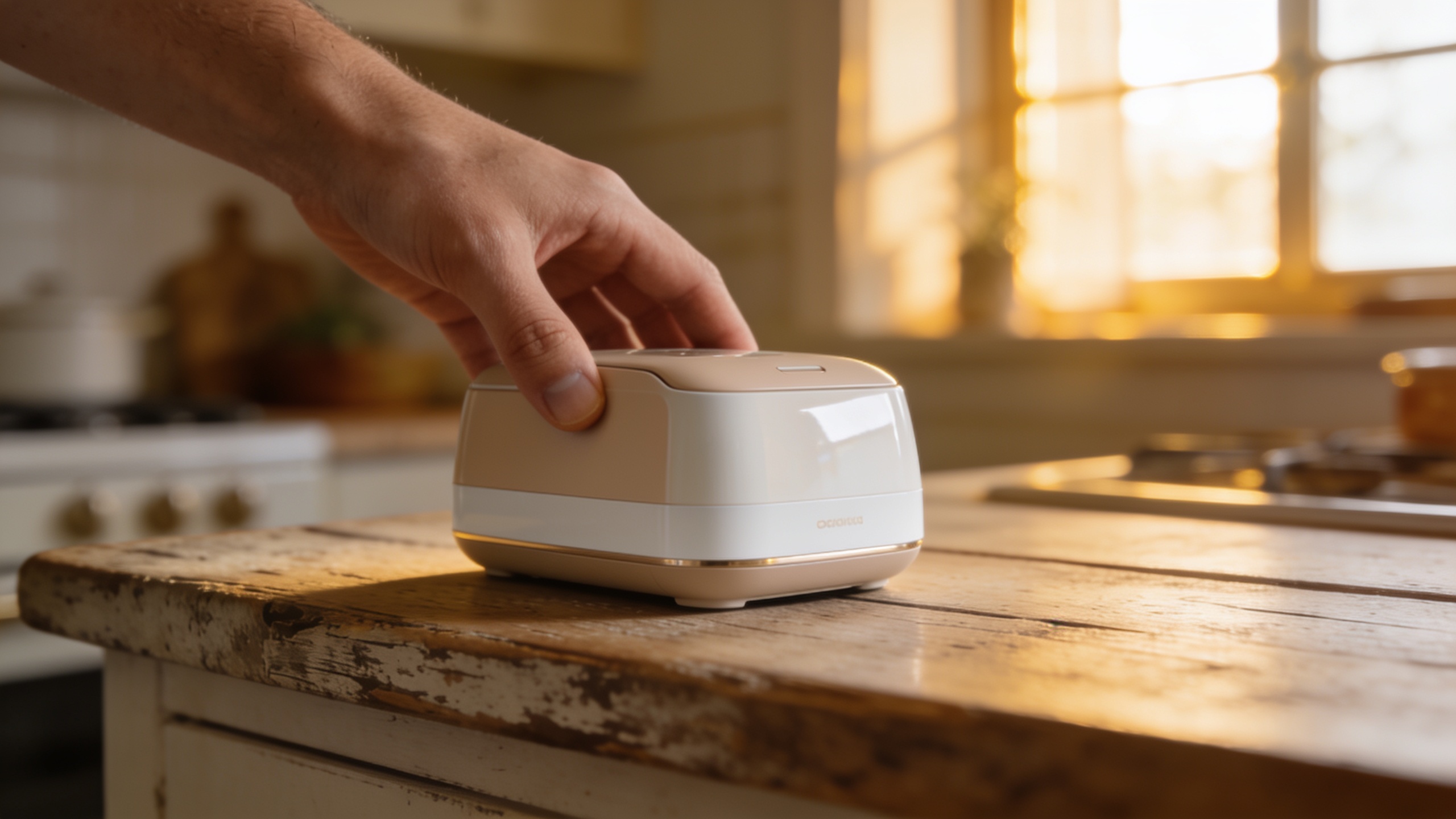
You need thumb-stopping product images but shooting multiple lifestyle scenes costs time and money. This article shows a repeatable workflow to replace some costly product photos with on-brand AI lifestyle mockups you can use for thumbnails, hero images, and ad creatives. I’ll summarize recent vendor signals and industry benchmarks, then walk through a hands-on example: start with one clean product photo, pick three scene archetypes, generate four variations each, and export channel-ready crops. You’ll also see which models (Google Nano Banana, Seedream 4, Kaneko Gen Pro) suit different looks, how to control lighting and scale in prompts, and practical checks for trademarks and platform rules. Along the way I’ll show how to run quick A/B tests, batch-edit color and branding, and feed generated frames into video workflows. If you want to try the exact steps on a platform built for this use case, the GoCrazyAI AI Image Generator supports model choice, image restyle, and export sizes used by ecommerce and ads.
Quick Answer
An ecommerce mockup generator can replace some product photography by taking one upload and producing multiple on-brand lifestyle scenes. Upload a hero product photo, choose scene archetypes, run image-to-image restyles with a photoreal model, then batch export crops for thumbnails, hero images, and ads. Use A/B tests alongside real photos to validate conversions.
Why do lifestyle mockups convert better than plain product shots (and when should you still use studio photography)?
Lifestyle mockups usually convert better because they show the product in context, helping shoppers imagine use and value; however, studio photos still matter when you need exact color, texture detail, or close-up product configuration. Multiple industry reports note that stores using 5+ images per product see materially higher average order values — benchmarks often cite ~+27% AOV when product pages include richer visual sets. Contextual lifestyle imagery also tends to drive higher engagement and conversion vs raw product-only shots in vendor benchmarks.
Use lifestyle mockups when you need fast, scalable imagery for ads, social, and secondary listing images. Use studio photography for primary hero shots that require perfect color fidelity, regulatory detail, or fine texture (for example, high-end fabrics, cosmetics ingredients, or fit-critical apparel). A pragmatic approach is hybrid: keep one verified studio hero image and supplement with AI-generated lifestyle mockups for context, variants, and campaign-specific scenes. This balances accuracy with speed-to-market and cost savings.
Which prompt and model should you pick for realistic product scenes — Google Nano Banana vs Seedream 4 vs Kaneko Gen Pro?
For realistic product scenes choose a model that prioritizes photorealism and accurate rendering of geometry; for stylized brand looks pick a model tuned toward artistic textures. Google Nano Banana often produces highly detailed, natural lighting and is a good first choice for photorealistic mockups. Seedream 4 tends to be versatile and handles wide aspect ratios and cinematic framing well. Kaneko Gen Pro frequently favors stylized, brand-forward results that are useful for bold ad creatives.
Prompt strategy: call out focal length, lighting, perspective, and scale. Example prompt elements to mix into your prompt: "50mm shallow depth-of-field, soft golden-hour rim light, product centered on wooden table, human hand interacting at 1:6 scale, photorealistic, natural shadows, true-color accurate, no text or watermark." Use model-specific options when available (exposure, realism slider, or style presets) to nudge results. For pure product fidelity, increase realism and reduce stylization; for campaign art, allow Kaneko Gen Pro or Seedream 4 to add intentional color grading and mood.
How do you turn a single product photo into 12 lifestyle mockups with GoCrazyAI? (Example workflow)
Answer: Upload one clean product photo, select an on-model photoreal model, pick three scene archetypes (studio, lifestyle, context-of-use), generate four variations per archetype with controlled prompts, then review and save the best variations to a library for export. This produces 12 distinct, on-brand mockups ready for cropping and A/B testing.
Hands-on workflow (practical notes):
1) Prepare your hero photo: use a high-contrast PNG or JPEG with a neutral background and clear edges. If your product has a transparent background, keep it — many image-to-image flows respect alpha.
2) In GoCrazyAI AI Image Generator choose the model: for photorealism pick Google Nano Banana or Seedream 4; for stylized campaign assets choose Kaneko Gen Pro. Upload the hero photo and enable "image restyle".
3) Define three scene archetypes and a short prompt for each: studio (clean table, soft box lighting), lifestyle (kitchen counter, natural morning light, hand interaction), context-of-use (outdoor picnic, golden-hour, shallow depth). Example prompts you can copy:
"Studio: product on white seamless, 50mm, softbox top light, accurate colors, minimal props, photorealistic, no text"
"Lifestyle: product on oak kitchen counter, hand placing item, morning sun through window, warm rim light, candid, photoreal"
"Context: picnic blanket, soft golden-hour, people blurred in background, product in foreground, natural shadows"
4) For each archetype generate four variations changing camera angle, prop, or time-of-day phrase. Use seed or variation sliders to keep composition consistent.
5) Review outputs, save favorites to your library, and use batch edit or preset color match to align brand tones.
6) Export channel-specific crops (see next section) and run a quick A/B test against your verified hero photo. Note: GoCrazyAI saves variations so you can iterate without re-uploading the original.
Cost/credits note: keep an eye on credits and plan generation size — see pricing and credits for options and tiers.
You can try every step above directly in GoCrazyAI AI Image Generator — no setup needed.
How do I optimize mockups for thumbnails, hero images, and ad crops?
Answer: Export multiple aspect ratios from each mockup and frame for the platform’s focal area; create square thumbnails, wide hero banners, and 4:5 or 9:16 ad crops with subject placement locked to the rule of thirds. Also test focal-center vs left-aligned compositions for different placements.
Practical export workflow: for thumbnails prioritize a tight crop around the product with visible context (face-level interaction or hand). For hero images use 16:9 or 3:1 with negative space for text overlays. For social ads export 4:5 (Instagram feed), 1:1 (Facebook/shops), and 9:16 (Stories, Reels ads). When exporting from GoCrazyAI, use the output aspect presets so each mockup renders at the resolution and crop you need. Keep safe margins for logos and CTA placement — avoid placing logos on subject edges. Batch export all variants at once to save time, then run a small live A/B test across placements to measure conversion differences.
How can I maintain brand consistency and batch edit mockups at scale?
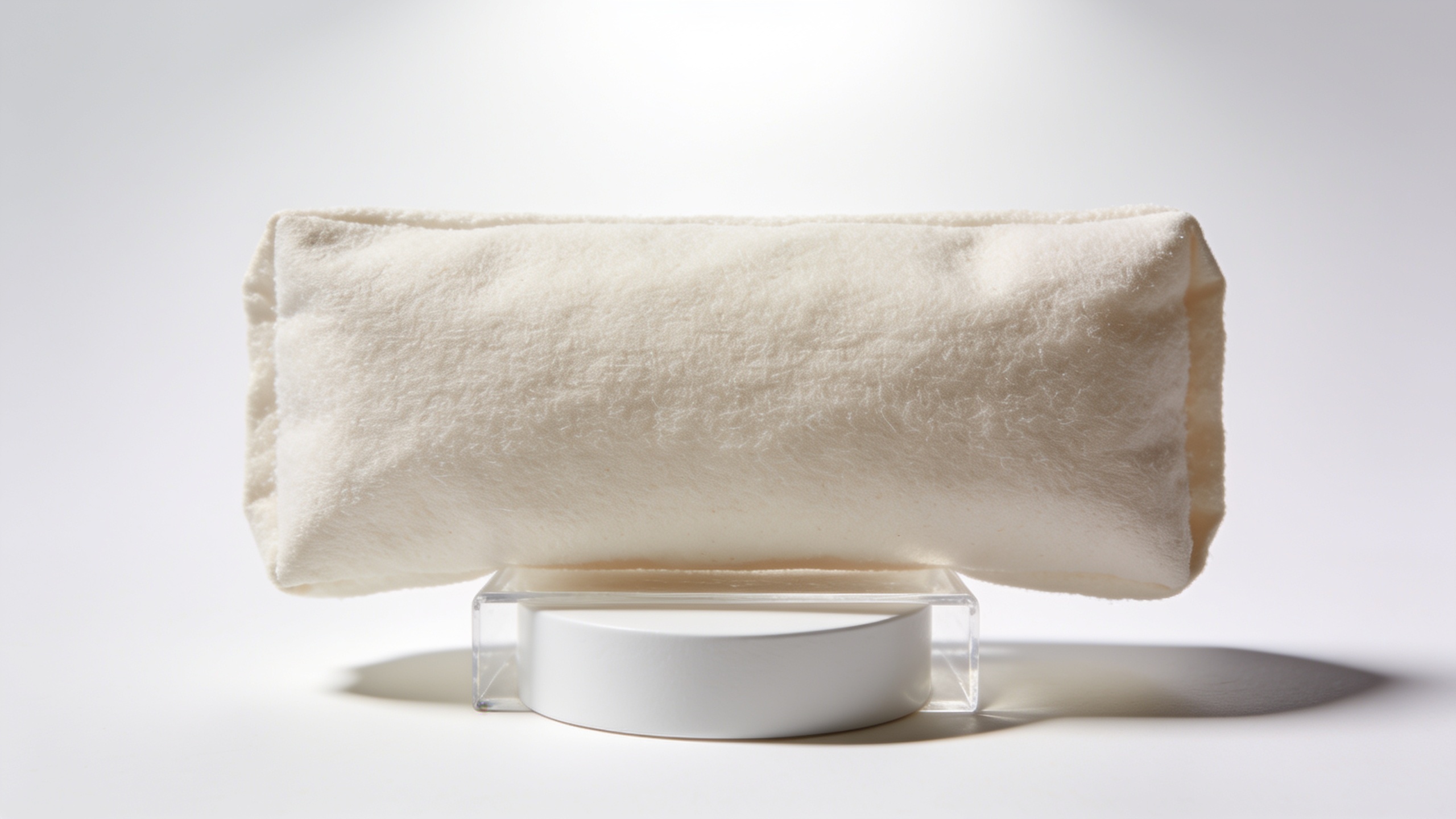
Answer: Use consistent presets, color-matching, and versioned libraries so each generated mockup shares the same color grade, lighting quality, and compositional rules; save presets for brand tones and apply them in batch to variations.
Scaling tactics: create brand presets that include color grade (hex targets or HSL shifts), lighting style (studio/golden-hour), and prop rules (no logos, natural props only). Apply a color-match pass across all generated images to ensure product color fidelity. GoCrazyAI supports saving variations to a library and reusing prompts; use versioning to track which generation produced the highest CTR in tests. Keep a small master style guide: permitted backgrounds, prop types, and logo usage rules. Maintain an approvals checklist to confirm trademark/logo fidelity before pushing images live.
What testing, measurement, and legal pitfalls should I watch for?
Answer: Run A/B tests comparing AI mockups to real photos, track conversion lift and AOV across variations, and watch legal issues around trademark, branded elements, and platform policies — many merchants run parallel tests with real photography as a safeguard.
Testing: measure CTR, add-to-cart rate, and AOV per mockup variant. Industry benchmarks show multiple images correlate with higher AOV; many case studies report ~+27% AOV for rich visual product pages. Start small: test a single ad creative or listing with an AI mockup against the studio hero; if conversion lands equal or higher, scale the approach.
Legal pitfalls: do not generate images that copy other brands’ trademarks or that misrepresent official packaging. If your product uses a third-party logo, verify licensing or use the actual packaging photograph for legal accuracy. Platform policies (marketplaces and ad platforms) may require accurate product depiction — document your generation process and keep the original studio image for dispute resolution. When in doubt, disclose generated imagery where required and include real product shots for technical detail.
What advanced use cases can I build with concept art, mood boards, and reference frames to feed into GoCrazyAI’s AI Video Generator?
Answer: Use concept art and mood-board frames to lock down look-and-feel, then export selected generated frames as starting images for an AI video workflow; this helps produce consistent animated product demos or short ad clips with matching lighting and composition.
Advanced workflow: generate several stylized frames that represent your campaign mood (color palette, camera moves, actor type). Save the strongest frames to a folder and use them as reference or input frames in the AI Video Generator to create short animated sequences or product reveal clips. This keeps visual language consistent between stills and motion. If you want to produce video from generated images, try the AI video generator to turn a still frame into a short cinematic clip — it's an efficient way to make 6–15 second ads without a full shoot. For video generation and motion-ready exports, the AI video generator supports feeding high-quality stills into the motion pipeline; see the AI video generator for details on turning images into video.
Frequently Asked Questions
Can an ecommerce mockup generator replace a professional photoshoot?
It can replace some shoots for lifestyle and campaign images, but not every case. Use AI mockups for fast variations and ad creatives; keep at least one verified studio hero image when color accuracy or texture detail matters.
How do I ensure product color accuracy in AI mockups?
Include color-target language in prompts, use a high-quality hero photo upload, and run a color-match batch pass. When exact color is critical, validate outputs against the studio photo before publishing.
What sizes should I export for marketplace listings and ads?
Export multiple aspect ratios: 1:1 for listings and shop tiles, 16:9 for hero banners, 4:5 for feed ads, and 9:16 for Stories/Reels. Keep safe margins for overlays and CTAs.
Are there legal risks with AI-generated product mockups?
Yes — avoid unauthorized logos or trademarked elements and check platform policies. Keep original photography on hand for provenance and run tests before replacing official product images.
Conclusion
Final thoughts: AI mockups let ecommerce teams scale visual tests and produce platform-ready creatives from a single hero photo, but balance speed with fidelity — keep a verified studio image for detail-critical uses and A/B test before fully replacing photography. Start by generating a small batch (three archetypes, four variations each), export channel crops, and measure conversion lift. If you want to try this workflow on a single platform, spin up your first frame in the AI Image Generator and refine the prompt until the look matches your brand.
Sources
- AI Image Generators for Ecommerce: Top Tools (Shopify, 2025)shopify.com ↗
- AI Image Generation for Ecommerce: Backgrounds, Lifestyle & More (Tenten / Shopify partner guide)tenten.co ↗
- AI Product Mockups: Cut Photography Costs 70% (Rewarx analysis and vendor benchmarks)rewarx.com ↗
- Create Realistic Mockups at Scale — DynamicMockups (product page, AI mockup/video features)dynamicmockups.com ↗
- 10 Best AI Mockup Generators (Design Shack guide)designshack.net ↗