


AI video postproduction: add subtitles, voiceovers and one-click export
Finish AI-generated clips fast by adding accurate subtitles, natural voiceovers, SFX and exporting a ready-to-publish file with GoCrazyAI Media Mixer.
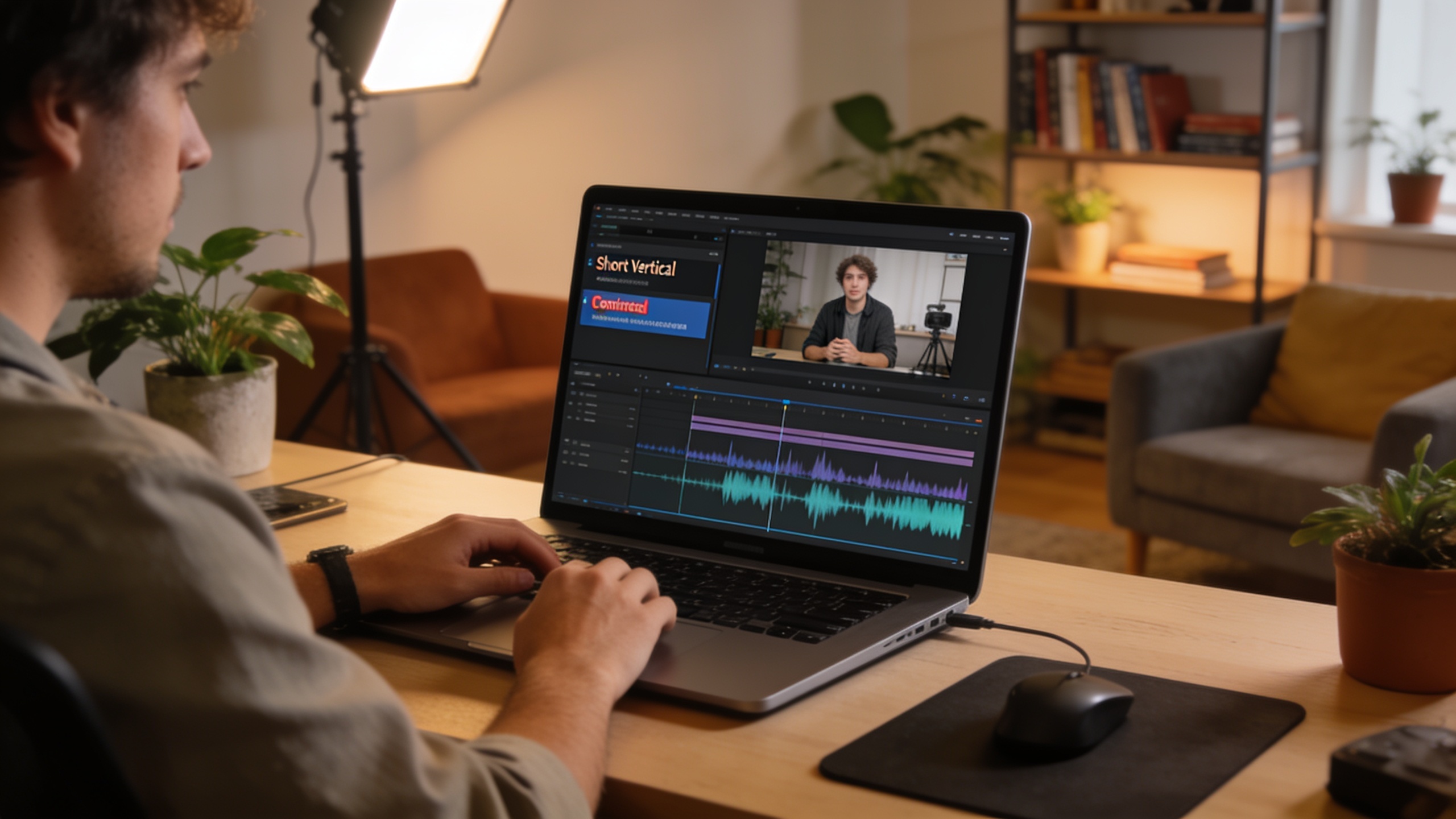
You have AI-generated clips from tools like Veo, Sora, or Runway and you need platform-ready videos fast. This article shows how to convert raw AI footage into high-engagement short-form content by adding accurate subtitles, natural-sounding voiceovers, simple SFX mixing, and branded overlays — then exporting in one click. Read step-by-step workflows, examples you can copy, accessibility rules, and when a single finishing tool like GoCrazyAI Media Mixer saves hours compared with stitching several apps together.
Quick Answer
AI video postproduction means applying subtitles, voiceover, sound mix, and branding, then exporting a single publish-ready file. Do this by generating captions with ASR, cleaning them quickly, adding a TTS or cloned voiceover aligned to the timeline, mixing SFX and music, and using a one-click export that burns captions and produces platform presets.
Why are subtitles, voiceovers, and one-click export non-negotiable for short-form creators?
Answer: Subtitles, voiceovers, and one-click exports directly increase reach and speed: captions lift average view time and completion, voiceovers make silent or low-quality AI clips watchable, and single-button exports remove repetitive encoding steps.
Meta and industry summaries show captions can boost view time by roughly 12% on video ads and other tests report lifts up to ~40% in completion and engagement for captioned clips . For short-form creators publishing multiple variants per day, burned captions + a matched voiceover plus an export preset (TikTok/Instagram/YouTube) is the difference between one-hour and one-click publishing.
Practical takeaway: prioritize burned captions and a clean narration track before worrying about fancy color grades. If you’re creating many short clips from AI footage, a single finishing tool that handles both audio and captions saves substantial time compared with moving files between apps. Also consider generating base assets with an AI video generator like the GoCrazyAI AI video generator when you need fresh footage before finishing.
How have AI transcription and text-to-speech improved — examples, strengths and failures?
Answer: Modern ASR and TTS are much faster and more natural than a few years ago: ASR can produce near-streaming captions and TTS engines now support high-quality, multilingual voices and basic voice cloning. However, accuracy varies by accent, disfluency, and background noise, so automated results usually need a quick human pass for publishable quality.
What ASR does well: fast drafts, timecodes, speaker separation in clean recordings, and turnkey subtitle files (SRT/VTT). What it struggles with: heavy accents, overlapping speakers, creative voice effects, and filler words — academic evaluations show measurable variance in real-world conditions.
TTS strengths: natural cadence, instant iteration across voice styles, and tight timeline alignment. Failures to watch: emotional nuance, very fast edits (where a human re-record sometimes syncs better), and legal considerations for cloned voices.
Example quick checks to validate automated outputs: 1) scan for misheard proper nouns, 2) listen where captions are dense (fast cadence), and 3) test the TTS at target platform loudness to make sure it remains intelligible under mobile compression.
Hands-on workflow: Add a voiceover to an AI-generated clip with GoCrazyAI Media Mixer
Answer: To add a voiceover in GoCrazyAI Media Mixer, import your AI clip, choose or clone a voice from the voice panel, paste or type the narration script, generate the TTS, then align and trim the generated audio on the timeline before final mix and export. The Media Mixer keeps all steps inside one interface so you don’t move files between apps.
Step-by-step (practical):
- Import the AI clip you generated elsewhere (e.g., a Veo or Sora clip) into the Media Mixer timeline.
- Open the voice panel and pick a voice from GoCrazyAI AI Voices (or upload a short sample to clone if you have permission). Refer to the AI voice library on the platform to preview tones.
- Paste your narration script into the TTS box and choose language/pace. Use short sentences for better alignment.
- Generate the voiceover and drag it into the track; use one-click alignment tools to snap it to scene cuts.
- Balance levels with background music from the AI music generator or an uploaded track: lower music by ~12–16 dB under narration, add subtle SFX where helpful.
- Play back at platform loudness (LUFS) and adjust. Export when ready.
Practical notes: use 16–20 second chunks when testing TTS quality, then generate full narration once tone and pacing are right. If a line sounds off, edit the text (remove filler, spell a word phonetically) and re-generate — this is faster than re-recording in most cases.
You can try every step above directly in GoCrazyAI Media Mixer — no setup needed.
Hands-on workflow: Burn accurate subtitles and export a TikTok-ready file in one click
Answer: Generate automatic captions, correct errors in the subtitle editor, choose burn-in (hard) captions and a TikTok preset, then hit export. A one-click export should render a single MP4 with burned captions, selected audio mix, and platform-optimized size.
Detailed workflow:
- Generate captions: run the Media Mixer ASR to create an SRT/VTT draft. The tool timestamps and segments lines based on speech breaks.
- Quick human pass: scan for misheard names, numbers, and contractions. Use the search or jump-to errors feature to find common ASR mistakes fast. Correct obvious errors and tighten line lengths to ~32–40 characters per line for mobile readability.
- Styling: choose font size, weight, shadow, and safe area margins so captions don’t overlap CTA buttons or on-screen text.
- Burn-in & export preset: select "Burn captions" (hard subtitle) and pick the TikTok export preset (9:16, 1080x1920, target LUFS). Confirm audio mix: narration + music + SFX channels.
- One-click render: press export. The Media Mixer produces a single ready-to-publish MP4 with burned captions and the selected audio mix, eliminating a separate muxing step.
Why this matters: burned captions avoid platform caption toggles that sometimes misalign, and a single render that includes captions and final audio saves time versus exporting separate video and subtitle files and then combining them in another encoder.
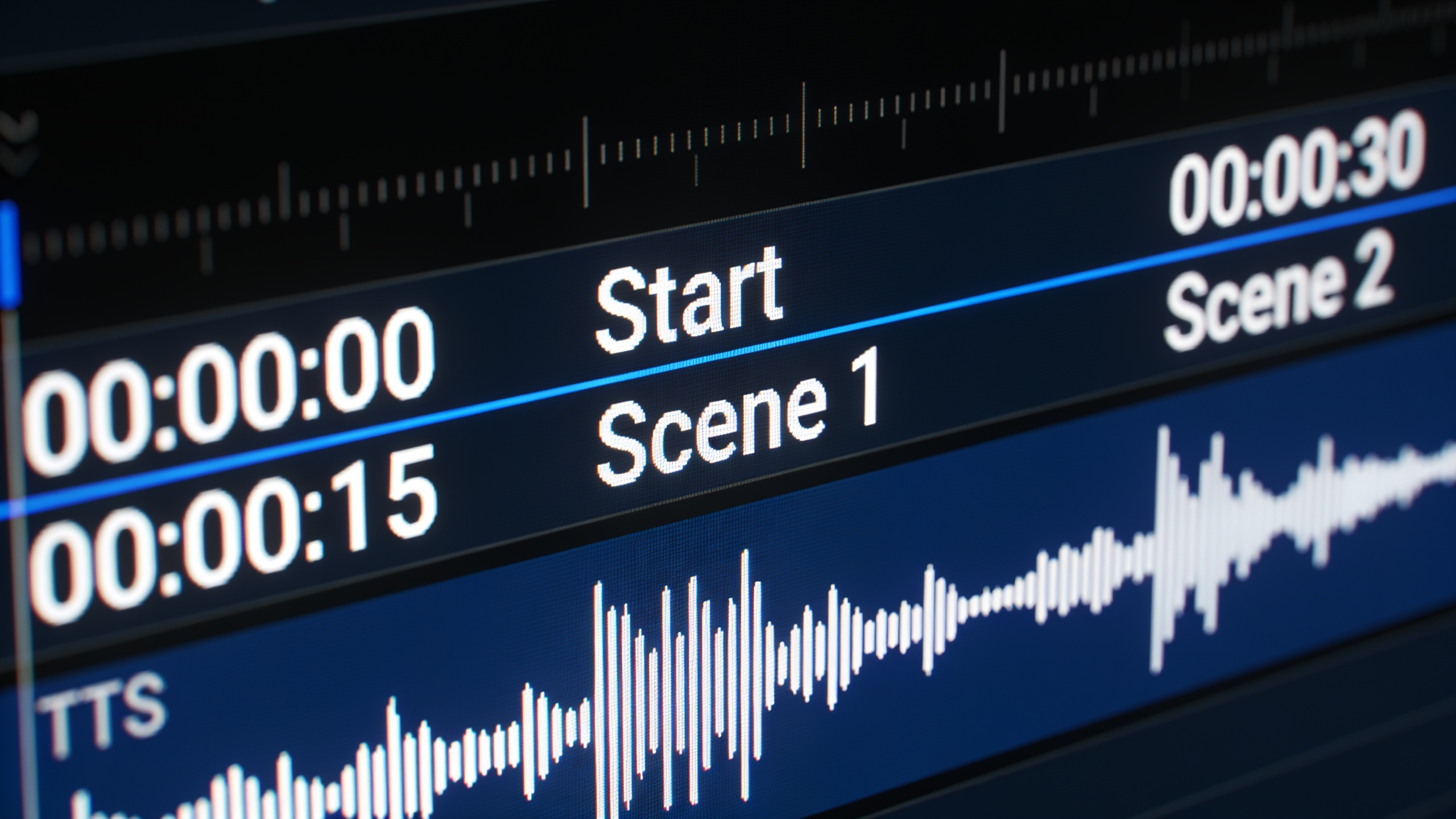
Practical style & accessibility rules — common pitfalls for subtitle placement, voice tone, SFX mixing, and brand overlays?
Answer: Follow simple style rules and avoid common pitfalls: keep captions short and high-contrast, choose a neutral narration tone when content is informational, keep SFX below dialogue, and place overlays outside safe areas. These choices improve readability and accessibility while reducing technical rework.
Common mistakes and how to avoid them:
- Mistake: Placing captions where platform UI covers them. Avoid by using platform-safe margins and previewing in a simulated app frame.
- Mistake: Overly dense caption lines. Fix by splitting long sentences and removing filler words; aim for 1–2 short lines per caption.
- Mistake: Voiceover too bright or compressed. Avoid clipping and keep narration around -14 to -10 LUFS relative to music; use a high-pass filter to remove rumble.
- Mistake: SFX overpowering speech. Mix SFX at -18 dB below narration during busy moments; duck music automatically when speech is present.
- Mistake: Brand text overlapping captions. Place lower-thirds and logos in corner safe zones and test with captions turned on.
Accessibility highlights: use readable fonts, 16px+ equivalent for mobile, and provide color contrast ratio that passes WCAG where possible. For multilingual clips, consider generating burned captions in each language or using the platform’s dubbing/localization features if available.
Choosing the right finishing tool: why GoCrazyAI Media Mixer often beats stitching multiple apps together
Answer: A finishing tool that handles voiceover, captioning, overlays, SFX, and export in one place reduces file handoffs, prevents format mismatches, and speeds turnaround — which is critical for creators publishing many short-form variants. GoCrazyAI Media Mixer keeps post-production inside a single interface so you don’t bounce between separate editors for TTS, subtitle burning, and final encoding.
How this helps day-to-day: instead of exporting an audio file from one app, importing it to another to line up captions, then sending assets to an encoder, the Media Mixer lets you generate TTS, edit captions, layer music (including tracks from the AI music generator), apply overlays, and produce a TikTok-ready MP4 in one workflow. That reduces mistakes (wrong timecodes, mismatched codecs) and saves time.
Use cases where this shines:
- Adding a voiceover to a Veo or Sora clip and exporting a single publishable file.
- Burning subtitles into a TikTok export without a second encode step.
- Overlaying brand text on a product reveal and producing multiple aspect ratios quickly.
If you want to try this flow for finishing AI clips, open the GoCrazyAI Media Mixer on the AI Video Editor page and follow the in-app voice and caption panels to complete and export your file: GoCrazyAI Media Mixer.
Frequently Asked Questions
How accurate are auto-generated captions for AI clips?
Auto captions are fast and usually good as a first draft, but accuracy varies by accent, disfluency, and background noise. Academic tests show ASR error rates vary across conditions, so plan a short human pass to fix names, numbers, and overlaps.
Can I clone my own voice for narration?
Many TTS/voice tools support voice cloning if you have the rights to the sample audio. GoCrazyAI also links to voice cloning and a library of premium voices so creators can generate consistent narration without studio recording.
Is burned captioning required or are platform captions enough?
Burned captions ensure every viewer sees text exactly as intended and avoid platform caption toggles that can misformat. For short reels where readability and branding matter, burned captions are often preferred.
Will one-click export preserve loudness and platform specs?
Yes — modern one-click exporters use platform presets (aspect ratio, codec, LUFS targets) so the output is optimized for TikTok, Instagram Reels, or YouTube Shorts. Always preview at target platform settings before publishing.
Conclusion
Final thoughts: For high-volume short-form workflows, the fastest route to publishable AI clips is a single finishing pass that handles captions, voiceover, SFX, and export. Use ASR and TTS to iterate quickly, perform a short human cleanup pass, and apply simple style rules for accessibility. Polish your clip in the AI Video Editor and export the finished file in one click.
Sources
- Do Captions Really Help Short Videos Get More Views? (industry summary citing 3Play Media & Meta)ascynd.io ↗
- Accessibility and Online Video Statistics (3Play Media)3playmedia.com ↗
- Measuring the Accuracy of Automatic Speech Recognition Solutions (arXiv, 2024)arxiv.org ↗
- Subvideo.ai – AI Voiceover & Subtitle Studio (product feature page showing one-click export & TTS/dubbing)subvideo.ai ↗
- AI Voiceover — One-Click Video Narration | Postcrest (product page describing automated voiceover + align + export)postcrest.com ↗
- oVideo - AI Video Generator for Shorts, Reels, and TikTok (product copy describing voiceover, subtitles, and export)ovideo.io ↗