


9:16 image generator: automate multi-aspect ad and social images
Learn how to turn one hero image into platform-ready 9:16, 1:1, and 4:5 ads using AI outpainting and batch export. Practical workflow + GoCrazyAI steps.
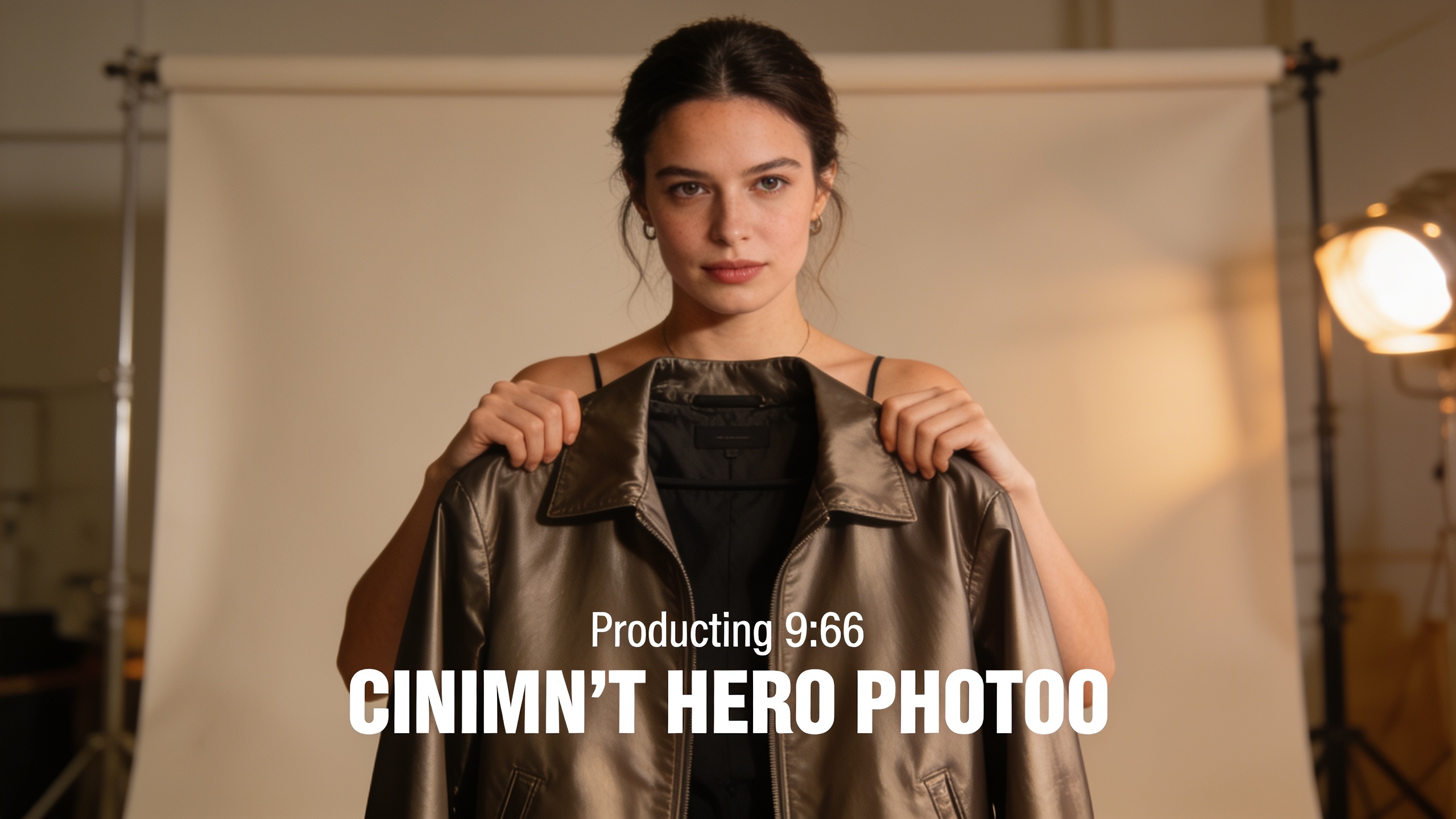
You need platform-ready images fast: Reels covers, feed squares, story verticals, hero banners. Manually cropping and re-composing the same asset for 4–6 platforms wastes hours and kills consistency. This article shows a practical, repeatable workflow to automate multi-aspect ad and social images (9:16, 1:1, 4:5) using AI outpainting and layout adaptation, and explains why GoCrazyAI's AI Image Generator is a fast path from one hero image to a set of export-ready assets. Date-stamp: as of this week.
Quick Answer
How do you use a 9:16 image generator to make platform-ready ads? Use AI outpainting or recomposition to extend or reframe a single hero photo, then export automated aspect variants (1080×1920 for 9:16, 1080×1080 for 1:1, 1080×1350 for 4:5). Tools like GoCrazyAI can generate, restyle, and batch-export these sizes without manual cloning.
Why mastering aspect ratios (9:16, 1:1, 4:5) matters for Reels, thumbnails and ad performance?
Vertical 9:16 is the default for Reels and Stories, and most platforms expect a 1080×1920 pixel thumbnail or cover for vertical clips (Buffer lists “Reels cover/thumbnail | 9:16 | 1080 x 1920 pixels”). Getting aspect ratios right preserves composition and avoids platform-side cropping that cuts faces or product shots. For ad performance, using the recommended platform pixel sizes reduces visual artifacts and gives consistent CTR signals — most ad guides recommend the "golden trio": square 1:1 for feed, landscape (1.91:1) for banners, and vertical 9:16 for Stories/Reels.
Practical implications: always design with the most constrained canvas in mind (usually 9:16 for Reels). If your original hero image is horizontal, use AI recomposition or outpainting to add pixels above or below the subject instead of heavy cropping. This keeps the subject framed and preserves branding elements like logos and taglines.
Practical workflow: Turn one hero image into a set of platform-ready assets (9:16, square, 4:5) using AI outpainting and recomposition?
Start by answering the single biggest question: can the hero image hold up when extended or recomposed? If yes, AI outpainting and recomposition are faster than manual retouching.
Quick workflow (first-paragraph summary): Upload one high-quality hero image, define target aspect ratios and pixel sizes (1080×1920 for 9:16, 1080×1080 for 1:1, 1080×1350 for 4:5), and run AI outpainting to generate surrounding context. Then apply small prompt-based edits to keep brand colors, add safe margins for text, and export variants.
Step-by-step detail:
- Prepare the hero: pick a subject-centered frame or crop that preserves eyes/product near thirds. Upscale if under 1080 px using an image upscaler.
- Define export sizes: 1080×1920 (9:16 Reels), 1080×1080 (1:1 feed), 1080×1350 (4:5 portrait). These are platform-ready pixel targets.
- Use AI outpainting tools such as AIImageExtender or AiPose to extend backgrounds instead of stretching or tiling. Outpainting generates new pixels outside the original canvas so the subject remains intact.
- Recompose for each aspect: place subject safely within the "text-safe" area for ads, and add overlays or badges consistently.
- Export and name files with a convention: product_campaign_platform_size (for example, summer-jacket_tiktok_1080x1920.jpg).
Example prompts for outpainting: "Extend the top and bottom of this photo with soft studio background, keeping lighting warm and adding 20% extra space for headline text." "Expand canvas to vertical 1080x1920 with a neutral bokeh background matching the original color temperature."
How to create scroll-stopping 9:16 thumbnails and Reel covers with brand consistency (hands-on with GoCrazyAI AI Image Generator)?
You can create consistent, scroll-stopping 9:16 thumbnails by generating or restyling a hero image to 1080×1920, then saving variations that keep the same type treatment and color grade. GoCrazyAI's AI Image Generator supports creating and editing images, restyling uploaded photos by prompt, and exporting at social-ready aspect ratios — making it suitable for this task.
Hands-on steps in GoCrazyAI: upload your hero photo or write a prompt to generate a new frame; choose the 9:16 output preset (1080×1920); use an outpaint or extend tool to add top/bottom space without moving the subject; apply the same color grade or a saved style to all variations. Save iterations to the library so you can quickly export a matching 1:1 and 4:5 later. Use the AI Image Generator's variations feature to try different headline placements and background blur levels, then pick the highest-contrast thumbnail for feed tests.
Use-case links and helpers: try the AI Image Generator for on-brand images and then drop winning frames into the AI video workflow with the AI video generator for motion variants (/create-ai-video). If you need to upscale a low-res photo before outpainting, use the AI Image Upscaler for crisp exports (/image-upscaler).
Practical prompt examples to paste into GoCrazyAI: "Portrait of founder holding product, studio lighting, warm tones, extend to 1080x1920 with soft gradient background for headline space." "Product hero on wooden table, neutral background, add vertical canvas above and below with subtle vignette for text overlay."
You can try every step above directly in GoCrazyAI AI Image Generator — no setup needed.
Scale and automate: batch-generate and export ad sizes for Facebook, Instagram, TikTok and Google (tools, templates, and naming conventions)?
Scale by building a template workflow: single hero → automated aspect variants → batch export with clear filenames. Use AI platforms that natively output multiple aspect ratios from one source image; these tools typically use layout adaptation and save hours compared to manual recomposition. Platforms like ProdSnap and Bloom advertise multi-output generation from a single photo, which speeds up producing the "golden trio" and extra sizes for Google or display networks.
How to automate practically:
- Create a template folder with baseline assets: hero.jpg, brand palette, headline treatments, and font files.
- Build or use a tool to run that hero through AI outpainting and aspect adaptation to produce 9:16, 1:1, and 4:5 at the correct pixels.
- Naming convention: campaign_product_platform_size_variant (e.g., "fall-2026_jacket_ig_1080x1350_v1.jpg"). This makes bulk uploading and reporting simpler.
- Use batch-export or API features to render all sizes at once. If the tool supports presets for Facebook, Instagram, TikTok, and Google, pick them to ensure pixel-perfect outputs.
Practical tip: keep a CSV mapping of platform → required pixel size and text-safe margins, then generate with the same CSV to automate naming and alt text insertion for ad platforms and CMS ingestion.
Testing and optimization: what metrics to track and quick experiments to improve CTR across aspect ratios?
Track engagement per aspect ratio: CTR on the placement (feed vs story), view-through rate for Reels, and conversion rate for the landing page. Run A/B tests that isolate only the aspect ratio and thumbnail variant while keeping copy and audience constant. For quick wins, test three variations: close-up subject, product-centered with negative space for text, and lifestyle context (golden trio).
Experiment ideas:
- Run a 24–48 hour paid test comparing the same creative across 9:16, 1:1, and 4:5 to measure CTR differences per placement.
- Test headline placement: top vs bottom vs overlaid on neutral space created by outpainting.
- Measure how much subject size affects CTR: crop tighter for better mobile thumbnail visibility.
Metrics to record: CTR, CPM, CPC, view-through rate (for Reels), and conversion rate. Use short tests (minimum statistically valid sample) and iterate based on which aspect ratio produces the best engagement for that creative. Often, vertical 9:16 will have higher view engagement on Reels but may not always translate to higher conversion on landing pages; always test end-to-end.
Frequently Asked Questions
What pixel size should I export for a 9:16 Reel cover?
Export vertical thumbnails at 1080×1920 pixels for Reel covers and Stories — Buffer lists this size as the recommended target for Reels cover/thumbnail.
Can AI outpainting really keep faces and products intact when converting to 9:16?
Yes, in most cases AI outpainting generates surrounding pixels rather than stretching the subject, which helps keep the subject intact. Results depend on the original image quality and the model; for best results start with a well-lit, centered hero image.
How do I name files so they're easy to upload into ad managers?
Use a consistent convention such as campaign_product_platform_size_variant (example: springbag_fb_1200x628_v1.jpg). Include pixel dimensions so you and ad platforms can verify sizes at a glance.
Which tools automate multi-aspect exports from a single photo?
Several modern tools offer layout adaptation and multi-output generation — examples include ProdSnap, Bloom, KreadoAI, and platforms with outpainting features. These reduce manual re-composition time by producing multiple aspect ratios from one source.
Conclusion
Automating multi-aspect images turns a single hero asset into a library of platform-ready ads and thumbnails without repeated manual work. Start with a high-quality hero, use AI outpainting to preserve subjects, follow pixel-size best practices (1080×1920 for 9:16), and standardize naming for exports. If you want to try a workflow that generates, restyles, and exports social-ready ratios, spin up your first frame in the AI Image Generator and iterate from there.
Sources
- Instagram Image Size Guide 2025: Post, Story, and Reels Dimensions — Bufferbuffer.com ↗
- AI Image Extender — Outpaint Any Photo to Any Ratioaiimageextender.app ↗
- AiPose: AI Image Expander — Expand Images to Any Aspect Ratioaipose.ai ↗
- Turn one product photo into 12 winning ad variants — ProdSnap (example of multi-output AI ad tools)prodsnap.io ↗
- Generate Ad Creative at Scale with AI — Bloom (multi-aspect generation / recomposition)trybloom.ai ↗
- Free Multi-Size Ad Image Generator — KreadoAI (multi-size outputs powered by Nano Banana)kreadoai.com ↗
- AI Image Ad Generator — AdxMagic (aspect ratio guidance and use-cases)adxmagic.com ↗