


YouTube thumbnail AI: prompt-led workflows for high-CTR thumbnails
Learn prompt templates, model choices (Nano Banana, Seedream 4, Kaneko Gen Pro), and GoCrazyAI workflows to generate high-CTR YouTube thumbnails fast.
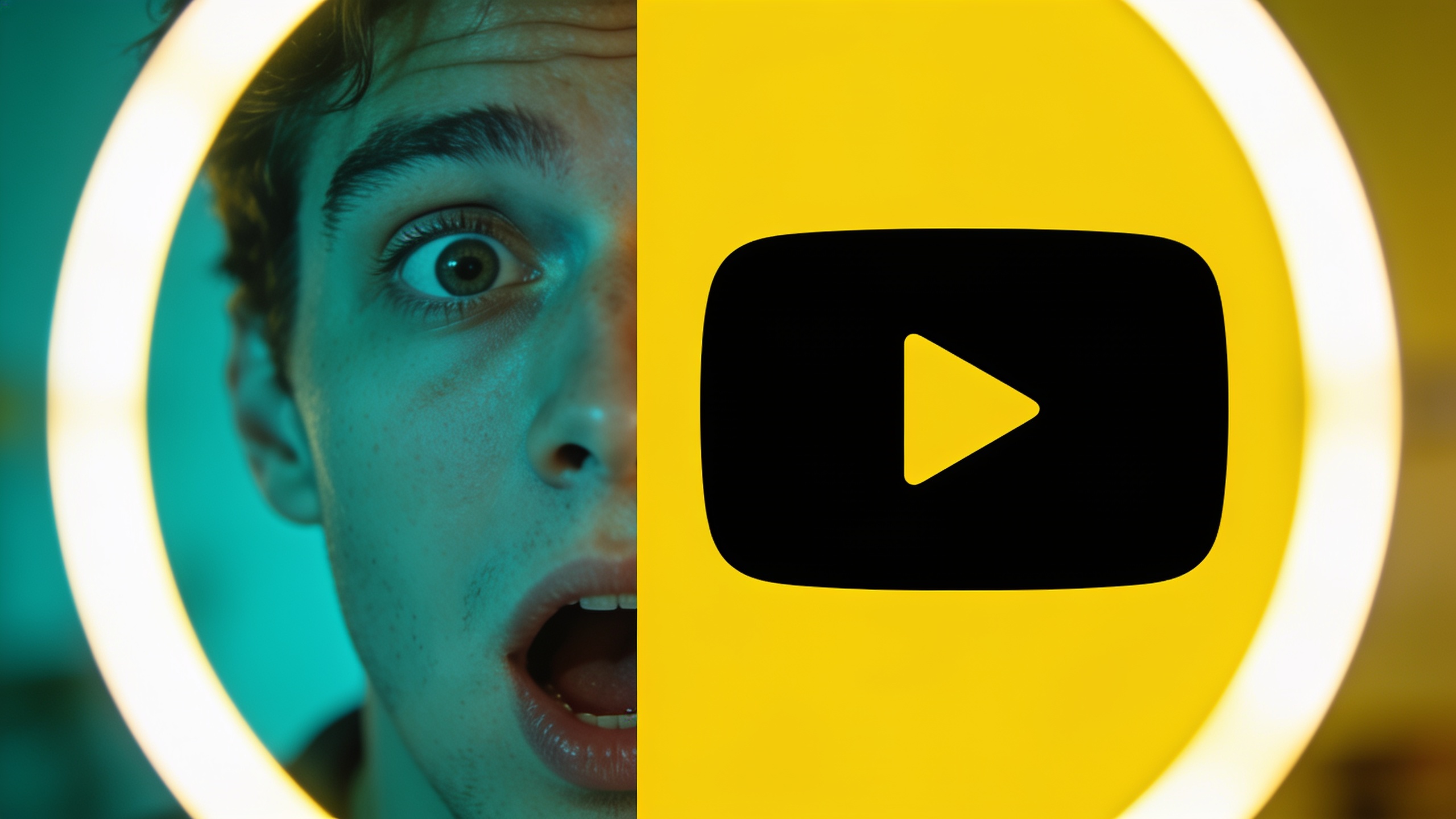
You need thumbnails that lift CTR without wasting hours on endless design edits. This article gives compact, repeatable workflows using advanced image models (Nano Banana, Seedream 4, Kaneko Gen Pro) and prompt-led techniques to produce multiple thumbnail options fast. Read step-by-step prompts, model guidance, export settings, and a hands-on GoCrazyAI workflow so you can prototype, iterate, and A/B test thumbnails that actually move the needle.
Quick Answer
How do you use YouTube thumbnail AI to create high-CTR thumbnails? Use a prompt-first approach: pick a model suited to your goal (photorealism or stylized), write layout-aware prompts (face size, empty text area, camera), and generate 6–12 variants. Rapidly iterate and A/B test winners. Tools like GoCrazyAI’s AI Image Generator let you create, edit, and export thumbnail-ready images in minutes.
Why thumbnails still drive CTR (data-backed benchmarks you should track)?
Thumbnails remain one of the clearest levers for improving YouTube CTR: industry analyses place typical averages roughly between 4%–6%, with category and placement affecting that range. Anything below ~4% often signals a thumbnail problem. Track CTR by view source (browse vs suggested), impressions, click-through rate, and watch time after click to spot thumbnails that attract clicks but hurt retention. For reliable benchmarking, segment by video category and compare against channel baselines rather than global averages (category norms shift CTR dramatically). Use weekly rolling windows to avoid overreacting to single-video variance. Combine CTR data with audience retention to detect misleading thumbnails: a spike in CTR but a drop in average view duration usually indicates mismatch between thumbnail promise and content.
The visual patterns that produce high CTR: faces, color, contrast, and the curiosity gap?
High-CTR thumbnails generally follow a small set of visual patterns. Close-up faces that fill a large portion of the frame perform well because they create emotional connection and are readable at small sizes. High-contrast palettes—reds, yellows, and saturated accents—help thumbnails stand out in feeds. Minimal on-image text (3–4 words max) keeps the focal message clear and readable on mobile. A single, clear focal object or expression that creates a curiosity gap (a surprising prop, shocked face, or cutaway detail) prompts clicks without overselling. For practical use, combine: 60–70% face coverage, contrasting background color, one-word or short-phrase overlay, and a visual cue pointing to the subject (arrow, light rim). Studies and tool analyses repeatedly show these elements correlate with CTR lifts across channels and categories. Always balance curiosity with accuracy—misleading promises can harm retention and channel health.
Choosing the right image model for thumbnails: Nano Banana, Seedream 4, and Kaneko Gen Pro compared?
Pick a model based on the visual outcome you need: photorealism, creative stylization, or precise composition. Nano Banana family models tend to deliver cleaner photorealistic faces and accurate lighting—good for personality-driven thumbnails and talking-heads. Seedream 4 offers strong scene composition and color control, useful when you need cinematic backgrounds or staged props. Kaneko Gen Pro leans toward stylized or concept-art outputs—great for highly branded or illustrative thumbnails. In practice: use Nano Banana for close-up faces with realistic skin and eyes; Seedream 4 for dynamic backgrounds and color pops; Kaneko Gen Pro for stylized covers or exaggerated emotion. Many creators generate the subject with one model and restyle or relight in another to combine strengths. On GoCrazyAI you can pick these engines and save variations, which speeds testing different looks without rebuilding prompts from scratch.
Prompt engineering for thumbnail-ready images: templates, constraints, and layout hints?
Effective thumbnail prompts combine visual detail, layout constraints, and camera specs. Start with a clear structure: subject + expression + composition + color palette + layout constraint + camera. Include instructions like 'empty right third for text' or 'leave 30% left margin for logo' to get images that require minimal cropping. Add a camera note such as 'close-up, 85mm lens, shallow depth-of-field' to push big face fills and soft backgrounds. Keep color directives explicit: 'high-contrast palette: deep navy background, saturated yellow accent, rim light.' Example template: "[subject], close-up, intense surprised expression, empty right third for text, saturated red/yellow accents, 85mm, shallow DOF, cinematic rim light, high contrast, photorealistic." Use constraints for on-image text legibility: 'ensure face is on left two-thirds, avoid busy background behind face.' Finally, limit on-image text in the prompt: ask for 'no more than 3 words' if you want to add overlays later. Prompt iteration makes thumbnails reproducible across a batch of images.
What are example prompts for thumbnails I can copy?
Below are copyable prompt examples tailored to different thumbnail goals: close-up host shot, product hero, and stylized concept cover. Each prompt specifies layout, camera, color, and text space to produce thumbnail-ready files.
Close-up host (photorealistic): "Male host, close-up, surprised expression, face fills left two-thirds, empty right third for 2–3 word text, 85mm, shallow depth-of-field, warm rim light, high-contrast saturated yellow accent, photorealistic, minimal background clutter."
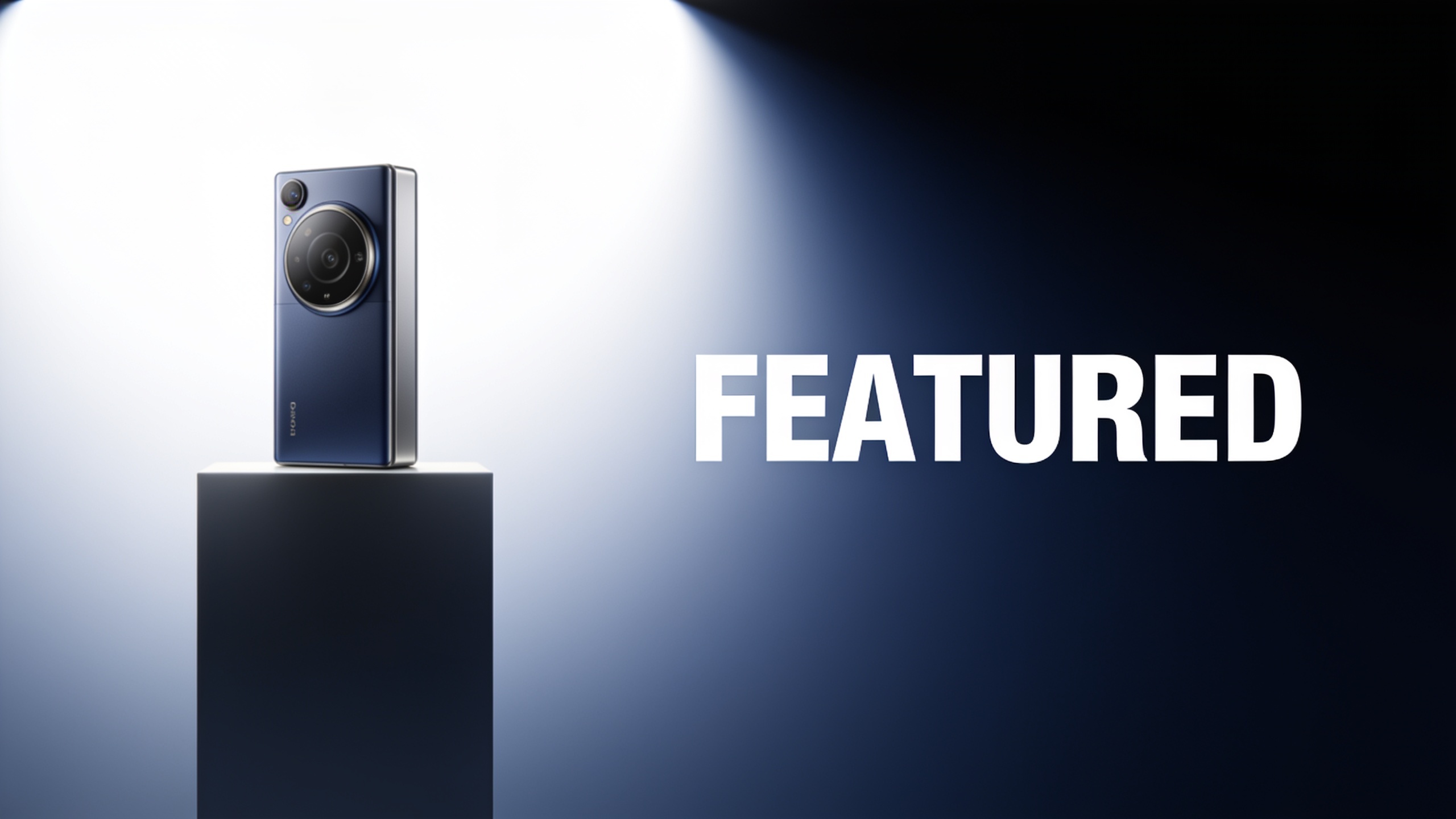
Product hero (clean): "Product on pedestal, clean white-to-navy gradient background, product centered-left, empty right third for text and logo, dramatic top rim light, deep shadows for contrast, saturated accent color red, sharp 50mm, studio lighting, photoreal."
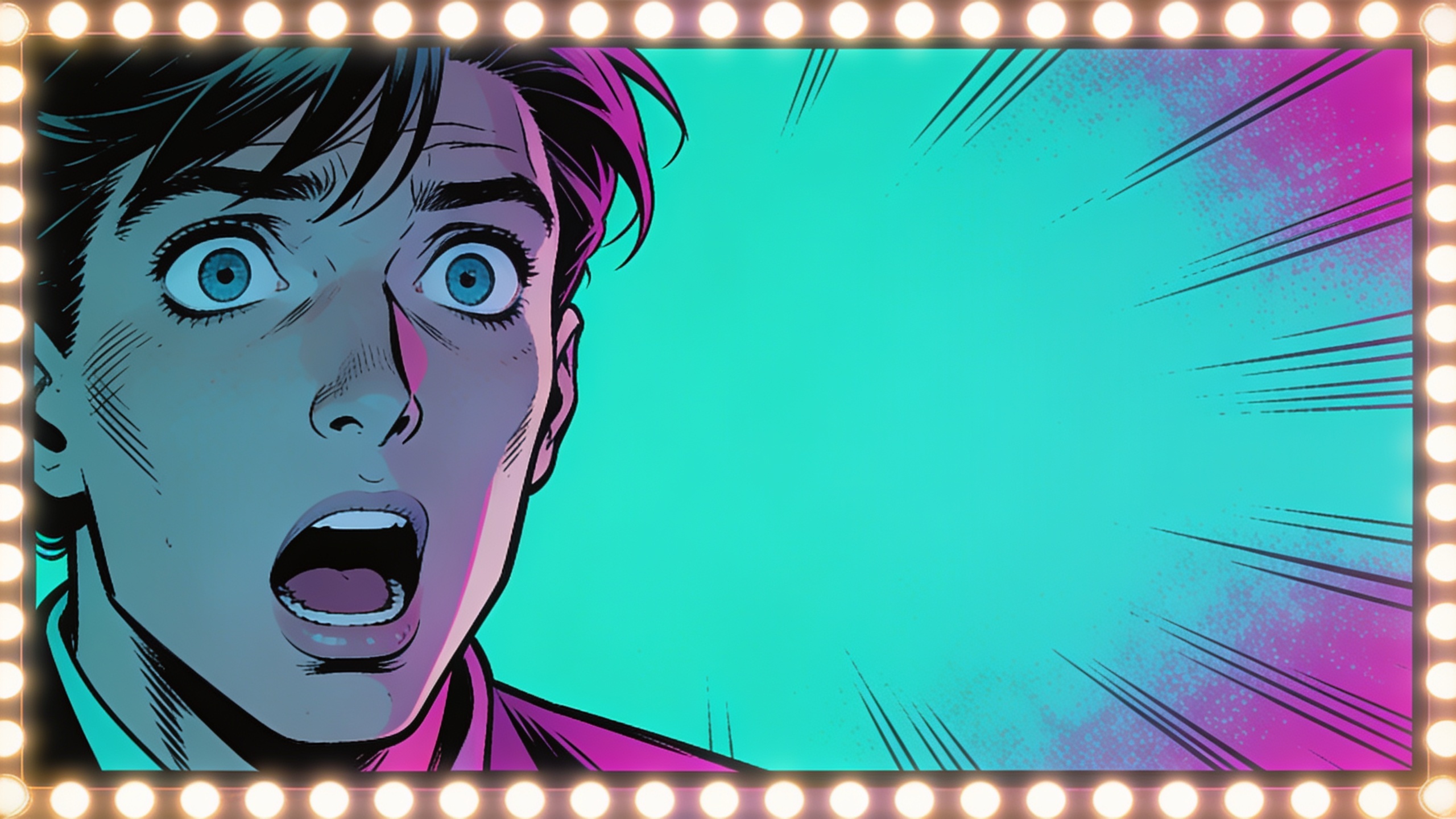
Stylized concept (clicky): "Exaggerated shocked face, comic-style rim light, neon cyan background, bold color contrast, face oversized, left alignment, empty right area for single-word overlay, stylized hyperreal, high saturation, cinematic vignette."
Use these as starting points and tweak "face size," "color," or "empty third" to match your channel's brand. When you need strict composition, add explicit crop box notes like 'subject within left 0–66% horizontal bounds.'
Workflow A — Rapid prototype: Generate multiple thumbnail options in GoCrazyAI and pick winners?
Rapid prototyping is about volume and controlled variation: generate many consistent variants, then shortlist by quick visual checks and data. Start a session in the AI Image Generator, select the model (e.g., Nano Banana for faces), and paste your base prompt. Create a batch of 6–12 images by adding small prompt tweaks—change saturation, face size, or one-word overlay. Save variations to the library so you can compare side-by-side. Quickly mark favorites and export at 1280×720. This process often produces broadcast-ready thumbnails in under a minute per variant, enabling quick A/B tests. Use GoCrazyAI’s saved variations to keep consistent branding across several videos; export the top candidates and run a split test on YouTube or with an external A/B tool. Generating multiple options reduces guesswork and surfaces non-obvious winners (a slight color shift or tighter crop often boosts CTR).
You can try every step above directly in GoCrazyAI AI Image Generator — no setup needed.

Workflow B — Finalize & optimize: Composite text, logos, and A/B test variations inside GoCrazyAI?
Finalizing thumbnails means compositing overlays, checking legibility at small sizes, and preparing multiple test variations. Inside GoCrazyAI you can edit generated images, add short text overlays (3–4 words), place logos in safe zones, and relight or upscale if needed. Export multiple variants: tweak text color, increase face scale by 5–10%, or adjust saturation for contrast. Save each variation with clear file names and metadata (prompt + edits) to track what changed. Use the platform’s output sizes to export 1280×720 JPG/PNG with low compression. Then run A/B tests across similar audience segments; small differences like changing overlay color or increasing face size usually reveal clear CTR differences. Iterate based on CTR and retention: a variant that raises CTR but drops watch time should be reworked to better reflect content.
What mistakes should I avoid when using AI for thumbnails?
Common mistakes include: using busy backgrounds that reduce legibility, adding too much text, and creating thumbnails that misrepresent the video. Avoid crowding the frame—leave clear space for text and logo. Don’t use long sentences on the image; stick to 1–4 words. Be cautious with facial expressions—oversized or unnatural faces from certain prompts can look clickbaity. Avoid drastic image edits that change video meaning; misleading thumbnails can boost clicks temporarily but damage watch time and invite policy scrutiny. Also watch model selection: picking a stylized model for a real-person talking-head may produce inconsistent skin tones or artifacting. To avoid these pitfalls, test small changes, keep records of prompt + edits, and cross-check top candidates against the actual video content before publishing.
Frequently Asked Questions
What size should a YouTube thumbnail be?
YouTube recommends 1280×720 (16:9). Export high-resolution JPG or PNG with low compression so the thumbnail looks sharp across devices; keep file size under YouTube limits but avoid heavy compression artifacts.
How many thumbnail variants should I generate for A/B testing?
Generate at least 4–8 variants per test: a control plus several small changes (color, face scale, single-word overlays). More variants increase the chance of finding a winner but require enough impressions to reach statistical significance.
Which visual elements most reliably increase CTR?
Close-up faces, high contrast colors (reds/yellows), minimal on-image text (3–4 words), and a clear focal object that creates a curiosity gap are consistently linked to higher CTR in large-scale studies.
Can AI-generated thumbnails cause policy issues?
Yes—if a thumbnail is misleading or misrepresents content it can harm retention and trigger enforcement. Match the thumbnail promise to the video and avoid fabricated events or deceptive claims.
How do I keep thumbnails consistent across a series?
Use saved prompt templates, consistent color accents, and logo placement. Save variations in your creative library and apply the same camera/face-size specs across episodes to maintain brand cohesion.
Conclusion
AI-driven, prompt-led thumbnail workflows let you produce many readable, testable thumbnail candidates quickly. Focus on proven visual patterns (big faces, contrast, minimal text), use model strengths strategically, and always A/B test variations against your channel baseline. When you need fast, repeatable outputs with saved variations and export-ready sizes, try the AI Image Generator to spin up frames and iterate until you find winners.
Sources
- What Makes a YouTube Thumbnail Go Viral? A Data-Backed Breakdown (Hooksnap blog)hooksnap.io ↗
- The Science of Click-Worthy Thumbnails: Data-Driven Analysis of 1,000 Top Videos (YouTube Thumbnail Toolkit)yt-thumbnail.com ↗
- YouTube's custom thumbnail help (thumbnail size / formats) — platform guidance (referenced indirectly via multiple prompt-generator guides)support.google.com ↗
- Nano Banana (Gemini image models) and Nano Banana Pro coverage — TechRadar / Tom's Guide / Android Centraltechradar.com ↗
- Seedream 4 AI Image Generator — product page / demosseedreamimg.com ↗
- How I Built a Free YouTube Thumbnail Prompt Generator (DEV Community) — prompt-first thumbnail design lessonsdev.to ↗
- Free AI YouTube Thumbnail Prompt Generator / Prompt templates (multiple modern prompt-generator posts)vakpixel.com ↗
- CTR Gains with AI Thumbnails: Data from 4 Channels (ThumbnailCreator blog)thumbnailcreator.com ↗
- Prompting guides & image prompt best-practices (AIToolbox prompting guide)aitoolbox.org ↗
- Academic paper: ThumbnailTruth — detecting misleading YouTube thumbnails (arXiv)arxiv.org ↗