

Photo dance AI: Turn a selfie into a 15–30s dance clip
Turn a single selfie or pet photo into a 10–30s dance clip with motion-transfer AI. Fast, repeatable workflow using GoCrazyAI CrazyFX and editing tips for stable faces.
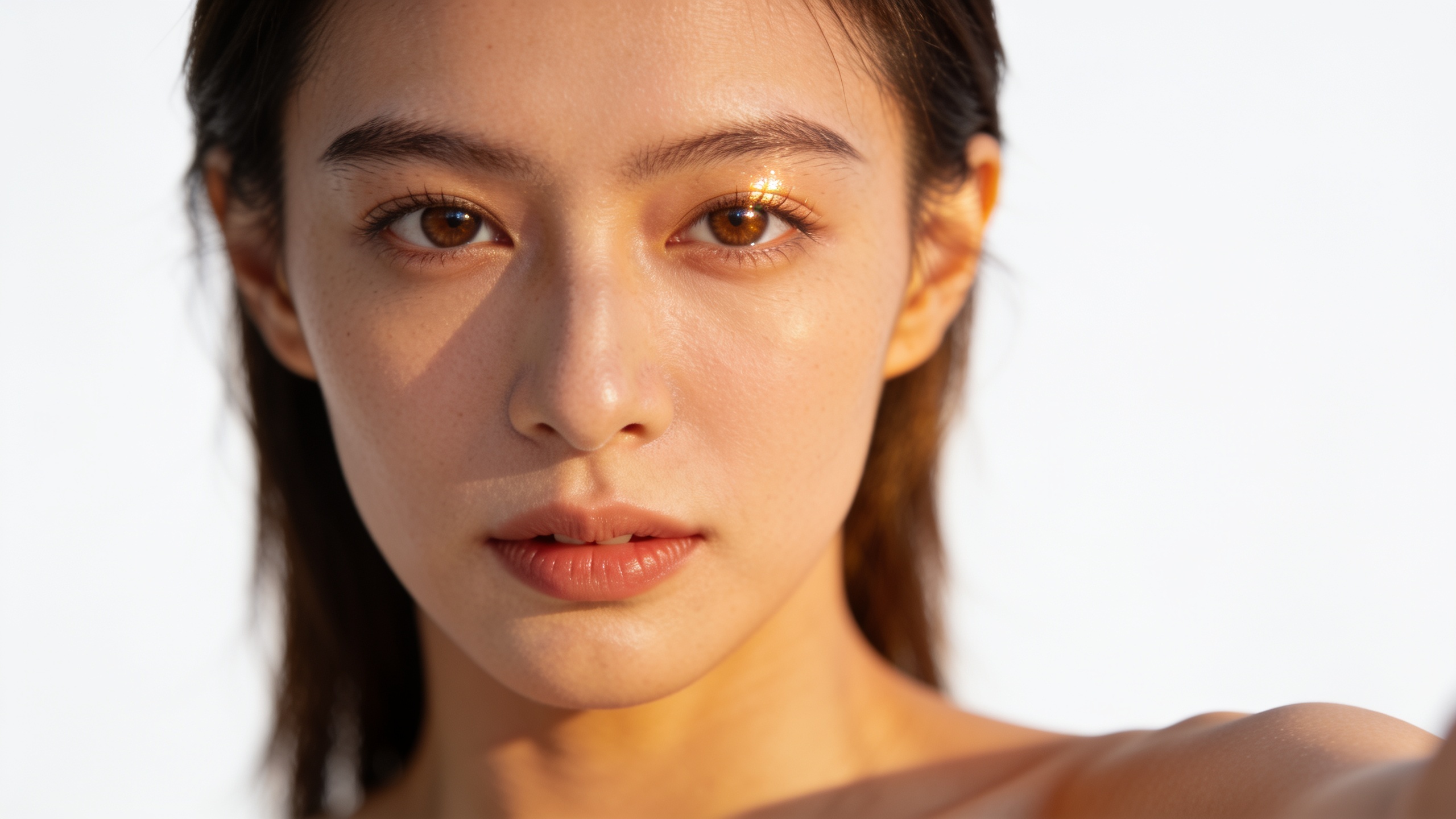
You have one photo and you want a short, shareable dance clip for TikTok or Reels — fast. This guide shows how image-to-video) motion transfer turns a single selfie or pet photo into a 10–30 second dancing video, what to expect from one-click tools, and a step-by-step CrazyFX workflow to ship a vertical clip in minutes. You'll also get concrete editing tips for rhythm, face stability, and framing so the final clip looks polished on mobile.
Follow the numbered walkthrough if you want to reproduce this on your first try. Use the examples and prompts section for copyable reference clips, and the troubleshooting list to avoid common artifacts like face jitter and body drift.
Quick Answer
How do you turn a selfie into a dance clip with photo dance AI? Use an image-to-video motion-transfer tool: upload a single portrait photo, pick a reference dance motion or a CrazyFX preset, and render a 10–30s vertical clip. One-click generators like GoCrazyAI CrazyFX speed this to minutes; then trim and stabilize in a basic editor for best results.
How image-to-video motion transfer works (simple, non-technical primer)?
Image-to-video motion transfer, often called "photo dance AI," takes a still portrait and a reference motion clip and maps pose and motion onto the still image to produce a short video. In simple terms: the system extracts a motion skeleton (poses and timing) from the reference, aligns the subject in the photo to that skeleton, and synthesizes frames so the subject appears to move. This usually produces 10–30 second outputs optimized for social formats.
Why that matters for creators: you don't need multiple frames or green-screen footage — one good photo and a dance reference are enough. The same approach powers consumer tools like ViralDance and JustDance, and academic work (Dual-MTGAN, Dance Motion Transfer) explains typical artifacts like face instability or body drift. Those artifacts happen because models trade off strict pose accuracy and photorealism when inferring unseen limbs or perspective changes.
Practical expectation: for a front-facing selfie with a neutral expression, motion transfer usually keeps the face recognizable and follows the reference rhythm, but it rarely changes camera angle or generate fully accurate 3D turns. For better results, use close-to-front photos, pick reference motion without extreme perspective changes, and keep clips short (15–30s).
Why creators prefer one-click tools for dance shorts — tradeoffs and permissions?
One-click tools compress the workflow: upload, choose an effect, render. Creators choose them because they save time, produce consistent aspect ratios, and ship trend-ready clips without prompt engineering. For fast trend-chasing and ad testing, that speed often outweighs lower fine-grain control.
Tradeoffs to accept: one-click presets sacrifice deep customization (exact foot placement, custom camera moves). You may need a post-render edit to stabilize faces or tweak timing. Also expect model-specific artifacts: slight face jitter, occasional limb blurring, or timing drift on complex choreography.
Permissions and ethical considerations: always use photos you own or have consent to publish. When using someone else’s choreography or music, check platform rules and licensing. If you plan to impersonate a public figure or create hyper-realistic likenesses, avoid sensitive content and respect platform policies.
When to pick one-click vs custom motion-transfer pipelines: pick one-click presets for speed and standard formats (vertical 9:16, 15–30s). Choose more advanced image-to-video tools if you need unique camera moves, longer duration, or precise lip-sync control — see the AI video generator option for that workflow (/create-ai-video).
Step-by-step: Make a 10–30s dance clip from a selfie using GoCrazyAI CrazyFX (hands-on walkthrough)?
Quick answer (40–80 words): Upload your selfie, choose a CrazyFX dance preset, pick a reference rhythm or preset clip length, then render a vertical, social-ready video. CrazyFX runs the motion transfer and outputs a 9:16 clip; you can export, then polish in a simple editor.
Full walkthrough (copy these exact steps):
1) Prepare your photo. Use a high-resolution, front-facing selfie with neutral background. If the image is low-res, run an upscaler first via GoCrazyAI Image Upscaler (/image-upscaler) or re-upload a sharper file.
2) Open CrazyFX: go to /crazyfx and select the "Dance" category. CrazyFX offers tuned presets (dance, avatar, lipsync, pet dance) so you don’t need prompt engineering. The dance presets are sized for 9:16 vertical output.
3) Upload your photo and choose a preset. Pick clip length 10–30s (15s is recommended for initial trends). If CrazyFX shows a reference motion preview, pick one that matches your intended energy (slow, medium, fast).
4) Optional: select a specific motion reference or a trending move from the preset list. For lipsync or news-anchor effects, paste a short script into the provided field.
5) Render and wait. CrazyFX queues jobs with the rest of GoCrazyAI; rendering time is typically under a few minutes for short clips.
6) Download the vertical MP4. Review for face stability and timing. If you need sound, add music with GoCrazyAI AI Song Generator (/ai-music) or import a licensed track.
7) Final touches: run a stabilization or slight slow-motion on frames with jitter (see the next section for settings). Export and upload to TikTok or Reels.
This one-photo, one-click pipeline is why many creators go from selfie to clip in under 10 minutes. If you also need custom backgrounds or cinematic transitions, combine the CrazyFX output with the AI video generator (/create-ai-video) or the AI video editor (/ai-video-edit).
You can try every step above directly in GoCrazyAI CrazyFX — no setup needed.
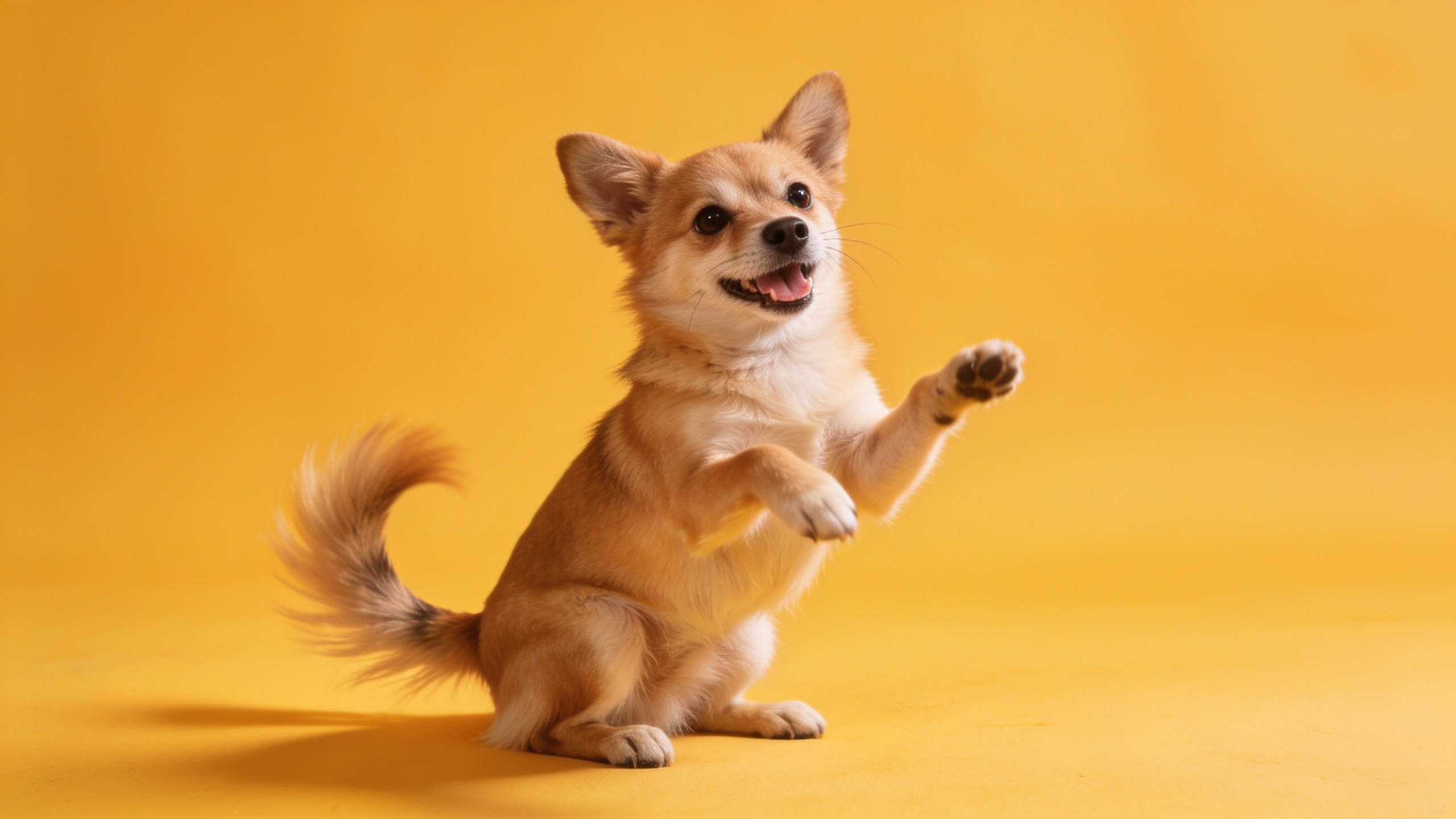
Fine-tune rhythm, face stability, and framing for better engagement (hands-on editing workflow)?
Quick answer (40–80 words): Trim to the strongest 6–20 seconds, align the beat by nudging frames ±1–3 frames for key moves, and apply a small face-stabilize filter or mask to reduce jitter. Reframe to 9:16 with safe-area cropping so the head sits in the top third.
Detailed editing workflow:
1) Pick the clip length: 10–15s works best for trends; 20–30s works for storytelling or ads. Shorter clips focus attention and loop better on platforms.
2) Rhythm alignment: import the CrazyFX clip into a timeline. Drop your music track (use /ai-music if you want a quick instrumental). Scrub to match the visual peaks (e.g., major arm moves) to music beats. Nudge the video clip by ±1–3 frames to tighten sync; small shifts often fix timing errors from motion transfer.
3) Face stabilization: apply a subtle warp/stabilize on the face region rather than whole-frame stabilization. In most editors, track the face center for 10–20 frames and reduce micro-jitter by ~20–40% so expressions remain natural.
4) Framing & safe area: ensure the subject’s head sits near the top third and limbs don’t get cropped in 9:16. Add 4–8% vertical padding if a preset crop cuts off hands.
5) Color & lighting fixes: use a gentle contrast boost and a warm grade to increase thumbnail click-through. If the original photo had flat lighting, apply an artificial rim or vignette sparingly.
6) Export settings for TikTok/Reels: 9:16, H.264 or H.265, 1080×1920, 24–30 fps, AAC audio 128 kbps.
7) A/B test thumbnails: export a 3–5 second loopable GIF or still for your cover image. Try different in-frame crops — a close-up face with expression usually performs best.
If you need more advanced assets (voiceover, subtitles, ad overlays), finish in GoCrazyAI Media Mixer (/ai-video-edit).
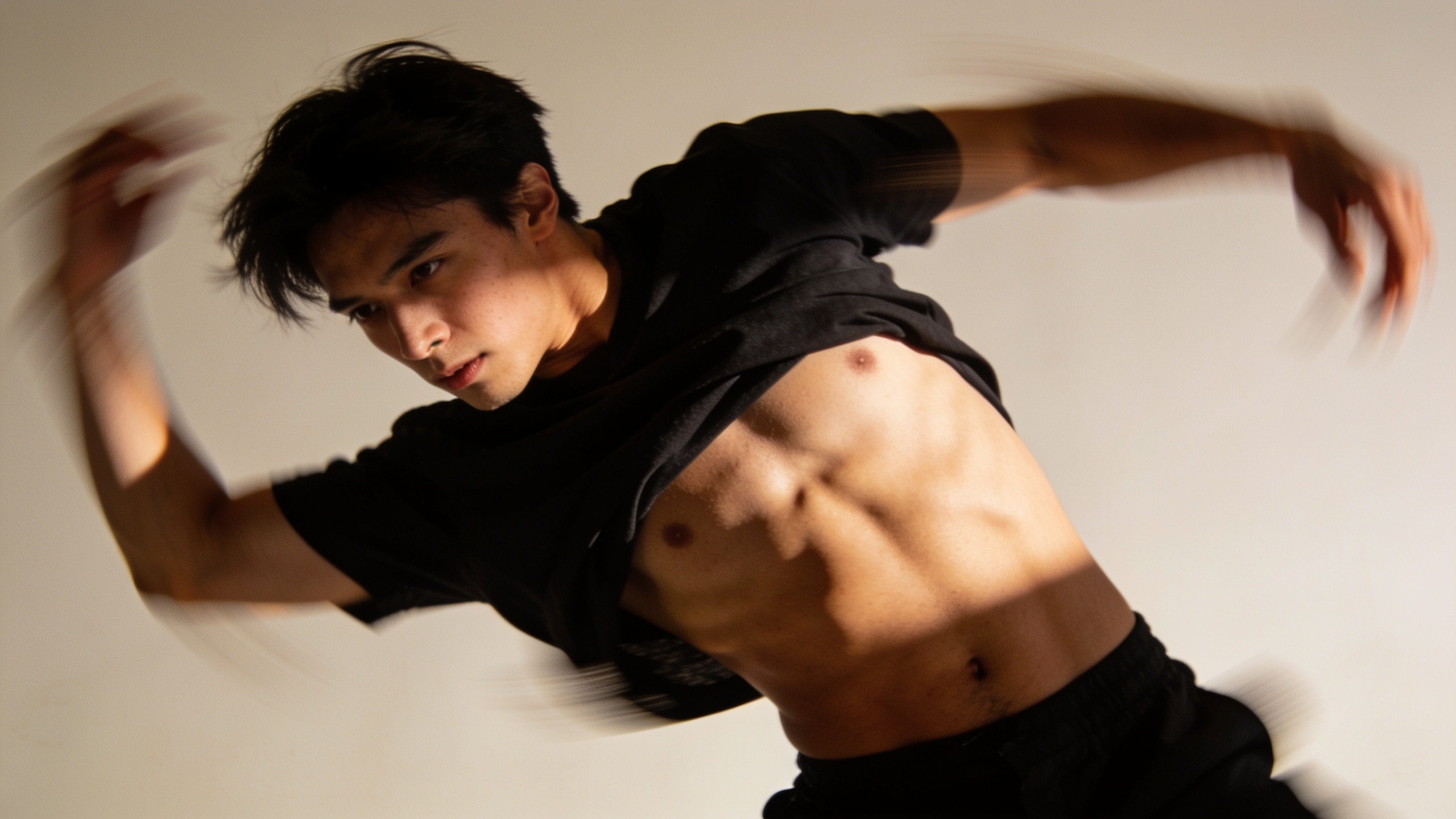
Examples & use-cases: pets, news-anchor lipsyncs, avatar dances — templates that work?
Quick answer (40–80 words): Successful formats include short pet dances (single pet photo + playful soundtrack), news-anchor clips (single headshot + short script), and avatar dances (stylized portrait + trending choreography). Each format uses the same motion-transfer principle but different CrazyFX preset and audio choices.
Concrete examples you can copy:
1) Pet dance (15s): upload pet photo, pick "Pet Dance" preset, select upbeat loop. Add a whimsical sound effect and caption "When your human drops food". Export vertical 15s.
Prompt / settings example for CrazyFX: "Pet Dance — 15s — Upbeat — Loopable" (choose the pet dance preset in the UI).
2) News-anchor lipsync (20s): upload headshot, choose "News Anchor" preset, paste short script: "Top story: our new product makes mornings easier — link in bio." Pick subtle head motion and 9:16 framing.
Script example (paste into the script box): "Top story: morning made easy. Link in bio for a quick demo."
3) Avatar dance (10–15s): upload stylized portrait or AI image, select "Avatar Dance" preset for cartoonish motion, pick a trending sound and bright color grade.
Why these formats work: they map to platform behaviors — pets evoke shares, news-anchor formats support branded messaging, and avatar dances feed trends and duet culture. Use 10–20 second variants for loopability and higher completion rates.
Reference tools: consumer generators like ViralDance and JustDance use this same photo+reference pipeline for short social clips.
Responsible sharing, copyright & practical tips for publishing your CrazyFX video (pitfalls to avoid)?
Quick answer (40–80 words): Don't publish without consent or proper music rights. Avoid impersonation or celebrity likenesses. For best results, credit original choreography when required and pick licensed audio or a track generated via /ai-music. Also, run a stabilization pass to fix artifacts before posting.
Common mistakes and how to avoid them:
- Mistake: Posting with a copyrighted song without a license. How to avoid: Use platform-licensed tracks or a royalty-free/commercial license from an AI music tool (/ai-music) or a properly licensed library.
- Mistake: Using a low-resolution selfie that produces blur and face jitter. How to avoid: Upscale the photo first with the Image Upscaler (/image-upscaler) or retake at higher resolution.
- Mistake: Choosing a reference motion with extreme perspective or 3D spins that the single-photo model cannot plausibly render. How to avoid: Pick front-facing or medium-turn references and keep motion moderate.
- Mistake: Forgetting to crop for 9:16 safe area, which trims limbs or heads on upload. How to avoid: Preview the vertical crop in CrazyFX and add 4–8% padding if needed.
- Mistake: Ignoring consent when using someone else’s portrait. How to avoid: Get written permission; for pets, ensure the owner consents.
Publishing checklist: confirm music rights, run a quick stabilize, verify framing, add captions/subtitles for accessibility, and include any required credits. For longer campaigns or ads, generate multiple variants with CrazyFX presets and A/B test performance.
Frequently Asked Questions
What kind of photo works best for photo dance AI?
A high-resolution, front-facing portrait with a neutral background gives the cleanest result. Full-body photos work for wider poses, but for face-heavy presets (news anchor, lipsync), a clear headshot is best. If your photo is low-res, upscale it first.
Can I use copyrighted music with CrazyFX clips?
You must use music you have rights to or platform-licensed tracks. Alternatively, generate original music with GoCrazyAI AI Song Generator (/ai-music) to avoid licensing issues.
How long should my dance clip be for TikTok or Reels?
Short and loopable clips usually perform best: 10–20 seconds. For ad-style messaging, 20–30 seconds can work. CrazyFX outputs are optimized to 9:16 vertical which matches platform formats.
Will CrazyFX change my photo’s face or identity?
CrazyFX preserves the input photo’s identity while animating it, but minor synthesis artifacts (softening, slight expression shifts) can appear. For critical likeness work, review and adjust stabilization or retouch the source photo first.
Conclusion
Final thoughts: Turning one selfie into a short dance clip is now a practical, repeatable workflow. Use CrazyFX for quick, template-driven outputs, then tighten rhythm, stabilize the face, and frame for mobile. For music and final polish, pair CrazyFX exports with GoCrazyAI's music and editing tools. Browse CrazyFX and ship a viral-format clip from a single photo today.
Sources
- CrazyFX — AI-Powered Video Effects | GoCrazyAIgocrazyai.com ↗
- JustDance: AI Dance Video Generatorjustdance.cc ↗
- ViralDance AI — Free AI Dance Generatorviraldance.ai ↗
- AI Dance Generator — EaseMate AIeasemate.ai ↗
- Dance Motion Transfer (research overview / paper)fjavadi.github.io ↗
- Dual-MTGAN: Motion Transfer for Image-to-Video Synthesis (arXiv)arxiv.org ↗
- DisMo: Disentangled Motion Representations for Open-World Motion Transfer (arXiv)arxiv.org ↗
- Photo Dance AI — Vidu (product example)vidu.com ↗
- AI Dance Generator — aidance.io (consumer example)aidance.io ↗