


How can ecommerce brands scale ai-generated product shots?
Replace costly photoshoots and scale ad- and listing-ready product images using AI-generated product shots with fast batch variants, on-brand templates, and one-click edits.
You need more product images than a single photoshoot can deliver. Whether it’s seasonal ads, multiple aspect ratios for social, or dozens of color variants, traditional photography quickly becomes expensive and slow. This article shows how ecommerce teams replace expensive reshoots with AI-generated product shots, keep images consistent across channels, and cut production time from days to minutes using prompt-driven editing and batch generation.
You’ll get concrete cost and workflow comparisons, practical design rules for ad-ready images, reproducible example prompts and templates, and a step-by-step GoCrazyAI workflow you can use to generate catalog, landing-hero, and social ad images from a single photo.
Quick Answer
How can ecommerce brands scale ai-generated product shots? By feeding one high-resolution product photo into an AI image generator, applying template-driven prompts and batch variants, and exporting multiple aspect ratios and lighting styles. This approach produces consistent white-background and lifestyle shots quickly, lowers per-image cost, and lets teams iterate without reshoots.
Why high-quality product images still drive ecommerce conversions (and where traditional photography fails)?
High-quality product images still drive conversions because shoppers rely on visuals to judge fit, color, texture, and scale; listings with more images typically convert better. Multiple industry benchmarks show listings with 4–6 images or more outperform sparse listings in conversion rate and engagement — that usually means more clicks and lower return rates. Traditional photography can produce excellent shots, but it struggles on cost and speed: studio time, retouching, multiple angles, and seasonal variants add up. Reshoots for new colors, packaging changes, or different aspect ratios mean more booking time and higher per-image costs, which is why many brands end up with too few images.
Where traditional photography fails practically: scheduling constraints slow time-to-market, small SKUs (like accessories) require macro rigs and expensive lighting, and creating many lifestyle permutations (models, props, scenes) multiplies budget. For digital-first brands that need dozens or hundreds of SKUs across ads and catalog pages, these costs and lead times commonly break cadence and force compromises in creative testing.
How AI image generation changes the economics: cost, speed, and scale for product photography?
AI image generation changes economics by lowering per-image cost, speeding turnaround, and enabling large-scale variant production. Modern AI workflows often reduce manual editing and studio time so teams report producing images at roughly $1–5 per variant in many setups, and systems that support batch prompts can output dozens of variants in minutes rather than days (Tom’s Guide: “Batch Generation streamlines workflows by creating multiple images at once, making it easy to spin up posters, product mockups, or social media graphics in bulk.”).
Speed: background removal, relighting, and aspect-ratio crops that once required a retoucher can now be automated. Scale: by combining templates with a single high-res upload, you can generate color swaps, seasonal overlays, and lifestyle placements across 1:1, 4:5, and 16:9 compositions. Quality trade-offs still exist — complex shadows, precise fabric textures, and legal considerations for model likenesses need careful prompts and validation. But for many ecommerce shots (accessories, packaged goods, single-object apparel), AI offers studio-quality results at a fraction of the cost and time compared to repeated photoshoots.
What design principles make ad-ready product images: aspect ratios, lighting, lifestyle vs. white-background shots (with examples)?
Use the right aspect ratios and a mix of clean and contextual shots: social feed ads usually require 1:1 or 4:5 for best real-estate, while story and shorts formats use vertical crops. White-background images perform best for catalog clarity and search listing thumbnails, while lifestyle images increase contextual relevance and click-through rate. Combining both types in ad sets typically yields the best results for conversion and engagement.
Design rules and examples you can copy:
- Aspect ratios: Export 1:1 and 4:5 for feed ads; 9:16 for vertical placements. Keep product centered for 1:1, and slightly top-heavy for 4:5 to leave room for overlay text.
- Lighting: Use soft, even key lighting for white-background shots to avoid harsh shadows; for lifestyle shots, simulate golden-hour or soft-window light for warmth. Use relighting tools if the source photo is flat.
- Composition: Provide a product-only hero (white bg), a three-quarter angle, and one contextual scene with a simple prop.
Example prompts (copy and paste into a generator):
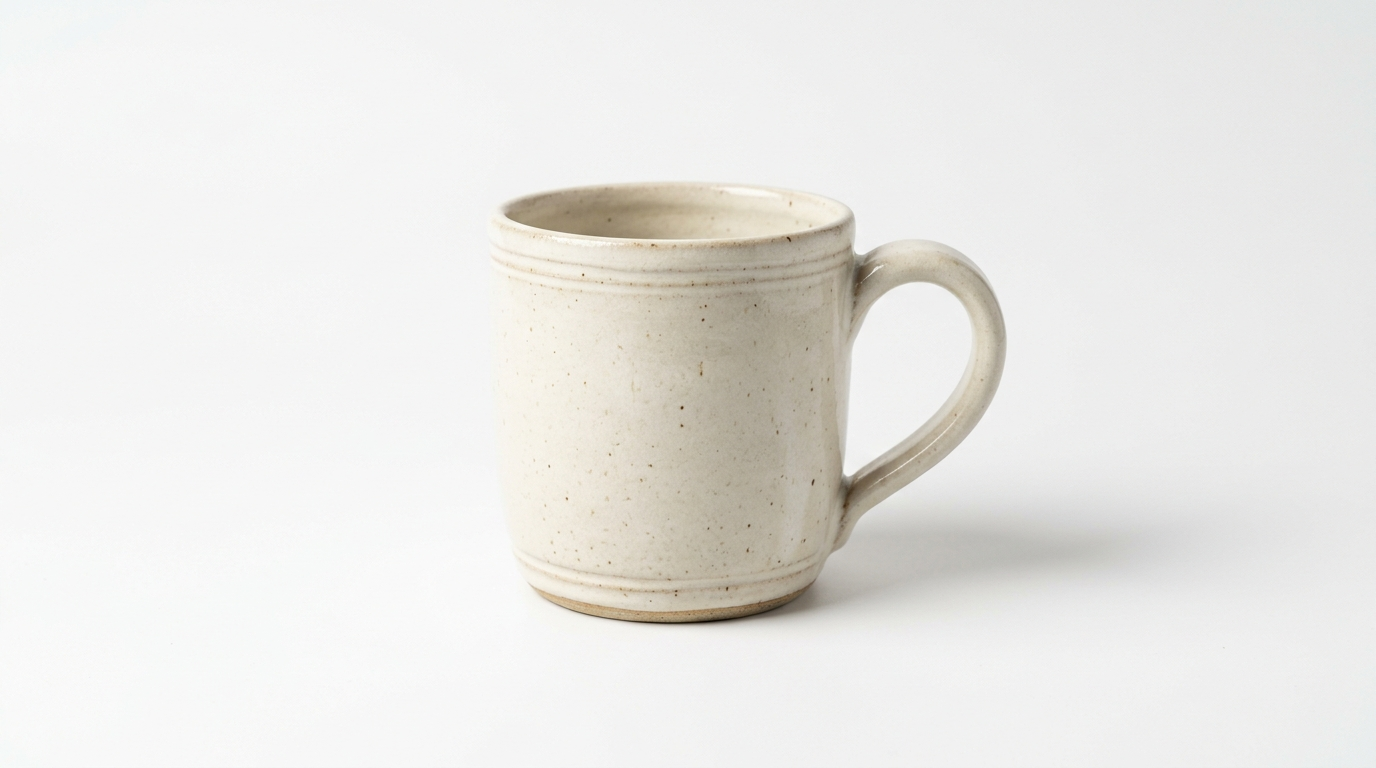
"Studio white-background packshot of a blue ceramic mug, 45-degree angle, softbox lighting, detailed ceramic texture, 1:1 crop, high-res"
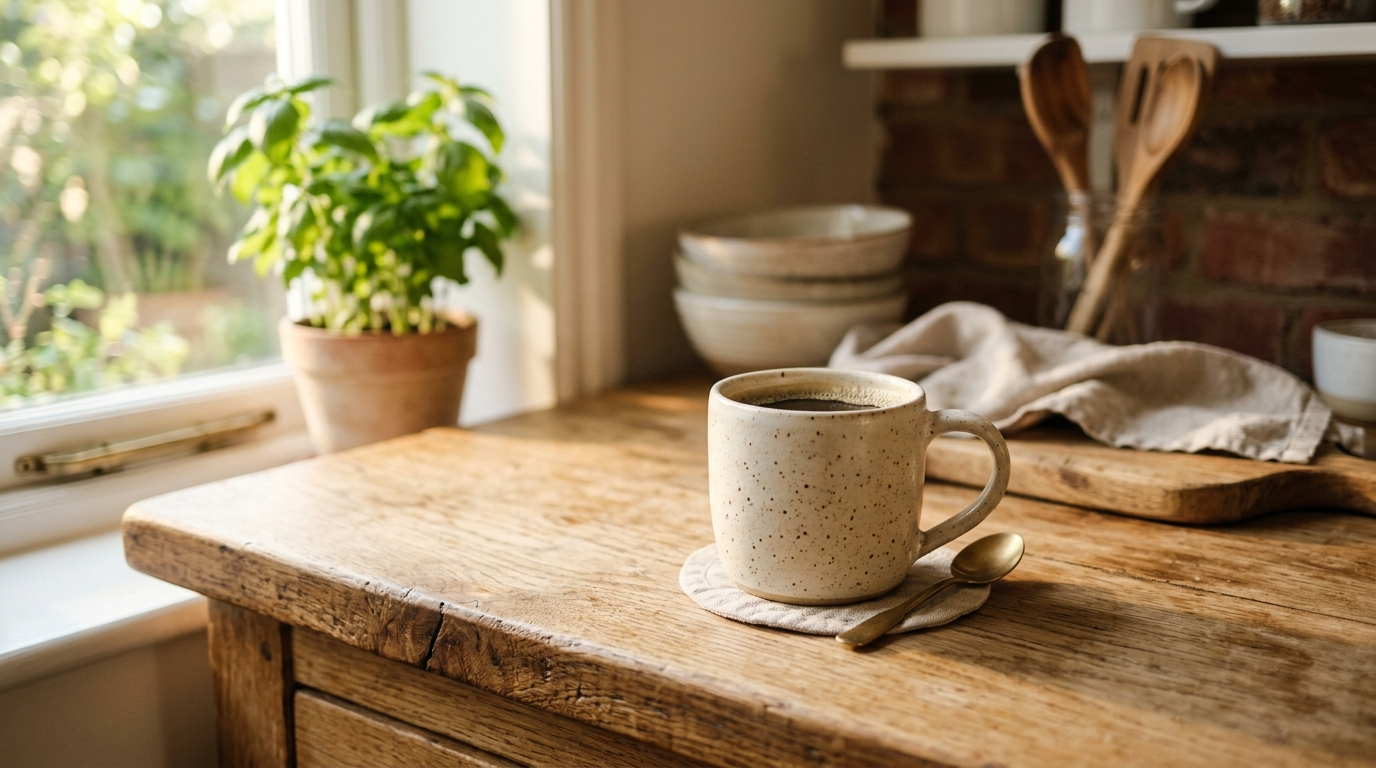
"Lifestyle kitchen scene with a blue ceramic mug on a wooden counter, morning sunlight from left, shallow depth of field, warm tones, room for 4:5 crop overlay"
These examples are safe for ecommerce use (product, props, neutral settings) and work well when combined with batch variants for color and layout changes.
Hands-on: Turn one product photo into a full ad creative set using GoCrazyAI AI Image Generator (step-by-step workflow)?
You can turn one high-resolution product photo into a full ad creative set by uploading it, using an edit prompt to create white-background packshots, generating lifestyle variations, and exporting multiple aspect ratios. GoCrazyAI’s Image Generator supports prompt-driven editing and outputs common ad ratios, so the workflow usually takes minutes instead of days.
Step-by-step workflow (practical):
1) Upload a clean, high-res product photo shot on neutral background. A 2–5 MP image with the product well-lit works best. 2) Use an edit prompt to remove the background and create a studio packshot: e.g., "Remove background, place on pure white, add softbox lighting, maintain shadows for realism." Export 1:1 and 4:5. 3) Create lifestyle variants by instructing the editor: "Place product on a wooden counter in a bright kitchen, morning light, shallow depth of field, natural reflections." Generate 3–6 variants to test composition. 4) Use batch generation to create color or label variants: upload alternate color swatches or ask for 'red, blue, green' variants in one batch run. 5) Export with the correct specs for each channel: 1080x1080 (1:1), 1080x1350 (4:5), 1080x1920 (9:16) and save versions to your library for iteration.
When you need to scale frequently, save the prompt and template as a preset so that other team members can reproduce the exact look. For cost planning and credits, compare per-image credits in GoCrazyAI’s pricing to decide whether batch runs or individual edits make sense for your catalog (see GoCrazyAI Pricing for credits and plans).
Use the GoCrazyAI AI Image Generator to run the steps above: it edits uploaded photos with prompts, generates text-to-image variants, and directly exports ad-ready aspect ratios. Try this workflow to convert a single product shot into a testing-ready ad set in under an hour. AI Image Generator
Hands-on: Create consistent on-brand catalog and landing-page hero images at scale with batch generation and templates?
You can create consistent, on-brand catalog and hero images by building templates (lighting, background, crop) and using batch generation to apply them across SKUs. The core idea: define a single visual system — e.g., white-packshot + hero relight + lifestyle frame — then programmatically generate variants from one reference photo.
Practical tips to scale:
- Create master templates for each use case: listing thumbnail, gallery packshot, and landing hero. Include exact aspect ratio, crop focus, and relighting style.
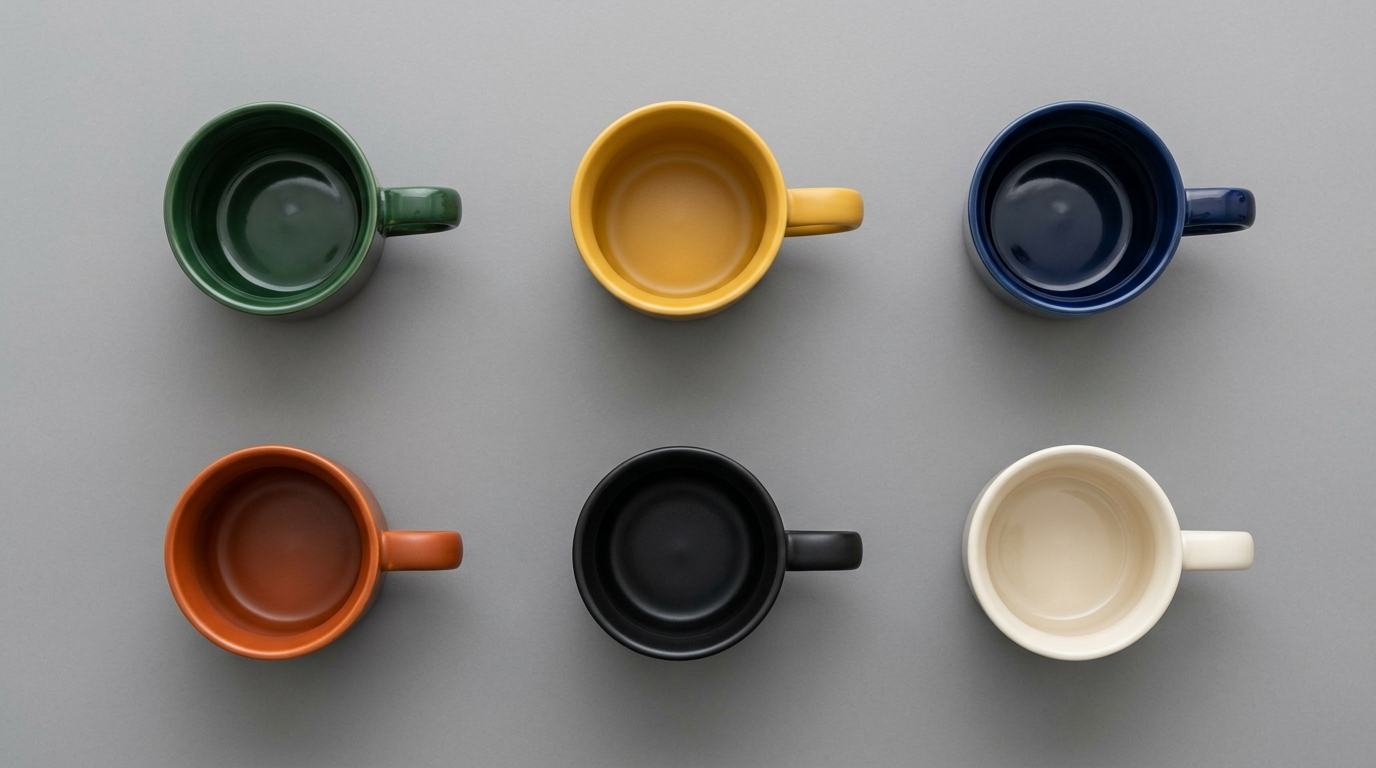
- Use batch prompts to produce color or label variants. For example: "Generate 6 variants: product in black, navy, olive, beige, red, white; consistent studio light; 1:1 crop." Run as one job to keep output consistent.
- Keep a library of approved templates and prompts so retouchers and marketers can reuse them across product families.
This approach reduces the need for reshoots and keeps visual consistency across hundreds of SKUs. Tom’s Guide notes that Batch Generation makes it easy to spin up graphics in bulk, which is exactly the mechanism that drives these scale wins. For final polish, upscaling and relighting tools help maintain crisp hero images at landing-page sizes — consider using an AI upscaler if you need 4K exports for large hero banners (see AI Image Upscaler).
What testing and iterating process improves ad performance: A/B tests, variable generations, and measurement tips?
Testing and iteration improve ad performance by pairing controlled visual variants with clear KPIs: CTR, add-to-cart rate, and ROAS. Run A/B tests that compare white-background packshots versus lifestyle images, and isolate one variable per test (lighting, copy overlay, or composition). Use multiple generated variants for each cell to avoid overfitting to a single creative.
Practical testing steps:
- Create 3 variants per creative hypothesis (e.g., white-bg, lifestyle warm, lifestyle cool). Run them as separate ad sets with equal budgets to compare CTR and CPA.
- Test aspect ratio treatments by serving the same creative cropped to 1:1 and 4:5; platforms often favor 4:5 in feed for higher engagement.
- Track downstream metrics, not just clicks: measure add-to-cart and purchase conversion, because an image that drives clicks but not purchases wastes ad spend.
- Iterate: promote the best-performing shots into retargeting pools and expand with slight creative mutations (color, background, model presence).
Use consistent naming conventions and library tags for generated variants so your analytics team can trace which prompt/template drove which performance outcome. Over multiple tests, you’ll learn which visual systems map to highest ROAS for each audience segment.
What mistakes should you avoid when using AI-generated product shots (common pitfalls)?
Common mistakes with AI-generated product shots include: trusting the generator without quality checks, overfitting on a single successful prompt, and ignoring legal/branding constraints. Each mistake is avoidable with a short checklist and review loop.
Mistake 1 — Skipping quality control: AI can produce realistic textures or reflections that look good at thumbnail size but fail at 2x zoom. Avoid by checking images at the final export size and running a quick pixel-level review or upscaling test.
Mistake 2 — Changing multiple variables at once: If you swap lighting and color at the same time, you won’t know which change improved performance. Isolate variables across A/B tests and keep prompts versioned.
Mistake 3 — Inconsistent branding: Letting different operators or prompt styles drift creates a disjointed catalog. Avoid this by creating locked templates and storing approved presets in your creative library.
Mistake 4 — Ignoring platform specs: Uploading a 16:9 hero as a 1:1 Instagram feed asset can lead to awkward crops. Always export the exact aspect ratio required and preview on the platform.
Mistake 5 — Legal oversights: Don’t generate images that imply endorsements or that recreate identifiable people without rights. Use product-only or licensed-model variants for commercial use.
Each of these is avoidable with a short production checklist (see Implementation checklist below) and a final human review before ad spend goes live.
Frequently Asked Questions
Can AI-generated product shots replace studio photography completely?
AI can replace most routine packshots and many lifestyle images, especially for standard single-object products. For highly textured fabrics, complex reflective surfaces, or bespoke model photography, a hybrid approach (one studio shoot + AI variants) often gives the best balance of realism and scale.
How much does it cost to generate product images with AI?
Costs vary by provider and usage, but AI workflows often reduce per-variant cost to roughly $1–5 when using batch generation and template presets. Compare per-image credits on GoCrazyAI’s pricing page to estimate your catalog costs.
What image sizes and aspect ratios should I export for ads?
Export 1:1 (1080x1080) and 4:5 (1080x1350) for most feed ads, plus 9:16 (1080x1920) for Stories and Reels. Save hero assets at higher resolution (e.g., 1920–3000px wide) for landing pages.
How do I keep product images consistent across hundreds of SKUs?
Use master templates and batch generation. Define lighting, crop, and background presets, then apply them to each SKU via a single reference photo and batch prompts. Store approved templates in your creative library.
Conclusion
AI-generated product shots let ecommerce teams produce more ad and listing images faster and for far less money than repeating photoshoots. Start with one clean product photo, build templates for packshot and lifestyle, run batch variants, and A/B test the winners. If you want to try this workflow, spin up your first frame in the AI Image Generator and iterate on the prompt until the look matches your brand.
Sources
- AI Image Generators for Ecommerce: Top Tools (Shopify blog)shopify.com ↗
- I’ve created thousands of AI images and these are the best AI image generators of 2026 (Tom’s Guide)tomsguide.com ↗
- AI Product Photography for E-Commerce: Replace Your Photo Studio (Softabase guide)softabase.com ↗
- How to Create AI Product Photos for Ecommerce (AdLibrary guide)adlibrary.com ↗
- Best AI Image Generators for Ecommerce Products: The Definitive 2025 Guide (StayModern)staymodern.ai ↗
- Product Content Benchmark (1WorldSync)1worldsync.com ↗
- How Product Images Influence Conversion Rates (ImagePulser blog)imagepulser.com ↗