

AI video generation for creators: practical workflows with GoCrazyAI (2026)
How marketers and creators use AI video generation to ship short-form ads, demo loops, and animated B-roll using GoCrazyAI's Kling, Veo, and Sora models.
AI video generation is the fastest way for product teams and social creators to turn a photo or script into a platform-ready clip. This guide walks you through real, repeatable workflows — from a single product photo to a 9–15s TikTok hook — using the GoCrazyAI AI Video Generator. Start here: AI video generator.
You’ll learn when to pick Kling 2.5 Turbo Pro, Veo 3.1, or Sora 2, practical prompt patterns, export settings for Reels/Shorts, and how to ship high-volume variants without hiring an editor. Each hands-on section shows an explicit step or prompt you can paste into the GoCrazyAI AI Video Generator to get a usable clip within minutes.
Why AI video generation matters for creators in 2026
AI video generation is now a practical production channel for creators and marketers because of two converging trends: model capability and advertiser economics. The global AI video market was estimated at USD 3.86 billion in 2024 and is forecast to grow rapidly through the decade, reflecting both technological maturity and enterprise demand. For creators that means access to tools that can produce platform-grade short-form videos in minutes instead of days.
Advertisers are already moving at pace: industry coverage of IAB research shows broad advertiser adoption of generative AI for video, and reporting indicates many brands are shifting budget toward high-volume, low-cost creative production. As TVTechnology summarized with David Cohen’s quote: “The economics of advertising are being transformed. As the costs of production fall, the opportunities for advertisers multiply.” That’s the key business pressure driving demand: more creative variants, faster iteration, and cheaper testing of hooks and thumbnails.
For indie creators and small teams this shift is practical, not hypothetical. You no longer need a full video edit team to run creative experiments. The GoCrazyAI AI Video Generator routes your requests to top-tier models (Kling, Veo, Sora) and outputs 9:16, 1:1, and 16:9 deliverables — letting product marketers and founders produce TikTok hooks, landing-page demo loops, and tutorial openers at scale without juggling multiple subscriptions.
Choosing the right model: Kling 2.5 Turbo Pro, Veo 3.1, and Sora 2 — which one for which use case
Model choice affects speed, visual style, and the kinds of outputs you can reliably expect. Here’s a concise map to pick the best engine for a job.
- Kling 2.5 Turbo Pro — pick Kling when you need speed and tight product motion. Kling is optimized for fast renders and is a good choice for 3–15s hooks where crisp camera moves and clear details matter. Review coverage of Kling’s latest turbo builds highlights the speed improvements and practical limits around photorealism and longer scenes.
- Veo 3.1 — choose Veo for stylized, cinematic text-to-video when you want more complex scene synthesis and storytelling from text prompts. Public reporting positions Veo as a major Google entrant that excels at coherent, multi-element compositions; use it when your prompt asks for distinct staging, depth, or camera language.
- Sora 2 — Sora is a strong pick for story-mode sequences and multi-shot continuity. If you’re building a tutorial opener or a sequence that needs consistent character or object treatment across shots, Sora’s architecture helps keep elements coherent across cuts.
Practical tip: use Kling 2.5 Turbo Pro for quick iteration and testing multiple hooks, then bump the winning concept into Veo 3.1 or Sora 2 for a higher-fidelity or longer cut. The GoCrazyAI AI Video Generator lets you route the same prompt to any of these models from one credit pool, removing the friction of managing multiple vendor accounts.
Hands-on: Turn a single product photo into a 9–15s TikTok hook using GoCrazyAI AI Video Generator
Direct answer (40–60 words): Use image-to-video in the GoCrazyAI AI Video Generator with Kling 2.5 Turbo Pro to animate a product photo into a fast hook — add a short motion script and a two-line text overlay for retention, then export as 9:16 for TikTok or Reels.
Step-by-step worked example (concrete walkthrough):
1) Upload: Open the GoCrazyAI AI Video Generator and upload a clean product photo (white background preferred). Select Kling 2.5 Turbo Pro as the model and choose 9:16 framing.
2) Prompt: Paste this prompt into the text field: "Animate this product into a quick 12-second hook: 0–3s slow push-in, 3–7s 45-degree reveal with soft shadow, 7–10s a subtle product rotate, 10–12s zoom to logo and soft vignette. Maintain photoreal texture and crisp edges. Add cinematic 35mm lighting." Kling’s speed means you’ll get a draft rapidly — usually far faster than text-based models for the same short duration. (If you prefer a stylized look, re-run the same prompt on Veo 3.1.)
3) Text overlay & pacing: Use the caption field to add a 2-line hook: "New: tiny charger, huge power — 30W in your pocket." Keep each caption chunk under 3 seconds to match attention spans.
4) Generate and iterate: Render a first pass, then tweak camera motion intensity or lighting. Kling 2.5 Turbo Pro is optimized for quick iteration, so try 3 variants (fast push, slow reveal, product spin) and A/B in an ad group.
5) Polish: Route the exported clip to GoCrazyAI Media Mixer (/ai-video-edit) to add a short music bed from the AI Song Generator (/ai-music) and a voiceover from AI Voices (/ai-voice). Now you have a TikTok-ready hook in under an hour.
Why this works: a single still contains all the product detail you need; animating the photo with believable camera moves creates perceived production value without a photoshoot or motion-rig.
Hands-on: Build a looping product-demo video for a landing page (image-to-loop + timing tips)
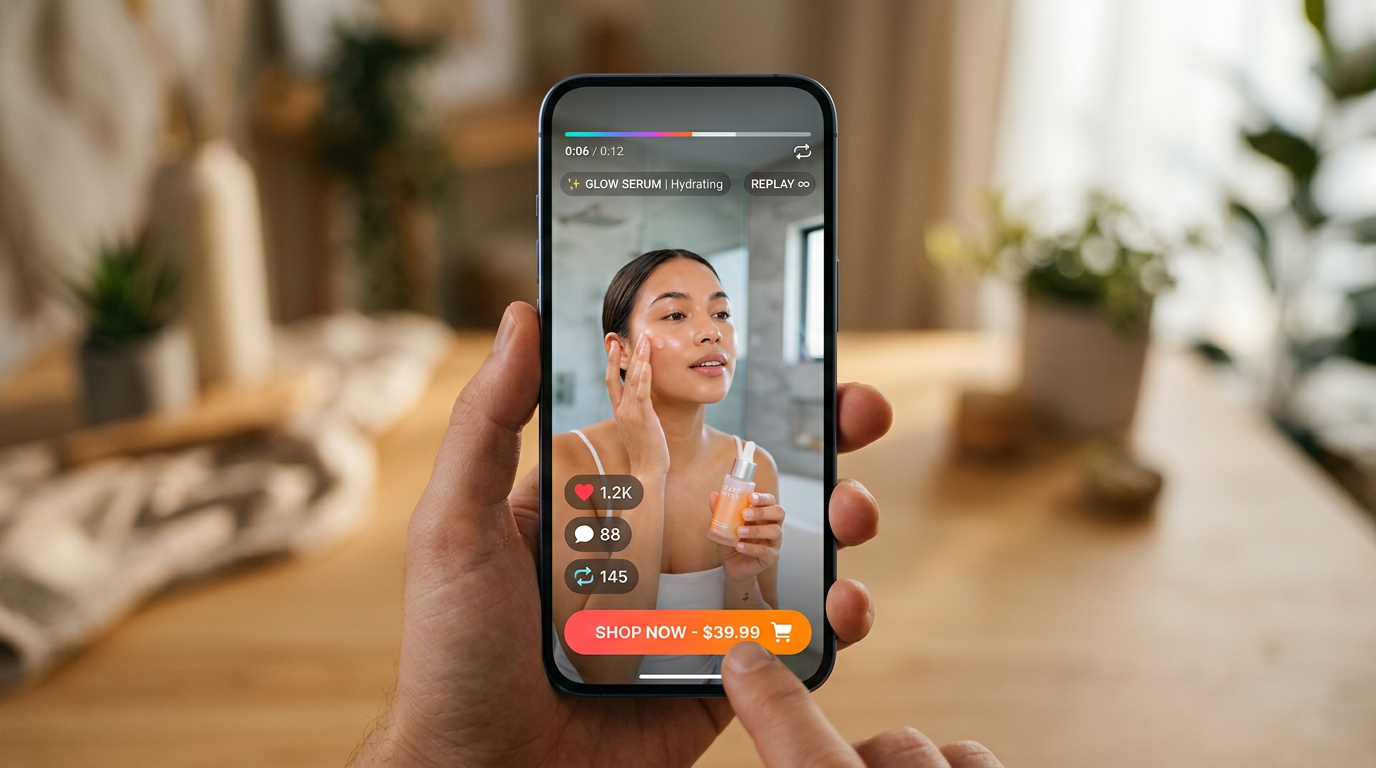
Landing pages and ecommerce detail pages convert better when motion communicates product behavior. Short looping demo tiles (3–7 seconds) are ideal because they draw attention without adding load time or audio complexity.
Workflow and timing rules:
- Choose framing: For a hero loop use 16:9 or 1:1 depending on layout. A 1:1 tile sits well in product galleries; 16:9 works for hero headers.
- Keep it short: 3–7 seconds is the sweet spot for a loop. Design your animation so the end state naturally matches the start (e.g., a rotation that completes a 180–360° turn or a repeated press/release). That prevents visible jumps when the video loops.
- Smooth crossfade: Export a slightly longer clip (e.g., 6s) and create a 0.25–0.5s crossfade at the loop point inside GoCrazyAI Media Mixer if your site supports MP4 with a tiny fade. This masks micro-jumps from generative synthesis.
Practical example using GoCrazyAI AI Video Generator:
- Upload three photos if you have them (product closed, product open, detail close-up). Choose Kling 2.5 Turbo Pro for a crisp, fast render and ask for a 6s loop: "6s seamless loop: 0–2s slow reveal; 2–4s demo action (open lid), 4–6s pull back to original framing — ensure loop continuity and consistent lighting." Generate and inspect the first frame/last frame for continuity.
- If the loop has a visible mismatch, switch to Sora 2 and request continuity across frames — Sora is better at preserving object identity between shots.
- Export as H.264 MP4 at 1080p for web; if you need pixel-perfect clarity, run the exported still through GoCrazyAI Image Upscaler (/image-upscaler) before image-to-video to maximize texture fidelity.
This approach drives conversions: short, silent motion emphasizes product function without demanding attention, and the GoCrazyAI AI Video Generator simplifies creating multiple variants for A/B testing.
Create animated B-roll and story-mode openers for YouTube Shorts and tutorials
Tutorials and Shorts often need supporting B-roll to illustrate steps without filming every angle. AI-generated animated B-roll can match a script or narration and fill gaps with relevant motion.
How to structure a story-mode opener: start with an attention-grabbing 3–6s opener, follow with 8–20s of sequential step visuals, and finish with a branded 3–5s call-to-action tile. Use Sora 2 when you need character or object continuity across those mini-shots; use Veo 3.1 when you want cinematic lighting or stylized set dressing.
Script-to-B-roll pattern:
- Break your script into 3–5 short visual beats (each 4–8s). For each beat, create a short prompt describing subject, camera move, and lighting. Example beat prompt: "Close-up of hands assembling a portable speaker, top-down shot, quick 0.8s cut-ins, warm studio light, shallow depth of field."
- Batch-generate the beats in GoCrazyAI AI Video Generator, then stitch them in Media Mixer (/ai-video-edit) with hard cuts or subtle dissolves. Use AI Song Generator (/ai-music) to produce a custom backing track that crescendos into the tutorial’s main point.
- For B-roll that matches narration, export captions from your script and use them to align cuts in the editor — Kapwing, Vizard, and others have demonstrated the value of script-to-b-roll automation, and you can replicate that workflow inside GoCrazyAI by generating short clips per script sentence and lining them up in Media Mixer.
This method yields coherent tutorials faster than shooting multiple takes. It also drastically reduces turnaround when you need to localize: swap Voice with AI Dubbing (/ai-dubbing) or clone a local narrator via AI Voices (/ai-voice).
Prompting, assets, and export settings that maximize quality and platform performance (step-by-step)
Direct answer (40–60 words): Use tight, explicit prompts that specify camera moves, lighting, texture fidelity, and timing; upload clean high-resolution reference images; export the right framing and bitrate for each platform, then finalize audio and text in GoCrazyAI Media Mixer.
Detailed best practices and step-by-step tips:
1) Prompt specificity: Always include duration, camera action, lighting, color temperature, and desired texture fidelity. Example: "12s, 9:16; 0–3s push-in, 3–8s reveal rotate 45°, 8–12s close-on-logo, cinematic 35mm lighting, retain photorealistic texture." Specificity reduces hallucination and improves render usefulness.
2) Reference assets: Upload a high-res PNG or RAW file for image-to-video jobs. If you have a style frame, upload it to keep color and composition consistent. Use GoCrazyAI Image Relighting (/relight-image) first if you need a different time-of-day or studio look.
3) Framing & export: For TikTok/Reels choose 9:16 at 1080×1920; for Instagram square choose 1:1 1080; landing pages often use 16:9 1920×1080. Match platform bitrates: 8–12 Mbps H.264 is a good starting point for 1080p web delivery.
4) Iteration cadence: Start with Kling 2.5 Turbo Pro for 1–3 fast drafts. Lock the best timing and move to Veo 3.1/Sora 2 for any higher-fidelity pass. Because GoCrazyAI unifies model selection, this swap is one click.
5) Post-export polish: Add voiceover from AI Voices (/ai-voice) and background music from AI Song Generator (/ai-music). Use the Media Mixer (/ai-video-edit) to place subtitles, adjust levels, and export variants in the required aspect ratios. For pixel-critical assets consider the Image Upscaler to improve source textures before animation.
6) Quality caveats: Models can hallucinate small text or logos and struggle with very long continuous shots. Keep clips short and verify any on-screen claims or labels manually.
Following these steps gives the best balance of speed, quality, and platform performance when using AI video generation for marketing assets.
Rights, safety, and integrating GoCrazyAI into your content production workflow
Rights and safety are practical concerns when scaling AI-generated video. Use original product photography or licensed assets to avoid IP issues. When you generate synthetic people or likenesses, follow platform and legal guidance — avoid using celebrity likeness without license and be mindful of local publicity rights.
Models also have known failure modes: hallucinated text, inconsistent object details across frames, and limits to long takes. Public reviews and model notes highlight these constraints, so design around them: short, looping clips and clearly staged product shots minimize problems. For advertiser workflows, the business case is clear: production cost reductions let advertisers scale creative production, but you must maintain brand safety and QA.
Operational integration checklist:
- Templates: Create template prompts and export presets in GoCrazyAI for each campaign (TikTok hook, demo loop, tutorial opener). This keeps output consistent across creators.
- Batch generation: Use GoCrazyAI credits and batching to produce 10–30 variants quickly, then test at low spend. For cost planning, reference GoCrazyAI Pricing (/credits) to choose a plan that matches your expected volume.
- Post-production handoff: Use Media Mixer (/ai-video-edit) to add final voiceover, subtitles, and music, then publish. If you localize, AI Dubbing (/ai-dubbing) lets you translate and preserve voice characteristics.
- QA checklist: Verify on-screen text, legal claims, and product depictions. If a model hallucinates, re-run with tighter prompts or switch model type (e.g., Kling for product fidelity).
Following this workflow you can reliably integrate AI video generation into a campaign stack while controlling quality and legal risk. The GoCrazyAI AI Video Generator’s multi-model routing and export formats make it an efficient hub for this pipeline.
Frequently Asked Questions
How long does it take to generate a short AI video?
With Kling 2.5 Turbo Pro you can get a usable 9–15s draft in minutes; more complex Veo or Sora renders may take longer depending on length and resolution.
Can I reuse the same prompt across Kling, Veo, and Sora?
Yes — GoCrazyAI routes the same prompt to different models so you can iterate quickly. Expect style and continuity differences between engines.
Are AI-generated videos safe to run as ads?
They are, if you follow brand safety checks: verify on-screen claims, avoid unlicensed likenesses, and QA any generated text or logos before launch.
What aspect ratios should I export for cross-platform testing?
Export 9:16 for Reels/TikTok, 1:1 for Instagram posts, and 16:9 for landing pages and YouTube; produce a short vertical hook and a widescreen demo from the same source clip.
Conclusion
AI video generation removes the biggest bottleneck for high-volume short-form production: time. For fast iteration and reliable product motion, use the GoCrazyAI AI Video Generator with Kling 2.5 Turbo Pro for drafts and move winners to Veo 3.1 or Sora 2 for higher-fidelity passes. Save template prompts, batch your variants, and finalize audio in GoCrazyAI Media Mixer to ship polished clips without a full edit team.
Open the AI Video Generator, drop in your prompt or a reference image, and ship your first clip in your next break.
Sources
- AI Video Market Size, Share & Trends | Grand View Researchgrandviewresearch.com ↗
- Google Veo, a serious swing at AI-generated video, debuts at Google I/O 2024 — TechCrunchtechcrunch.com ↗
- Veo (text-to-video model) — Wikipedia (model background and timeline)en.wikipedia.org ↗
- Sora (text-to-video model) — Wikipedia (OpenAI Sora background)en.wikipedia.org ↗
- IAB / Advertiser findings reported by TVTechnology — Nearly 90% of advertisers will use Gen AI to build video ads (coverage of IAB research)tvtechnology.com ↗
- Kapwing AI B-Roll Generator (example of an existing creator workflow for AI B-roll)kapwing.com ↗
- Vizard.ai — AI B-Roll and tools for short-form videosvizard.ai ↗
- Tom’s Guide hands-on with Kling 2.5 Turbo (model performance review)tomsguide.com ↗