


Image to Video Product: Turn One Photo into High‑Performing Short-Form Ads
Learn how to convert a single product photo into TikTok-ready videos using GoCrazyAI AI Video Generator. Two step-by-step workflows, prompts, and optimization tips.
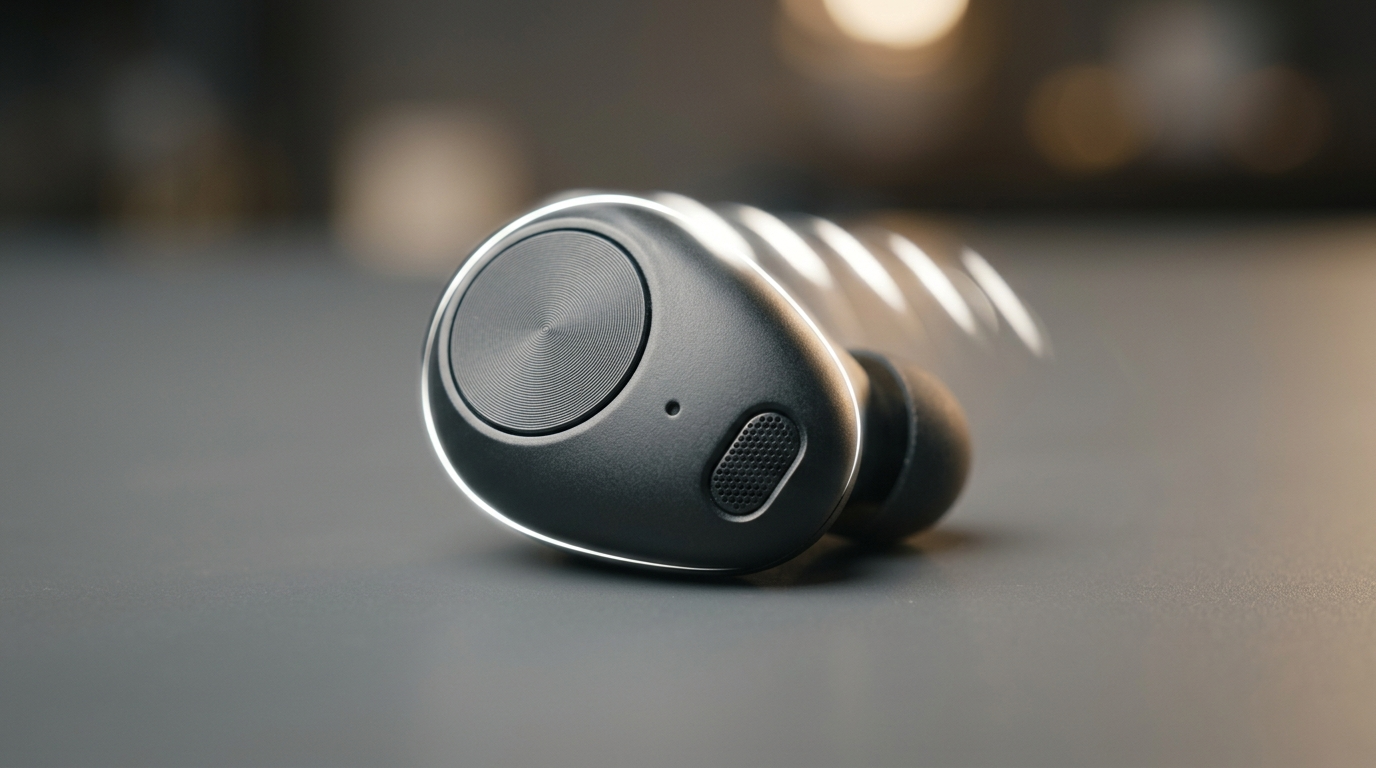
The first scroll stops on motion. Imagine a shopper flicking through TikTok: one second a still photo, the next a short clip where the product rotates, glows, and demonstrates a single benefit — and they tap. That small change from static to motion is exactly why the image to video product approach outperforms traditional image posts. This guide shows e-commerce founders and creators how to turn one product photo or a short prompt into publishable short-form video in minutes using the AI video generator.
You’ll get: real KPI-backed reasons to switch from static photos, two hands-on workflows that ship results fast, prompts and motion recipes that convert, and platform export settings so your clips look native on TikTok, Reels, and Shorts. Along the way we use the GoCrazyAI AI Video Generator: “Turn a text prompt or a still image into cinematic AI video using Kling 2.5 Turbo Pro, Veo 3.1, and Sora 2 — no editing skill required.” The workflows include a 15s TikTok hook made from one product photo and a batch demo-loop workflow for six quick landing page clips.
Why animating product photos is the fastest path to more clicks (data-backed)
Short-form motion consistently beats static creative for attention and engagement. Platform benchmark roundups show TikTok/Reels-style video posts deliver materially higher interaction than images — in some recent analyses short-form posts drove 3x–5x the engagement of still images. For marketers, that multiplier matters: higher CTRs and watch-through can drop effective CPAs and improve ad delivery.
Two practical consequences follow. First, you don’t need a full studio to compete: converting an existing product photo into a short video can produce the same attention lift that an expensive shoot would, at a small fraction of the cost. Second, speed and iteration win: brands that can test 10 creative variations per week versus 1 will learn faster which hooks actually convert.
Industry reports and vendor case studies also point to platform-level incentives: algorithms prefer native short-form clips, and platforms are actively building photo-to-video tools to make motion the default. That structural shift means optimizing static inventory into short videos is not just a creative hack — it’s a strategic lever for traffic and sales. See an overview of short-form dominance here: "Short-Form Video Dominance" (Youflu) https://www.youflu.com/blog/short-form-video-dominance.
Choosing the right creative goal: demo loop, TikTok hook, or animated B‑roll
Before you animate, pick the goal. Different motion serves different funnel stages and ad placements.
- Demo loop (landing pages & product carousels): Short 4–8s looped clips that highlight a single product feature (zipper, clasp, screen interaction). Demo loops are designed to sit on product pages, in carousel ads, or as thumbnails. They should be smooth, repeat cleanly, and focus on a single tactile detail.
- TikTok hook (social and paid feeds): 10–20s vertical clips with a bold opening (first 0.5s), quick pacing, and a single attention-grabbing idea — a transformation, a surprise, or a how-to beat. Hooks prioritize curiosity and watch-through.
- Animated B‑roll (tutorials and explainers): 15–45s clips that provide supporting visuals — animated product photos, ingredient callouts, or motion backgrounds behind voiceover.
Each goal maps to specific treatment choices: framing, motion intensity, and pacing. For example, a demo loop often benefits from subtle parallax and a looping camera arc; a TikTok hook benefits from faster cuts, punchy text overlays, and a 0.5s visual anchor. In the workflows below we’ll build a 15s TikTok hook and a set of 6 × 6s demo loops to demonstrate these differences practically.
How GoCrazyAI AI Video Generator works (models, inputs, and outputs)
GoCrazyAI AI Video Generator centralizes several frontier models behind a simple interface. The product’s one-liner sums it up: “Turn a text prompt or a still image into cinematic AI video using Kling 2.5 Turbo Pro, Veo 3.1, and Sora 2 — no editing skill required.” That description is accurate: the generator accepts two primary inputs — a text prompt or a still reference image — and routes work to model backends best suited to your intent.
Key capabilities that matter to creators:
- Image-to-video: Animate a single still photo into motion (parallax, rotations, character micro-motion) without frame-by-frame keyframing.
- Multi-model routing: Choose Kling for stylized motion, Veo for cinematic pans and natural camera moves, and Sora for character/face motion and gesture-driven clips.
- Output presets: Produce 9:16 vertical files for TikTok, 1:1 for Instagram, or 16:9 for YouTube in one render pass.
The generator is designed for speed: upload or paste an image, pick a model and preset, and render a short clip. Because it supports multiple models from one credit pool, you avoid juggling vendor subscriptions while testing different creative directions. The generator is ideal for indie creators, marketers without a full video team, and founders producing product demos.
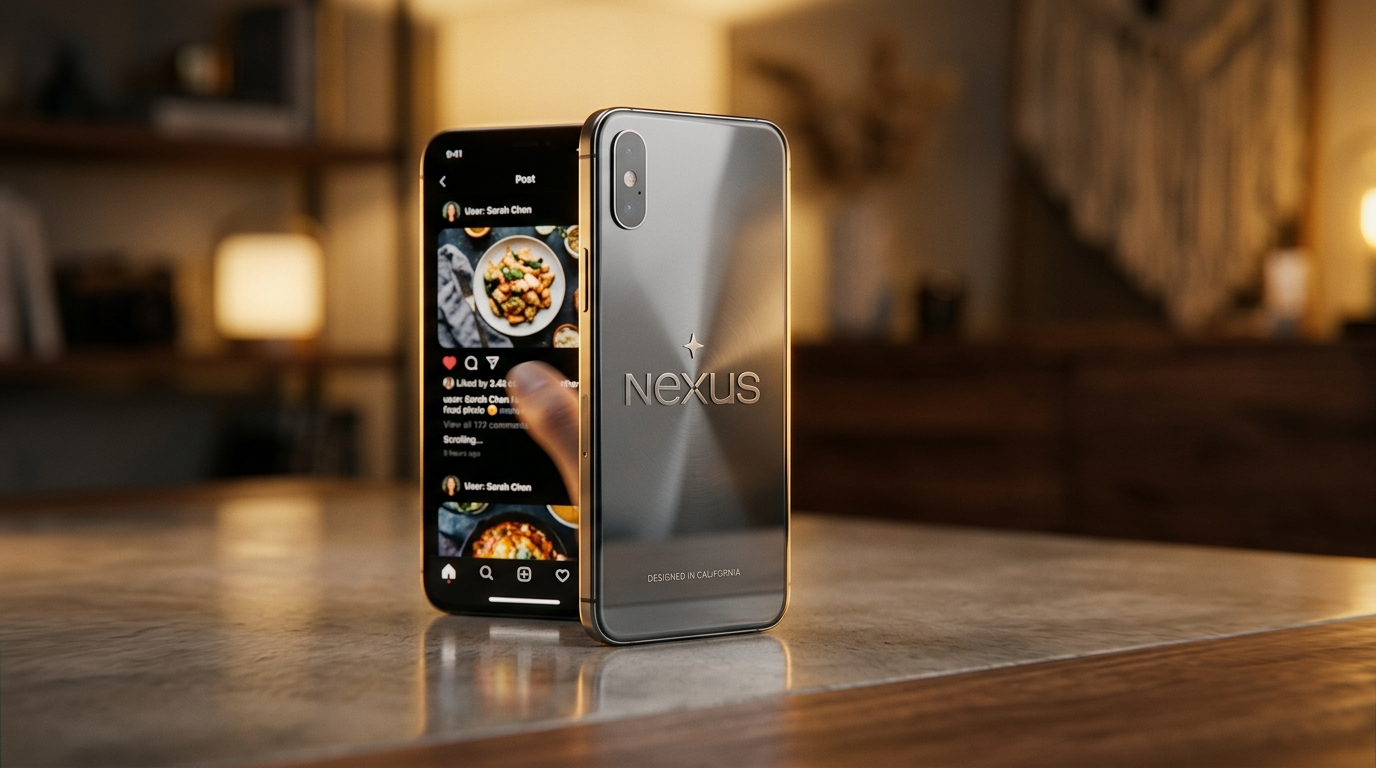
Workflow A — From single product photo to 15s TikTok hook (step‑by‑step)
This hands-on workflow turns one product photo into a 15s vertical hook that opens with a 0.5s visual arrest and finishes with a persuasive product benefit.
Why it works: fast iteration, one clear message per clip, and platform-optimized pacing.
Step-by-step (15–25 minutes total):
- Choose your image and goal: pick a high-resolution product photo with clear subject separation and a neutral background.
- Open the GoCrazyAI AI Video Generator and select Sora 2 for character or micro-motion and Veo 3.1 for cinematic camera moves. Remember the product one-liner: “Turn a text prompt or a still image into cinematic AI video using Kling 2.5 Turbo Pro, Veo 3.1, and Sora 2 — no editing skill required.”
- Prompt: write a concise direction — e.g., “Vertical 15s TikTok hook: tight 0.5s zoom-in on product logo, then 6s reveal of product rotating with glossy specular highlights, final 8s quick demo of product being used with bold caption ‘Works in 3s’ — upbeat tempo.” Include style keywords: “cinematic, high-contrast, natural shadows.”
- Model & preset: route the pan and camera moves to Veo 3.1, and set micro-motion (fabric flutter, small hand interaction) to Sora 2. Use a TikTok 9:16 export preset.
- Render and review: download the MP4. If needed, re-render with small prompt tweaks (faster cut, stronger highlight) — re-renders are fast, enabling quick A/B tests.
- Polish: add soundtrack or voiceover using GoCrazyAI AI Music or AI Voices and finalize in the GoCrazyAI Media Mixer (/ai-video-edit) with captions for accessibility.
Result: a 15s vertical hook created with mostly prompts and model selection, not an editing timeline. This workflow demonstrates how a single-photo animation can be produced quickly and at low cost compared to reshoots.
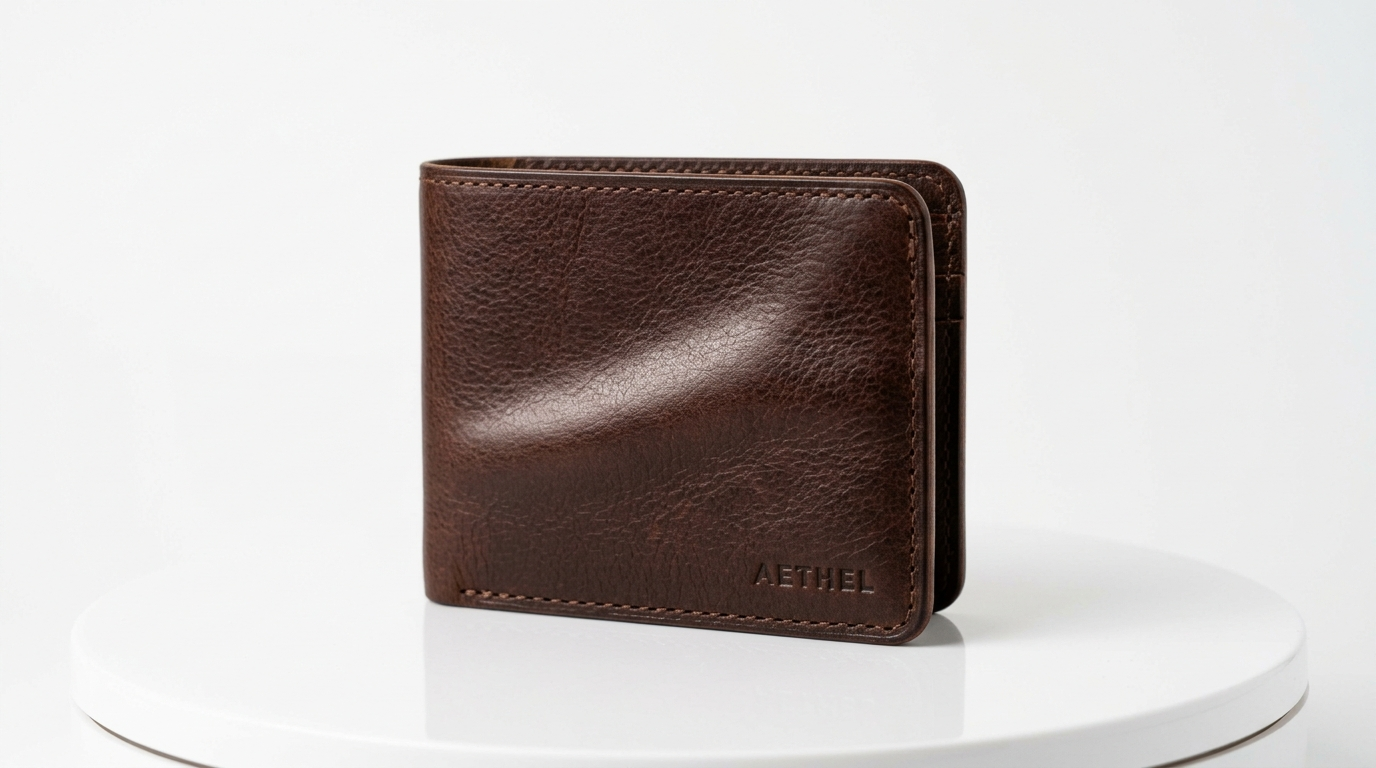
Workflow B — Batch-create product demo loops for your landing pages and ads
Batch production scales learning. Here’s a workflow for six quick 6s demo loops you can drop into product pages, carousel ads, or ad rotation buckets.
Why batch: demo loops are short, repeatable, and ideal for bulk generation — batch workflows minimize per-asset cost and let you test small creative variants at scale.
Batch steps (estimate: 30–60 minutes for 6 renders):
- Prepare assets: choose one hero photo per SKU. If needed, run images through the GoCrazyAI Image Upscaler (/Image-upscaler) to ensure crisp 4K crops for high-quality renders.
- Create a template prompt for Kling 2.5 Turbo Pro (stylized motion). Example template:
- “6s loop, soft loop seam, subtle 10° y-axis rotation, gentle parallax, highlight sweep, isolated product on white background, cinematic lighting.”
- In GoCrazyAI AI Video Generator, select Kling 2.5 Turbo Pro for stylized motion and the vertical/1:1 preset depending on placement. Kling produces stylized camera arcs that render beautifully as product loops.
- Batch render: upload the six images, paste the template prompt, choose the loop seam option, and queue renders. Monitor and download MP4s.
- Export presets: for landing pages use 1:1 or 16:9 cropped variants; for social ads export 9:16. The generator can emit multiple aspect ratios from the same prompt, simplifying delivery.
- Optional polish: add a soft music bed via the AI Song Generator (/ai-music) or quick voice labels via AI Voices (/ai-voice) and finalize in the Media Mixer (/ai-video-edit).
This workflow replaces time-consuming reshoots with fast batch edits and keeps per-video costs low so you can test dozens of variations without breaking the budget.
Creative prompts, motion recipes, and quick settings that drive conversions
Prompts are the new camera language. Use clear, outcome-focused instructions and a short motion recipe to get repeatable results.
Motion recipes to try (copy/paste friendly):
- Clean demo loop: “6s loop, smooth 360° y-rotation, loop seam at 0.5s, soft specular highlight sweep, neutral studio lighting.”
- Product punch hook: “15s vertical, 0–0.5s snap zoom to logo, 0.5–6s fast reveal spin, 6–15s usage demo with quick 0.4s cuts and captioned benefits.”
- Lifestyle B-roll: “12s slow cinematic pan, shallow depth of field, subtle hand interaction, golden-hour relight.”
Quick settings that improve conversion:
- First 0.5s anchor: ensure something visually arresting in the first half-second (logo, bright color, motion shock).
- Loop seam: use the seamless loop option for demo loops so playback feels natural.
- Lighting recipe: “specular highlight + soft rim light” gives products a premium feel.
Three practical prompt tips:
- Be explicit about seams if you need loops. 2. Name the model when you want a specific aesthetic (Kling for stylized arcs, Veo for camera moves, Sora for micro-motion). 3. Request multi-aspect outputs in the same render to avoid re-uploads.

Platform optimization: aspect ratios, first-0.5s hooks, captions and export presets
Deliver the right aspect, right away. Platform context drives creative choices.
Aspect ratios and placement:
- TikTok/Reels: 9:16 vertical. Prioritize the center third of the frame and safe text margins for captions and CTAs.
- Instagram feed and landing pages: 1:1 or 4:5 for better on-page density.
- YouTube Shorts: 9:16 or 16:9 crop depending on repurposing strategy.
The first 0.5s matters: algorithmic ranking and human attention both react to an immediate visual anchor. For product clips, that could be a rapid logo zoom, a surprising reveal, or an extreme close-up of a tactile feature.
Captions and accessibility: add hard captions — many users watch on mute. Use short, punchy copy that repeats the hook and the CTA.
Export presets in GoCrazyAI let you output multiple framed versions in one render. For speed, request 9:16 + 1:1 in the render dialog; then finalize captions and music in the Media Mixer (/ai-video-edit). These small optimizations increase reach and decrease rework.
Measuring impact: KPIs to track and experiments to run with GoCrazyAI outputs
Measure both attention and downstream value. Track these KPIs for short-form product clips:
- View-through rate (VTR) — percent of viewers who watch to completion. Short hooks should aim for >50% in organic feeds.
- Click-through rate (CTR) — for paid ads, CTR against control (static photo) is the immediate conversion signal.
- Add-to-cart (ATC) lift and post-click conversion — the real business impact.
Experiment ideas (numbered so you can run them quickly):
- A/B creative: static photo vs. animated product (same copy) to measure CTR and CPA delta.
- Hook testing: test three first-0.5s anchors (logo zoom, close-up, surprise reveal) across the same audience segments.
- Aspect experiments: 9:16 vs 1:1 on the same creative to find best placement mix.
Because GoCrazyAI renders quickly and supports batch output, run 6–12 tests per week. Small iterative wins compound into meaningful improvements in ad delivery and organic reach.
Best practices, legal considerations, and next steps to scale video production
Best practices:
- Start simple: one clear product benefit per clip and one CTA. Complexity kills short-form performance.
- Standardize templates: use consistent motion recipes and caption styles so you can measure creative variables cleanly.
- Reuse elements: export multiple aspect ratios and re-balance timing instead of remaking assets from scratch.
Legal and IP considerations:
- Use owned photos or ensure license rights for reference images. When using model-generated assets, confirm your usage rights under the platform terms.
- For music and voices, use copyright-free or licensed assets. GoCrazyAI’s AI music and voice tools (/ai-music and /ai-voice) provide options built for creators, but always review the licensing policy for commercial use.
Next steps to scale:
- Establish a 2-week cadence: generate 20 variations (mix of hooks and loops), test them, and double down on the winners.
- Build a render library: store prompts, motion recipes, and export presets so teammates can replicate winning formulas.
- Integrate with paid testing: route top performers into small-budget paid campaigns and measure CPA differences.
These steps let small teams operate like larger creative shops without hiring a full video department.
Frequently Asked Questions
How quickly can I turn one product photo into a publishable TikTok clip?
With an image-to-video workflow you can go from photo to final 9:16 MP4 in under 30 minutes, including a quick soundtrack and captions when you use GoCrazyAI AI Video Generator and the Media Mixer.
Which model should I pick for product motion?
Use Veo 3.1 for cinematic camera moves and pans, Sora 2 for character or micro-motion, and Kling 2.5 Turbo Pro for stylized demo loops — all available inside the AI Video Generator.
Will animated photos look cheap compared to real video?
No — with the right lighting recipes, specular highlights, and subtle motion recipes you can achieve premium-looking clips that outperform static images for a fraction of shoot cost.
Conclusion
Animating product photos is the fastest lever most e-commerce teams haven’t fully exploited: you keep creative control, slash per-asset cost, and dramatically increase attention by moving from stills to short-form clips. Start by picking one hero SKU, run the 15s hook workflow, and batch six demo loops for your product pages — then measure CTR and ATC lift. When you’re ready to create, open the AI Video Generator, drop in your prompt or a reference image, and ship a clip in your next break.
Sources
- Short-Form Video Dominance: Why TikTok & Reels Crush Static Posts | Youfluyouflu.com ↗
- TikTok Launches AI Tool to Animate Photos into Short Videos (TechWeez, May 2025)techweez.com ↗
- Product Shots to Video AI Generator | TensorShotstensorpix.ai ↗
- Image to Video: Turn Photos into Marketing Videos | Topviewtopview.ai ↗
- Short-Form Video Statistics for 2026: Platform Benchmarks (Shno)shno.co ↗
- Turn Product Photos into TikTok Videos: E-commerce Guide | PixelMotionpixelmotion.io ↗
- Short-Form Video Strategy: Shorts vs TikTok vs Reels (DigitalApplied)digitalapplied.com ↗
- Image to Video AI: Animating Product Photos for Social Media (PhotoAIStudio)photoaistudio.com ↗
- Shorts on the Rise: Assessing the Effects of YouTube Shorts on Long-Form Video Content (arXiv)arxiv.org ↗